



Four methods to format superscript (x²) and subscript (H₂O) in PowerPoint on PC and Mac – from a two-key shortcut to one-click toolbar buttons. Below is also a trick most guides skip: how to adjust the exact offset and size of the raised or lowered text.
Quick Reference
| Goal | PC Shortcut | Mac Shortcut | Alternative |
| Superscript | Ctrl + Shift + = | ⌘ + Shift + = | Font Dialog → Superscript |
| Subscript | Ctrl + = | ⌘ + = | Font Dialog → Subscript |
| Toggle off | Same shortcut again | Same shortcut again | Uncheck in Font Dialog |
If shortcuts are all you needed, you’re done. For finer control, a persistent toolbar button, or a way to insert symbol characters, read on.
Method 1: Keyboard Shortcuts (Fastest)
1. Select the character(s) you want to raise or lower.
2. Ctrl + Shift + = for superscript, or Ctrl + = for subscript.
3. To undo, select the same text and press the shortcut again – it toggles off.
Keyboard note: On many keyboards the = and + share the same physical key. That is why some sources write the superscript shortcut as “Ctrl + Shift + +” – it is the same command. The subscript shortcut is sometimes listed as “Ctrl + +” for the same reason. If a shortcut does not respond, make sure you selected the text first: PowerPoint will not superscript an entire text box in one go – only highlighted characters.
Method 2: Font Dialog + Offset Adjustment
1. Select the target text.
2. On the Home tab, click the small arrow in the bottom-right corner of the Font group to open the Font dialog.
3. Under Effects, check Superscript or Subscript.
4. Click OK.
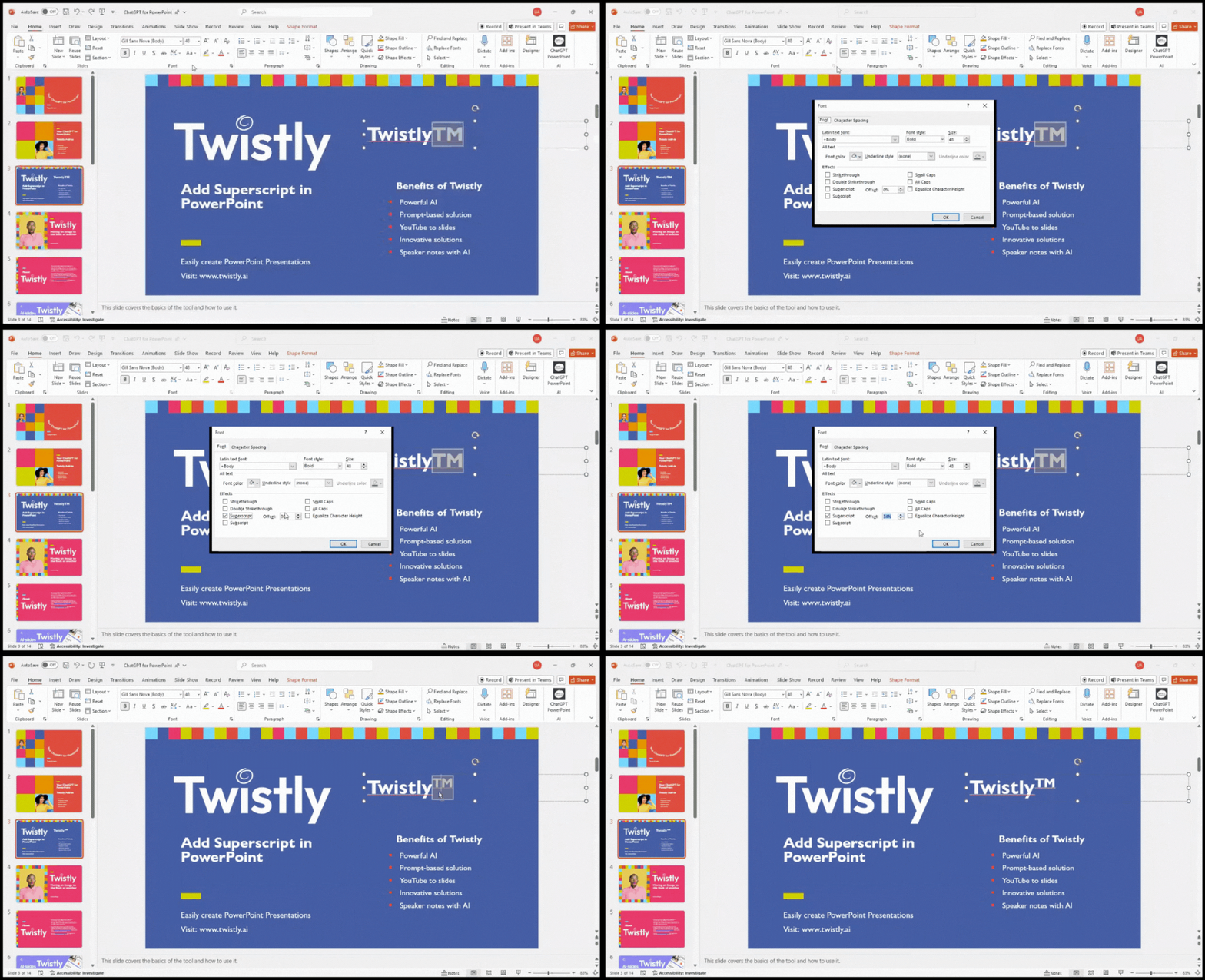
The offset trick most guides miss. Next to the Superscript / Subscript checkbox there is an Offset field (default is 30% for superscript, –25% for subscript). This controls how far above or below the baseline the text sits. A higher number pushes the text further from the baseline, a lower number keeps it closer. You can also change the font size of the selected text before applying the effect – PowerPoint does not force a fixed size reduction, so you decide how small or large the formatted characters appear. This is especially useful when the default offset makes a formula look cramped or when a trademark symbol overlaps an ascender.
Method 3: Quick Access Toolbar (One-Click Access)
If you format formulas or footnotes regularly, add Superscript and Subscript buttons to the Quick Access Toolbar (QAT) so they are always visible – no dialog, no shortcut to memorize.
1. Right-click anywhere on the PowerPoint ribbon → Customize Quick Access Toolbar.
2. In the Choose commands from dropdown, select All Commands.
3. Scroll to Superscript, select it, click Add >>.
4. Repeat for Subscript.
5. Click OK.
Two new buttons now sit above (or below) the ribbon. Select any text, click the button – done. This method is faster than the Font Dialog and easier to remember than the shortcut for infrequent users.
Method 4: Insert a Symbol Character
Use this when you need a specific pre-formed superscript or subscript symbol (e.g., ², ³, ₂) rather than reformatting existing text.
1. Place the cursor where the symbol should appear.
2. Go to Insert → Symbol.
3. In the Font dropdown, choose (normal text). In the Subset dropdown, select Superscripts and Subscripts.
4. Pick the symbol and click Insert, then Close.
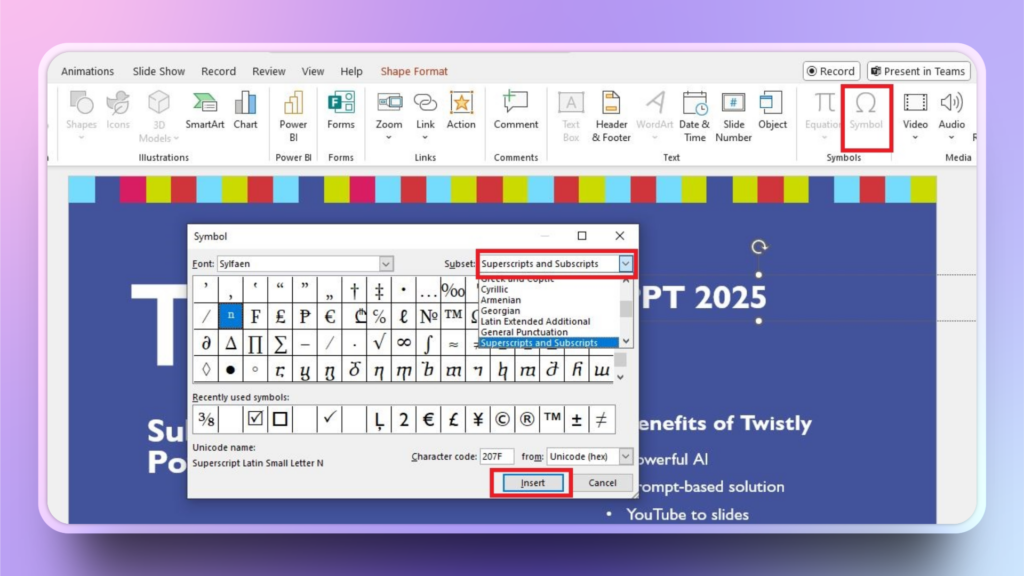
If the Subset dropdown does not show “Superscripts and Subscripts,” switch the font to Calibri, Arial, or another standard family – some decorative or narrow fonts lack this Unicode range.
Mac vs. PC Differences
Most steps are identical, with two exceptions:
Shortcuts: On Mac, use ⌘ + Shift + = (superscript) and ⌘ + = (subscript) – the ⌘ key replaces Ctrl. Some older Mac PowerPoint versions require Control (not ⌘) – if one does not work, try the other.
Font Dialog access: On Mac, the Superscript / Subscript checkboxes may appear directly in the Home → Font group as small icons (x² and x₂) depending on the PowerPoint version. If you see them, no need to open the dialog – just select text and click.
Quick Access Toolbar: QAT customization works the same way on Mac: right-click the ribbon → Customize Quick Access Toolbar.
Unicode Characters vs. PowerPoint Formatting: When It Matters
PowerPoint offers two fundamentally different ways to display superscript or subscript, and choosing the wrong one can cause problems on export.
PowerPoint formatting (Methods 1–3 above) stores the text at normal size and applies a visual shift. Pros: works on any character, any font. Cons: when you copy-paste the text into another app, an email, or a plain-text field, the formatting often drops and the text reverts to the baseline. The same can happen when exporting to PDF if the PDF renderer does not preserve the font’s OpenType features.
Unicode characters (Method 4 and direct entry) are actual separate code points – ² ³ ¹ ⁰ ⁴ ⁵ ⁶ ⁷ ⁸ ⁹ for superscript digits, ₀ ₁ ₂ ₃ ₄ ₅ ₆ ₇ ₈ ₉ for subscript digits. These survive any copy-paste and any export because they are characters, not formatting. Cons: only digits and a handful of letters (ⁿ, ₓ, etc.) have Unicode superscript/subscript versions – you cannot Unicode-superscript an arbitrary word.
Rule of thumb: If the slide will only be shown in PowerPoint or exported as images, use formatting (Methods 1–3) – more flexible. If the text will be copied into other documents, shared as plain text, or exported to PDF where formatting fidelity is uncertain, use Unicode characters where possible.
Troubleshooting: When Superscript or Subscript Won’t Work
“Nothing happens when I press the shortcut.” You likely have not selected specific characters – you clicked on the text box border instead of highlighting text inside it. Click inside the box, drag to select the characters, then apply the shortcut.
Superscript looks too big or too small. Open the Font Dialog (Method 2), adjust the Offset % and the font size of the selected characters independently. The default 30% offset is a starting point, not a rule.
Formatting disappears after copy-paste. When you paste text from a browser, Word, or another app, PowerPoint may strip superscript/subscript formatting. Fix: use Paste Special → Keep Source Formatting (Ctrl + Shift + V on PC). Alternatively, paste as unformatted text and re-apply the formatting manually, or use Unicode characters (see above) which survive paste.
Subset “Superscripts and Subscripts” is missing in the Symbol dialog. The active font does not include this Unicode block. Switch the font dropdown inside the Symbol dialog to Calibri, Arial, or Times New Roman.
PowerPoint Online (web version) limitations. The browser-based version of PowerPoint supports keyboard shortcuts for super/subscript but does not expose the full Font Dialog with the Offset % field. If you need offset control, use the desktop app.
Superscript/subscript resets when changing the slide theme. Theme changes can reset font formatting. After applying a new theme, check formatted text and re-apply if needed.
When Superscript Is the Wrong Choice for Slides
Superscript and subscript make text smaller by design. On slides that will be projected or viewed from a distance, characters below ~18 pt become hard to read. If your presentation will be shown in a large room, consider writing formulas at full size with explicit labels instead of tiny raised/lowered characters (e.g., write “CO2” with a note, or use an image of the formula). Reserve super/subscript for slides that will be shared as documents, read on screen, or printed – where the viewer controls the zoom.
This does not apply to trademark symbols (™, ®) – those are expected to be small and do not carry critical meaning.
Create PowerPoint
Slides with AI
Build AI-powered presentations from
any prompt, doc, or video


Create Slides Faster with Twistly
Twistly is an AI-powered PowerPoint add-in that generates formatted presentations from a single prompt – including superscript and subscript where needed – so you spend less time on manual formatting.











Start Making AI Presentations in Seconds
Instant Access
Begin exploring Twistly’s full suite of features immediately
No Commitments
No credit card required, and you can cancel anytime
Dedicated Support
Our team is here to assist you every step of the way during your trial.