



Impressing a business leader or investor requires a business strategy presentation that is not only data-driven but visually attractive, too. Turning your ideas and data into a complete business strategy presentation requires time, effort, and attention to detail.
A business strategy presentation is your communication tool to deliver your vision, growth plans, and scope of profitability to the investors, stakeholders, or executives.
Creating a professional presentation takes hours of hard work, and when you need to deal with many presentations at the same time, using AI becomes inevitable. In this guide, we will teach you how to structure a business strategy presentation with AI, using a single tool.
What is a Business Strategy Presentation?
What differentiates a business strategy presentation from a normal PowerPoint presentation? Business strategy involves communicating business and finance-related points, including:
- Company objectives
- Market positioning
- Growth strategies
- Operational priorities
- Financial direction
- Competitive advantages
- Execution plans
There must be a logical flow that can help the audience understand what you have to offer and what you want to achieve after this presentation. Are you seeking an investment, support, or permission? Actionable insights are important for creating a business strategy presentation.
Creating a Business Strategy Presentation with Twistly
Twistly is an AI add-in that lives and works inside PowerPoint and can create complete presentations or individual slides. In this article, we will explore both possibilities. Let’s start with the first method, creating a complete business strategy presentation with Twistly from scratch.
Create PowerPoint
Slides with AI
Build AI-powered presentations from
any prompt, doc, or video


Method 1: Creating a Business Strategy Presentation from Scratch
You have the data, topic, and other needed insights for the presentation, and you want a quick presentation without manual editing, writing, or formatting. Here is how to do it with Twistly, approximately in less than 2-3 minutes.
Step 1: Create a Presentation from a Topic
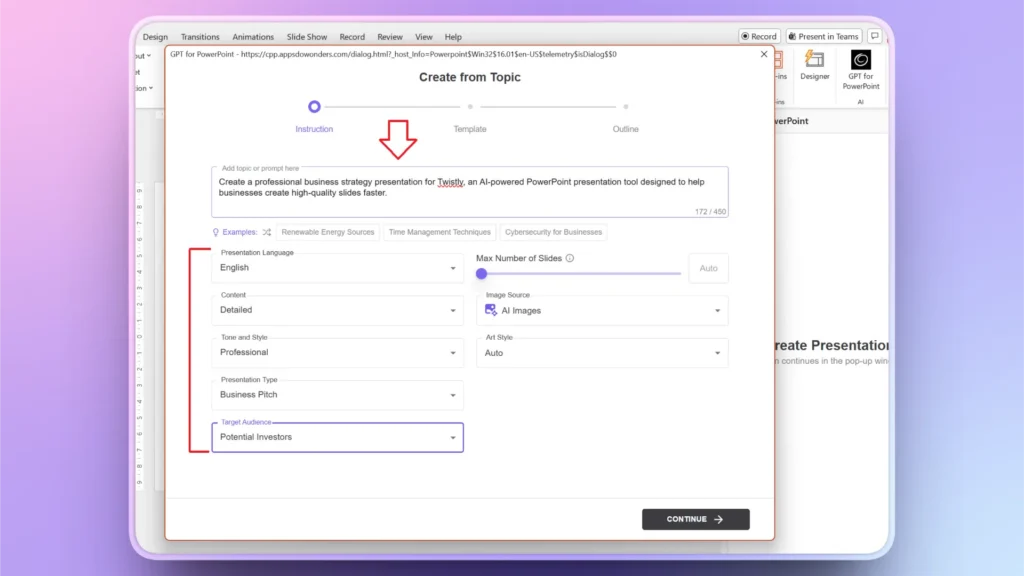
Start a blank presentation and launch Twistly. From the Home tab, choose New Presentation >> Create from Topic and then input your topic for presentation.
Be as detailed as possible, and also make preference changes according to your needs. Customizations help get better output, relevant to your topic and the audience.
Step 2: Pick a Template and Review Outline
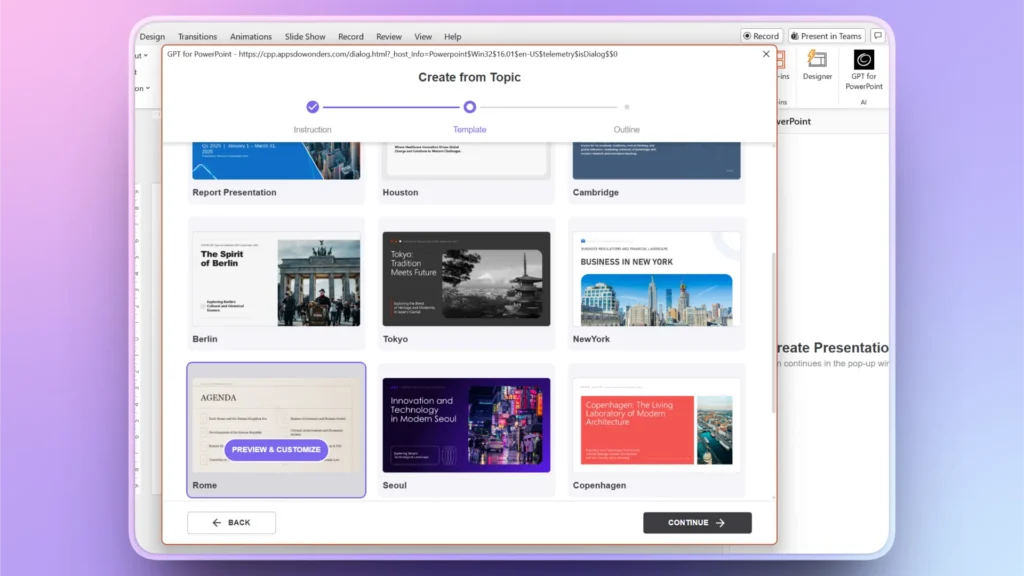
Pick an AI PowerPoint template from Twistly’s library and then review the AI outline generated by the tool. You can add more slides here or later. If everything checks out as per your plan, click Continue.
Step 3: Review Final Business Strategy Deck
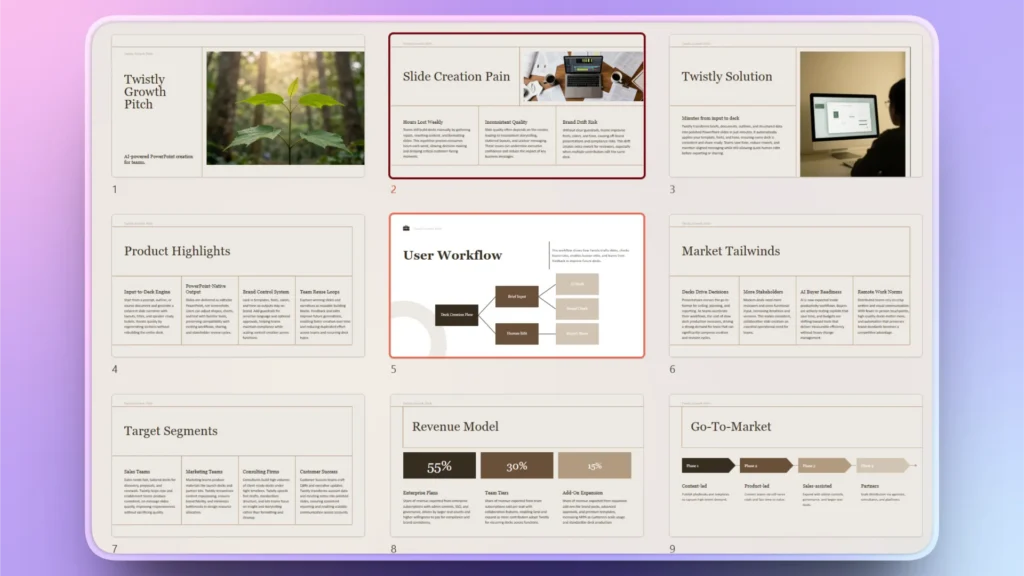
Within a few moments, you will have your final slides. Go through all slides thoroughly, and if any slide or point is missing, you can add it with Twistly. We will discuss that in the next section.
Method 2: Create a Business Strategy Deck, Slide-by-Slide
You don’t want to follow the readily available structure but want to create slides where you can offer personalized value to the audience. Twistly has several slide layouts available that you can use, but this approach will take more time.
Note: Creating a presentation slide-by-slide offers a more personalized deck but takes more time than creating a presentation from a topic. If you have detailed data available for each slide, go for this method.
Step 1: Add New Slide
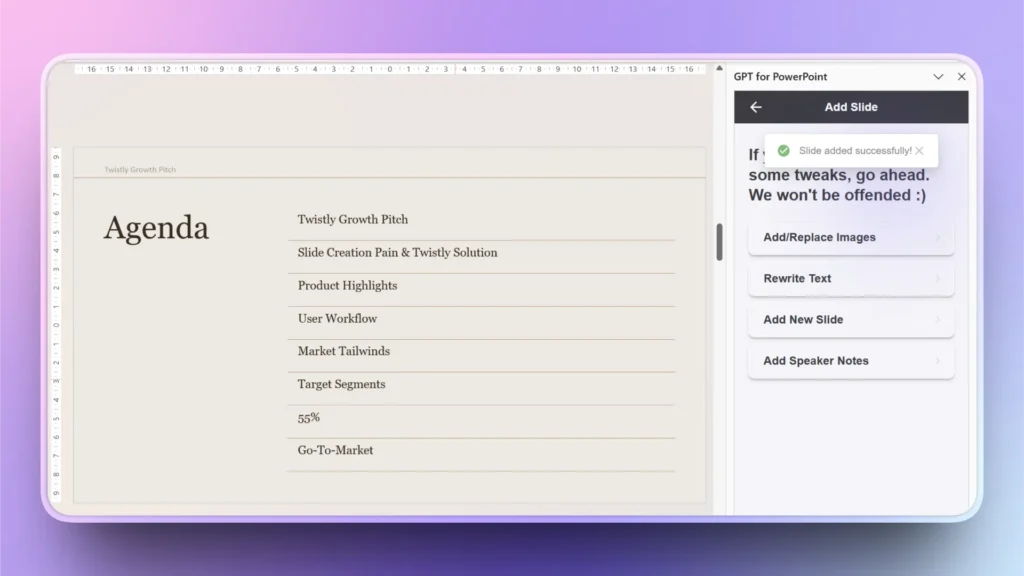
Open your existing or new presentation and open Twistly. Click Edit Slides >> Add Slide and then pick any slide layout that you want to add.
Let’s say you want to add an agenda slide at the start. Select the Agenda slide from the available layout and click Continue.
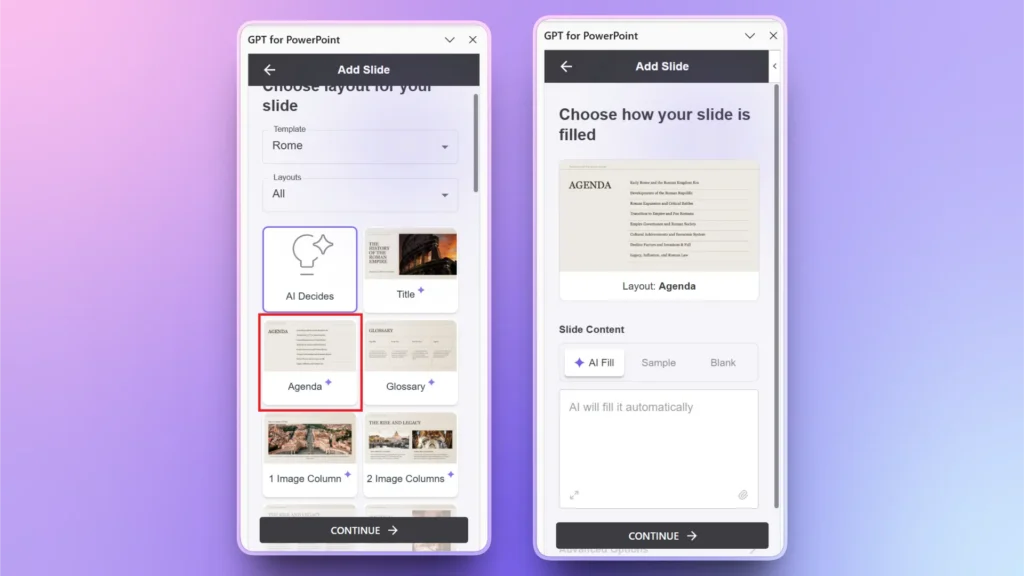
For an existing presentation, choose AI Fill and Twistly will automatically create an agenda slide based on the context of the presentation.
Step 2: Review your Slide
See the image below for an agenda slide created by Twistly. You can review the slide and make changes if needed. Most of the time, no additional changes are needed for slides generated by Twistly.
Step 3: Create Next Slides
Now, follow the same steps to add and create slides for the remaining points. You can keep adding custom slides until you have the desired business strategy presentation. Within a few seconds, you can have one slide ready for your deck.
Benefits of Twistly for Creating Business Strategy Presentations
Other AI presentation makers don’t offer customization options regarding industry and audience like Twistly. Twistly not only creates and designs slides but also turns your ideas into high-impact presentations. This AI add-in can simplify:
- Strategy slide organization
- Executive summary generation
- Corporate formatting
- Data-driven storytelling
- Professional visual consistency
- Presentation flow optimization
Whether you want a specific slide or a complete presentation, Twistly is the right tool to structure a business strategy presentation with AI. Give it a try, and you will be amazed at how well it works for business and casual PowerPoint presentations.
Focus on Visual Clarity for Business Strategy Decks
Whether you use method 1 of creating presentations from scratch or method 2 for creating individual slides, your focus should remain on the clear presentation of data.
Charts, timelines, graphs, and tables work best for business strategy presentations. All of these elements are automatically included in a professional presentation created by Twistly.
For any missing or additional slide or element, use the Add Slide feature and insert customized slides with visuals, charts, and other elements.
Conclusion
Twistly can structure a business strategy presentation with AI within seconds and also create a complete deck for your investors. Twistly is not another slide designer but a complete AI suite for PowerPoint users.
Give it a try and download the free trial version now. Our developers take pride in Twistly, and that’s why the trial version comes with no financial commitment or credit card requirements.
How does Twistly help with business strategy presentations? The result is a faster, more efficient workflow that allows business leaders to focus on strategy execution rather than slide production.
Create PowerPoint Slides with AI
Build AI-powered presentations from any prompt, doc, or video












Start Making AI Presentations in Seconds
Instant Access
Begin exploring Twistly’s full suite of features immediately
No Commitments
No credit card required, and you can cancel anytime
Dedicated Support
Our team is here to assist you every step of the way during your trial.