



Delivering a professional presentation requires you to focus on slide design. How do your slides move? It also matters. The best PowerPoint transition for a business presentation ensures the slideshow looks interactive and does not break the flow.
With business presentations, you have to be extra careful with transitions, animations, and other visuals. Stakeholders, managers, and investors want to know the important details only. Using transitions adds aesthetic value to your presentation by keeping the audience engaged.
Should you Use Transitions for Business Presentations?
Different users have different opinions about the use of transitions and animations for business presentations. Transitions are the visual effects that occur when moving from one slide to another.
You can use transitions for business presentations, but use the right visual effects only. Keep the transitions simple and don’t add too many effects. Here are some benefits transitions offer for business presentations:
- Create a smooth storytelling experience
- Maintain audience focus
- Reinforce professionalism
- Avoid unnecessary distraction
Top PowerPoint Transitions for Business Presentations
If there are no strict guidelines about the use of transitions for business presentations, you are free to use these visual effects. Now, the selection of the right transition is the next challenge.
Here are the best PowerPoint transitions for business presentations, offering enhanced visual appeal. You can use any of these transitions for your next presentation.
1. Fade- Best Overall Transition
Fade is the most used PowerPoint transition for business presentations. It gently blends the current slide with the next one, without drawing too much attention. For important presentations, users will not be distracted by the fade transition.
Best For
Fade transition works best for different presentations if the duration is kept between 0.5 and 1 second. You can use the Fade transition for:
- Corporate presentations
- Sales decks
- Executive briefings
2. Morph Transition- Best for Modern Presentations
For storytelling, you need dramatic effects that can keep the audience engaged. With a creative approach, you can use morph transition for in-slide elements, too. Morph creates seamless animations between slides, making objects appear to move naturally.
The ideal use of morph transition is when you zoom into charts or move elements across the slides. The easiest way to manipulate morph transition is to duplicate the slide and then move the desired object to the new position.
Best For
- Product demos
- Data storytelling
- Pitch decks
3. Push Transition- Best for Structured Flow
When you need to direct the attention of users to a specific object or point, use a push transition. Push gives a directional movement, helping guide the audience logically through content.
This transition works best if all objects are moved in the same direction, creating visual consistency across all slides. Applying this transition for the best results may take some extra effort, but you will love the results.
Best For
- Step-by-step processes
- Timeline presentations
- Training materials
4. Wipe- Best for Emphasis
Wipe reveals the next slide gradually, which can subtly emphasize transitions between sections. If there are multiple sections in your PowerPoint presentation, using the Wipe transition will give clear ideas to users when the next section starts.
Wipe transition is recommended when you need to highlight the key ideas. Slow wipes usually don’t work well, so you need to keep it consistent and fast.
How to Add Transitions in PowerPoint?
Before going into the details of the best transitions for business presentations, you should know how to add different PowerPoint transitions to your slides. Follow these simple steps to add any transition to your PowerPoint presentations.
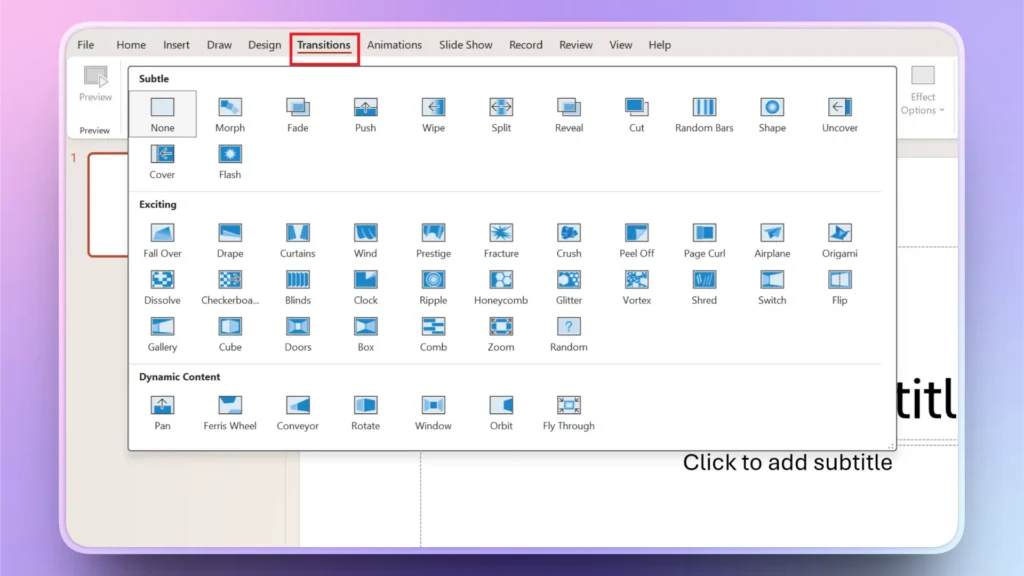
Step 1: Go to the Transition Tab
Open your PowerPoint presentation and go to the Transition tab. This spot has all the transitions that you need for your business presentations.
Step 2: Customize Transition
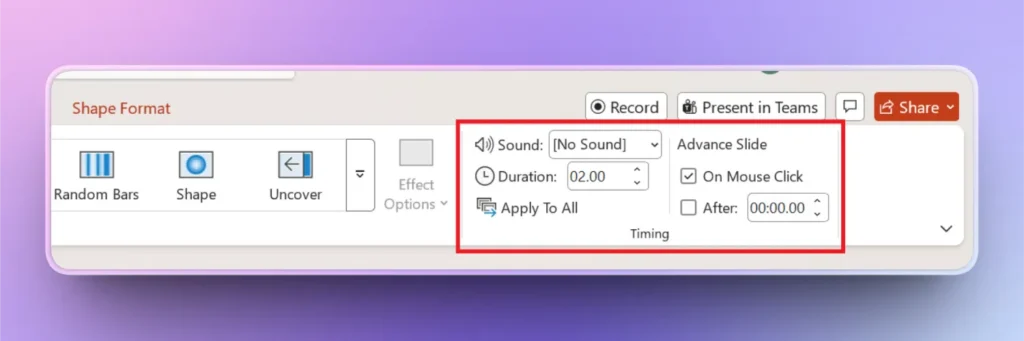
Once you have selected the desired transition for your business presentation, use the same Transitions tab to set:
- Sound
- Duration
- Slide advancement
- General timings
How to Style Business Presentations with AI?
Following these detailed steps to add PowerPoint transitions to business presentations seems too much. For a manager or any other businessperson, designing these slides is a challenge.
AI can help you design slides effectively without any next-level design skills. AI tools like Twistly are known to offer the best design and formatting features that are needed for every business presentation.
What is Twistly for PowerPoint?
Twistly for PowerPoint is an AI add-in that lives inside PowerPoint and integrates ChatGPT-like capabilities for presentations. What does it mean for a normal user? With Twistly, you can:
- Make a complete presentation from scratch with a topic, text, or document
- Add new slides to your presentation or optimize existing slides
- Edit, improve, review, and optimize content for PowerPoint slides
- Generate speaker notes with AI, within seconds
- Add AI images to your slides or get images from free stock image sites
Create PowerPoint
Slides with AI
Build AI-powered presentations from
any prompt, doc, or video


Styling Business Presentations with Twistly
You have an existing business presentation, but want to add more value and data visualization. Twistly has easy AI features that can turn any data into interactive visuals, graphs, charts, or similar elements.
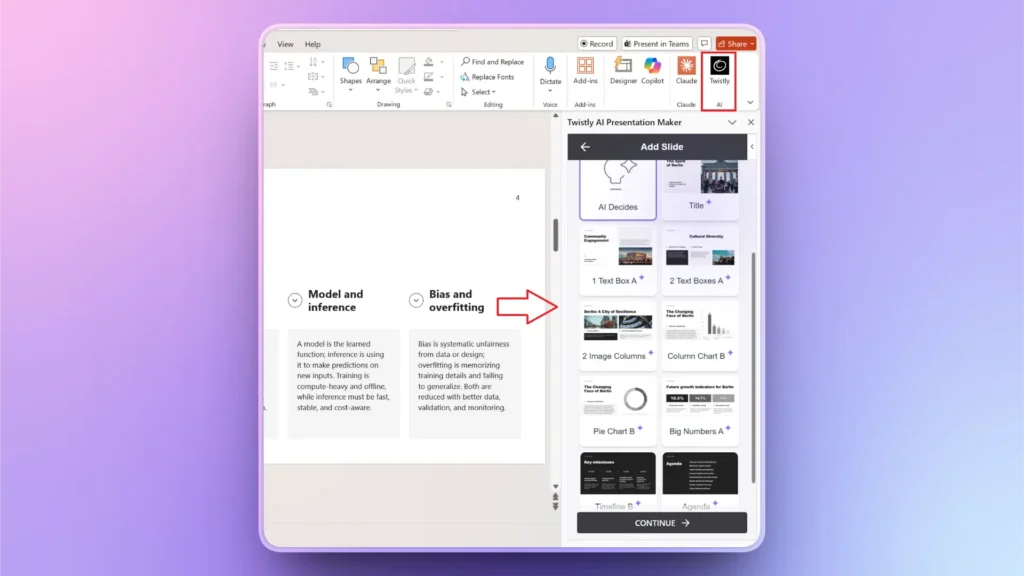
Using Twistly for business presentations is easy. All you have to do is follow these simple steps to make your business presentations even better.
- Open the PowerPoint presentation and launch the Twistly add-in
- Click Edit slides >> Add Slide >> choose any slide layout that you want to use
- Provide information or data that you want to use for the slide
- Wait for a few seconds, and your slide will be ready
How to Get Twistly for Free?
If you are a new user and want to try Twistly for free, use the link below to claim your free trial version. The trial version gives you a real-time experience of a custom ChatGPT for PowerPoint.
You will never turn back to conventional PowerPoint presentations once you have tried the true power of the best AI presentation maker for PowerPoint. Give it a try and enjoy instant business presentations that convince and attract.
Create PowerPoint Slides with AI
Build AI-powered presentations from any prompt, doc, or video

Conclusion
Best PowerPoint transitions for business presentations include Fade, Morph, Wipe, and other minimal visual effects. Make sure your selected visual effects or transitions don’t draw too much attention or break the pace of the presentation.
The best PowerPoint transitions for business presentations are not the flashiest; they’re the most subtle and purposeful.
If visual effects, attractive designs, and interactive templates are not your thing, download Twistly and make AI presentations for any project or event.












Start Making AI Presentations in Seconds
Instant Access
Begin exploring Twistly’s full suite of features immediately
No Commitments
No credit card required, and you can cancel anytime
Dedicated Support
Our team is here to assist you every step of the way during your trial.