



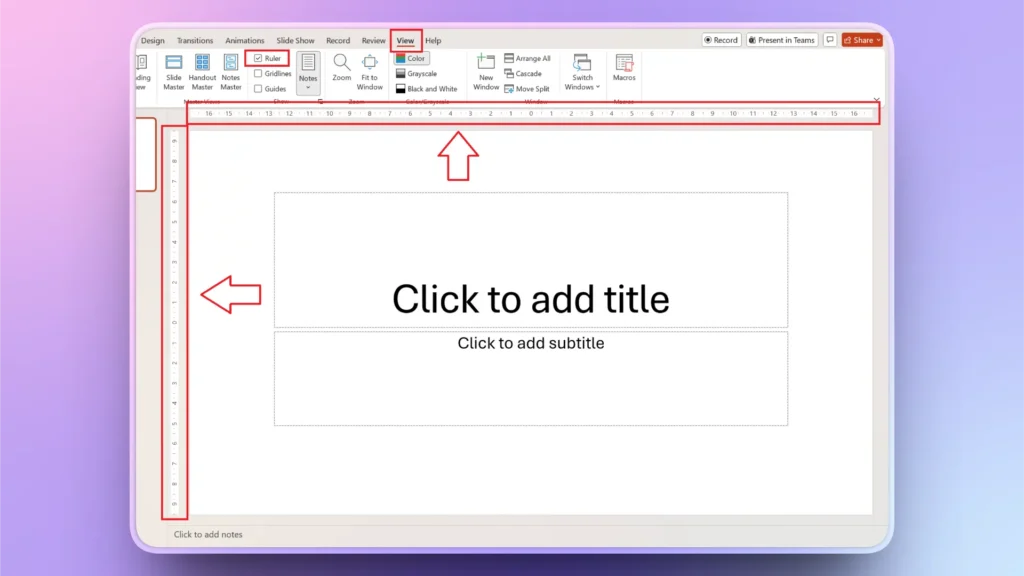
To add the ruler in PowerPoint, go to the View tab >> check the Ruler box in the Show section. A ruler on the top and a ruler on the left side of the slide preview window will appear.
To hide the ruler in PowerPoint, follow the same steps and uncheck the Ruler box, and the ruler will disappear. A ruler is not always needed while making presentations, and users like to add a ruler only when needed.
The ruler in PowerPoint provides visual cues to help you place, organize, and format text for your slides. Let’s see what else you need to know to add and use the ruler in PowerPoint more effectively.
Steps to Add the Ruler in PowerPoint
By default, the ruler may not be visible in your PowerPoint software. If you cannot see the vertical and horizontal rulers or markings around slide preview panes, here is how to add a ruler in PowerPoint in easy steps.
Step 1: View Tab >> Ruler
Open your PowerPoint software and go to the View tab from the top ribbon, and then navigate to the Show section.
If the ruler box is unchecked, check it, and rulers will appear at the top of the active slides and along the left edge of the slide.
How to Hide the Ruler in PowerPoint?
A ruler is needed for presentations where you need to place or organize slide objects for a consistent look. Once you are done with the project and don’t need the ruler anymore, follow the same steps and uncheck the Ruler box, and the ruler will disappear.
Hide Ruler: View tab >> Show section >> Uncheck Ruler box.
Error: Ruler isn’t Visible in PowerPoint
In some view modes, the ruler may not be available. Certain settings may also hide the ruler. Reading View and Slideshow Mode don’t normally show the ruler in PowerPoint, even if the Ruler box is checked from the View tab.
To solve this issue of the ruler not being visible, follow these steps:
- Switch back to Normal View
- Navigate to the View tab and check if the Ruler option is checked
How to Draw a Ruler in PowerPoint?
Horizontal and vertical rulers in PowerPoint appear outside the slide preview pane. What if you need to draw a line on the slide at some angle? In this situation, the rulers outside the slide preview pane won’t be useful.
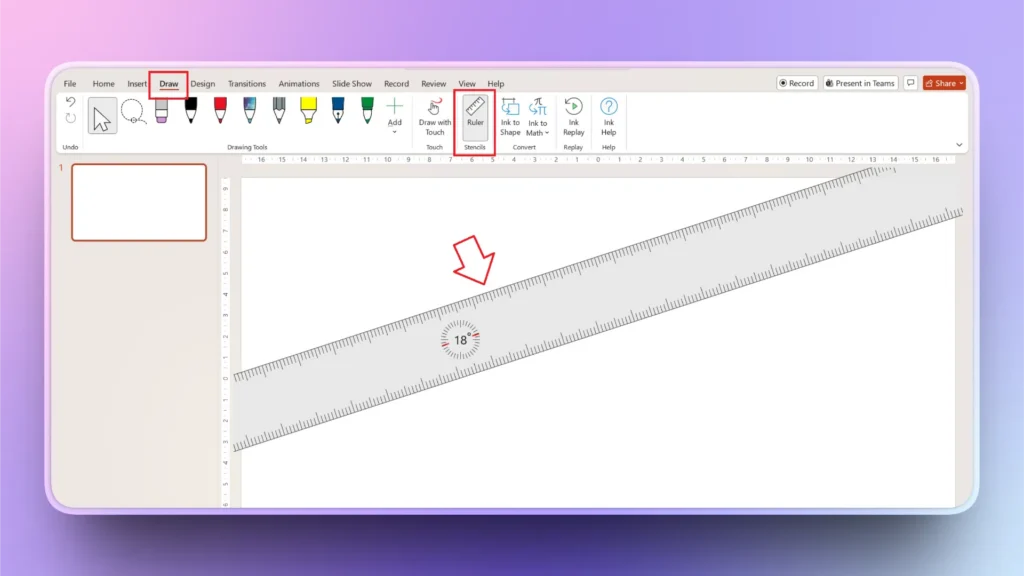
To show a ruler on the slide, go to the Draw tab and then click the Ruler icon, and a dedicated, rotatable ruler will appear on the slide.
How to Change the Angle of the Ruler?
Once you have displayed the ruler on your slide, you can grab the ruler and place it anywhere; that’s simple. Things get complicated when you have to rotate the ruler or change its angle.
PowerPoint does not offer any simple way to change the angle of the ruler. Here is how to rotate the ruler in PowerPoint:
- If you have a separate mouse attached, select the ruler and use the scroll wheel to rotate the ruler
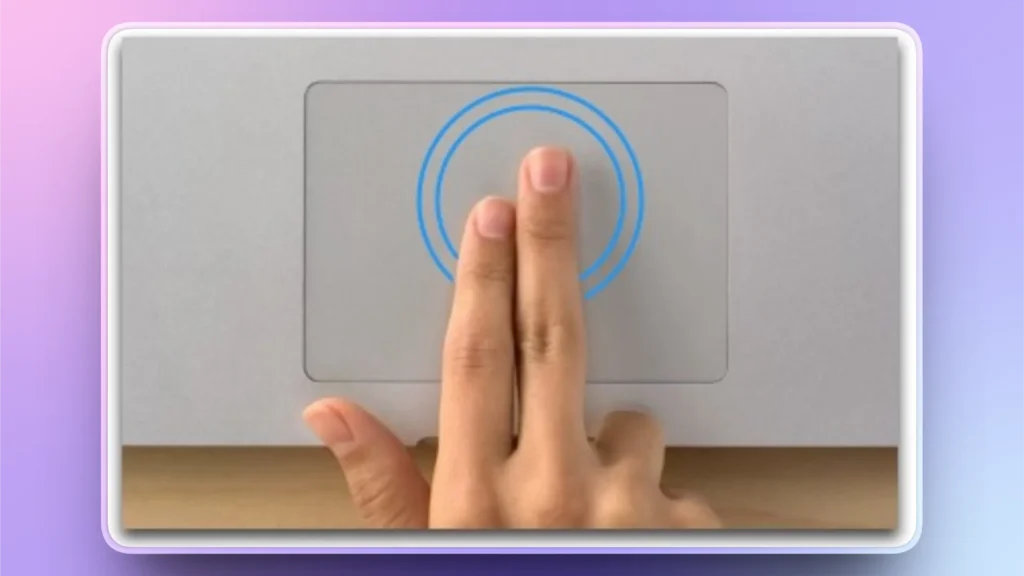
- If you have a touchpad for a laptop, put two fingers on the touchpad and move your fingers across the pad, and you will see the ruler changing the angle.
How Twistly Makes Alignment and Formatting Faster
Twistly is an AI add-in that enhances the existing native PowerPoint tools with AI integration. With Twistly, you don’t need to design, format, or style everything from scratch. AI tools improve styling decisions and automate slide formatting with readily available slide layouts.
When you are working on complex slides, instead of designing charts, timelines, and graphs from scratch, select the layout and input your data. Twistly will automatically turn that data into visual data.
Benefits of Twistly for Consistent Slides
Twistly offers the best combination of control and automation. Using AI features of Twistly alongside PowerPoint tools makes your presentations more professional, polished, and visually attractive.
From generating polished presentations to optimizing your existing slides, Twistly can do a lot of cool stuff for every user. Here is what Twistly has to offer to optimize your current PowerPoint workflow:
- Automatically aligns text, images, and shapes
- Suggests visually balanced slide layouts
- Reduces manual adjustments using the ruler
- Speeds up presentation design significantly
- Helps maintain consistency across all slides

When to use Twistly for PowerPoint?
When you need to save time on PowerPoint presentations without compromising on the quality, Twistly is the best option for you. Whether you are creating business presentations, sales decks, investment pitches, tutorials, classroom presentations, or normal slides, Twistly is useful for every PowerPoint user.
AI features integrate ChatGPT-like capabilities so that every slide looks polished and optimized without manual editing. Twistly is not just a design idea or suggestion tool but a complete AI assistant for your workflow.
Get Twistly for Free to Elevate PowerPoint Presentations
Twistly is a premium AI tool, equipped with the latest AI models, available for a competitive price. New users have doubts that they want to clear before buying any paid AI tool.
If you are looking forward to trying Twistly for free, use the link below and download the free trial version of our AI tool. No credit card or long-term commitment is required to claim a free trial of Twistly.
Create PowerPoint
Slides with AI
Build AI-powered presentations from
any prompt, doc, or video


Final Words
Adding the ruler from the View tab in PowerPoint is a quick and essential step for creating well-aligned and professional presentations. By displaying a ruler in PowerPoint, you can easily align objects and get consistent slides every time.
Twistly can help you automate the formatting process, and users can generate complete and professional presentations with AI within seconds. Give it a try for free and generate a complete presentation in less than a few minutes. It’s magical.












Start Making AI Presentations in Seconds
Instant Access
Begin exploring Twistly’s full suite of features immediately
No Commitments
No credit card required, and you can cancel anytime
Dedicated Support
Our team is here to assist you every step of the way during your trial.