


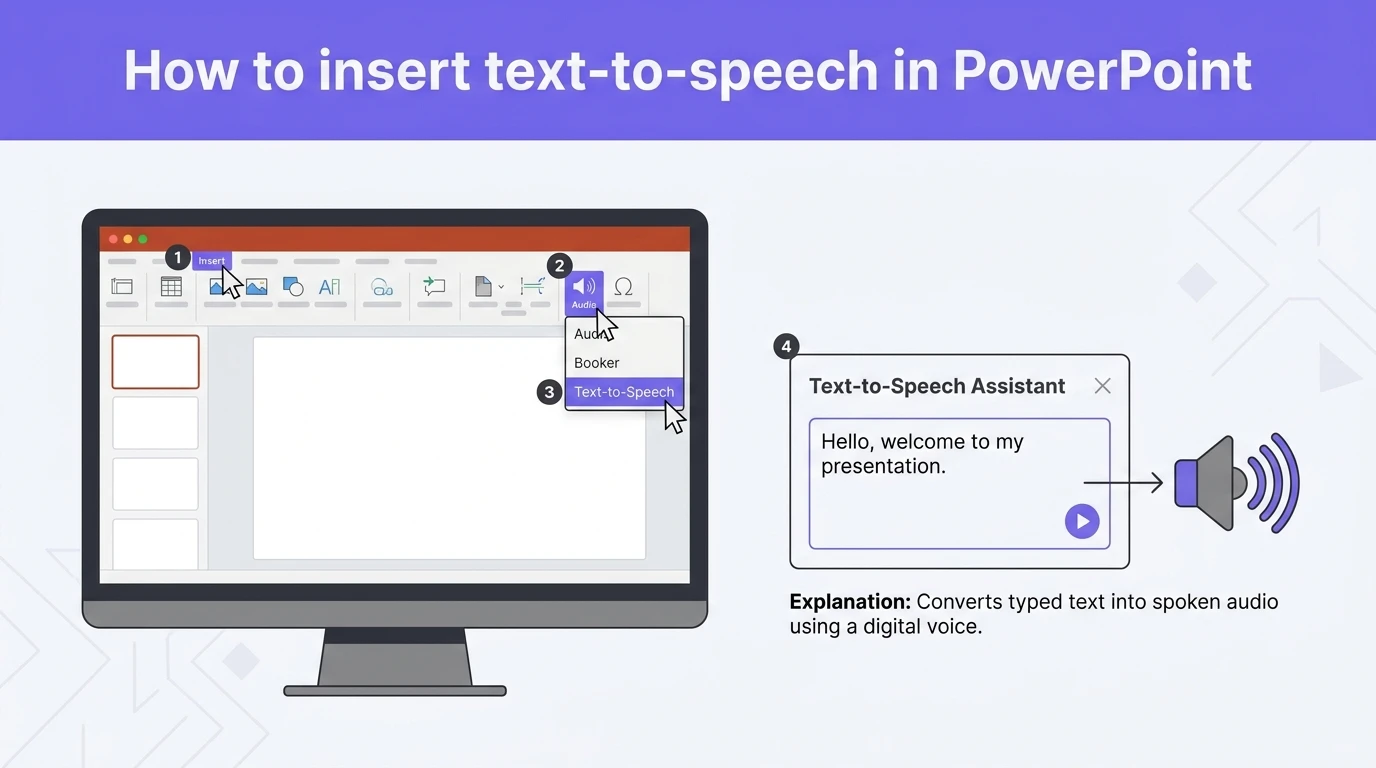
To insert text-to-speech in PowerPoint, you can use the Read Aloud (Speak) option, add custom narration, or an audio file for the presentation. Adding text-to-speech in PowerPoint boosts engagement, improves accessibility, and has an overall impact.
Without using any 3rd party tool or app, you can insert a text-to-speech option in PowerPoint using built-in options. Human narration is great, but for some events, you may want to rely on a readily available text-to-speech option in PowerPoint.
Method 1: Use the Speak Option to Insert Text to Speech in PowerPoint
To use the Speak or Read Aloud option for text-to-speech, you need to enable the Speak feature. Not every user needs this option, so PowerPoint has it disabled by default. So, let’s enable the “Read Aloud” feature first.
How to Enable the Read Aloud Feature?
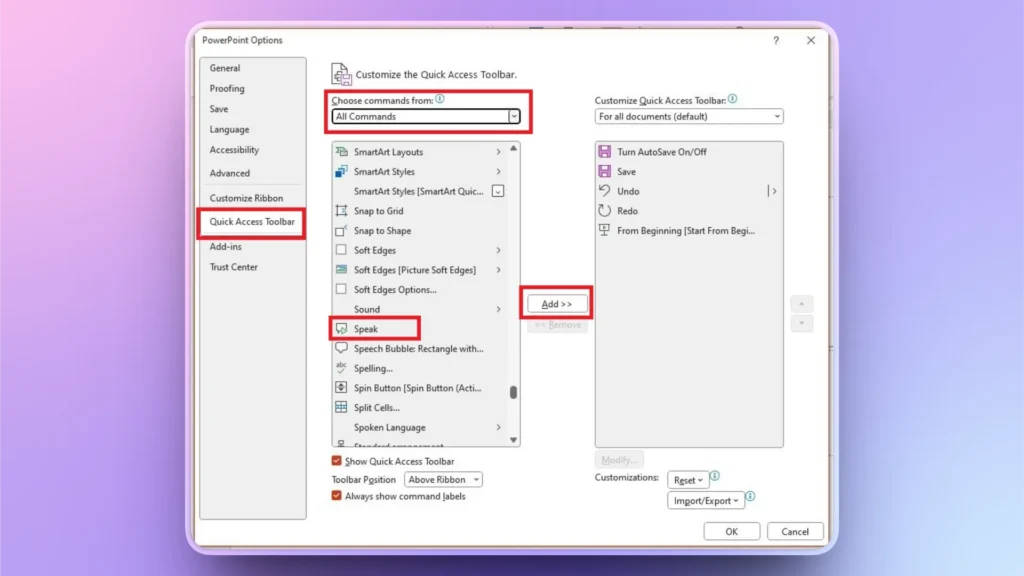
To insert text-to-speech in PowerPoint, add the Speak command to your toolbar by clicking the arrow button at the top >> More Commands >> Quick Access Toolbar >> All Commands >> Speak. This will add a Speak button to the top ribbon.
You can access these settings by clicking File >> Options and then Quick Access Toolbar. Select the Speak option and click Add, and you will see a dedicated Speak icon at the top.
Use the Speak Button for Text-to-Speech
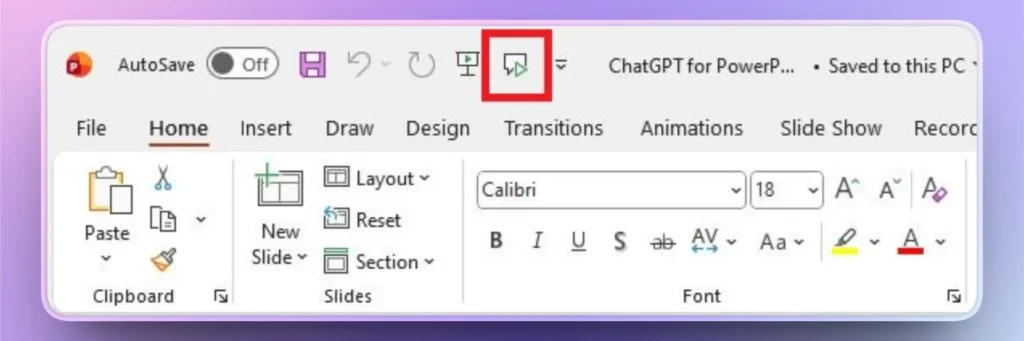
Once the Speak Aloud feature is enabled, you will see the custom icon in the quick access toolbar. Select any text, a text box, or a word, and then click that button. PowerPoint will start narrating the selected text box, highlighted text, or word.
How to Stop Text-to-Speech Narration?
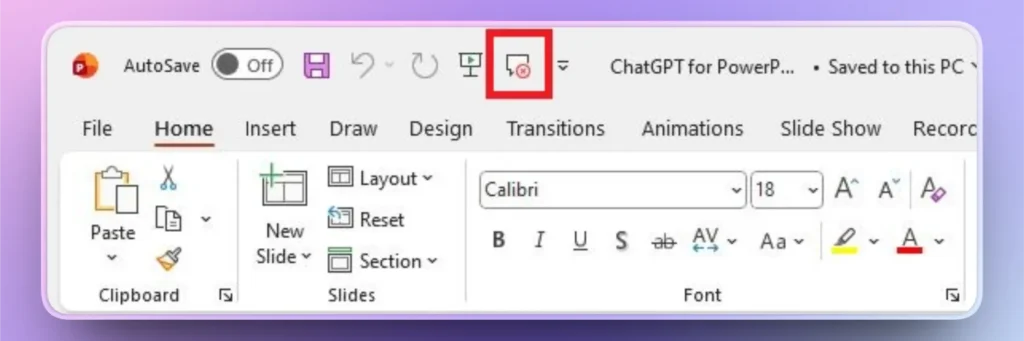
Clicking the button will start a narration of the text in a robotic voice. If you want to stop text-to-speech narration, again click that button, and you will see a “cross” symbol on the icon while narration is on. Click that button, and narration will stop.
Note: If you want the entire text box’s text to be played, make sure you have selected the text box, not just a single word. For clarity, select the text that you want to hear aloud.
Method 2: Record your own Audio
The presenter can record their own voice explaining the slide or its contents. In the slideshow, he will be able to play the recorded narration for that specific slide.
This method is ideal for slides where you need more explanation, but you don’t want to create clutter on the slide. By adding the headings, you can explain further details in your recording.
How to Record your Audio?
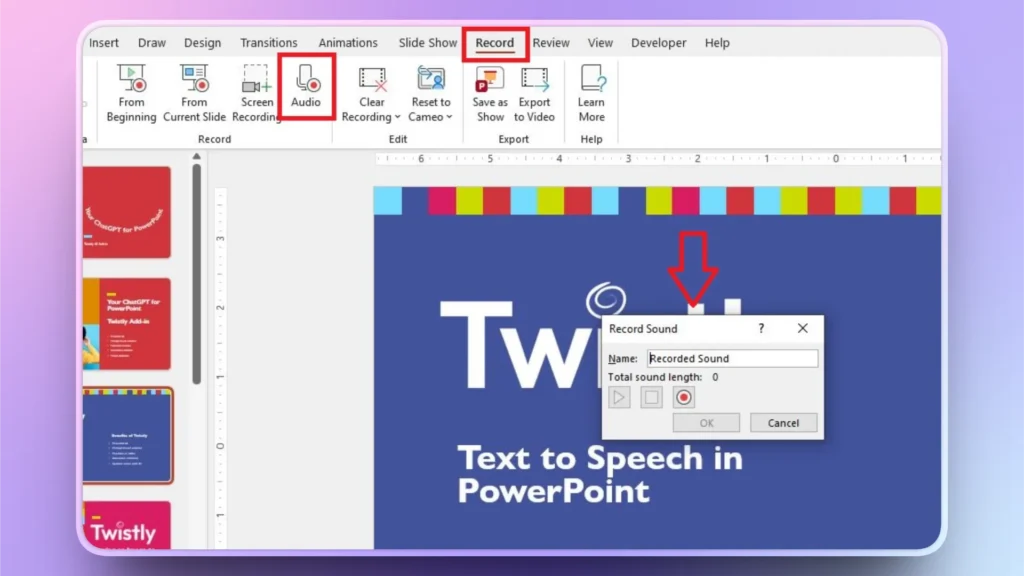
To record your audio for a PowerPoint slide, make sure your computer has an active microphone. Now, follow these steps to record your own voice in PowerPoint.
- Open PowerPoint and go to the slide for which you want to record your voice.
- Go to Record >> Audio >> click the Record button and start recording your voice.
- Click the Stop button once you have recorded your voice, and you are done.
How to Play a Recorded Voice?
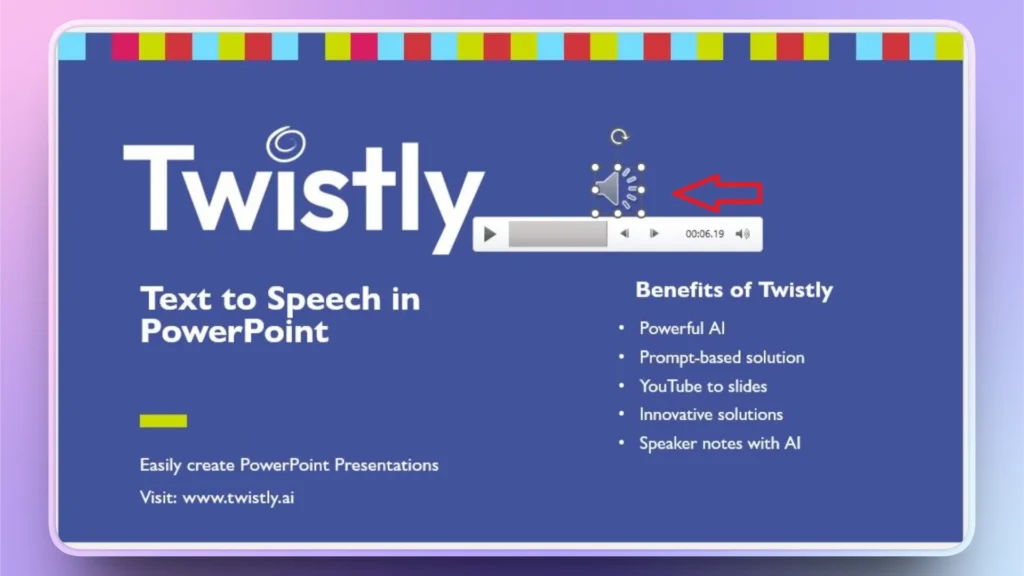
Once you have recorded your voice, a speaker icon will appear on the slide. You can place it anywhere on the slide. To play the recording, click the Speaker icon, and the audio will start playing. You will get different navigation options for the recorded audio.
Method 3: Recording Presentation with Narration
You can record your entire presentation with narration. While recording, you can choose to record voice, your computer screen, and your own video, too.
It may take some time to effectively record your entire presentation, but it works best for tutorials and training videos.
A one-time effort can save you from repetitive tasks. Once recorded, you can easily share that recorded presentation with custom narration to the audience.
How to Record your Entire Presentation?
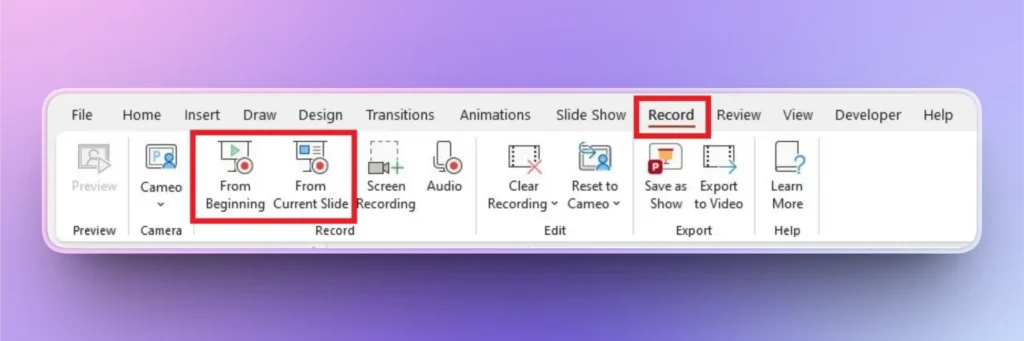
To record your entire presentation with custom narration, audio, and video, we will use the same Record tab. Go to the Record tab and then choose whether to record from the beginning or the current slide.
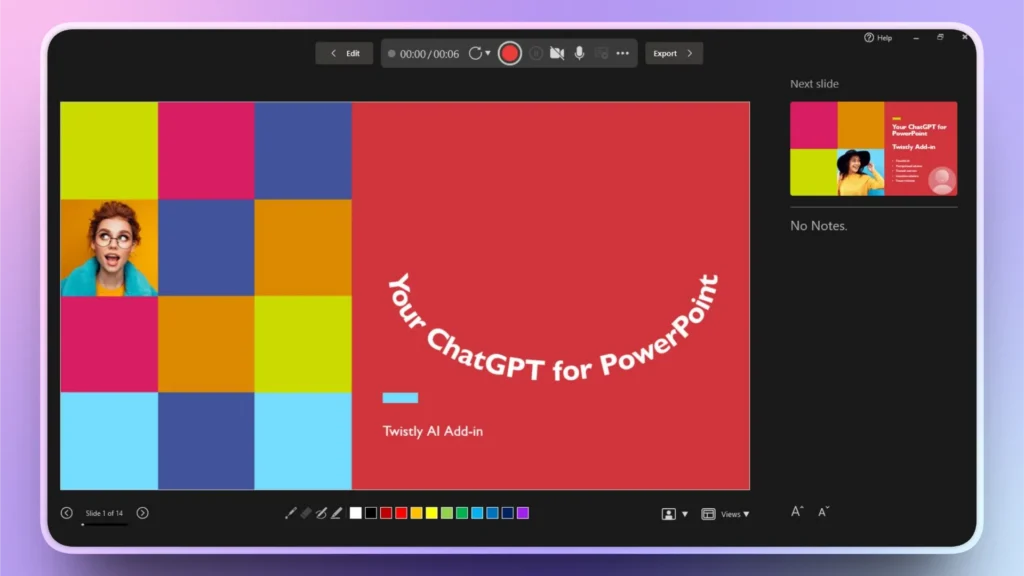
Once selected, a slideshow will start with multiple controls to record the presentation. From this screen, you can control:
- Camera
- Microphone
- Preview next slide and speaker notes
- Change presentation views
- Select pointers and lasers
How can AI assist with Text to Speech in PowerPoint?
AI can help to generate content and speaker notes for your slides. For every text-to-speech method, you need content that explains the ideas presented in slides. If you are out of ideas, speaker notes for PowerPoint presentations can be quite useful.
Create PowerPoint
Slides with AI
Build AI-powered presentations from
any prompt, doc, or video


With Twistly, you can create speaker notes for all slides or any selected slide within seconds. AI will analyze the context of your slide/slides and then instantly generate speaker notes. You don’t need to manually find and collect data for speaker notes; AI does everything for you.
How to Generate Speaker Notes with Twistly?
To generate speaker notes with Twistly, make sure your device has an active internet connection and then follow these steps:
- Open the PowerPoint presentation, launch Twistly.
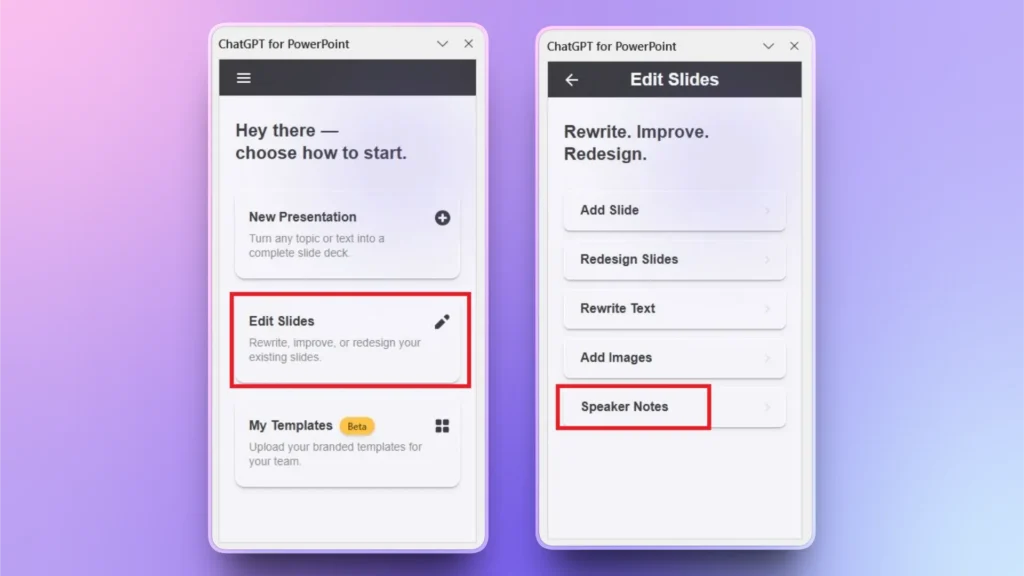
- Click Edit Slides >> Speaker Notes >> Select for this slide or all slides.
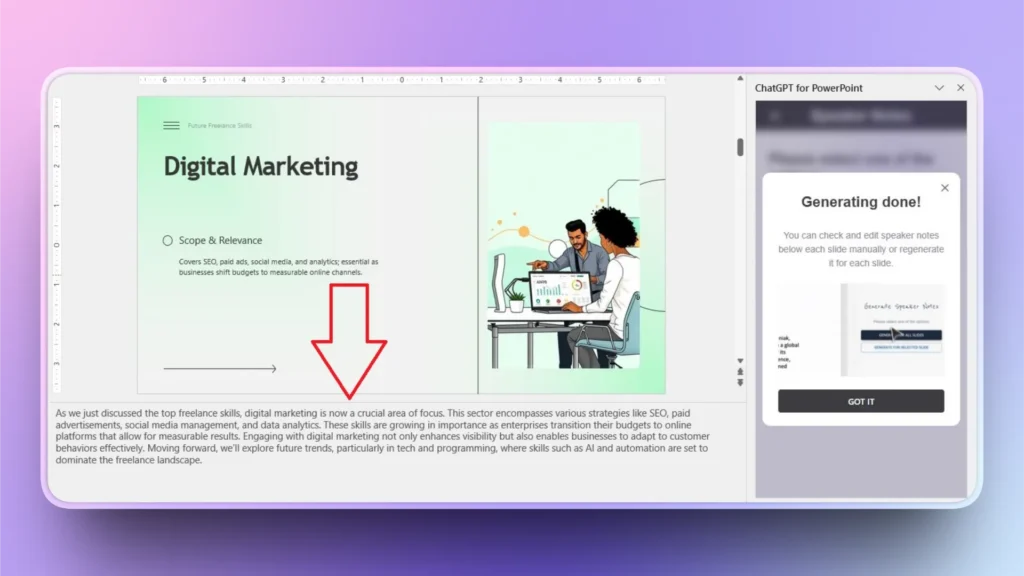
Wait for a few seconds after making your selection, and you will have your accurate and detailed speaker notes for the slide under the slide preview, as shown in the image below. Twistly pane will also show an animation to help you find the speaker notes.
Conclusion
To insert text-to-speech in PowerPoint, you can either choose the Read Aloud option, add your own voice as audio, or record the entire presentation. Adding text-to-speech audio to PowerPoint is a powerful way to make your slides more engaging and accessible.
If you need more content or speaker notes for your recording, use Twistly, as it can generate speaker notes and improve content for existing slides. Try Twistly for free by claiming your free trial version now. Click the button below to install Twistly for free.
Create PowerPoint Slides with AI
Build AI-powered presentations from any prompt, doc, or video













Start Making AI Presentations in Seconds
Instant Access
Begin exploring Twistly’s full suite of features immediately
No Commitments
No credit card required, and you can cancel anytime
Dedicated Support
Our team is here to assist you every step of the way during your trial.