



To draft a marketing report presentation using AI, you need to clearly define the purpose of the presentation and have all the information available for the slides. Once you have provided the data and details to the AI presentation tool, slide creation can be automated then.
Marketing report presentations are used for several purposes, including:
- Quarterly campaign analytics
- Digital advertising ROI
- Lead generation performance
- Brand growth metrics
The marketing report deck analyzes performance, ROI on different campaigns, and lead generation results, and communicates these metrics in an effective way to the executive members or managers.
Marketing teams spend enough time on these report presentations, while AI can help you draft a professional marketing report presentation within minutes. In this article, we will learn how to draft a marketing report presentation using Twistly, an AI add-in for PowerPoint.
Manual vs. AI Marketing Report Deck Creation
You may not realize what you are missing if you have not tried AI yet. Tools like Twistly have revolutionized how PowerPoint presentations are made. It takes only a few minutes to draft a marketing report presentation using Twistly, and manual creation can take 10-12 hours easily.
Here is a brief comparison of manual vs. AI presentation creation for marketing teams.
| Feature | Manual Marketing Report Creation | AI-Powered Decks with Twistly |
|---|---|---|
| Time Required | Takes several hours or days | Generates reports within minutes |
| Slide Design | Manual formatting and layout adjustments | Automated professional slide formatting |
| Data Organization | Requires manual structuring of metrics | AI automatically organizes marketing data |
| Branding Consistency | May vary across slides and reports | Maintains consistent branding and design |
| Reporting Scalability | Difficult to manage multiple reports efficiently | Easily scales across campaigns and clients |
| Team Productivity | More time spent on repetitive tasks | More focus on strategy and performance analysis |
Twistly uses the latest AI models to generate slides and decks. The strategic structure of presentations helps with impactful, high-level presentations. From graphs to charts and other data visuals, every element is automatically taken care of.
Create PowerPoint Slides with AI
Build AI-powered presentations from any prompt, doc, or video

Drafting a Marketing Report Presentation using Twistly
A marketing report presentation goes beyond numbers. It focuses on what happened in the last quarter, month, or year. AI streamlines the process by automating the design, formatting, and writing parts for the report presentation.
We will go through the step-by-step process of drafting an impactful marketing report presentation using Twistly. Make sure to have the data and insights ready for input.
Note: Remember that we are creating a marketing report presentation from scratch, slide-by-slide. You can opt for the “Create from Topic/File” option, too.
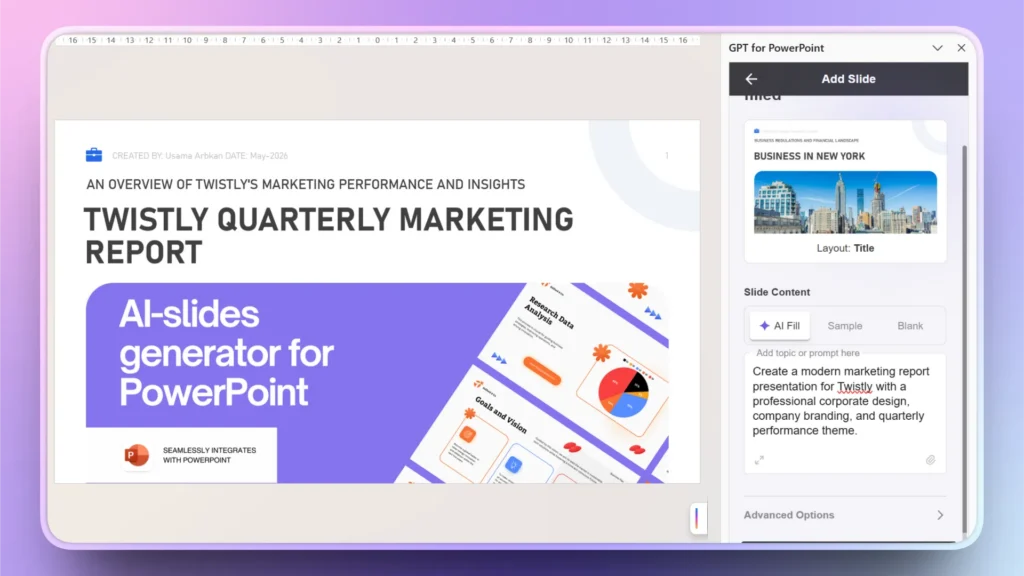
Step 1: Create Title Slide
Open PowerPoint and launch Twistly. Click Edit Slides >> Add Slide >> Select Template and then choose Title Slide Layout from available options.
Input your data for the title slide, and within a few seconds, you will have the title slide ready. You can add other details according to your needs.
Step 2: Quarterly Overview
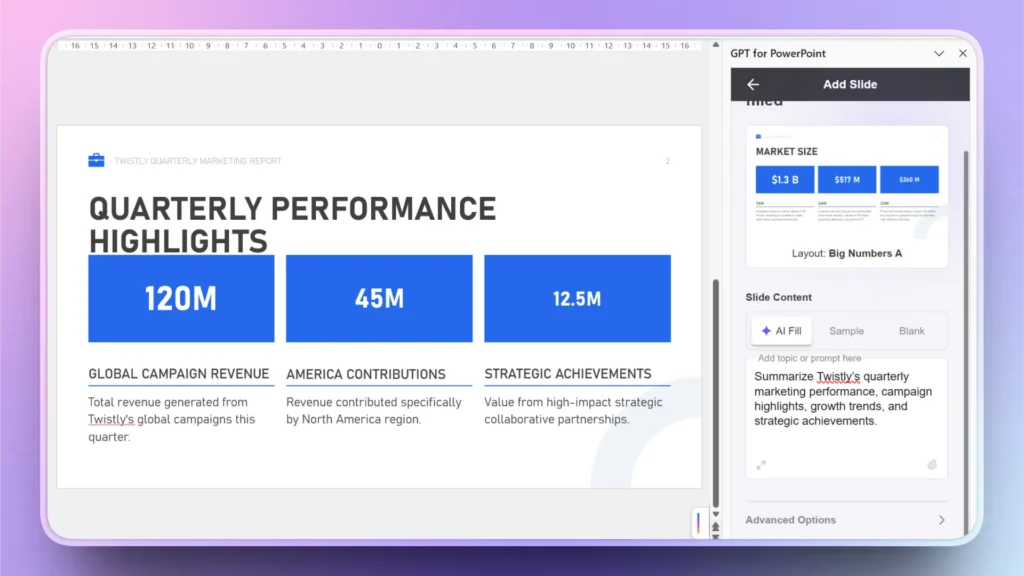
This slide is an important part of the decision-making process for the audience. At a glance, the quarterly overview slide will let the audience know how campaigns and marketing teams have performed. You can make monthly, weekly, or yearly overview slides as needed.
Edit Slides >> Add Slide >> Choose Big Number Slide Layout
Step 3: KPI Dashboard
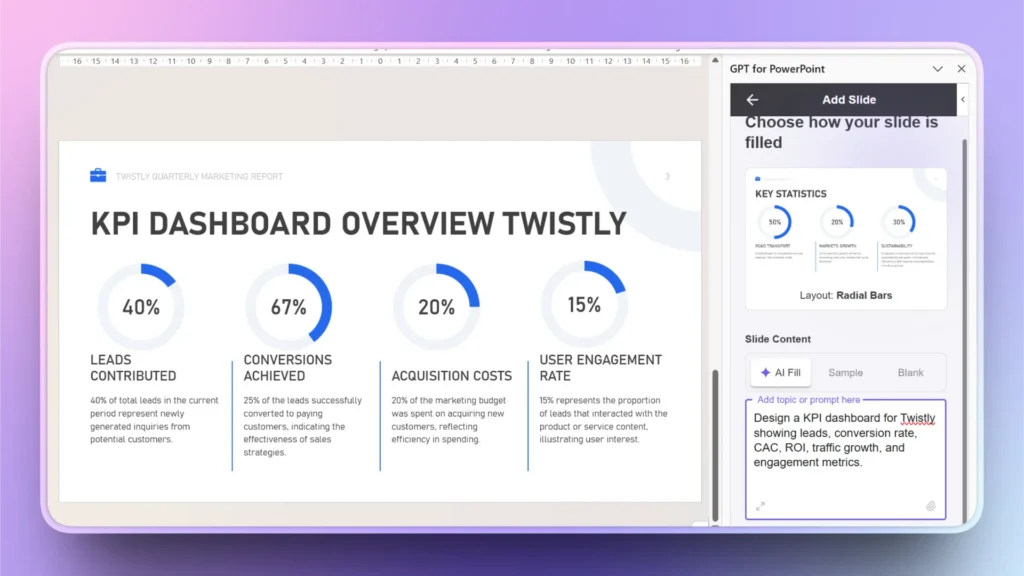
What are the important KPIs that you want to monitor to analyze the performance of the campaigns? ROI, leads generation, revenue, or other KPIs can be displayed in this slide.
Step 4: Comparison Tables
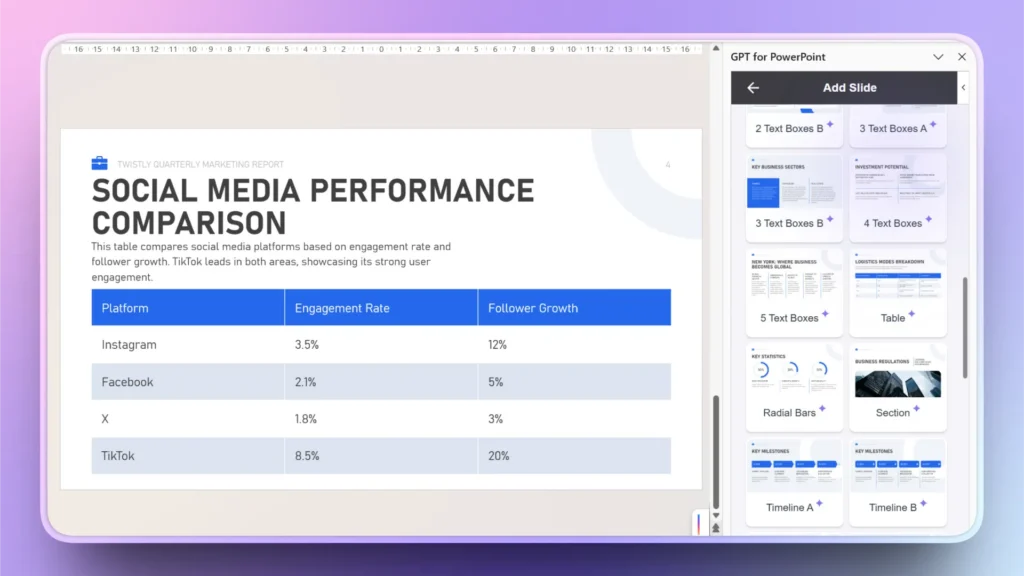
What’s the performance of your campaigns on different social media platforms? Use this slide to create a comparison table for measuring the performance on social media platforms like Instagram, Facebook, X, and TikTok.
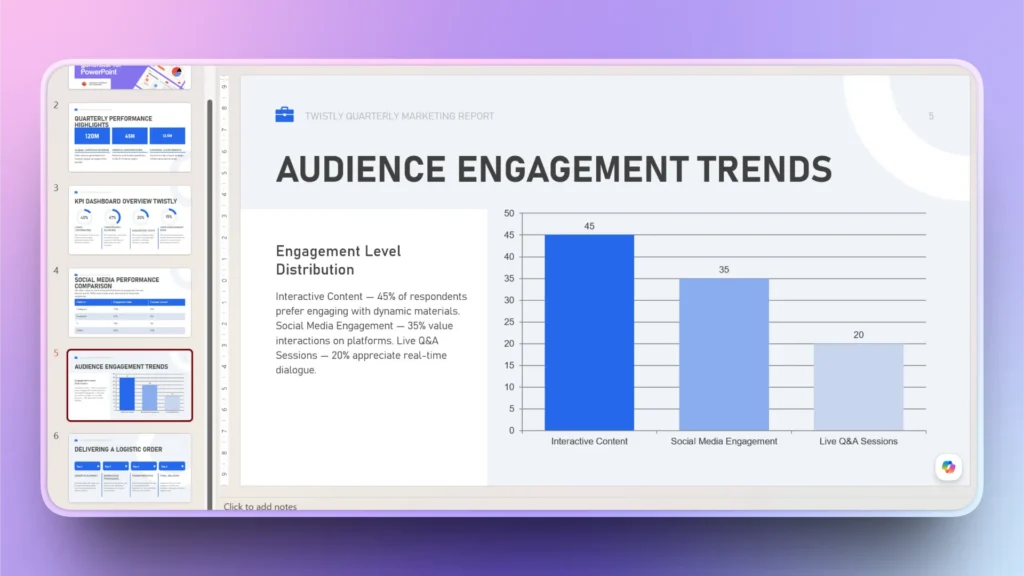
Step 5: Charts and Trends
This slide will help the audience understand what to expect in the future and how different factors changed in the past based on other factors.
Step 6: Executive Summary
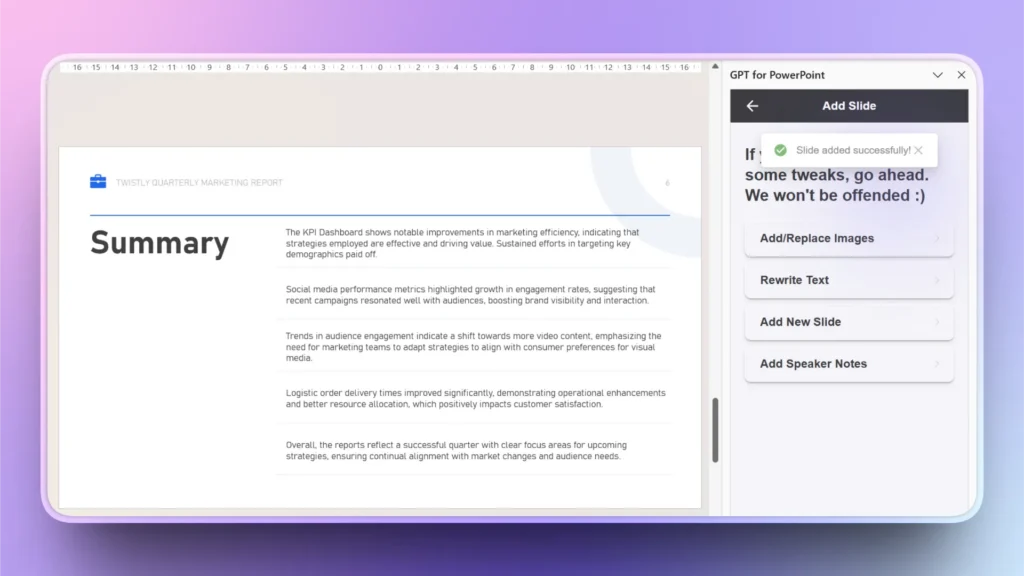
Edit Slides >> Add Slide >> Summary Slide
Drag the executive summary slide and place it under the title slide.
As you have now created some of the most important slides for the marketing report presentation, Twistly can analyze the slides and write an executive summary for the managers.
Step 7: Create More Slides
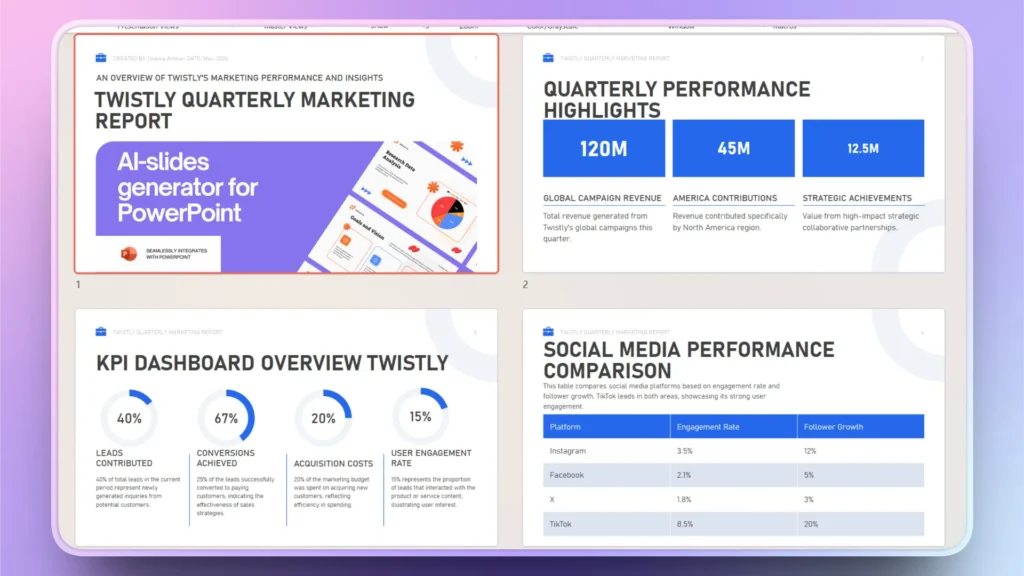
Follow the same process of creating other necessary slides. You can add more slides according to the report’s requirements. Adding relevant images can also be a value addition to your marketing report presentation. Here is how the final report presentation may look.
Benefits of Using Twistly for Marketing Report Decks
Twistly is the top choice of new and experienced marketers. Marketing teams can reduce presentation creation time from several hours to minutes. It takes just a few minutes to turn your ideas and data into an impactful marketing report presentation.
When teams don’t have to waste hours on the same tasks of creating slides, they can shift their focus to more important matters like:
- Campaign optimization
- Strategic planning
- Audience targeting
- Performance analysis
As Twistly templates offer customization options, teams can change colors according to the brand theme. Consistent presentations make your brand look more professional.
Get a Free Trial of Twistly, No Credit Card Required
New users can claim a free trial of Twistly by using the given link. Download Twistly add-in now and start making marketing report presentations with AI. To unlock all premium features, upgrade your subscription anytime for a competitive price.
Create PowerPoint
Slides with AI
Build AI-powered presentations from
any prompt, doc, or video


Conclusion
Twistly can draft a marketing report presentation with AI based on your provided campaign data, numbers, and facts. AI presentation workflows are becoming an essential part of modern marketing operations rather than an optional productivity enhancement.
If you don’t want to be left behind in the AI race, download Twistly now and enjoy a custom ChatGPT for PowerPoint. Turn hours of manual editing into AI automation with a few clicks.











Start Making AI Presentations in Seconds
Instant Access
Begin exploring Twistly’s full suite of features immediately
No Commitments
No credit card required, and you can cancel anytime
Dedicated Support
Our team is here to assist you every step of the way during your trial.