

Breaking the Language Barrier: AI Presentations in 30+ Languages
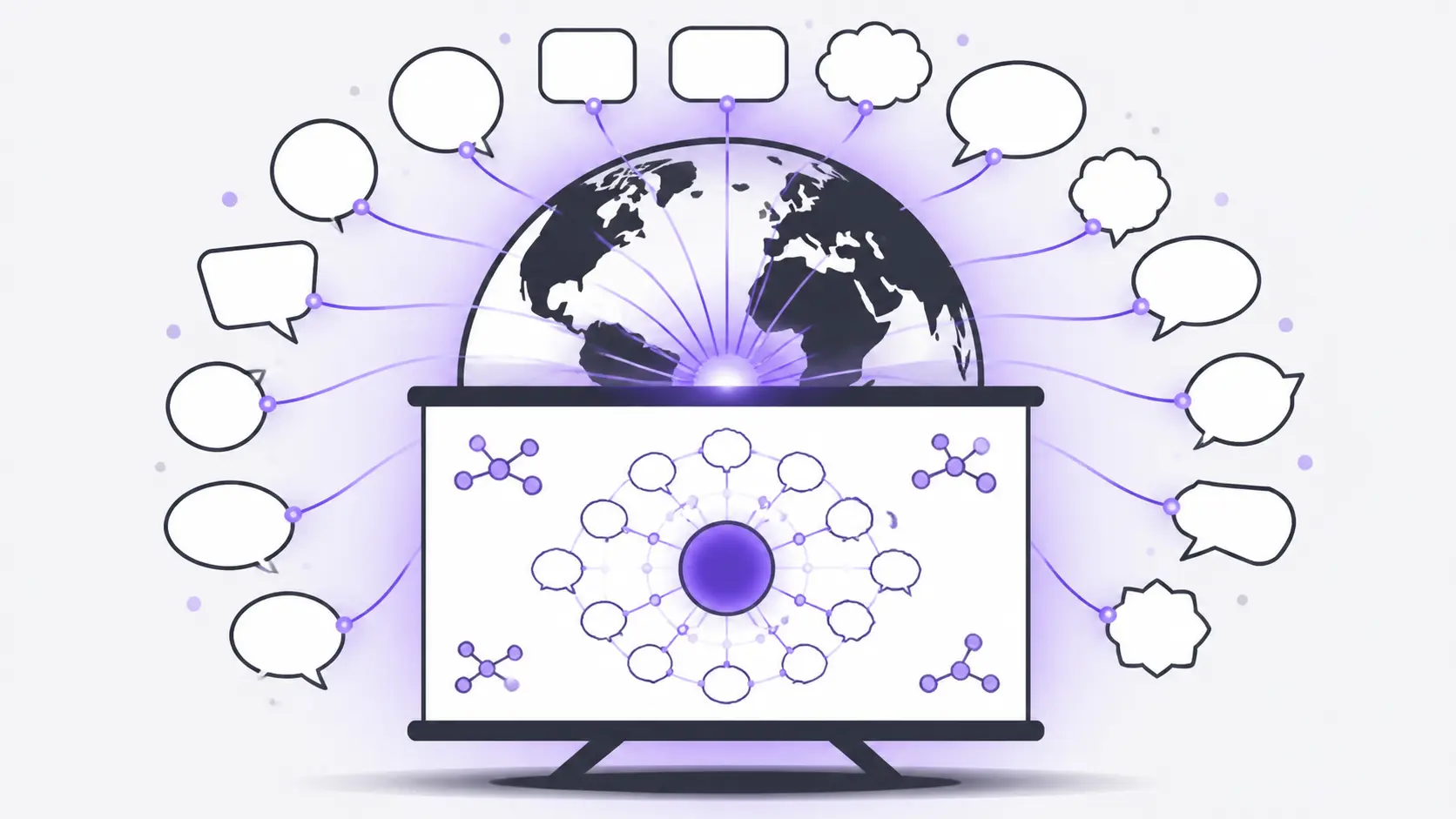
Businesses no longer offer their services and products within one city or even one country. Companies pitch products to customers who speak different languages. Teams collaborate with talent across continents. Creating presentations in different languages is not an occasional task anymore.
3rd party translation tools are inconsistent, slow, and expensive. AI presentation tools can create presentations in multiple languages without breaking the structure or slide formatting.
Multiple Languages, Same Message
Global communication is easier with the right AI tools that seamlessly integrate with existing workflows. Without AI, preparing the same presentation in English, Spanish, French, Arabic, and other languages will take several days.
Reformatting text, adjusting layouts, translating text, and other repetitive tasks will consume your productive time.
Problem with Manual Translation
Why do AI presentations perform well for decks in different languages? Sentence length will be different for different languages. Manual translation will ruin the entire styling for a presentation in another language.
- Formatting gets lost
- Visual designs break
- Misinterpreted context
- Speaker notes remain untranslated
AI tools like Twistly ensure that formatting, styling, structure, and other elements are automatically adjusted according to context and sentence length.
How to Create AI Presentations in 30+ Languages?
Whether you want to create fresh presentations in multiple languages within PowerPoint or want to translate any existing deck, Twistly supports all possible scenarios.
Twistly is an AI-powered add-in for PowerPoint that can automate the presentation creation process from start to finish. It can also create presentations in multiple languages or translate any existing presentation into 30+ different languages.
Method 1: Create Presentations in Different Languages
You are assigned a task to create 10 presentations in different languages. It is almost impossible for a common user to be good at 10 different languages. With Twistly, you just choose the presentation language and input data and topics in plain English.
Twistly processes the input and creates a complete presentation in your desired language. This is how it happens.
Paso 1: Abrir PowerPoint y Twistly
Start a new blank presentation and launch Twistly, then choose the Create New Presentation opción.
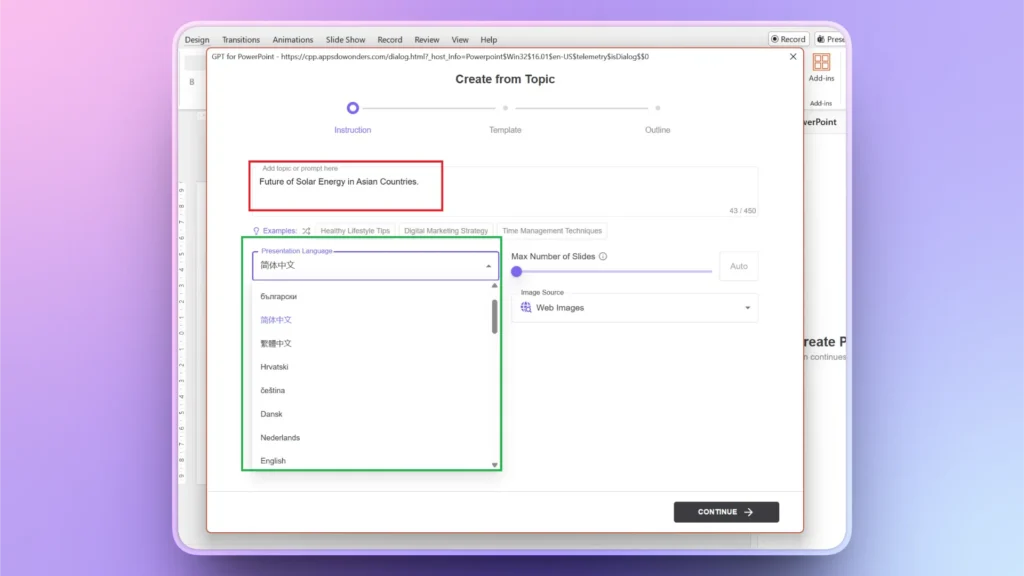
Step 2: Input Presentation Topic and Select Language
Choose an input type; you can write a topic, AI prompt, paste text, or upload any document as input.
Provide the presentation topic and select Presentation Language. Make other changes to the presentation settings as needed.
Step 3: Review Outline and Choose a Template
Twistly will quickly process your input and create an outline for slides in the presentation. Review the suggested outline and then choose a template.
Step 4: Final Presentation is Ready
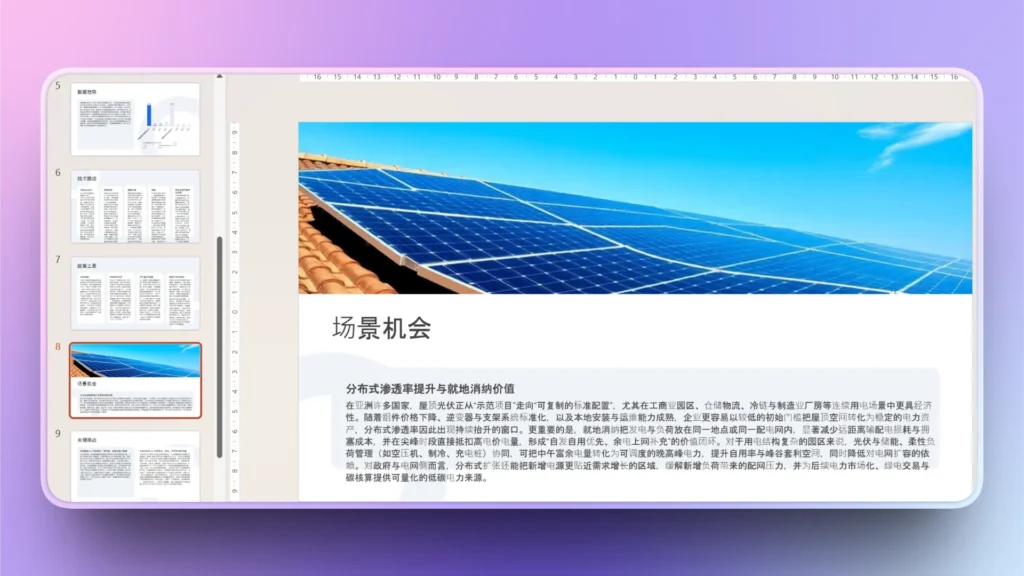
Within seconds, Twistly will create final slides in your selected language. AI can also help you revise, edit, or improve text.
Method 2: Translate any Existing PowerPoint Presentation
Brand presentations are already finalized, but now different versions of the original presentation are required in multiple languages.
With the AI tool Twistly, you can translate any selected text, slide, or entire presentation to 30+ languages. The process is simple and takes only a few clicks and a minute or two.
Paso 1: abre Twistly >> Edit Slides
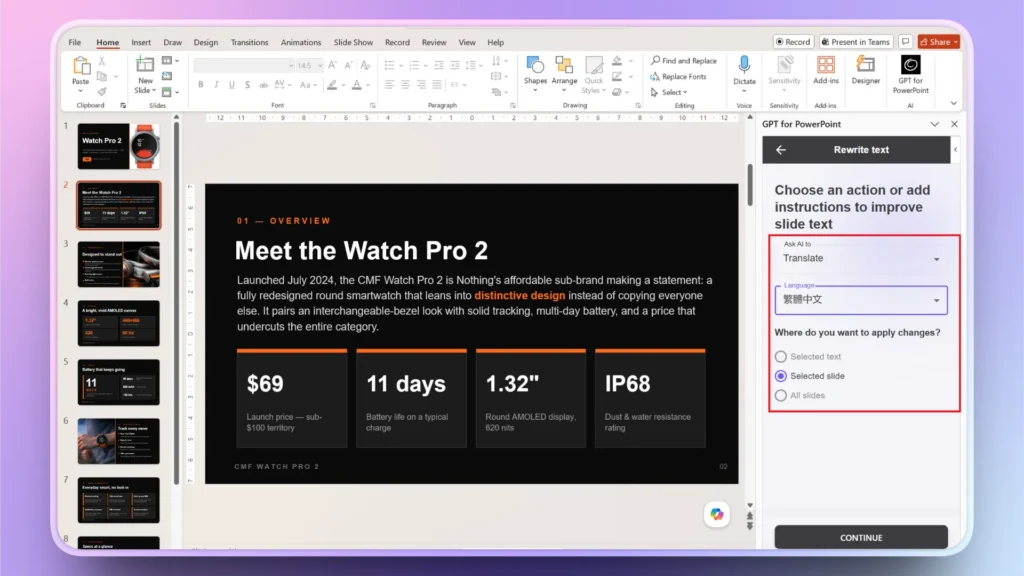
Open the existing PowerPoint presentation and then open Twistly. Choose the Edit Slides option and select the Rewrite Text option.
This feature has all AI actions that users can perform to improve or edit text for presentation slides.
Step 2: Ask AI to Translate
Choose the Translate option from the dropdown menu and select a language for translation.
Twistly will ask you whether you want to translate the selected text, the selected slide, or all slides.
Step 3: Your Text is Translated
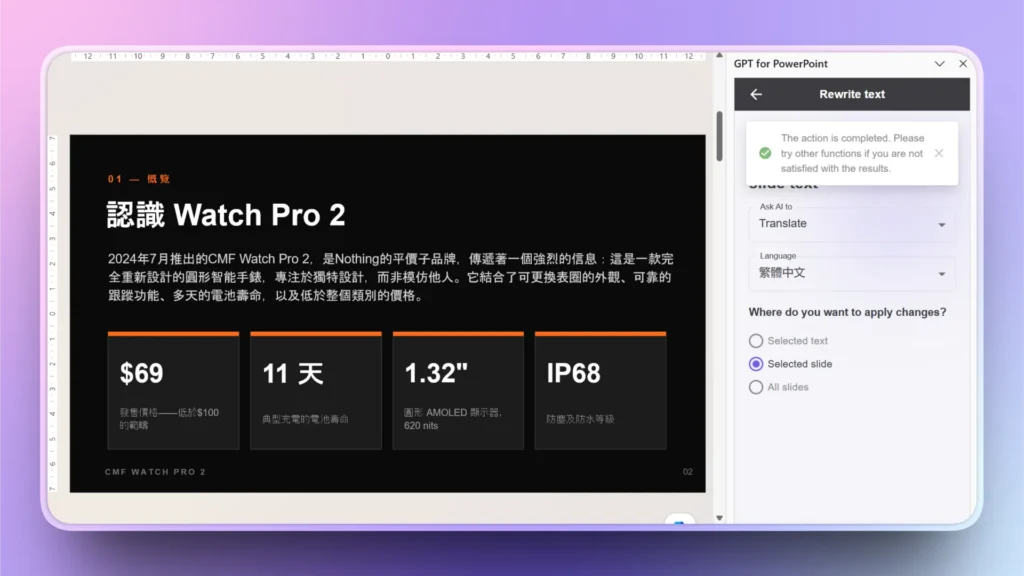
Twistly will notify you once translation is complete. Further customizations and text edits are possible for the output.
Who Benefits from Multilingual Presentations
Translation isn’t always enough, as some projects require entirely new presentations in different languages. For these situations, you have two different methods to use the AI translation feature of Twistly for PowerPoint presentations.
Every PowerPoint user who has something to do with an international audience can benefit from multilingual presentations. Major beneficiaries include:
- Sales teams
- Marketing departments
- HR professionals
- Universities and schools
- Consultants
Being a freelancer or entrepreneur, you can also pitch more clients from other countries with Twistly. Instead of forcing clients to switch their language, you can pitch them with presentations made in their own local languages.
Twistly Goes Beyond Translation.
Multilingual presentations and AI translation are two features from the long list of AI capabilities of Twistly. AI automates the process of creating PowerPoint presentations without leaving the ecosystem.
There is no need to paste text into different translation apps and then adjust your slides. With Twistly, everything happens inside PowerPoint.
Any AI option that you need to improve your presentations, Twistly already has it. Give Twistly a try for free and see how it boosts your productivity.
Crear PowerPoint
Diapositivas con IA
Cree presentaciones basadas en IA a partir de
cualquier mensaje, documento o vídeo


Best Practices for Generating Presentations in Different Languages
The efficiency of output generated by any AI tool can be improved by following simple tips. Here are guidelines that help users get more accurate translations and multilingual presentations with Twistly.
- Write clear and concise content before translation
- Don’t use local terms that are specific to your region or culture
- Use consistent industry-specific terms
- Review translated text or presentations before presenting
- Have a native speaker review your final slides for more accuracy
Language should not prevent your business from reaching the right audience across borders. Collaborate more effectively with teams and pitch new clients from other countries. Use AI wisely to increase productivity in every aspect of personal and professional life.
Palabras finales
Twistly offers a practical way to break the language barrier for creating presentations in 30+ languages without leaving PowerPoint. You get customized and personalized presentations for different segments or audiences while staying within the PowerPoint workflow.











Empieza a hacer presentaciones con IA en segundos
Acceso instantáneo
Empieza a explorar inmediatamente todas las funciones de Twistly
Sin compromisos
No necesita tarjeta de crédito y puede cancelar en cualquier momento
Asistencia dedicada
Nuestro equipo está aquí para ayudarle en cada paso del camino durante su juicio.