


How to Create a Performance Report Presentation With AI?

PowerPoint add-ins like Twistly can create a performance report presentation with AI by automating content writing, formatting, and slide designing. Instead of creating graphs and data charts from scratch, you can pick a layout, and Twistly will create a slide based on your provided data.
You pick a slide layout, explain your data or requirements in plain language, and AI will turn that prompt or data into a performance report. This seems just like ChatGPT, but Twistly combines the power of AI slide makers, AI writers, designers, and optimization tools.
Don’t waste time on blank presentations; use AI to format, design, and optimize performance report presentations with AI. How to use Twistly to create a performance report presentation with AI, and how to get Twistly for free?
Definition of a Performance Report Presentation
It is a structured business deck used to communicate organizational progress, operational results, and key performance indicators (KPIs). Imagine you are asked to share the performance of your team members in the last quarter. Performance report presentations are mainly used for:
- Quarterly business reviews
- Monthly performance reporting
- Executive updates
- Department reviews
- Marketing performance analysis
- Sales reporting
Writing a long paragraph explaining the achievements of your team does not make sense in the business world. Managers want easy-to-digest insights that can help them analyze the performance at first glance.
For these situations, you need to learn how to create a performance report presentation with AI. Trend analysis, dashboard, goal tracking, forecast projection, and performance summaries are included in a general business performance report presentation.
Creating a Performance Report Presentation with Twistly
Twistly is an AI add-in for PowerPoint that works just like a ChatGPT for presentations. Users can input data, and AI will transform that data or prompt into meaningful slides. You can either choose Create from Topic or create a performance report presentation with AI, slide-by-slide.
For better customizations, we will follow the steps to create a performance report presentation slide-by-slide. In this section, we will cover the process of creating the most important slides for a professional performance report presentation.
Crear PowerPoint
Diapositivas con IA
Cree presentaciones basadas en IA a partir de
cualquier mensaje, documento o vídeo


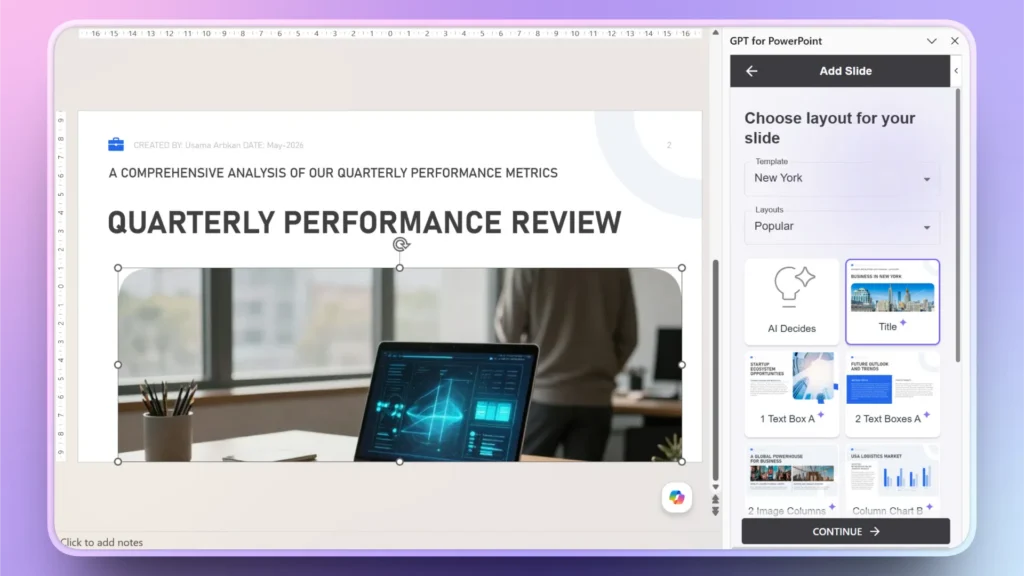
Slide 1: Create Title Slide
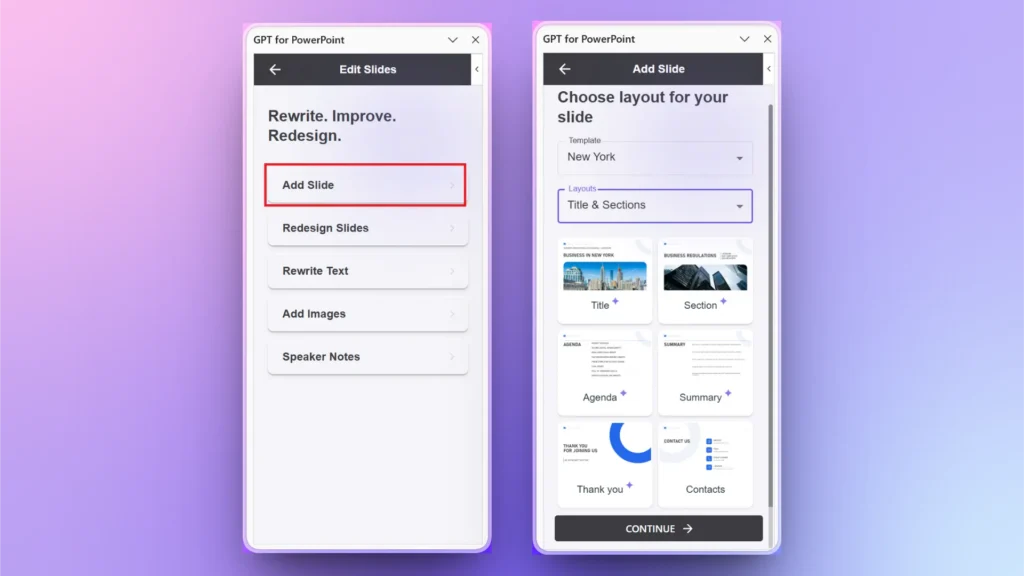
Start a new blank presentation and launch Twistly. From the Twistly pane, select Edit Slides >> Add Slide option and choose Title layout from the available options.
Slide 2: KPI Dashboard
What important KPIs do you want to show in the presentation? You need to have data for the KPIs that Twistly can turn into an interactive slide. Simply choose Add Slide and then select a layout that you like for the KPI Dashboard.
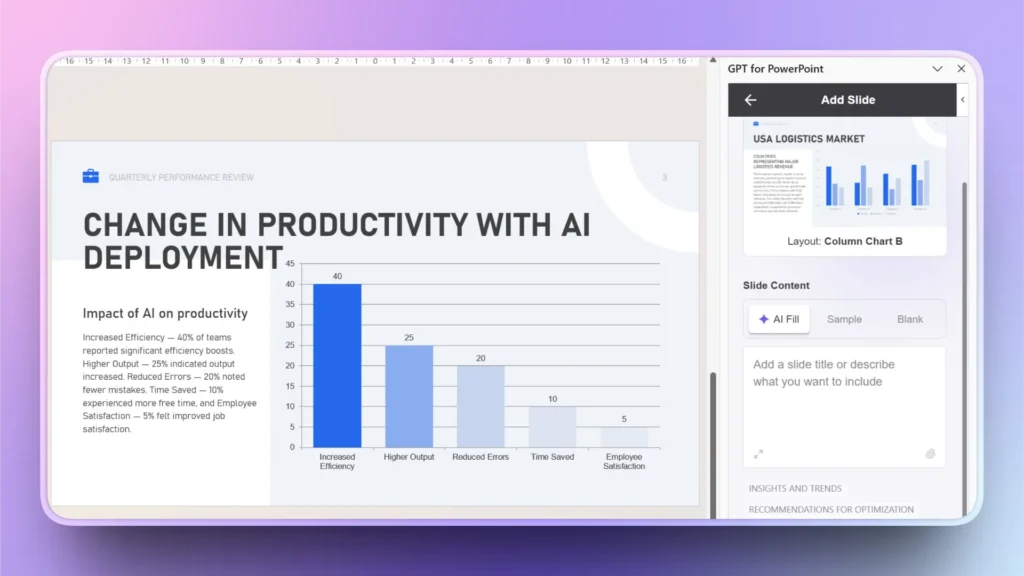
Slide 3: Trend Analysis
What trend changes have been experienced by the team? Input data about the important trends that matter for the team and use the appropriate layout to show trend changes with Twistly.
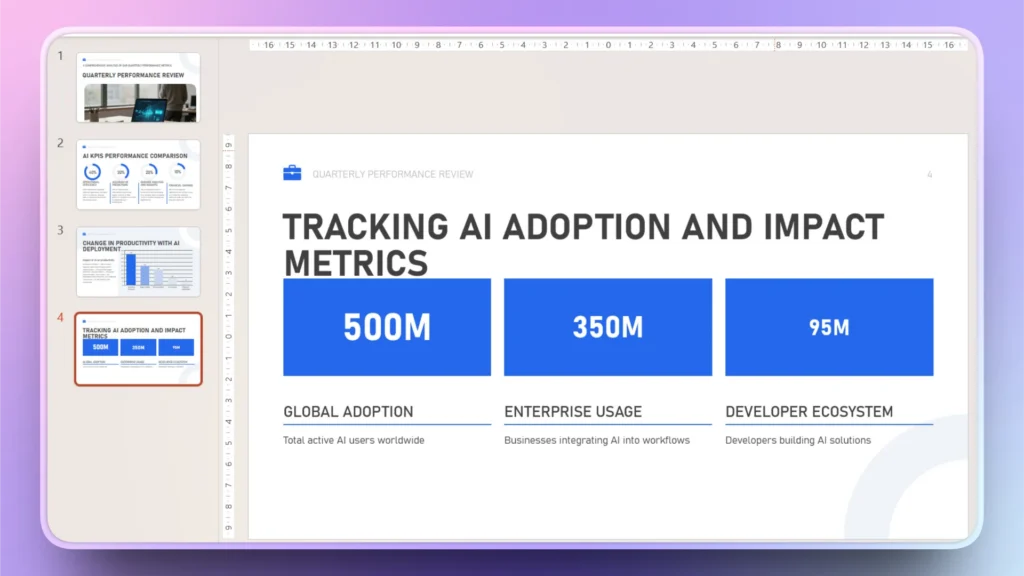
Slide 4: Goal Tracking
What goals have you achieved in the last quarter? Use the Big Numbers slide layout from the available options, and then simply input your data, and Twistly will create an attractive slide based on the provided data.
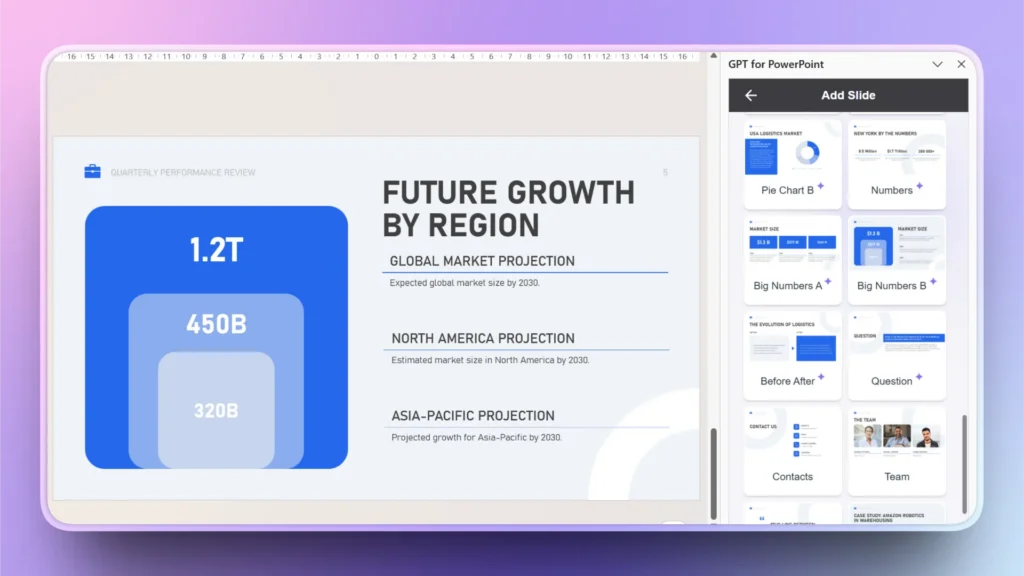
Slide 5: Forecast Projections
What possible changes and opportunities are expected in the near future? The audience should clearly understand the room for growth by reviewing this slide.
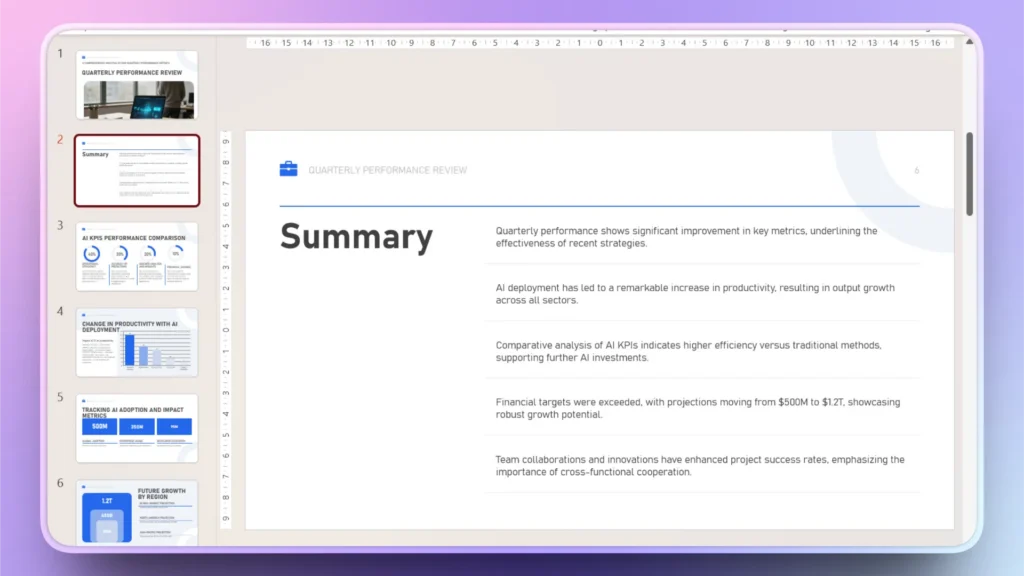
Slide 6: Performance Summary
A summary slide is also an important part of the performance report presentation. Usually, this slide goes right after the title slide.
As we now have enough data for the AI tool to generate a summary, select the Summary slide layout, and Twistly will create a summary slide based on the context of the available slides.
Slide 7: Strategic Roadmap
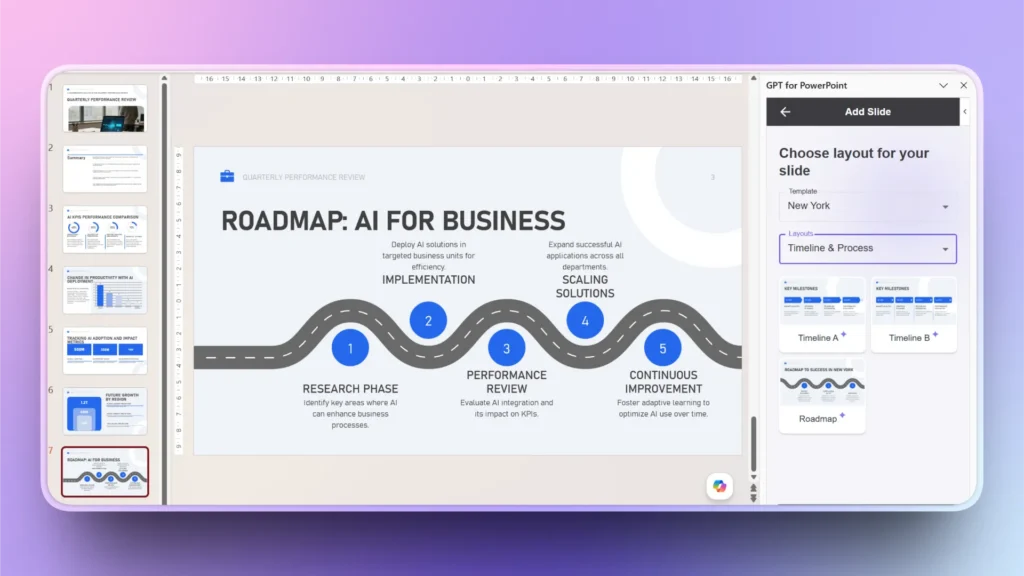
What steps do you recommend for the upcoming months? A proper roadmap slide is an ideal choice for this step. Choose a timeline or roadmap slide layout, and Twistly will create a roadmap that you can follow for optimal results.
Creating More Slides with Twistly
You have created all the important slides for a performance report presentation. If you want to add more slides according to your project requirements, follow the same steps and add as many slides as you want.
Apart from creating AI slides, you can also optimize existing slides with AI. From content optimization to design changes, everything is possible with Twistly.
Creating a presentation from a topic is easier and faster, but this method offers better results and customized output.
Why Use Twistly for Performance Report Decks
Traditional methods require extensive resources and time. Businesses usually prefer productivity, and Twistly combines efficiency and accuracy. Without compromising on the quality, you can get professional slides for your performance report presentation.
Twistly is trusted and used by millions of PowerPoint users. The interface is simple, and making presentations with AI does not require any special skills. Twistly can accelerate:
- Slide generation
- Report structuring
- KPI organization
- Data summarization
- Visual formatting
- Presentation consistency
Twistly supports almost every stage of report creation, from the title slide to the thank you slide. The choice is yours, either you want a quick performance report presentation within minutes, or you want to spend days creating one.
Get Twistly for PowerPoint for Free
Twistly is a premium AI tool for PowerPoint presentations, and we understand that new users may have some doubts about the capabilities of this AI presentation maker. To address your concerns, download the free trial version now.
Use the link below to claim your free trial version, no credit card required. If you are happy with the AI presentation features of Twistly, upgrade your subscription for a competitive price.
Crear diapositivas de PowerPoint con IA
Crea presentaciones basadas en IA a partir de cualquier mensaje, documento o vídeo

Conclusión
Twistly can create a performance report presentation with AI by combining AI-driven content structuring with presentation design automation. The whole process of creating a presentation with Twistly takes only a few minutes. It is quick, accurate, and efficient. Be smart, use Twistly for presentations.







Empieza a hacer presentaciones con IA en segundos
Acceso instantáneo
Empieza a explorar inmediatamente todas las funciones de Twistly
Sin compromisos
No necesita tarjeta de crédito y puede cancelar en cualquier momento
Asistencia dedicada
Nuestro equipo está aquí para ayudarle en cada paso del camino durante su juicio.