



Last updated
You can now use AI for PowerPoint in three ways: Microsoft Copilot, official AI assistant add-ins, or specialist presentation tools. Copilot is built in. OpenAI’s ChatGPT and Anthropic’s Claude both have official PowerPoint add-ins. Copilot even lets commercial subscribers pick a ChatGPT or Claude model when editing (Microsoft Support, retrieved 2026-11-11). More choice has made picking a tool harder, not easier.
This guide explains each route, what it needs, and how to choose in four questions. Twistly makes an AI presentation tool, so see how we wrote this guide for our method and conflict-of-interest note.
Key Takeaways
- There are three routes to AI in PowerPoint: Microsoft’s built-in Copilot, AI assistants that run as add-ins (ChatGPT and Claude), and specialist presentation tools.
- For many users, the AI model is no longer the main difference. Commercial Copilot users can choose ChatGPT or Claude models when editing. What differs is the workflow, template handling, editability and cost.
- Start with what you already pay for. Then decide whether you need an assistant that edits alongside you or a tool that hands you a finished deck.
- Whatever you use, check that text, tables and charts are native PowerPoint objects before you rely on the file.
What Is AI for PowerPoint?
AI for PowerPoint means using generative AI to draft, design, edit or explain slides. You can do it inside PowerPoint through Copilot or an add-in. You can also use a separate tool that exports a PowerPoint (.pptx) file.
The tools fall into three groups:
- Built-in AI. Microsoft Copilot runs inside PowerPoint and the other Microsoft 365 apps.
- AI assistants as add-ins. ChatGPT and Claude each have an official PowerPoint add-in that opens in a sidebar next to your slides.
- Specialist presentation tools. These are built only for presentations. They take a topic, notes or a document and return a structured deck. Some work inside PowerPoint, some run on the web and export a .pptx file, and some do both.
All three are designed for the slow, mechanical part of deck building. That means turning a document into an outline, filling slides with first-draft text, suggesting layouts, writing speaker notes and translating. None of them can judge what your audience needs to hear. Any of them can state a number that isn’t true, so treat every AI draft as a first draft.
Don’t assume an AI-made deck is fully editable. A .pptx file can hold text and charts as native objects or as pictures. You can’t tell which just by looking at a slide, and the advanced section shows how to check.
The Three Routes Compared
The right route depends on two things: the subscription you already pay for, and whether you want an assistant or a finished deck. This summary reflects vendor documentation as of November 2026.
| Route | Examples | Where it runs | Qué necesitas | Typical output | Ideal para |
|---|---|---|---|---|---|
| Built-in AI | Microsoft Copilot in PowerPoint | Dentro de PowerPoint | A Microsoft 365 plan that includes Copilot | Slides created or edited in the open deck | People and teams already on a Copilot-enabled Microsoft 365 plan |
| AI assistant add-ins | ChatGPT for PowerPoint, Claude in PowerPoint | Sidebar inside PowerPoint | An eligible plan with the AI provider (Claude: any paid plan; ChatGPT: see OpenAI’s help center) | Edits and new slides in the open deck | People who already use ChatGPT or Claude every day |
| Specialist tools | Plus AI, Twistly and similar products | Inside PowerPoint, on the web, or both | An account with the tool; free plans and trials vary by vendor | A complete structured deck, or a redesigned existing deck | People who want a finished deck from a topic or document |
Prices and plan rules change often, so check each vendor’s pricing page before you buy.
Microsoft Copilot in PowerPoint
Copilot is Microsoft’s AI assistant built into PowerPoint. It can create a presentation from a prompt or a Word document, using your template’s existing layouts. It can also apply your organization’s Brand Kit when one is required (Microsoft Support, retrieved 2026-11-06). When editing, it can insert slides, summarize a deck and rewrite slide text for clarity and tone.
You can switch Copilot’s model
When you edit with Copilot in PowerPoint, you can pick Auto (Copilot chooses), ChatGPT (OpenAI) or Claude (Anthropic). According to Microsoft’s model page (retrieved 2026-11-11):
- The model switcher requires a commercial Microsoft Copilot subscription.
- In enterprise accounts, an admin must turn on Anthropic as a sub-processor before Claude appears.
- Your choice lasts only for the current session, then resets to Auto.
- Models vary by region and subscription type, and different models can give different results for the same prompt.
If your company already pays for Microsoft 365 Copilot, you may already have both ChatGPT and Claude models inside PowerPoint. Check that before you buy a separate assistant subscription just for slides.
Who gets Copilot in PowerPoint?
Access depends on your Microsoft 365 plan. Microsoft markets Copilot in the PowerPoint desktop app as part of its Personal and Family plans, with usage limits (Microsoft, retrieved 2026-11-06). Organizations use a Microsoft 365 Copilot license instead. Microsoft also says Copilot “might not be included with your Microsoft 365 subscription” (Microsoft Support). The quickest check is to open PowerPoint and look for the Copilot button.
Copilot suits people and teams that already use Microsoft 365 and don’t want another vendor. It’s a general assistant rather than a presentation specialist. So the quality of a fully generated deck depends heavily on your prompt and template.
Microsoft updates Copilot often, so treat any feature list as a snapshot. We update this section when Microsoft’s documentation changes.
ChatGPT and Claude Inside PowerPoint
OpenAI and Anthropic both offer official PowerPoint add-ins. If you already work in ChatGPT or Claude, you can use it in a sidebar next to your slides.
ChatGPT para PowerPoint
OpenAI documents its ChatGPT for PowerPoint add-in in the OpenAI Help Center (retrieved 2026-11-06). It tells you to install it from Microsoft Marketplace, Microsoft’s add-in store (formerly AppSource). When you install it, check that the publisher shown is OpenAI. Plan eligibility and beta status can change, so confirm both in OpenAI’s help center before rolling it out to a team.
Claude in PowerPoint
Anthropic says Claude in PowerPoint is available on all paid Claude plans (retrieved 2026-11-11). It builds slides in your existing template using your slide masters. It edits the content you select and generates native charts and diagrams. Anthropic also says it carries context across Word, Excel and Outlook. That helps when your source analysis lives in a spreadsheet or document.
How to use the assistant route
Both add-ins are general assistants, and they work best in short loops. Select slides, ask for a change, review it, then repeat. They’re built for editing and restructuring a deck you’re actively shaping. Want to hand over a long document and get a finished deck back in one step? Also try the specialist route below and compare results.
For a closer look at one add-in, see our ChatGPT for PowerPoint add-in comparison.
Specialist AI for PowerPoint Tools
Specialist tools are built only for presentations. You give them a topic, notes or a document, and you get back a structured deck. Most of the formatting work is done before you open PowerPoint. They differ mainly in where they run and how editable their output is.
In-PowerPoint add-ins
These install into PowerPoint and work on the deck you have open, with no upload or download step. Plus AI, for example, says it works directly inside PowerPoint and Google Slides. Twistly says its add-in can redesign slides in the deck you already have open (Twistly, retrieved 2026-11-11). For specific comparisons, our Beautiful.ai comparison y SlideSpeak comparison cover two more options.
Web generators that export to PowerPoint
These run in the browser and produce a .pptx file to download. They’re most useful when you start from a document rather than a blank deck. A typical flow: upload a PDF or Word file, approve the proposed outline, then download the .pptx. Twistly Online works this way. Twistly says tables and charts in your document stay editable objects, not screenshots (Twistly). As with any vendor’s claim, ours included, verify it on your own file.
Crear PowerPoint
Diapositivas con IA
Cree presentaciones basadas en IA a partir de
cualquier mensaje, documento o vídeo


Check editability before you commit
We haven’t published side-by-side export tests yet, so we don’t rank tools on this here. You can check for yourself, though. A file can look right yet hold text or charts as pictures, which makes later edits slow. Before you standardize on any generator, ours included, run one real document through it. Then inspect the file with the 60-second check below.
How to Choose AI for PowerPoint: Four Questions
Start from what you already pay for, then decide whether you need an assistant or a finished deck. Answer these in order:
- Do you already have Copilot in PowerPoint? Try Copilot first. With a commercial Copilot subscription, you can also switch to ChatGPT or Claude models inside it.
- Do you already pay for ChatGPT or Claude? Install that provider’s official add-in and use it for editing and restructuring.
- Do you need a new deck from a document or a blank page? Specialist tools build a complete first draft in one step, so include one in your test. If you’re only polishing an existing deck, an add-in or editing by hand may be enough.
- Must the deck follow a company template and stay fully editable? Test each candidate with your own template, and inspect the output before you standardize.
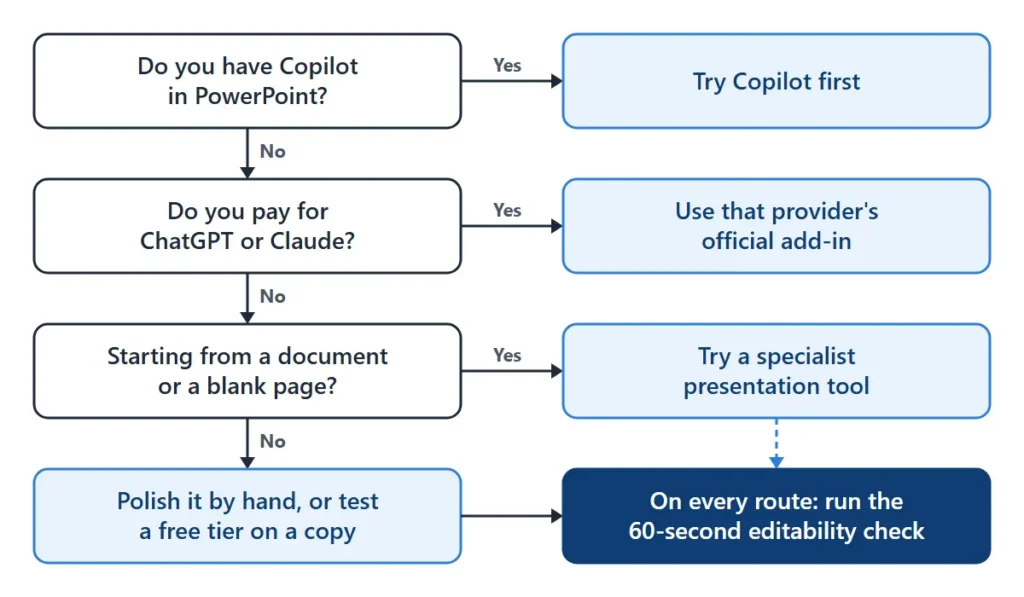
Here’s how this plays out for three common readers:
- A student on a tight budget should first check whether their Microsoft 365 plan, perhaps through school, includes Copilot. If not, a specialist tool’s free plan or an assistant they already pay for is the realistic start.
- A sales team on Microsoft 365 Copilot should start with Copilot. They should add a specialist tool only if they keep rebuilding decks from long documents.
- A consultant with a strict brand template should test Claude in PowerPoint, which documents slide-master support. Test it alongside a specialist tool that supports brand templates, then compare the two files side by side.
What You Can Do with AI in PowerPoint
The most useful AI tasks in PowerPoint are drafting from a document, redesigning slides, writing speaker notes and translating. All three routes handle some of these. They differ in how much of each job they finish for you. For click-by-click steps, see our step-by-step PowerPoint walkthrough.
Start from a topic
Give the tool a one-line topic, your audience and your time limit. The time limit matters because it decides how many slides you need. This prompt works with any route in this guide:
“Create a 10-slide presentation for our sales team on Q4 pricing changes. The audience knows our product but not the new tiers. I have 15 minutes. Use our company template, keep each slide to one main point, and add speaker notes.”
Our guide to how many slides a presentation should have covers slide count in detail.
Start from a PDF or Word document
Turning a document into slides is mostly restructuring and formatting, the mechanical work these tools are built for. Upload the source, then review the outline before any slides are built. Cutting a weak section at the outline stage is far faster than deleting slides later. Our guide to converting a PDF to PowerPoint with AI walks through this step by step.
Redesign an existing deck
Add-ins that work on the open file can restyle or restructure slides without an export step. That includes Copilot, the ChatGPT and Claude add-ins, and specialist add-ins. Try it on a copy of the deck first.
Speaker notes and translation
AI can turn slide bullets into speaker notes. It can also translate a deck while keeping its layout. Review both: notes need your own examples, and customer-facing translations need a native speaker’s check.
For structure that holds up whichever tool drafts it, see our breakdown of the anatomy of a great presentation.
Common Mistakes with AI-Generated Slides
The biggest mistake is presenting the first draft without checking facts, structure and editability. The most common ones:
- Unchecked numbers. AI can produce plausible figures with no source. Verify every statistic against the original document.
- Too many words per slide. Generated slides often read like a document. Cut each slide to one main point.
- Skipping the outline. Fixing structure at the outline stage takes minutes. Fixing it across finished slides takes much longer.
- Ignoring the template. A deck with the wrong fonts and layouts creates rework for whoever edits it next.
- Never opening the file before the meeting. Open the deck in desktop PowerPoint and click into a few objects before you present.
We go deeper in the most common mistakes people make with AI-generated slides.
Advanced: Keeping AI Output On-Brand and Editable
If your team uses a corporate template, one difference matters most. Does the tool write into your template’s layouts, or only imitate its look? A deck built on your slide master inherits your fonts, colors and placeholders automatically. A deck that only copies the look breaks when someone adds a slide or changes the theme.
The 60-second editability check
Run this on any AI-generated deck before you standardize on a tool:
- Click into the text. Every heading and bullet should be editable text, not part of an image.
- Open the chart data. Right-click a chart. If you can edit its data, it’s a native chart. If you can’t, it’s a picture.
- Check the tables. Click into a table cell. A real table lets you add rows, and a picture of a table doesn’t.
- Open the Selection Pane (Home, then Arrange, then Selection Pane). It lists every object on the slide, so stray images stand out (Microsoft Support).
- Check the layout. Add a new slide and confirm the layout gallery shows your template’s layouts.
A tool that passes all five gives you a file your team can maintain. A tool that fails two or more will cost you time on every later edit, however good the first draft looks.
Getting Started
Begin by checking which AI you already have. It takes a few minutes and may save you a subscription.
- Check your access. Look for the Copilot button in PowerPoint, and note whether you already pay for ChatGPT or Claude.
- Test with real material. Run one document or deck you need this month through a single tool. Real material shows accuracy problems that demo prompts hide.
- Inspect, then standardize. Run the 60-second editability check, compare the result with one alternative, and pick one workflow for your team.
If you want to test the specialist route, you can start for free in Twistly Online in your browser, with nothing to install. Current plan limits are on the página de precios de Twistly.
Preguntas frecuentes
Does PowerPoint have built-in AI?
Yes. Microsoft Copilot is built into PowerPoint for Microsoft 365 plans that include it. It can create presentations from a prompt, add slides, summarize decks and rewrite text.
Is Copilot in PowerPoint free?
Not on its own. Copilot is included in some Microsoft 365 plans, not all. Microsoft markets it with usage limits in its Personal and Family plans, and businesses use a Microsoft 365 Copilot license. Check your plan, or look for the Copilot button in PowerPoint.
Can ChatGPT or Claude make a PowerPoint?
Yes. OpenAI and Anthropic each publish an official PowerPoint add-in that works in a sidebar next to your slides. Claude’s add-in requires a paid Claude plan. Commercial Microsoft 365 Copilot users can also choose ChatGPT or Claude models inside Copilot.
What is the best AI add-in for PowerPoint?
No single add-in is best for everyone. If you already have Copilot, start there. If you live in ChatGPT or Claude, use that provider’s add-in. If you need complete decks from documents, test a specialist tool. The four questions above narrow it down.
Are AI-generated slides editable in PowerPoint?
It depends on the tool. Some produce native text boxes, tables and charts, while others embed text or charts as images. Open the file in desktop PowerPoint and run the 60-second editability check before you rely on it.
Turn your next document into an editable deck.
Upload a PDF, Word file or notes to Twistly Online and get a structured PowerPoint with native text, tables and charts you can keep editing.
Bottom Line: Choosing AI for PowerPoint
Your next step is simple. Open PowerPoint, check whether Copilot is there, and run one real document through the tool you already have. If the result fails the 60-second editability check, test one alternative before you commit.
Microsoft, OpenAI and Anthropic all ship PowerPoint integrations now, and their features change every few months. We’ll keep this guide updated as vendor documentation changes.
Continue Learning
- Plan your deck: How many slides should a presentation have? · Anatomy of a great presentation
- Step by step: Using Copilot and add-ins, click by click · How to convert PDF to PowerPoint with AI
- Avoid pitfalls: Common mistakes with AI-generated slides
- Compare tools: ChatGPT for PowerPoint add-in comparison · Beautiful.ai comparison · SlideSpeak comparison
How We Wrote This Guide
The Twistly Editorial Team wrote this guide. We’re the group at Twistly that writes our presentation guides and product comparisons. Twistly makes an AI presentation tool, so we have a stake in this category, and this guide compares Twistly with other tools.
To keep it fair, product facts about Microsoft, OpenAI, Anthropic and Plus AI come from each vendor’s own documentation. The date we checked each one is listed under Sources, and claims about Twistly are labeled as our own. The draft was prepared with AI assistance, and every product fact was checked against the sources below. Learn more about Twistly, o contact the team to report an error. We correct factual mistakes and show an updated date when we make significant changes.
Fuentes
- Microsoft Support: Choose your model when editing with Copilot in PowerPoint (retrieved 2026-11-11)
- Microsoft Support: Create a new presentation with Copilot in PowerPoint (retrieved 2026-11-06)
- Microsoft: PowerPoint with Microsoft 365 plans (retrieved 2026-11-06)
- Microsoft Support: Use the Selection Pane to manage objects in documents (retrieved 2026-11-11)
- Anthropic: Claude in PowerPoint (retrieved 2026-11-11)
- OpenAI Help Center: ChatGPT for PowerPoint (retrieved 2026-11-06)
- Plus AI (retrieved 2026-11-06)
- Twistly y Twistly pricing (retrieved 2026-11-11)










Empieza a hacer presentaciones con IA en segundos
Acceso instantáneo
Empieza a explorar inmediatamente todas las funciones de Twistly
Sin compromisos
No necesitas tarjeta de crédito y puedes cancelar cuando quieras
Asistencia dedicada
Nuestro equipo te ayudará en cada paso durante tu periodo de prueba