



Para usar la IA en PowerPoint, necesitas instalar Microsoft Copilot para las funciones básicas y, para una auténtica experiencia de IA, el complemento Twistly. Existen otras soluciones de IA para usuarios de PowerPoint, cada una con sus ventajas e inconvenientes.
Usar la IA en PowerPoint puede cambiar por completo tu experiencia con las presentaciones y mejorar tu flujo de trabajo. Si no se te dan bien las presentaciones o quieres resultados rápidos, herramientas de IA como Twistly te resultarán útiles en muchos casos.
No todas las herramientas de IA son iguales, y elegir la adecuada es clave para una auténtica experiencia de IA. Si buscas un generador de PowerPoint con IA completo, Twistly es tu opción ideal.
¿Qué puede hacer la IA por tus presentaciones de PowerPoint?
Las tareas que puedes hacer con IA dependen de la herramienta que elijas para PowerPoint. Copilot, Claude y otras herramientas de IA similares son como asistentes inteligentes: pueden hacer tareas básicas, pero no automatizar por completo la creación de presentaciones.
Imagina que has elegido Twistly para tus próximas presentaciones de PowerPoint. Esto es lo que puedes esperar de Twistly:
- Generar presentaciones completas a partir de un tema
- Convertir documentos (PDF, Word) en diapositivas
- Reescribir, resumir o ampliar contenido
- Crear diseños de diapositiva automáticamente
- Crear imágenes y elementos visuales
- Añadir notas del orador y traducciones
Hay muchas otras funciones geniales en camino y, con cada nueva actualización, tendrás funcionalidades que mejoran tus tareas diarias.
Cómo usar la IA en PowerPoint: instala el complemento Twistly
Empezaremos el proceso con la IA para PowerPoint más fiable y eficaz. Twistly integra en PowerPoint funciones similares a las de ChatGPT.
Con sus funciones y prompts de IA listos para usar, puedes hacer maravillas con Twistly en tus presentaciones. Esto es todo lo que necesitas saber para usar Twistly AI en PowerPoint.
Parte 1: instala el complemento Twistly
Puedes descargar e instalar el complemento Twistly desde la biblioteca de complementos de PowerPoint, Microsoft AppSource o la web oficial de Twistly. Una vez instalado, el icono de Twistly AI for PowerPoint aparecerá en la esquina superior derecha de la cinta.
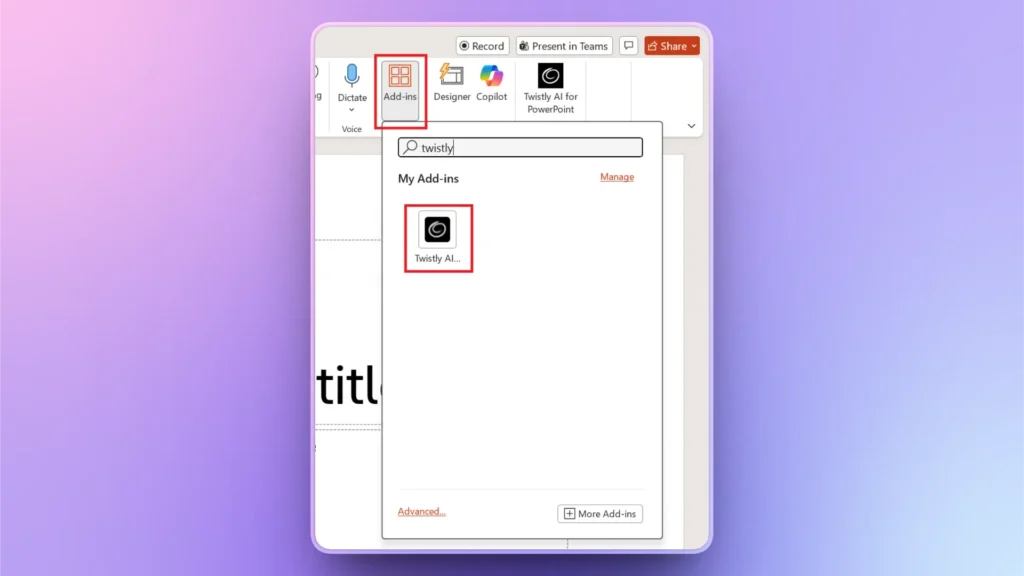
También puedes solicitar tu prueba gratuita de Twistly haciendo clic en el enlace de abajo. Descarga Twistly ahora y empieza a crear presentaciones con una prueba gratuita por tiempo limitado, sin tarjeta de crédito.
Crear PowerPoint
Diapositivas con IA
Cree presentaciones basadas en IA a partir de
cualquier mensaje, documento o vídeo


Parte 2: ¿cómo usar Twistly AI en PowerPoint?
Twistly ya está instalado y estás listo para crear tu primera presentación profesional con Twistly AI para PowerPoint. ¿Te imaginas cuánto se tarda en crear una presentación completa con Twistly AI en PowerPoint?
Con una conexión a internet estable, Twistly puede generar una presentación completa en menos de 90 segundos. Solo tienes que seguir estos sencillos pasos.
Paso 1: abre Twistly y una presentación en blanco
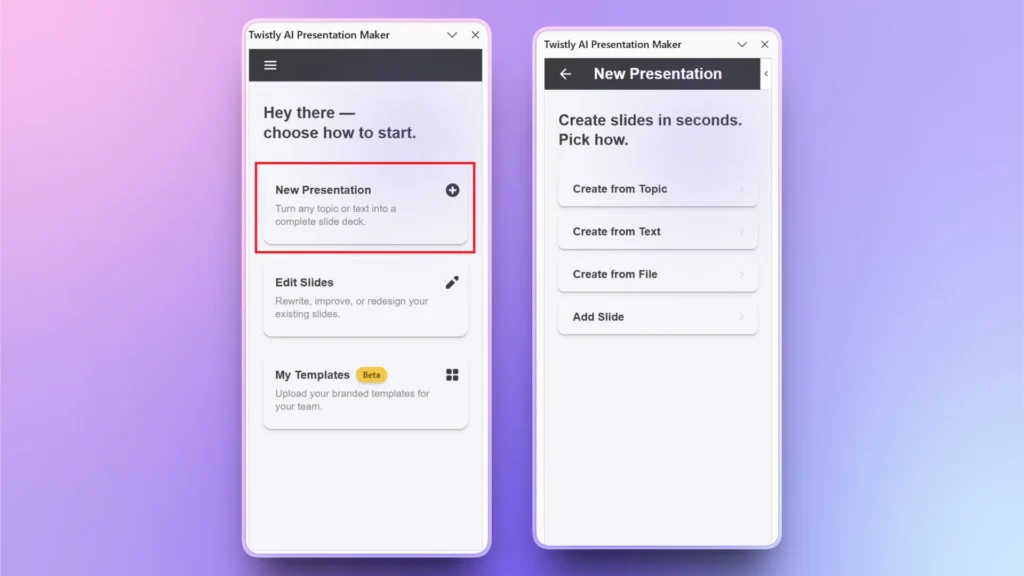
Crea una nueva presentación de PowerPoint en blanco y haz clic en el icono de Twistly; aparecerá un panel específico.
Haga clic en el botón New Presentation y elige el tipo de entrada. Puedes crear una presentación nueva a partir de un tema/prompt de IA, un texto o un archivo. Supongamos que queremos crear una presentación sobre un tema.
Paso 2: introduce el tema y los detalles de la presentación
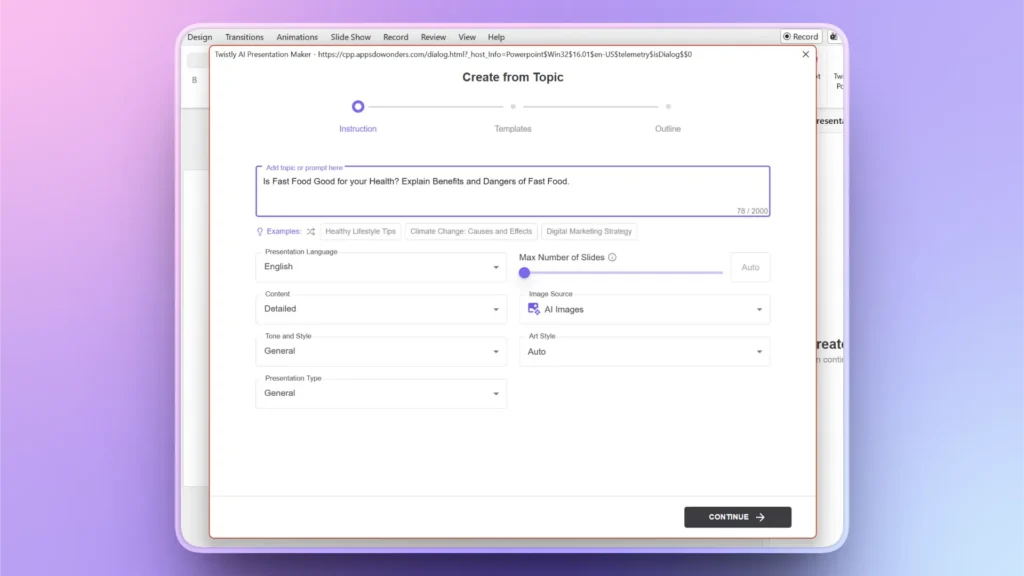
Aparecerá una ventana emergente en la que puedes introducir el tema de la presentación y configurar otras preferencias, como:
- Idioma
- Número de diapositivas de la presentación
- Tipo/extensión del contenido
- Origen de las imágenes (IA o imágenes de stock)
- Tono y estilo
- Estilo artístico
- Tipo de presentación
Cuando hayas elegido las opciones adecuadas según tus necesidades, haz clic en Continue para pasar al siguiente paso.
Paso 3: elige una plantilla de PowerPoint con IA
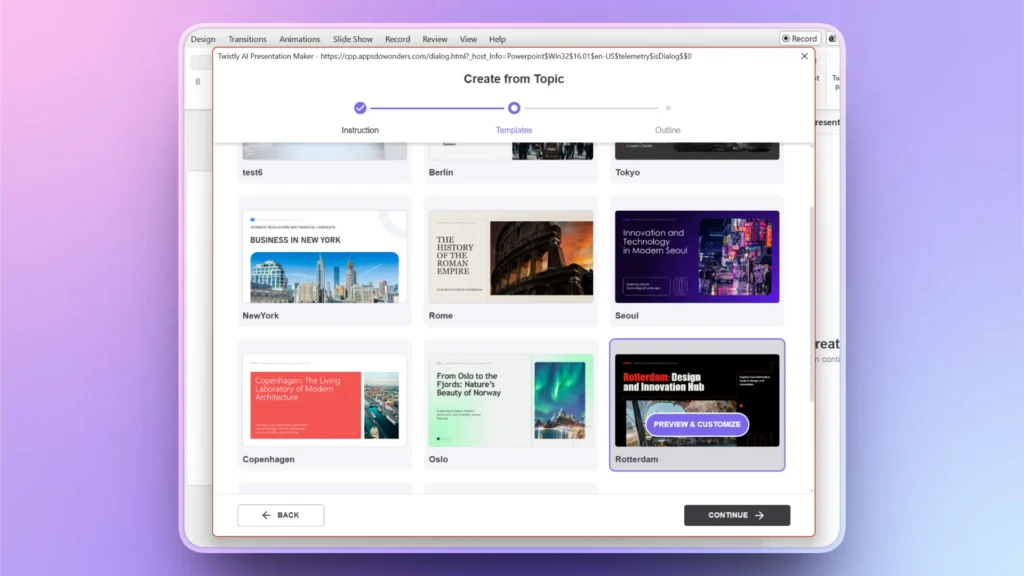
Twistly ofrece algunas de las mejores plantillas de PowerPoint con IA, con un diseño profesional y adecuadas para una gran variedad de temas y sectores.
También puedes subir una presentación o plantilla de tu marca con el tema My Template de Twistly.
Paso 4: revisa el esquema del contenido
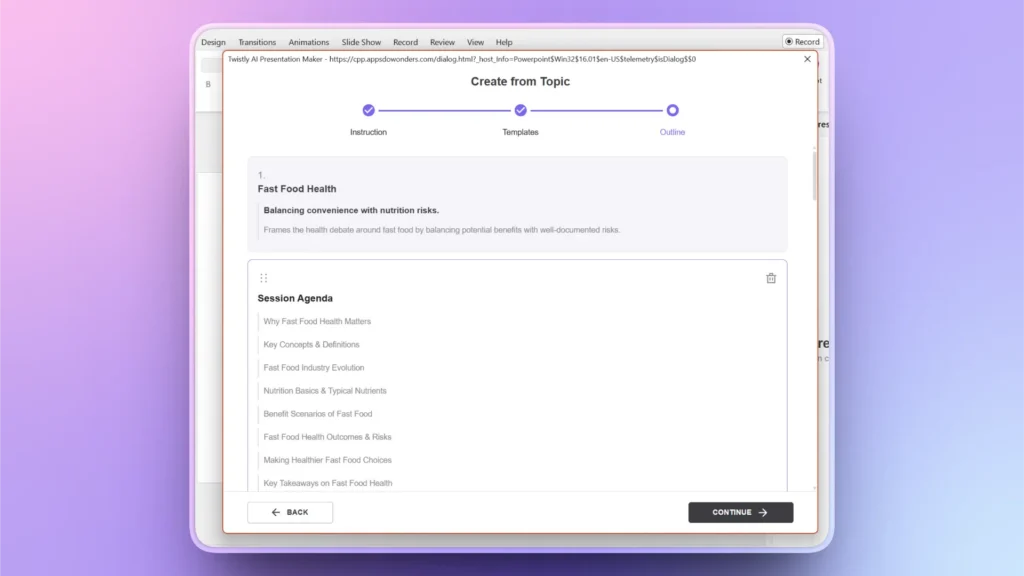
Twistly generará un esquema con IA según el tema y las instrucciones. Revísalo y, si todo está bien, haz clic en Continue.
Paso 5: tu presentación está lista
En pocos segundos, Twistly generará las diapositivas finales con tablas, contenido, imágenes, gráficos y otras visualizaciones de datos, además de un diseño atractivo. Todo ocurre automáticamente, sin intervención manual.
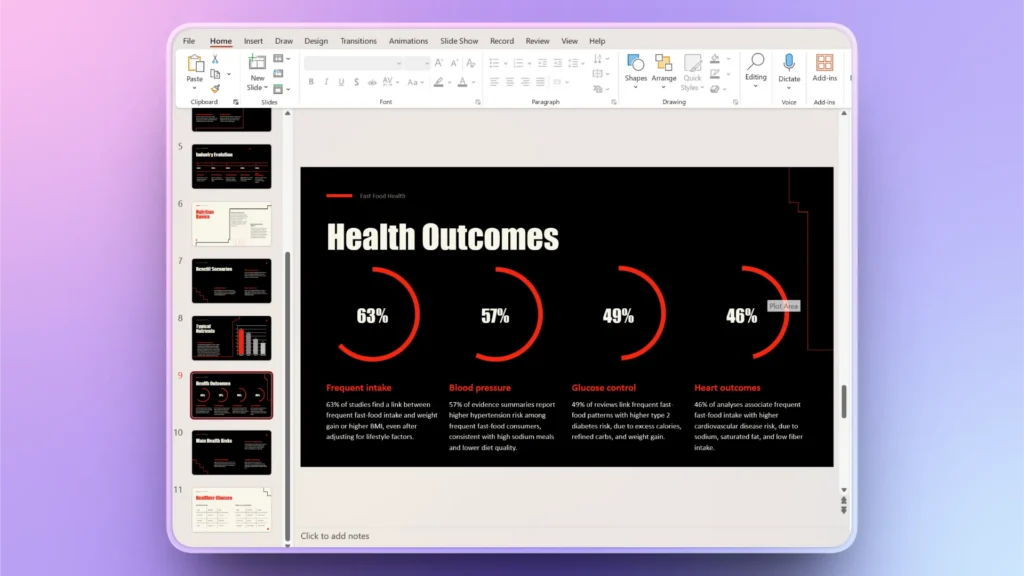
Si necesitas hacer cambios, reescribir texto, mejorar imágenes o añadir diapositivas, puedes usar las funciones de IA de Twistly o las herramientas nativas de PowerPoint.
Método alternativo: usa la IA en PowerPoint con Copilot
Copilot de Microsoft también es un buen producto de IA, pero tiene una funcionalidad limitada. Solo está disponible para suscriptores de Office 365. Microsoft Copilot puede:
- Generar diapositivas a partir de prompts
- Reescribir texto
- Sugerir diseños
En comparación con Twistly, Copilot tiene una funcionalidad limitada y no es tan fácil de usar. Una vez suscrito a Office 365, Copilot aparecerá en la cinta superior, donde se muestran los demás complementos.
Limitaciones de Copilot
Copilot es práctico, pero tiene algunas limitaciones que pueden afectar a la experiencia de un usuario normal. No puedes crear una presentación completa con Copilot, aunque sí obtener algunas sugerencias e ideas de diseño.
Estas son algunas ventajas y limitaciones de Copilot para PowerPoint:
- Funciona principalmente dentro de flujos de trabajo predefinidos
- Solo ofrece opciones de personalización limitadas
- Los usuarios suelen encontrar los resultados genéricos y poco estructurados
- No es la herramienta de IA ideal para crear presentaciones completas
- Debes usar Microsoft 365, lo que limita la flexibilidad
¿Cuál es la mejor herramienta de IA para PowerPoint?
Cada usuario tiene requisitos y expectativas diferentes de una herramienta de IA. La respuesta a esta pregunta puede variar según el usuario, pero si comparamos opciones y funciones, Twistly parece la mejor herramienta de IA para PowerPoint.
Conclusión
Puedes instalar Twistly para usar la IA en PowerPoint y crear presentaciones desde cero o mejorar las que ya tienes. Otras herramientas de IA como Gamma, Claude y Copilot también ofrecen algunas funciones de IA interesantes para presentaciones de PowerPoint. La IA ya no es opcional en PowerPoint: es imprescindible.
Crear diapositivas de PowerPoint con IA
Crea presentaciones basadas en IA a partir de cualquier mensaje, documento o vídeo











Empieza a hacer presentaciones con IA en segundos
Acceso instantáneo
Empieza a explorar inmediatamente todas las funciones de Twistly
Sin compromisos
No necesitas tarjeta de crédito y puedes cancelar cuando quieras
Asistencia dedicada
Nuestro equipo te ayudará en cada paso durante tu periodo de prueba