


How to Prepare Your Presentation for a Global Audience without Losing Context?

Presenting your product or service to a global audience is no longer optional but critical for growth. Whether you are a motivational speaker, a businessman, or hosting a webinar, your message must resonate across a diverse audience.
People may attend your presentation from different countries who speak different languages. You made your slides in English, but now you want to prepare your presentation for a global audience. Using Google Translate for every slide seems nearly impossible.
The challenge is not just translation but preparing your presentation without losing impact, clarity, and context. There is an amazing AI tool that can translate any existing presentation or make new presentations in your desired language.
Difference between Presenting to a Local and a Global Audience
Most presentations are made for a local audience only. Participants usually speak the same language, share the same culture, understand the same humor, or follow common business practices.
When it comes to preparing presentations for a global audience, you have to consider multiple aspects. Color choices may have different meanings for people from other cultures.
Some local idioms may be offensive to others, and above all, the language barrier is the biggest challenge. Presenters need to pay attention to these little details, or they might risk:
- Losing credibility
- Miscommunication
- Audience disengagement
- Cultural misunderstandings
Preparing Presentation for Global Audience
Here are certain tips that can help you prepare your presentation for a global audience without losing context. Language and translation are important, but other aspects also need to be considered here.
Understand your Audience
Before making any changes to your original presentation, analyze your global audience. Have some basic knowledge about their country, language, social norms, business practices, and communication ethics. These things play an important role in preparing your presentation.
Simplify Language
Non-native English speakers may not understand your local idioms and terminologies. Avoid using complex sentences and cultural metaphors. These types of sentences may confuse the audience. You can:
- Use short, clear sentences
- Choose globally recognized vocabulary
- Replace idioms with literal explanations
Simple words work better when you are presenting slides to people who are not native English speakers. This ensures clarity without reducing intellectual depth.
Use Universally Understood Visuals
Visual communication works best when your audience is not fluent in your language. Simpler icons, globally recognized visuals, and meaningful images help with clear message delivery.
While creating charts, label them properly and don’t use culturally sensitive images or visuals in your slides. If you need to create AI images, you can try the built-in AI image generator in Twistly for PowerPoint slides.
Create PowerPoint
Slides with AI
Build AI-powered presentations from
any prompt, doc, or video


How Twistly Helps with Global Presentations
Twistly is your answer to your every need related to PowerPoint presentations. Whether you need to make a new presentation in a foreign language or want to translate your existing slides for an audience from other countries, Twistly does it all for you.
Our add-in works as a complete AI platform that has unlimited use cases and possibilities. Two major issues are beautifully resolved by Twistly that can help a lot to prepare your presentation for a global audience without losing context.
How to Translate Slides with Twistly?
Let’s say we have a slide or presentation in English, and we want to translate that same presentation into any other foreign language. Twisty supports translation into 30+ foreign languages.
Without copying data from slides and then using 3rd party translators, here is how to translate any slide or presentation with AI.
Step 1: Open your Presentation and Twistly
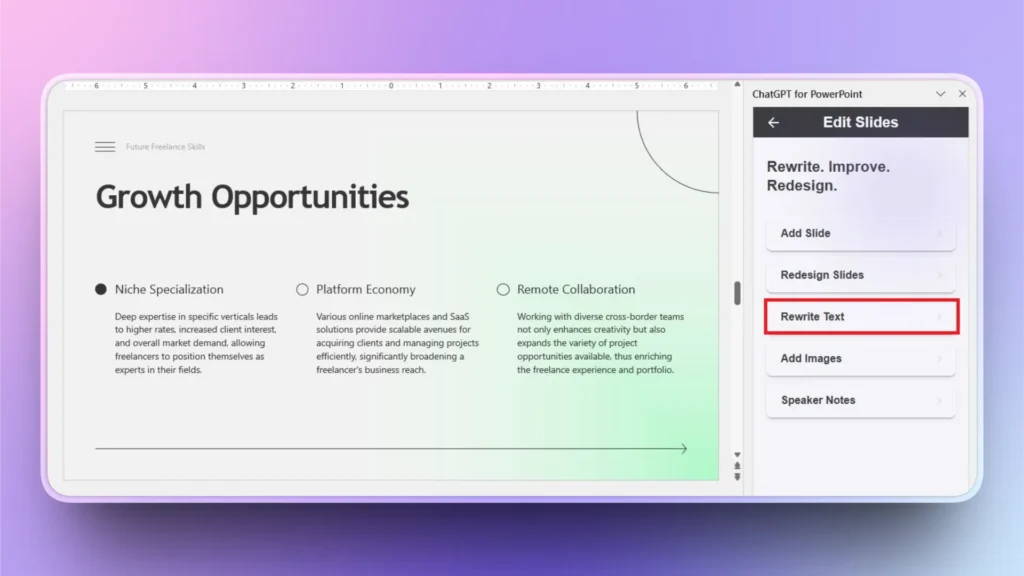
Open your presentation and select the slide that you want to translate. Launch Twistly and choose the Edit Slides option.
Choose Rewrite Text from the next window. As you can see, the slide has English text that we want to translate into any other language.
Step 2: Ask AI to Translate
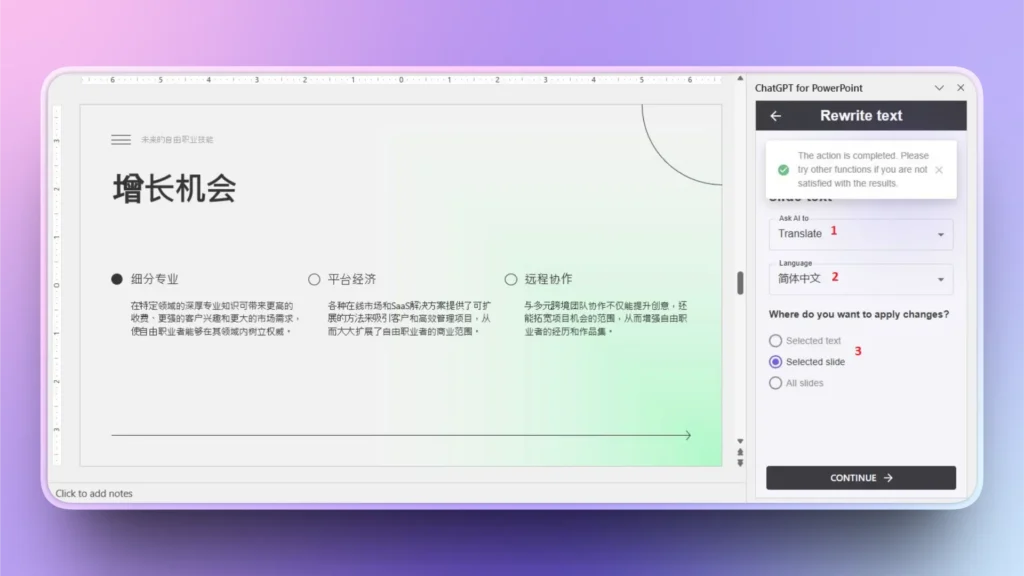
From the dropdown menu, choose Translate >> select Language for translation. You can choose whether to apply changes to selected slides, selected text, or all slides.
After making your selections, click Continue, and your slide will be translated instantly.
How to Make a Presentation in a Foreign Language with Twistly?
You want to make presentations in different languages, but you want to do it quickly, without wasting hours. Twistly has the perfect features that you need here.
Start a blank presentation and launch Twistly >> New Presentation and then choose the input option, as you can make presentations from an AI prompt, text, topic, or document.
Twistly Bonus Perk: While using Twistly, you can write a topic or an AI prompt in the English language, but get the final presentation in your desired language. You don’t even need to make any changes to the language settings of PowerPoint.
Select Presentation Language
In the topic or input window, you can write the topic in plain English and then choose another language for presentation. Once done, all other steps are the same for making a presentation in a foreign language with Twistly.
After selecting the presentation language, other steps are the same:
- Review the slide outline generated by AI
- Select an AI PowerPoint template
- Review your final presentation slides
Preparing globally effective presentations manually takes time. This is where Twistly, the AI-powered PowerPoint add-in, becomes a powerful tool.
Generate Country-specific Images with Twistly
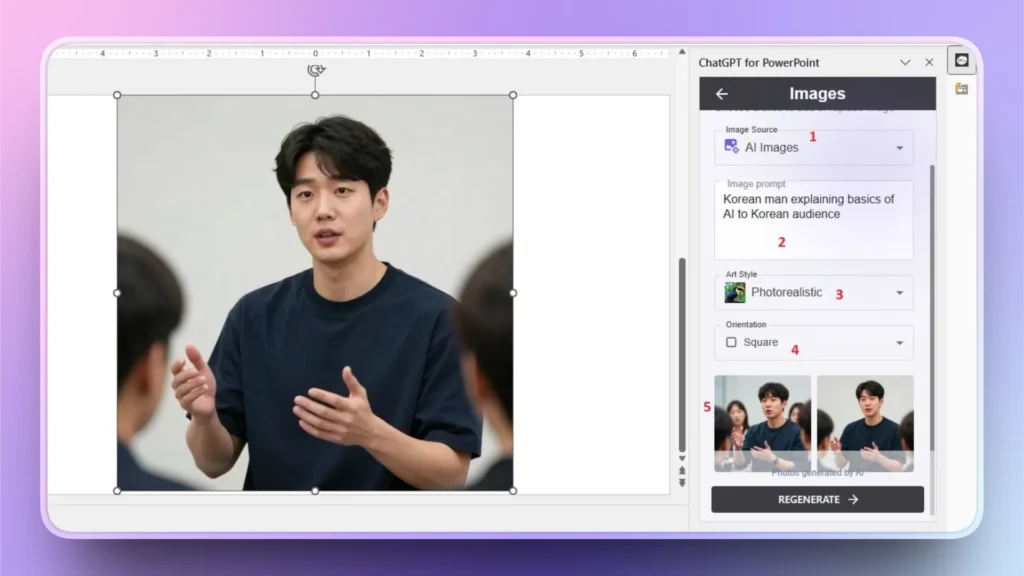
If you are making presentation slides for a Korean audience, you shouldn’t use images of American people. For a more customized feel, Twistly can help you generate an image that your target audience can easily relate to.
Twistly has a built-in AI image generator where you can create custom visuals for your global presentation. Here is how to use Twistly to generate custom AI images.
- Open your slide, go to Twistly pane and select Edit Slides >> Add Image >> choose AI as image source
- Write your AI prompt for the image >> select Art Style >> Orientation
- Twistly will give you two AI images that you can insert into your slide with a single click
- For more AI images, click the Regenerate button and get more images
Conclusion
Preparing your presentation for a global audience without losing context requires the use of the right AI tool, and Twistly is the best option here. The goal is not to make your presentation generic. It’s to make it universally clear, culturally respectful, and strategically impactful.
Download a free trial of Twistly now and try these and many other cool AI features that can elevate your PowerPoint presentations.












Start Making AI Presentations in Seconds
Instant Access
Begin exploring Twistly’s full suite of features immediately
No Commitments
No credit card required, and you can cancel anytime
Dedicated Support
Our team is here to assist you every step of the way during your trial.