


¿Cómo preparar tu presentación para un público global sin perder el contexto?

Presentar tu producto o servicio a un público global ya no es opcional, sino fundamental para crecer. Tanto si eres orador motivacional como empresario o vas a organizar un webinar, tu mensaje debe conectar con un público diverso.
Puede que a tu presentación asistan personas de distintos países que hablan idiomas diferentes. Hiciste tus diapositivas en inglés, pero ahora quieres preparar tu presentación para un público global. Usar Google Translate en cada diapositiva parece casi imposible.
El reto no es solo la traducción, sino preparar tu presentación sin perder impacto, claridad ni contexto. Existe una herramienta de IA increíble que puede traducir cualquier presentación existente o crear presentaciones nuevas en el idioma que quieras.
Diferencia entre presentar ante un público local y uno global
La mayoría de las presentaciones se crean solo para un público local. Los asistentes suelen hablar el mismo idioma, compartir la misma cultura, entender el mismo humor o seguir prácticas empresariales comunes.
Cuando se trata de preparar presentaciones para un público global, tienes que tener en cuenta varios aspectos. Los colores pueden tener significados distintos para personas de otras culturas.
Algunas expresiones locales pueden resultar ofensivas para otros y, sobre todo, la barrera del idioma es el mayor desafío. Los presentadores deben prestar atención a estos pequeños detalles o podrían arriesgarse a:
- Perder credibilidad
- Problemas de comunicación
- Desconexión del público
- Malentendidos culturales
Cómo preparar una presentación para un público global
Estos consejos te ayudarán a preparar tu presentación para un público global sin perder el contexto. El idioma y la traducción son importantes, pero también hay que tener en cuenta otros aspectos.
Conoce a tu público
Antes de hacer cambios en tu presentación original, analiza a tu público global. Ten unas nociones básicas sobre su país, idioma, normas sociales, prácticas empresariales y ética de comunicación. Estos aspectos son clave al preparar tu presentación.
Simplifica el lenguaje
Es posible que quienes no tienen el inglés como lengua materna no entiendan tus expresiones y términos locales. Evita las frases complejas y las metáforas culturales, ya que pueden confundir al público. Puedes:
- Usar frases cortas y claras
- Elegir un vocabulario reconocido internacionalmente
- Sustituir las expresiones idiomáticas por explicaciones literales
Las palabras sencillas funcionan mejor cuando presentas diapositivas a personas que no son hablantes nativos de inglés. Así garantizas la claridad sin restar profundidad intelectual.
Usa elementos visuales de comprensión universal
La comunicación visual funciona mejor cuando tu público no domina tu idioma. Los iconos sencillos, los elementos visuales reconocidos internacionalmente y las imágenes con significado ayudan a transmitir un mensaje claro.
Al crear gráficos, etiquétalos correctamente y no uses imágenes ni elementos visuales culturalmente sensibles en tus diapositivas. Si necesitas crear imágenes con IA, puedes probar el generador de imágenes con IA integrado en Twistly para diapositivas de PowerPoint.
Crear PowerPoint
Diapositivas con IA
Cree presentaciones basadas en IA a partir de
cualquier mensaje, documento o vídeo


Cómo te ayuda Twistly con las presentaciones globales
Twistly es la respuesta a todas tus necesidades relacionadas con las presentaciones de PowerPoint. Tanto si necesitas crear una presentación nueva en un idioma extranjero como traducir tus diapositivas para un público de otros países, Twistly lo hace todo por ti.
Nuestro complemento funciona como una plataforma de IA completa con casos de uso y posibilidades ilimitados. Twistly resuelve de forma brillante dos grandes problemas, lo que te ayudará mucho a preparar tu presentación para un público global sin perder el contexto.
¿Cómo traducir diapositivas con Twistly?
Supongamos que tenemos una diapositiva o presentación en inglés y queremos traducirla a otro idioma. Twistly permite la traducción a más de 30 idiomas.
Sin copiar los datos de las diapositivas ni usar traductores de tercerosrd , así puedes traducir cualquier diapositiva o presentación con IA.
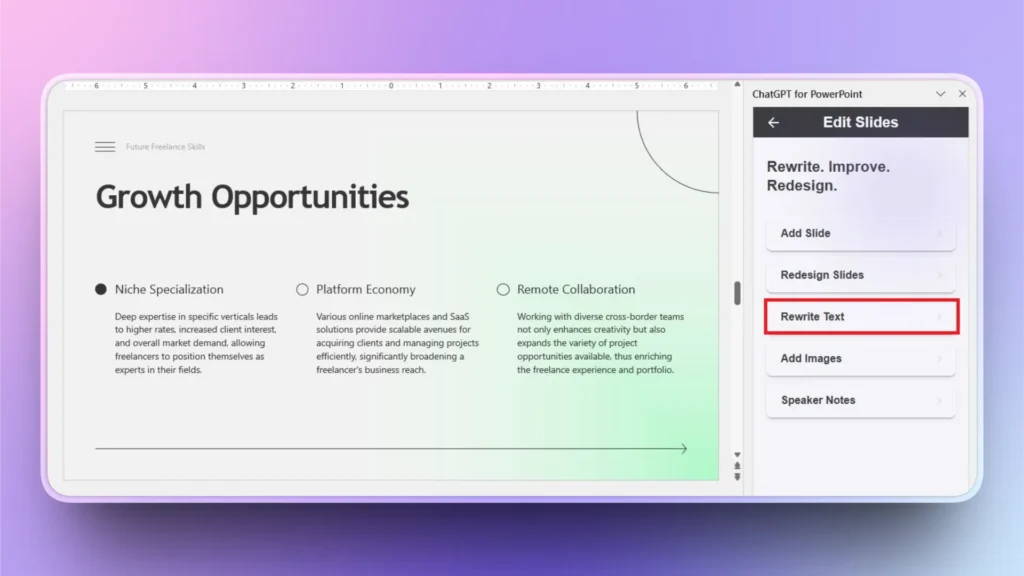
Paso 1: abre tu presentación y Twistly
Abre tu presentación y selecciona la diapositiva que quieres traducir. Inicia Twistly y elige la opción Edit Slides opción.
Elija Rewrite Text en la siguiente ventana. Como ves, la diapositiva tiene texto en inglés que queremos traducir a otro idioma.
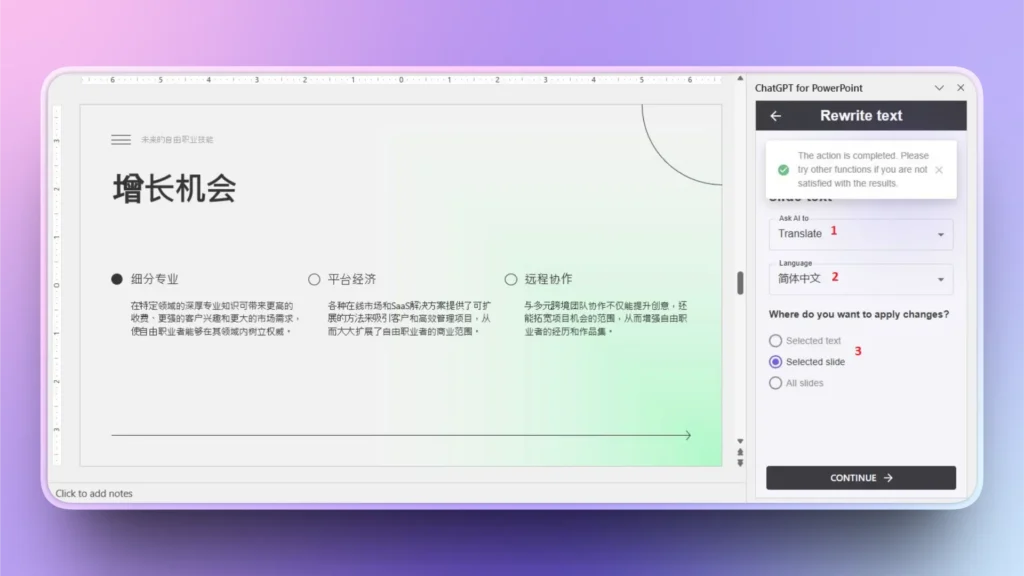
Paso 2: pide a la IA que traduzca
En el menú desplegable, elige Translate >> selecciona el idioma de la traducción. Puedes elegir si aplicar los cambios a las diapositivas seleccionadas, al texto seleccionado o a todas las diapositivas.
Después de hacer tu selección, haz clic en Continúe eny tu diapositiva se traducirá al instante.
¿Cómo hacer una presentación en un idioma extranjero con Twistly?
Quieres crear presentaciones en distintos idiomas, pero de forma rápida, sin perder horas. Twistly tiene justo las funciones que necesitas.
Crea una presentación en blanco y abre Twistly >> New Presentation y elige la opción de entrada, ya que puedes crear presentaciones a partir de un prompt de IA, un texto, un tema o un documento.
Ventaja extra de Twistly: Con Twistly puedes escribir el tema o el prompt de IA en inglés y obtener la presentación final en el idioma que quieras. Ni siquiera tienes que cambiar la configuración de idioma de PowerPoint.
Selecciona el idioma de la presentación
En la ventana del tema o de entrada, puedes escribir el tema en inglés y elegir otro idioma para la presentación. Después, el resto de los pasos para crear una presentación en un idioma extranjero con Twistly son los mismos.
Tras seleccionar el idioma de la presentación, el resto de los pasos son iguales:
- Revisa el esquema de diapositivas generado por la IA
- Selecciona una plantilla de PowerPoint con IA
- Revisa las diapositivas finales de tu presentación
Preparar manualmente presentaciones eficaces a nivel global lleva tiempo. Aquí es donde Twistly, el complemento de PowerPoint con IA, se convierte en una herramienta potente.
Genera imágenes adaptadas a cada país con Twistly
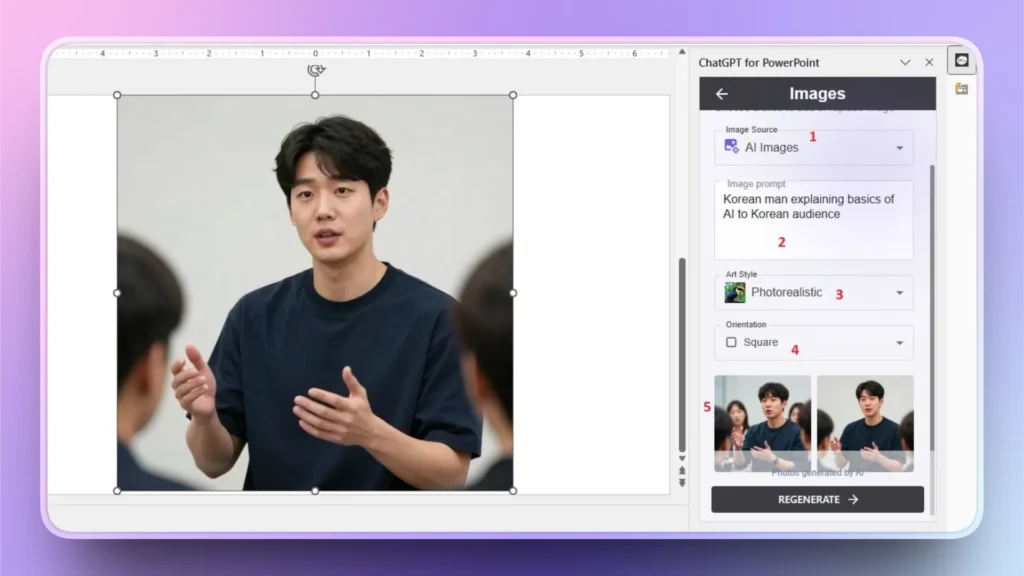
Si estás creando diapositivas para un público coreano, no deberías usar imágenes de personas estadounidenses. Para un resultado más personalizado, Twistly te ayuda a generar imágenes con las que tu público objetivo se identifique fácilmente.
Twistly incluye un generador de imágenes con IA con el que puedes crear elementos visuales personalizados para tu presentación global. Así puedes usar Twistly para generar imágenes con IA personalizadas.
- Abre tu diapositiva, ve al panel de Twistly y selecciona Edit Slides >> Add Image >> elige AI como origen de la imagen
- Escribe tu prompt de IA para la imagen >> selecciona Art Style >> Orientation
- Twistly te dará dos imágenes generadas con IA que puedes insertar en tu diapositiva con un solo clic
- Para obtener más imágenes con IA, haz clic en el botón Regenere y obtendrás más imágenes
Conclusión
Preparar tu presentación para un público global sin perder el contexto requiere usar la herramienta de IA adecuada, y Twistly es la mejor opción. El objetivo no es que tu presentación sea genérica, sino que resulte clara en todo el mundo, respetuosa con cada cultura y de gran impacto estratégico.
Descarga ahora la prueba gratuita de Twistly y prueba estas y muchas otras funciones de IA increíbles que llevarán tus presentaciones de PowerPoint a otro nivel.










Empieza a hacer presentaciones con IA en segundos
Acceso instantáneo
Empieza a explorar inmediatamente todas las funciones de Twistly
Sin compromisos
No necesitas tarjeta de crédito y puedes cancelar cuando quieras
Asistencia dedicada
Nuestro equipo te ayudará en cada paso durante tu periodo de prueba