



PowerPoint does not support true LaTeX but a LaTeX-like system. Inserting mathematical equations in PowerPoint is not easy if they involve complex LaTeX equations. As always, we will try our best to find the most feasible solution for our readers. Twistly Blog has hundreds of useful guides and articles on PowerPoint topics and features.
Where is the LaTeX feature in PowerPoint, because many users have complained about not finding the LaTeX option? Unfortunately, there is no native LaTeX option in PowerPoint. You can either write formulae in MS Word and copy-paste for your presentation or follow other possible solutions.
What is LaTeX?
LaTeX is a high-quality document preparation system and markup language designed for typesetting technical, scientific, and academic documents. It allows users to create high-quality mathematical equations and formulas for presentations.
Lack of native feature makes things a little bit complicated for new users, but if you rarely use PowerPoint for LaTeX equations, then you can follow any of the given methods to insert LaTeX in PowerPoint. This system is used for:
- Academic presentations
- Research papers
- Engineering and technical slides
- Data-heavy business presentations
Precise equation formatting is important for professional presentations and educational slides. Let’s see how you can insert LaTeX in PowerPoint even though there is no dedicated option in PowerPoint.
Method 1: PowerPoint’s Built-in Equation Editor
Millions of users rely on PowerPoint for their class assignments and educational materials, so there are some powerful tools for writing equations. You can use readily available formulae or write a new equation.
Step 1: Use Available Formulae
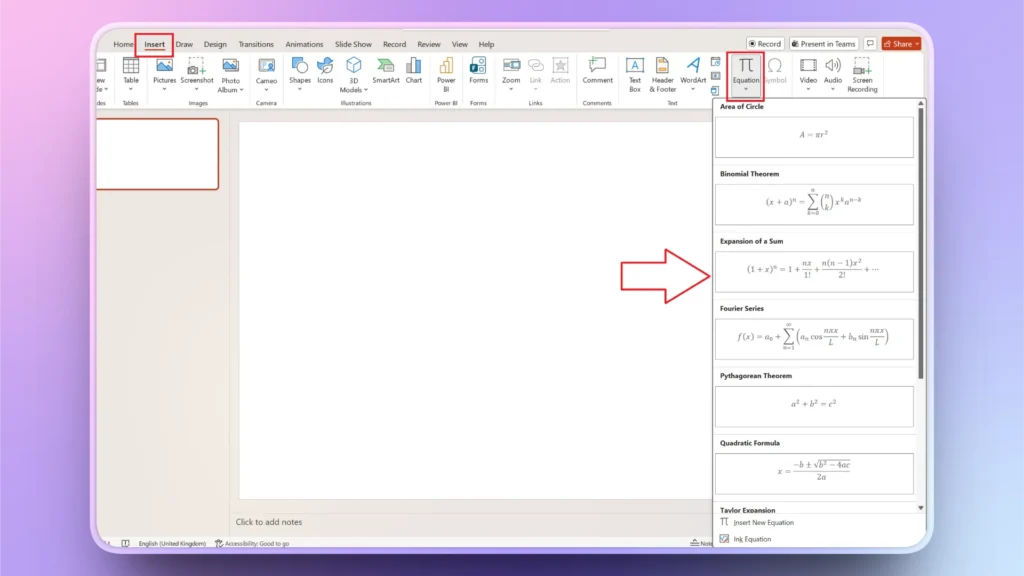
Open your PowerPoint slide where you want to add a mathematical formula, and go to the Insert tab and then click Equation. Choose any formula that you want for your project and then edit the values.
Step 2: Insert New Equation
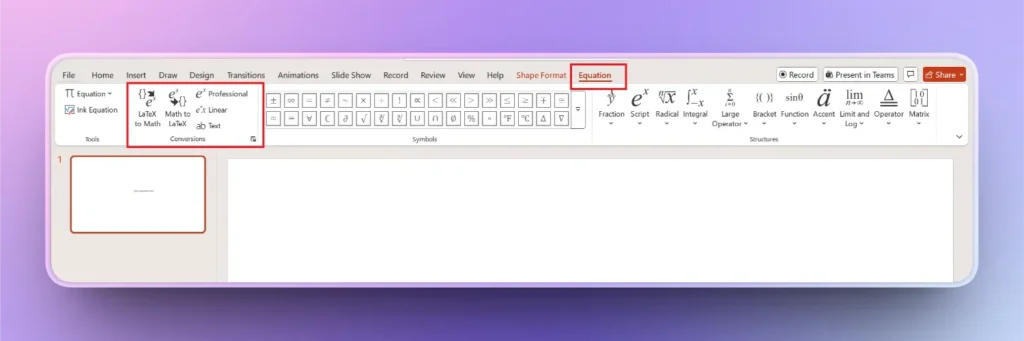
Click the ‘Insert New Equation’ button in the Equation menu, and a new Equation tab will appear in the top ribbon.
This tab helps you to write simple equations, convert LaTeX to Math, and Math to LaTeX. Use different features from this tab to insert LaTeX-like equations into your slides.
Method 2: Copy LaTeX from MS Word
Almost every PowerPoint user has MS Word installed on their computer. Luckily, Word has a dedicated feature that allows users to insert LaTeX and write complex equations and formulae.
You can write your LaTeX equation in MS Word and then copy from your file and paste it into a PPT slide. This is a smart way to get things done.
- Open MS Word file and go to the Insert tab >> Equation
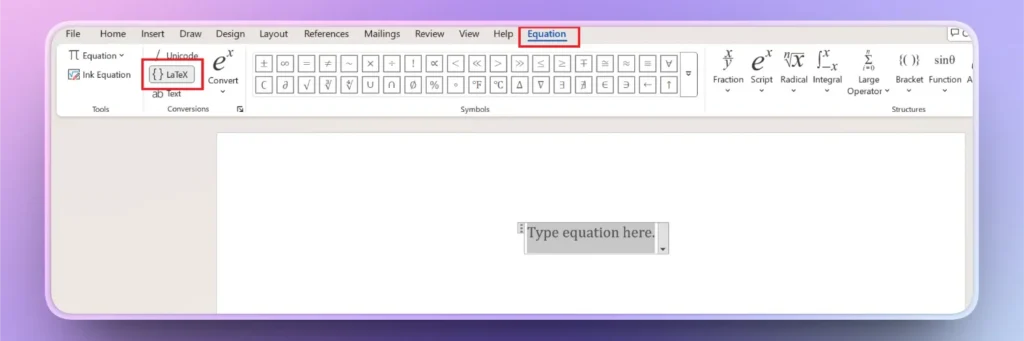
- Create new equations and select LaTeX from the Equation tab
- Write your LaTeX equation and values, and copy the equation
- Open the PowerPoint slide and paste the LaTeX equation
This method is easy and does not require you to install any special tool or software for making complex mathematical presentations. It takes just a few seconds to switch between Word and PowerPoint.
Method 3: Install Add-in for LaTeX
PowerPoint has a huge library of useful add-ins that you can use for different tasks and projects. Frequent users need smarter solutions to insert LaTeX in PowerPoint, as switching between apps can take time.
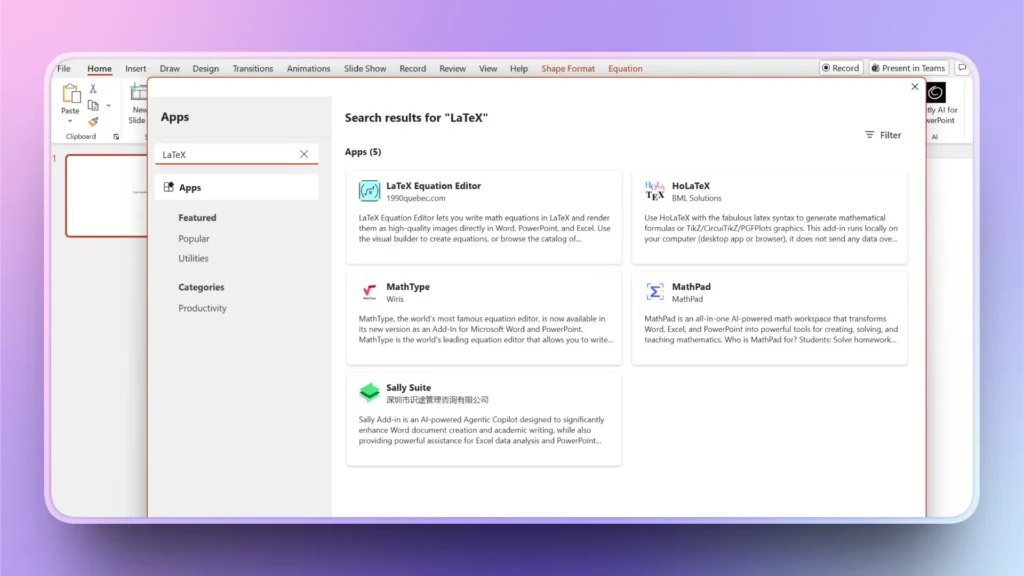
Go to the Add-in library in PowerPoint and search for LaTeX add-ins. There are multiple options available that you can try for your projects. Go through the technical details and reviews of the add-in to select the right one for your PowerPoint presentations.
BONUS- Best AI Add-in for PowerPoint
After using an add-in for mathematical equations, you may realize the importance and benefits of using add-ins for PowerPoint presentations. What is the best AI add-in for PowerPoint that can act just like ChatGPT?
If you browse through the AI Add-in section for PowerPoint, Twistly is one of the best, highest-rated, and most-downloaded add-ins for PowerPoint. This add-in can generate professional presentations and improve your existing slides.
How can Twistly Help PowerPoint Users?
Twistly can help you with creation, optimization, editing, formatting, and designing PowerPoint presentations. It can do everything that an expert PowerPoint designer can do.
Whether you need to create a professional presentation on a topic or rewrite text for your existing slides, Twistly does it all.
- Generate complete presentations from a single prompt
- Convert text, documents, or outlines into ready-to-use slides
- Automatically design slides with professional layouts
- Suggest and structure content for better storytelling
- Rewrite and refine slide content for clarity and impact
- Create summaries from long content into concise slides
Apart from these features and perks, there are unlimited possibilities to improve and polish your presentations with AI. Spend less time designing slides with AI so you can focus on things that matter the most. Optimize your presentation workflow with Twistly.
Is Twistly Free for PowerPoint?
Twistly offers a free trial version that new users can enjoy for a limited time. Twistly is a premium add-in, available for a competitive price. The free trial version can be downloaded now by clicking the link below.
Create PowerPoint Slides with AI
Build AI-powered presentations from any prompt, doc, or video

Conclusion
The easiest way to insert LaTeX in PowerPoint is to write an equation in Word and then paste it into PowerPoint, effortlessly. Add-ins and other online tools offer more flexibility for mathematical equations, but require switching between multiple apps.
If you want to save time and get better results for every presentation, try Twistly and enjoy ChatGPT-like capabilities. A complete AI solution for all your PowerPoint presentations in a single add-in.












Start Making AI Presentations in Seconds
Instant Access
Begin exploring Twistly’s full suite of features immediately
No Commitments
No credit card required, and you can cancel anytime
Dedicated Support
Our team is here to assist you every step of the way during your trial.