


PowerPoint no admite LaTeX real, sino un sistema similar a LaTeX. Insertar ecuaciones matemáticas en PowerPoint no es fácil si incluyen ecuaciones LaTeX complejas. Como siempre, haremos todo lo posible por encontrar la solución más viable para nuestros lectores. El blog de Twistly tiene cientos de guías y artículos útiles sobre temas y funciones de PowerPoint.
¿Dónde está la función de LaTeX en PowerPoint? Muchos usuarios se quejan de no encontrar esta opción. Por desgracia, PowerPoint no tiene una opción nativa de LaTeX. Puedes escribir las fórmulas en MS Word y copiarlas y pegarlas en tu presentación, o seguir otras posibles soluciones.
¿Qué es LaTeX?
LaTeX es un sistema de preparación de documentos y un lenguaje de marcado de alta calidad diseñado para componer documentos técnicos, científicos y académicos. Permite crear ecuaciones y fórmulas matemáticas de gran calidad para presentaciones.
La falta de una función nativa complica un poco las cosas a los nuevos usuarios, pero si solo usas PowerPoint de vez en cuando para ecuaciones LaTeX, puedes seguir cualquiera de los métodos indicados para insertar LaTeX en PowerPoint. Este sistema se utiliza para:
- Presentaciones académicas
- Artículos de investigación
- Diapositivas técnicas y de ingeniería
- Presentaciones empresariales con muchos datos
Dar un formato preciso a las ecuaciones es importante en presentaciones profesionales y diapositivas educativas. Veamos cómo puedes insertar LaTeX en PowerPoint aunque no exista una opción específica para ello.
Método 1: el editor de ecuaciones integrado de PowerPoint
Millones de usuarios confían en PowerPoint para sus trabajos de clase y materiales educativos, por eso incluye herramientas potentes para escribir ecuaciones. Puedes usar fórmulas ya disponibles o escribir una ecuación nueva.
Paso 1: usa las fórmulas disponibles
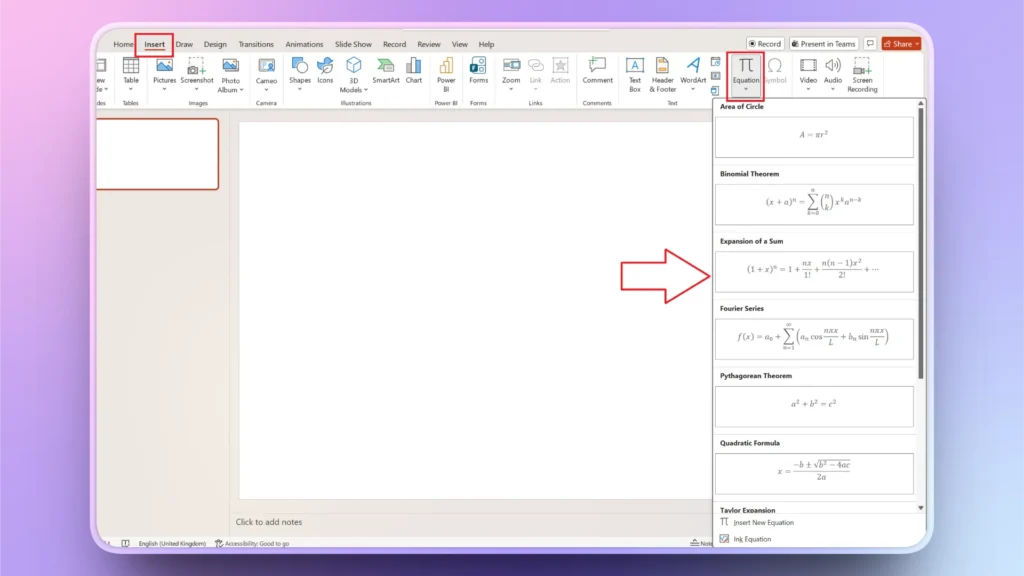
Abre la diapositiva de PowerPoint en la que quieras añadir una fórmula matemática, ve a la pestaña Insertar y haz clic en Ecuación. Elige la fórmula que quieras para tu proyecto y luego edita los valores.
Paso 2: inserta una nueva ecuación
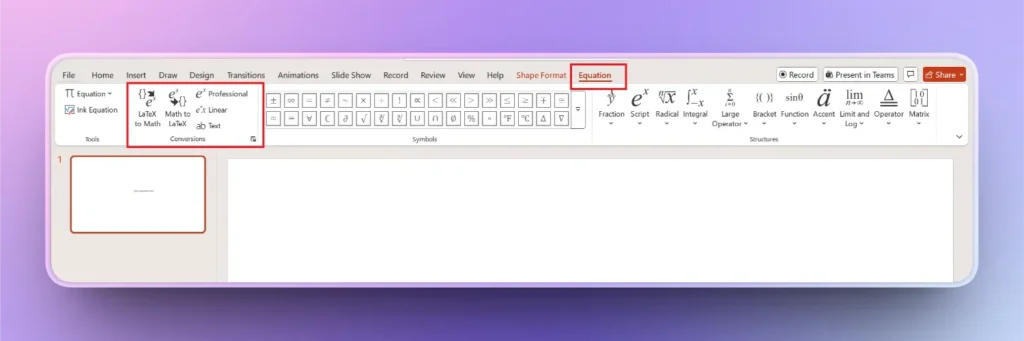
Haz clic en el botón ‘Insertar nueva ecuación’ del menú Ecuación y aparecerá una nueva pestaña Ecuación en la cinta superior.
Esta pestaña te permite escribir ecuaciones sencillas y convertir de LaTeX a formato matemático y viceversa. Usa las distintas funciones de esta pestaña para insertar ecuaciones de tipo LaTeX en tus diapositivas.
Método 2: copiar LaTeX desde MS Word
Casi todos los usuarios de PowerPoint tienen MS Word instalado en su ordenador. Por suerte, Word tiene una función específica que permite insertar LaTeX y escribir ecuaciones y fórmulas complejas.
Puedes escribir tu ecuación LaTeX en MS Word, copiarla desde el archivo y pegarla en una diapositiva de PPT. Es una forma inteligente de resolverlo.
- Abre un archivo de MS Word y ve a la pestaña Insertar >> Ecuación
- Crea una ecuación nueva y selecciona LaTeX en la pestaña Ecuación
- Escribe tu ecuación LaTeX con sus valores y copia la ecuación
- Abre la diapositiva de PowerPoint y pega la ecuación LaTeX
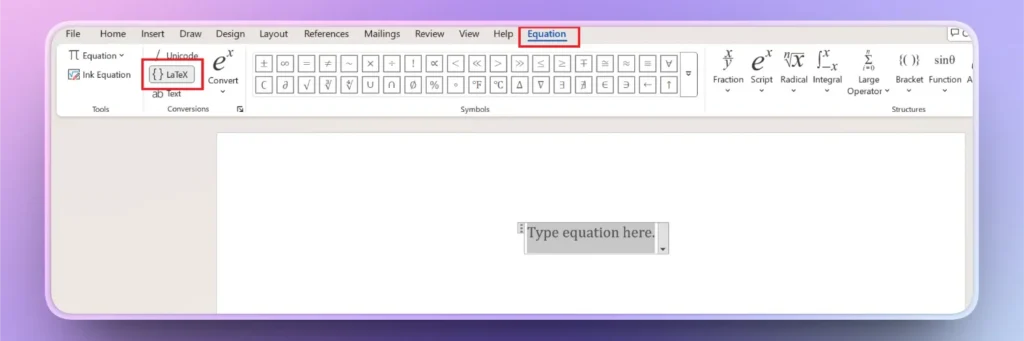
Este método es sencillo y no requiere instalar ninguna herramienta ni software especial para crear presentaciones matemáticas complejas. Pasar de Word a PowerPoint lleva solo unos segundos.
Método 3: instalar un complemento para LaTeX
PowerPoint cuenta con una enorme biblioteca de complementos útiles que puedes usar para distintas tareas y proyectos. Los usuarios frecuentes necesitan soluciones más inteligentes para insertar LaTeX en PowerPoint, ya que cambiar de una aplicación a otra lleva tiempo.
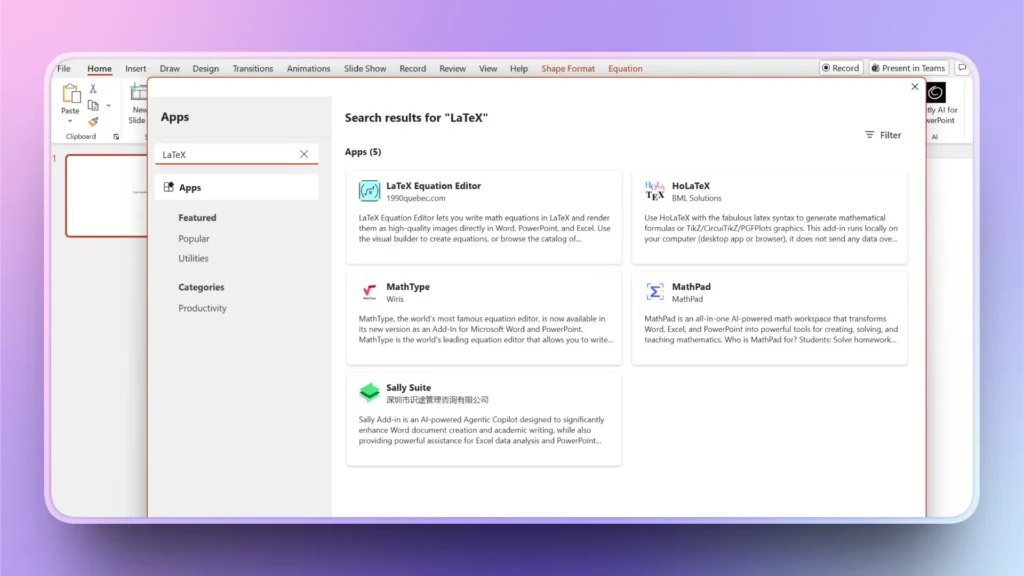
Ve a la biblioteca de complementos de PowerPoint y busca complementos de LaTeX. Hay varias opciones que puedes probar en tus proyectos. Revisa los detalles técnicos y las opiniones de cada complemento para elegir el adecuado para tus presentaciones de PowerPoint.
EXTRA: el mejor complemento de IA para PowerPoint
Después de usar un complemento para ecuaciones matemáticas, puede que te des cuenta de la importancia y las ventajas de usar complementos en tus presentaciones de PowerPoint. ¿Cuál es el mejor complemento de IA para PowerPoint que funcione igual que ChatGPT?
Si exploras la sección de complementos de IA para PowerPoint, verás que Twistly es uno de los mejores, mejor valorados y más descargados. Este complemento puede generar presentaciones profesionales y mejorar tus diapositivas existentes.
¿Cómo puede ayudar Twistly a los usuarios de PowerPoint?
Twistly puede ayudarte a crear, optimizar, editar, dar formato y diseñar presentaciones de PowerPoint. Puede hacer todo lo que haría un diseñador experto en PowerPoint.
Tanto si necesitas crear una presentación profesional sobre un tema como reescribir el texto de tus diapositivas, Twistly lo hace todo.
- Genera presentaciones completas a partir de una sola instrucción
- Convierte textos, documentos o esquemas en diapositivas listas para usar
- Diseña diapositivas automáticamente con diseños profesionales
- Sugiere y estructura el contenido para contar mejor la historia
- Reescribe y pule el contenido de las diapositivas para ganar claridad e impacto
- Resume contenidos largos en diapositivas concisas
Además de estas funciones y ventajas, hay infinitas posibilidades para mejorar y pulir tus presentaciones con IA. Dedica menos tiempo a diseñar diapositivas gracias a la IA y céntrate en lo que más importa. Optimiza tu flujo de trabajo de presentaciones con Twistly.
¿Es Twistly gratuito para PowerPoint?
Twistly ofrece una versión de prueba gratuita que los nuevos usuarios pueden disfrutar durante un tiempo limitado. Twistly es un complemento premium con un precio competitivo. Puedes descargar ya la versión de prueba gratuita haciendo clic en el enlace de abajo.
Crear diapositivas de PowerPoint con IA
Crea presentaciones basadas en IA a partir de cualquier mensaje, documento o vídeo

Conclusión
La forma más fácil de insertar LaTeX en PowerPoint es escribir la ecuación en Word y pegarla en PowerPoint sin complicaciones. Los complementos y otras herramientas online ofrecen más flexibilidad para las ecuaciones matemáticas, pero obligan a cambiar entre varias aplicaciones.
Si quieres ahorrar tiempo y obtener mejores resultados en cada presentación, prueba Twistly y disfruta de funciones similares a las de ChatGPT. Una solución de IA completa para todas tus presentaciones de PowerPoint en un solo complemento.












Empieza a hacer presentaciones con IA en segundos
Acceso instantáneo
Empieza a explorar inmediatamente todas las funciones de Twistly
Sin compromisos
No necesitas tarjeta de crédito y puedes cancelar cuando quieras
Asistencia dedicada
Nuestro equipo te ayudará en cada paso durante tu periodo de prueba