



To export a slide outline from PowerPoint, go to File >> Export >> Create Handouts >> select outline only, and the structure of the presentation will be saved in a Word file without visuals.
Exporting an outline helps you with the extraction of headings, sub-headings, main topics, and ideas. Without reading the entire document manually, you can export a slide outline from PowerPoint through this easy method.
What is a Slide Outline in PowerPoint?
The text-only version of your PowerPoint presentation is called a slide outline, and it usually consists of all headings, sub-headings, and the structure of the content in the slides. #Design elements, images, visuals, animations, and transitions are not added in the slide outline.
There are different ways to export a slide outline from PowerPoint. Some methods are used to view the outline, while some methods are useful for saving the outline for other purposes. We will discuss all possible ways to export a slide outline in this article.
Method 1: Export Slide Outline to Word
The export option in PowerPoint allows users to save and export presentation slides in different formats. If you want a clean and structured layout of the presentation content, follow this method.
Step 1: Open your presentation and go to File >> Export
Step 2: Click Create Handouts >> choose the Outline Only option
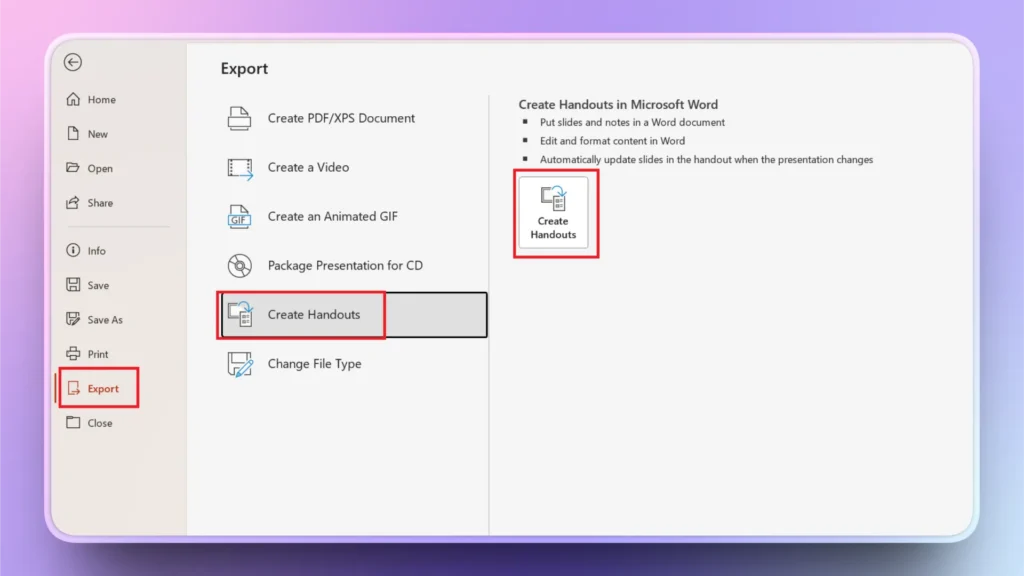
A new Word document will open with structured content from all slides in your presentation. You can save that document and use it for other tasks.
Method 2: Using Outline View in PowerPoint
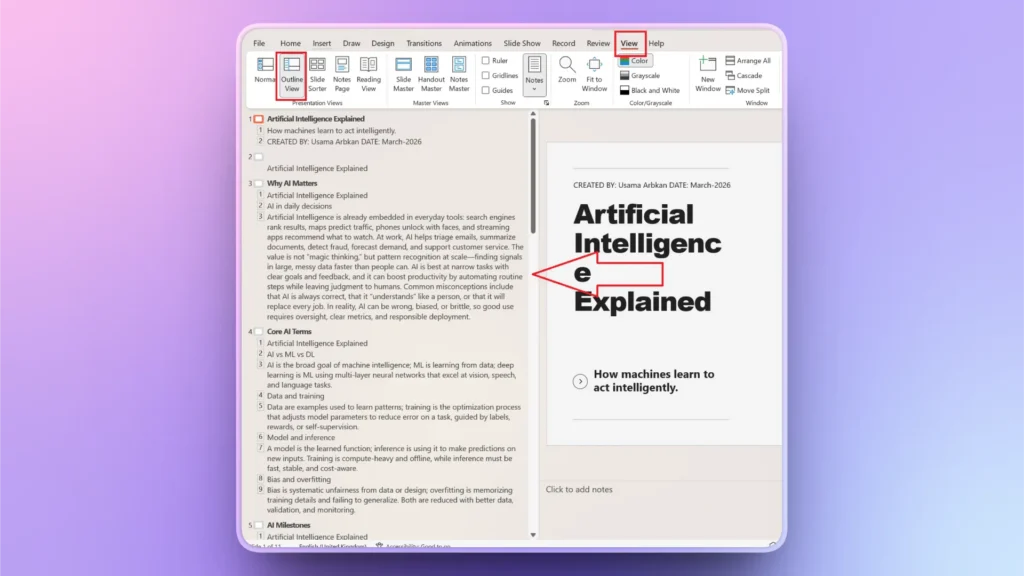
Method 1 (exporting outline to Word file) is useful for printing the outline, but if you just want to view the outline and structure of a presentation, Outline View in PowerPoint is a useful feature.
When we open a PowerPoint presentation, the software shows slides in Normal View. If you want to check the outline of the presentation, go to View Tab >> Outline View, and the outline for the entire presentation will appear in the left pane.
Method 3: Save Slides as Plain Text
This method is not commonly used to export a slide outline from a PowerPoint presentation. If you want lightweight documents with text only, this method might be of some use.
The ideal method to export a slide outline from PowerPoint is to use the Export option and then create Handouts.
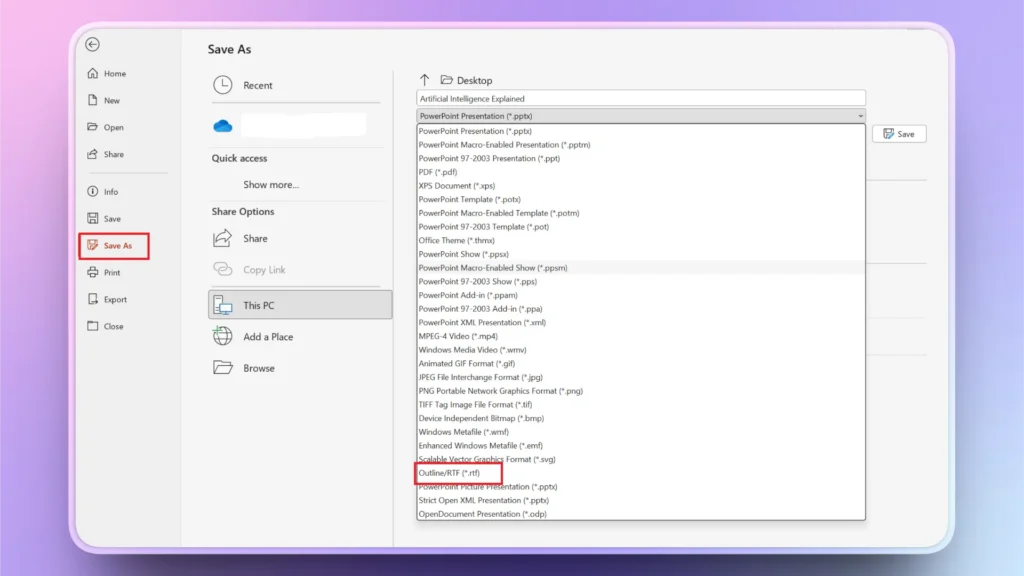
- Open PowerPoint presentation >> File >> Save As
- Choose the destination folder and then select Outline/RTF or Plain Text (.txt) file type
Presentation will be saved as a text file with the text only. No images, visuals, or other content will be added to the saved file.
How to Create an Engaging Presentation Outline with AI?
The effectiveness of any presentation depends on the outline. Creating an outline can take hours of brainstorming. You have to come up with headings, topics, and ideas that need to be discussed. Then the next part is to write detailed content for each heading or idea.
In simple words, a normal user might take 30-45 minutes to create an outline for a PowerPoint presentation. Would you like to know about an AI tool that can generate an effective presentation outline on any topic within seconds?
Use Twistly to Create a Presentation Outline
Twistly is an AI add-in for PowerPoint that lives and works inside PowerPoint; there’s no need to learn any new tool or open new websites. AI integration with Twistly helps with creating new presentations, polishing existing slides, and performing other tasks with AI.
If you have a topic, file, or text and you want a complete outline for the presentation, here is how Twistly can create an outline within seconds.
Step 1: Open PowerPoint and Twistly
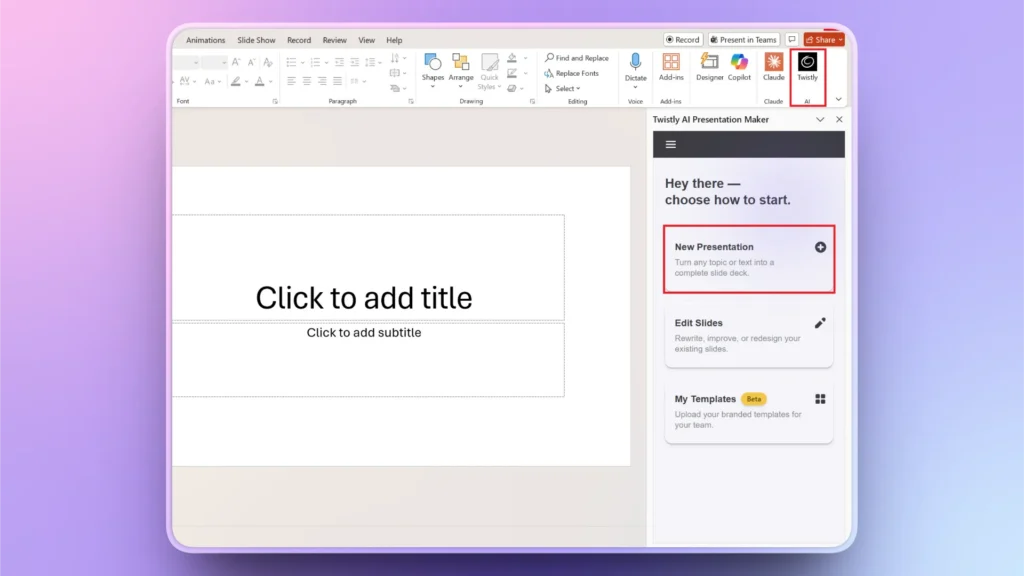
Start a new PowerPoint presentation and open Twistly by clicking the icon from the top ribbon. A dedicated Twistly pane will appear with all AI options. Click the New Presentation button.
Step 2: Choose the Input Method for the Presentation
You can make a presentation from a topic, text, or file. Choose your input method and then enter the topic details and make other choices according to your project needs.
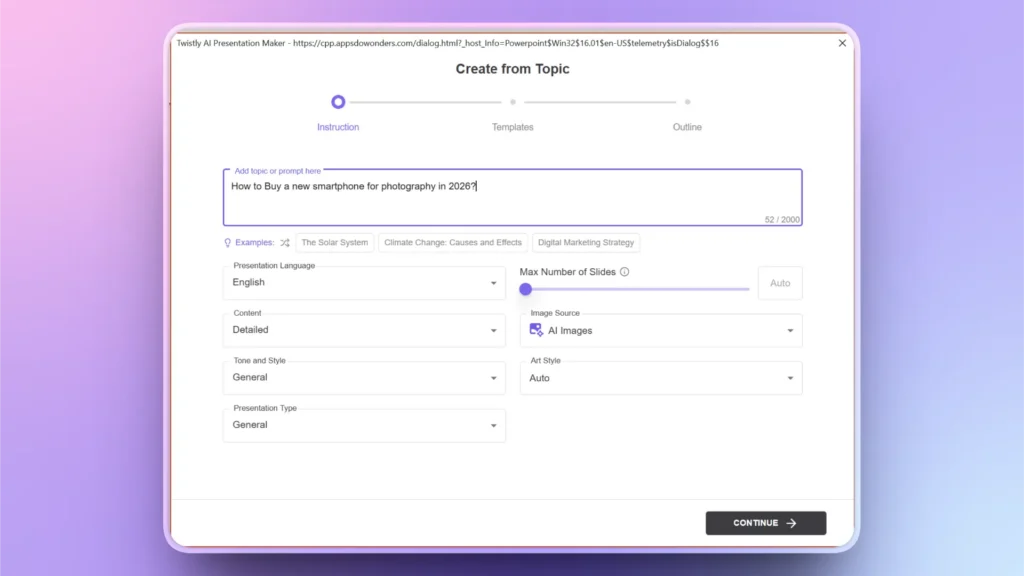
Step 3: Select an AI PowerPoint Template
Twistly has many AI PowerPoint templates that you can choose from. Preview and finalize your template, and then click continue.
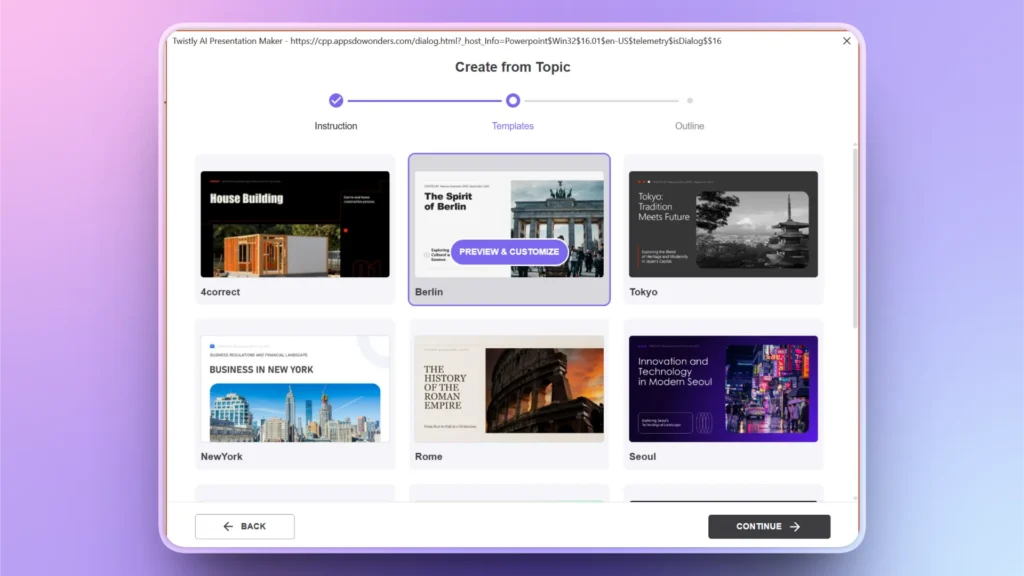
Step 4: Review Slide Outline
An outline will be generated for all slides in your presentation. Review the outline and make changes if needed.
As you have the outline now, you can either copy and use the outline for other projects or click Continue to make a complete presentation based on this outline.
Within seconds, Twistly will turn that outline into visually appealing professional slides.
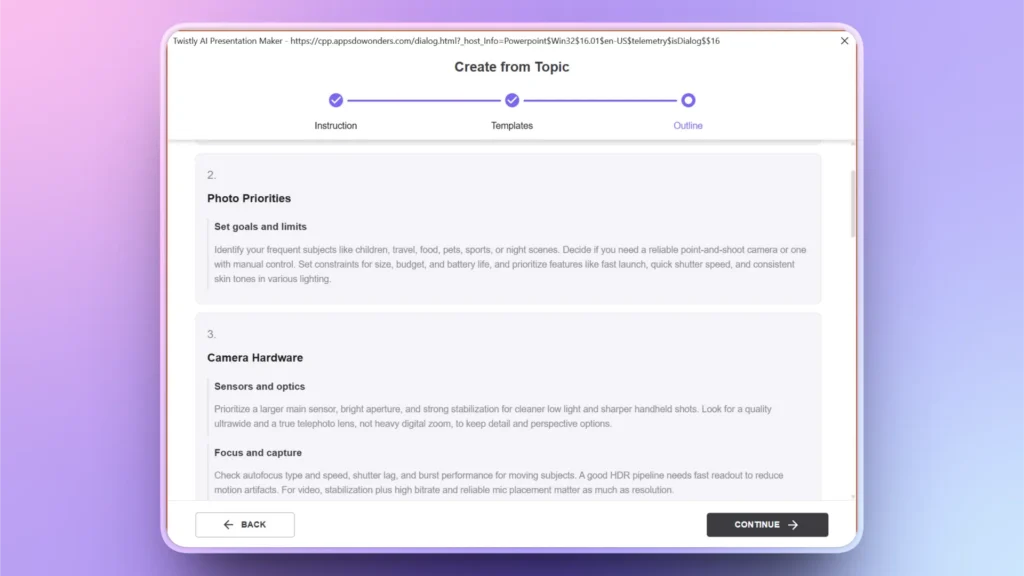
Tips for Exporting a Slide Outline from PowerPoint
An outline can be used to turn your presentation into a detailed blog post or article, and meeting notes can also be created from the outline. If you want the best results, make sure to:
- Use clear slide titles that explain the purpose of the slide
- Follow the bullet hierarchy in your slides
- Text-heavy slides may result in a mixed-up outline
- Use consistent layouts for your presentations
Instead of using conventional methods to create presentations and slides, download and install Twistly now. This AI tool is way more powerful, flexible, and advanced than similar AI solutions.
Download Twistly for Free
We understand that trusting a new AI tool in 2026 seems like a bet, but not all AI tools are created equally. The team behind Twistly has taken care of every repetitive task that frustrates PowerPoint users.
With a custom ChatGPT for PowerPoint, now you can make professional presentations within seconds, thanks to Twistly. Download now and experience a new era of professional communication.
Create PowerPoint
Slides with AI
Build AI-powered presentations from
any prompt, doc, or video


Final Words
The easiest way to export a slide outline from PowerPoint is to use the Handouts feature from the Export tab, but you can follow other methods, too. While exporting or creating outlines or presentations, value your time and use AI. Twistly is not just a slide designer but a complete AI solution for PowerPoint.












Start Making AI Presentations in Seconds
Instant Access
Begin exploring Twistly’s full suite of features immediately
No Commitments
No credit card required, and you can cancel anytime
Dedicated Support
Our team is here to assist you every step of the way during your trial.