


¿Cómo exportar el esquema de las diapositivas de PowerPoint?

Para exportar el esquema de las diapositivas de PowerPoint, ve a Archivo >> Exportar >> Crear documentos >> selecciona Solo el esquema, y la estructura de la presentación se guardará en un archivo de Word sin elementos visuales.
Exportar el esquema te ayuda a extraer los títulos, subtítulos, temas principales e ideas. Sin leer manualmente todo el documento, puedes exportar el esquema de las diapositivas de PowerPoint con este sencillo método.
¿Qué es el esquema de diapositivas en PowerPoint?
La versión solo texto de tu presentación de PowerPoint se llama esquema de diapositivas y suele incluir todos los títulos, subtítulos y la estructura del contenido de las diapositivas. #Los elementos de diseño, imágenes, recursos visuales, animaciones y transiciones no se incluyen en el esquema.
Hay distintas formas de exportar el esquema de diapositivas de PowerPoint. Algunos métodos sirven para ver el esquema y otros para guardarlo y usarlo con otros fines. En este artículo veremos todas las formas posibles de exportar el esquema de las diapositivas.
Método 1: exportar el esquema de diapositivas a Word
La opción Exportar de PowerPoint permite guardar y exportar las diapositivas de la presentación en distintos formatos. Si quieres obtener el contenido de la presentación con una estructura limpia y ordenada, sigue este método.
Primer paso: Abre tu presentación y ve a Archivo >> Exportar
Segundo paso: Haga clic en Crear documentos >> elige Solo el esquema como opción
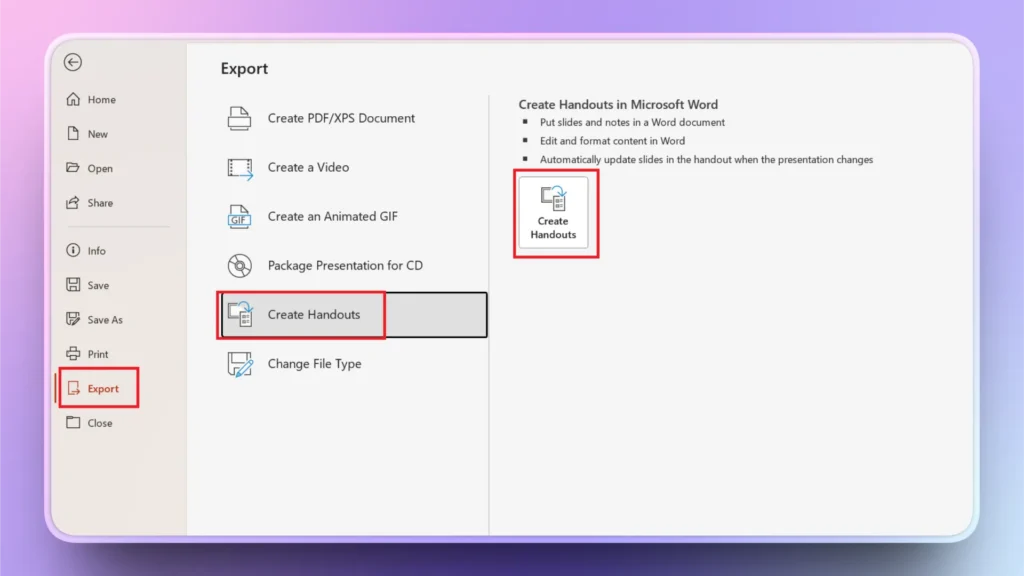
Se abrirá un nuevo documento de Word con el contenido estructurado de todas las diapositivas de tu presentación. Puedes guardar ese documento y usarlo para otras tareas.
Método 2: usar la Vista Esquema de PowerPoint
El método 1 (exportar el esquema a un archivo de Word) es útil para imprimir el esquema, pero si solo quieres ver el esquema y la estructura de una presentación, la Vista Esquema de PowerPoint es una función muy útil.
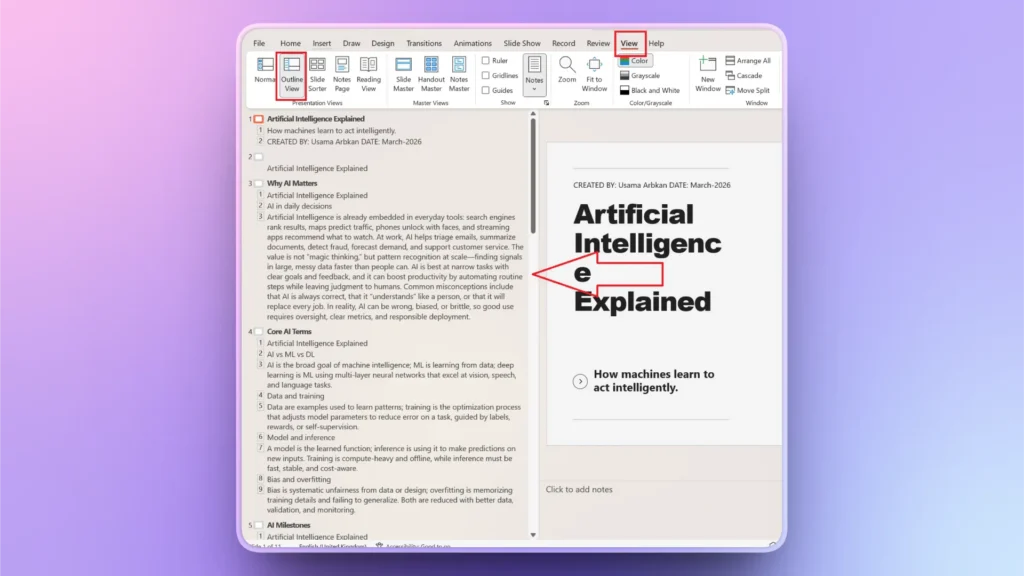
Cuando abrimos una presentación de PowerPoint, el programa muestra las diapositivas en la vista Normal. Si quieres consultar el esquema de la presentación, ve a Pestaña Vista >> Vista Esquema, y el esquema de toda la presentación aparecerá en el panel izquierdo.
Método 3: guardar las diapositivas como texto sin formato
Este método no se usa mucho para exportar el esquema de una presentación de PowerPoint. Si quieres documentos ligeros solo con texto, puede resultarte útil.
El método ideal para exportar el esquema de diapositivas de PowerPoint es usar la opción Exportar y luego Crear documentos.
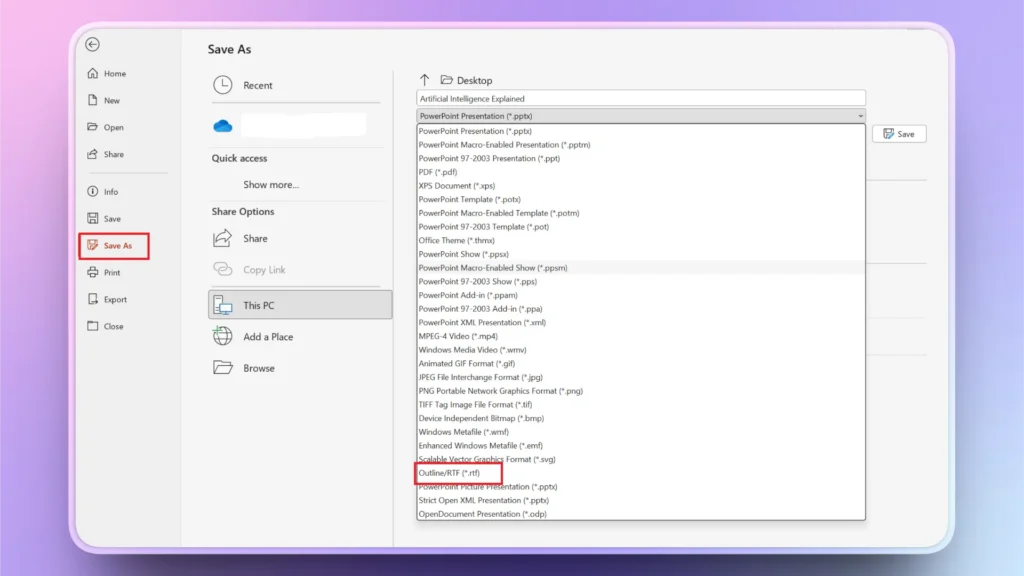
- Abre la presentación de PowerPoint >> Archivo >> Guardar como
- Elige la carpeta de destino y selecciona Esquema/RTF o Texto sin formato (.txt) como tipo de archivo
La presentación se guardará como un archivo de texto, solo con el texto. El archivo guardado no incluirá imágenes, elementos visuales ni otro contenido.
¿Cómo crear un esquema de presentación atractivo con IA?
La eficacia de cualquier presentación depende de su esquema. Crear un esquema puede llevar horas de lluvia de ideas. Tienes que pensar los títulos, los temas y las ideas que vas a tratar. Después, toca escribir el contenido detallado de cada título o idea.
En pocas palabras, un usuario normal puede tardar entre 30 y 45 minutos en crear el esquema de una presentación de PowerPoint. ¿Te gustaría conocer una herramienta de IA capaz de generar un esquema de presentación eficaz sobre cualquier tema en segundos?
Usa Twistly para crear el esquema de una presentación
Twistly es un complemento de IA que funciona dentro de PowerPoint: no necesitas aprender a usar ninguna herramienta nueva ni abrir otras webs. La integración de IA de Twistly te ayuda a crear presentaciones nuevas, pulir diapositivas existentes y realizar otras tareas con IA.
Si tienes un tema, un archivo o un texto y quieres un esquema completo para tu presentación, así es como Twistly puede crearlo en segundos.
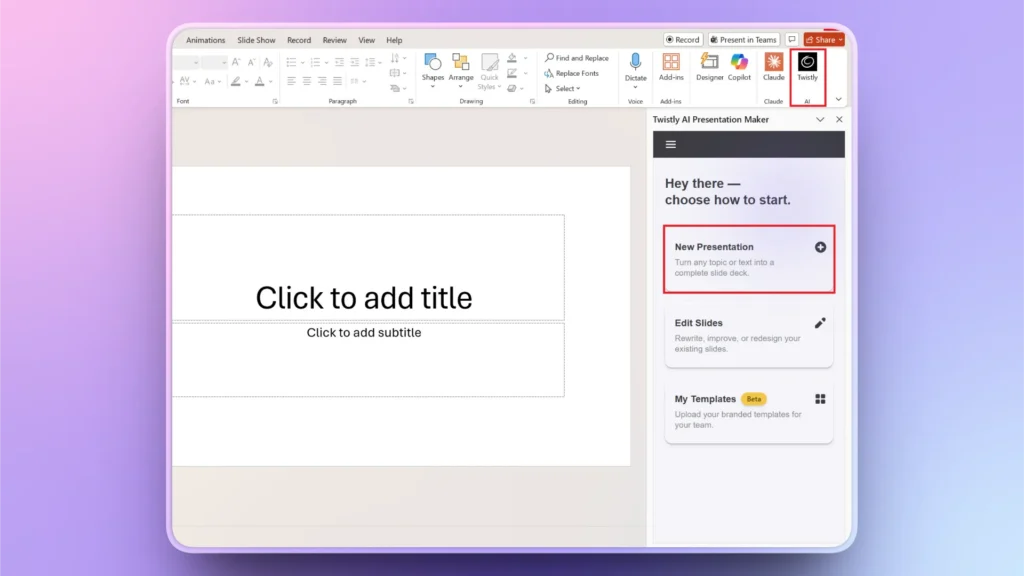
Paso 1: Abrir PowerPoint y Twistly
Crea una nueva presentación de PowerPoint y abre Twistly haciendo clic en su icono de la cinta superior. Aparecerá un panel de Twistly con todas las opciones de IA. Haz clic en el botón New Presentation.
Paso 2: elige el método de entrada para la presentación
Puedes crear una presentación a partir de un tema, un texto o un archivo. Elige el método de entrada, introduce los detalles del tema y configura las demás opciones según las necesidades de tu proyecto.
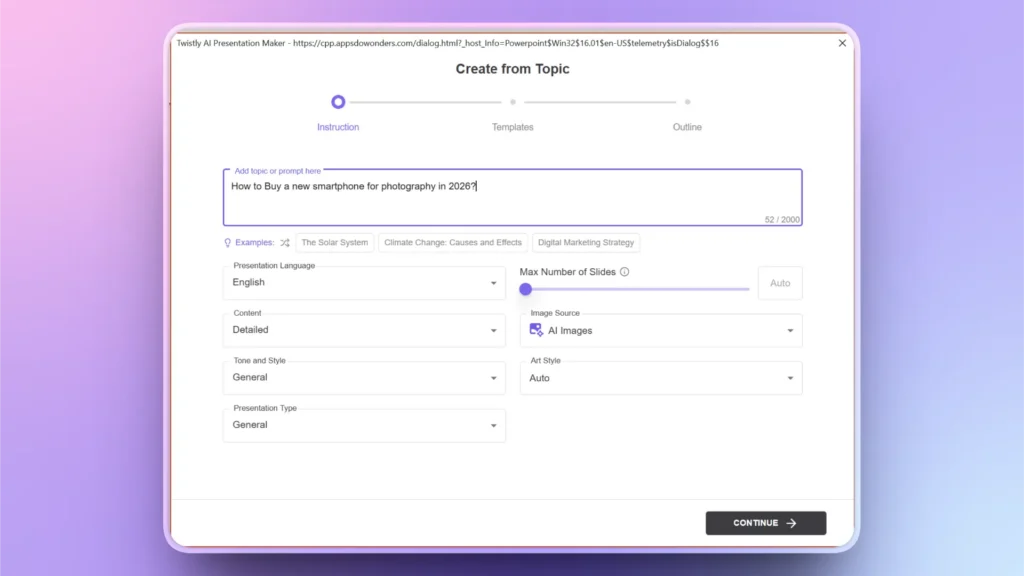
Paso 3: selecciona una plantilla de PowerPoint con IA
Twistly tiene muchas plantillas de PowerPoint con IA entre las que elegir. Previsualiza y elige tu plantilla y haz clic en Continue.
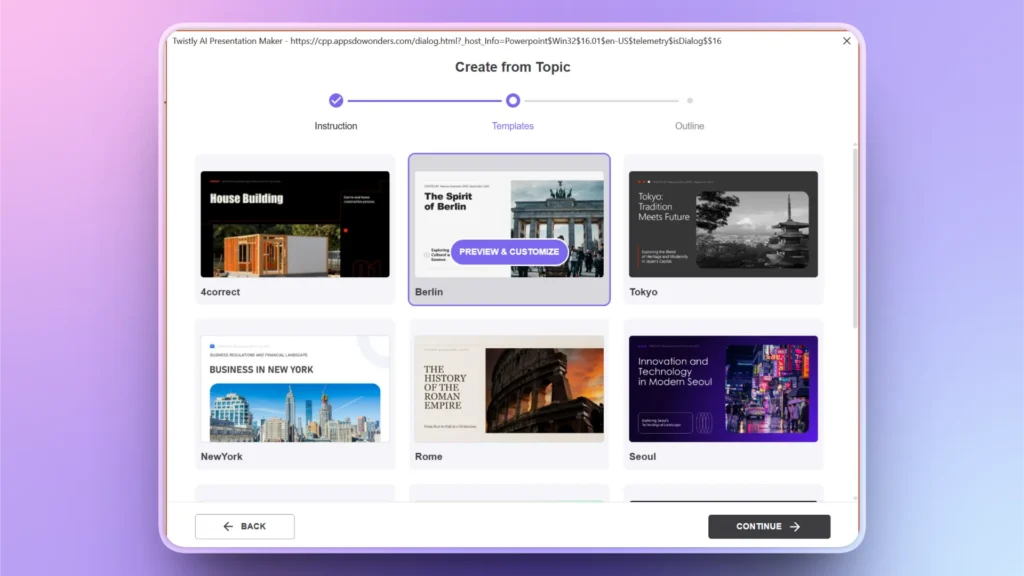
Paso 4: revisa el esquema de las diapositivas
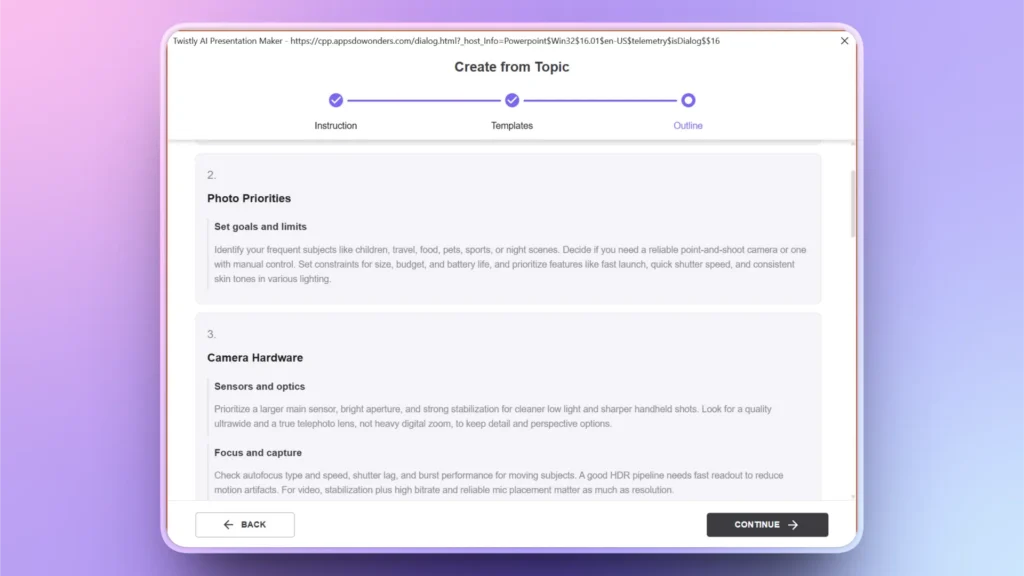
Se generará un esquema para todas las diapositivas de tu presentación. Revísalo y haz cambios si es necesario.
Ahora que tienes el esquema, puedes copiarlo y usarlo en otros proyectos o hacer clic en Continue para crear una presentación completa basada en él.
En segundos, Twistly convertirá ese esquema en diapositivas profesionales y visualmente atractivas.
Consejos para exportar el esquema de diapositivas de PowerPoint
Un esquema te permite convertir tu presentación en una entrada de blog o artículo detallado, y también crear notas de reunión. Para obtener los mejores resultados, asegúrate de:
- Usar títulos de diapositiva claros que expliquen su propósito
- Respetar la jerarquía de viñetas en tus diapositivas
- Las diapositivas con mucho texto pueden generar un esquema desordenado
- Usar diseños coherentes en tus presentaciones
En lugar de usar métodos convencionales para crear presentaciones y diapositivas, descarga e instala Twistly ahora. Esta herramienta de IA es mucho más potente, flexible y avanzada que otras soluciones de IA similares.
Descargar Twistly es gratis
Entendemos que confiar en una nueva herramienta de IA en 2026 parece una apuesta, pero no todas las herramientas de IA son iguales. El equipo de Twistly se ha encargado de todas las tareas repetitivas que frustran a los usuarios de PowerPoint.
Con un ChatGPT personalizado para PowerPoint, ahora puedes crear presentaciones profesionales en segundos gracias a Twistly. Descárgalo ahora y descubre una nueva era de la comunicación profesional.
Crear PowerPoint
Diapositivas con IA
Cree presentaciones basadas en IA a partir de
cualquier mensaje, documento o vídeo


Palabras finales
La forma más fácil de exportar el esquema de diapositivas de PowerPoint es usar la función Crear documentos de la pestaña Exportar, aunque también puedes seguir otros métodos. Al exportar o crear esquemas o presentaciones, valora tu tiempo y usa la IA. Twistly no es solo un diseñador de diapositivas, sino una solución de IA completa para PowerPoint.












Empieza a hacer presentaciones con IA en segundos
Acceso instantáneo
Empieza a explorar inmediatamente todas las funciones de Twistly
Sin compromisos
No necesitas tarjeta de crédito y puedes cancelar cuando quieras
Asistencia dedicada
Nuestro equipo te ayudará en cada paso durante tu periodo de prueba