


To edit videos in PowerPoint, insert a video >> select your video and then go to the Video Format or Playback tabs to make changes to your video. PowerPoint offers basic video editing options. For advanced video editing, you might want to use dedicated tools and software.
PowerPoint is mainly a presentation tool, but you can also use it for basic image and video editing according to your project needs.
From inserting audio, trimming clips, to adding effects and narrations, there are many other tasks that you can do without any additional video editing software.
How to insert a video, how to edit a video, and how to get polished slides with media? All these questions are answered in this article. For more useful articles and how-to PowerPoint guides, visit the Twistly Blog section.
Can you Edit Videos in PowerPoint?
Yes, PowerPoint allows basic video editing for many formats, and you can perform basic video editing tasks only. For a regular user, no additional tool is required to edit videos on PowerPoint because:
- PowerPoint has a beginner-friendly video editing interface
- No need for external video editing software
- Built-in animations, transitions, and effects
- Easy export to MP4 video format
- Perfect for business presentations
Editing Videos in PowerPoint
Almost all popular video formats are supported by PowerPoint. If any video option is greyed out, it means that PowerPoint does not support that video format for the said editing feature.
Here are common editing tasks that you can perform in PowerPoint for your videos and clips. We have also added visuals to help you understand the process easily.
How to Insert a Video into PowerPoint?
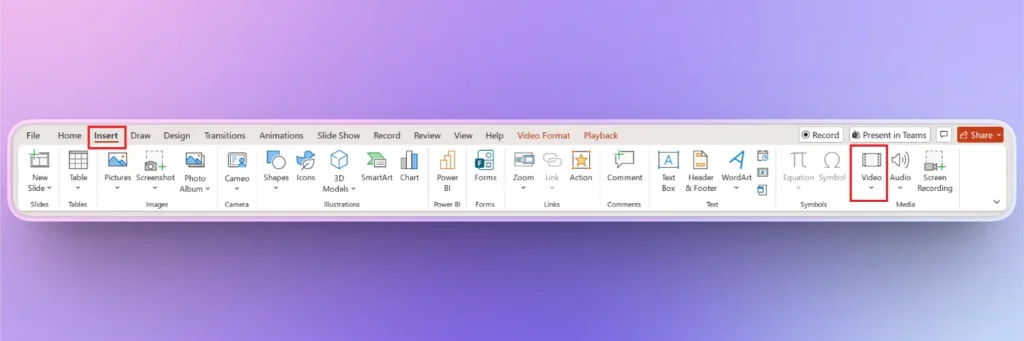
Simply drag and drop a video from your laptop to PowerPoint, or go to the Insert tab and then click Video >> choose Video Source. You can insert a video from an online source, a computer, or a stock video library.
How to Trim Videos in PowerPoint?
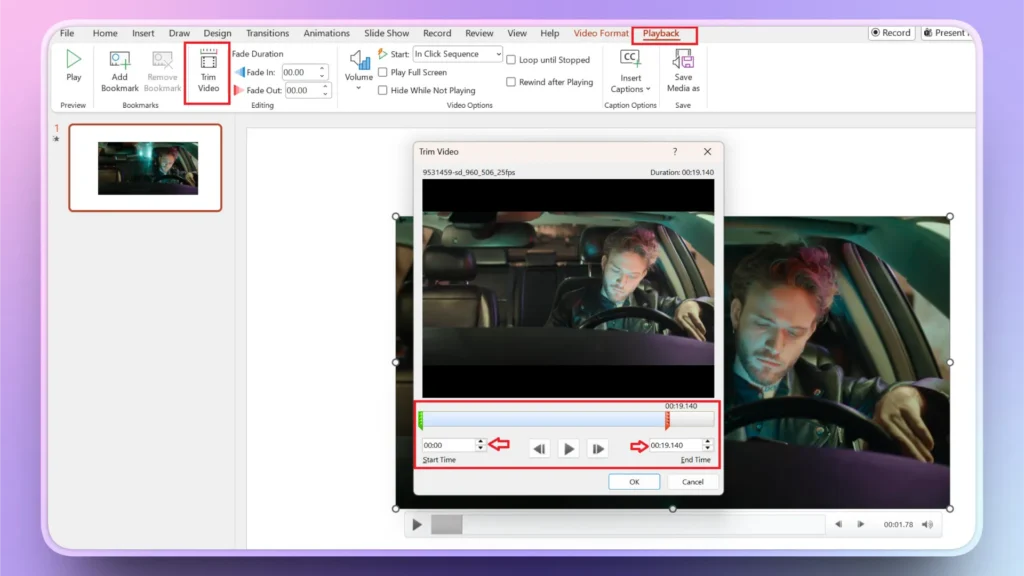
Trimming a video can help you get rid of unwanted parts from your video. For now, users can trim clips from the start or end of the video. You cannot cut parts from the center of the video. Here is how to trim videos in PowerPoint.
- Select your video and go to the Playback tab in the top ribbon
- Click the Trim Video button, and a pop-up will appear with green and red markers and other settings
- Use a green marker to set the beginning and a red marker to set the end of the video
- You can also enter the start and ending time in the boxes below
- Click OK when done, and the video clip between the green and red markers will be saved
How to Add a Fade Effect to Videos in PowerPoint?
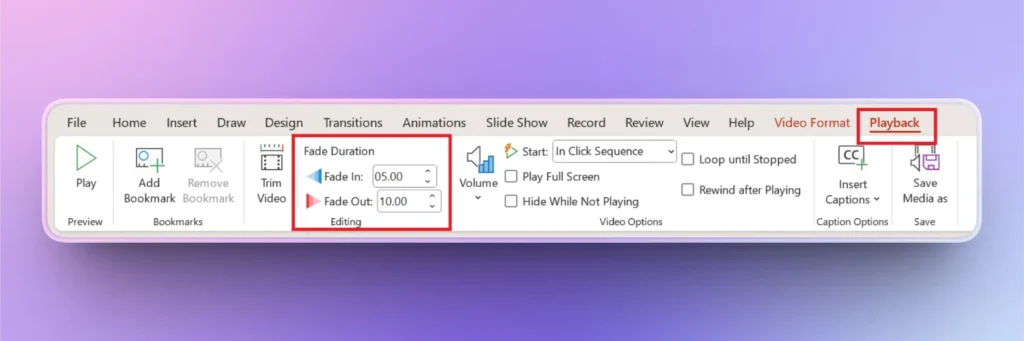
A simple fade effect can add a dramatic touch to your video. It is just like changing the transparency for your images in the slides.
Process is easy, and you can enter the number of seconds in the Fade In and Fade Out boxes.
How to Add a Bookmark to a Video?
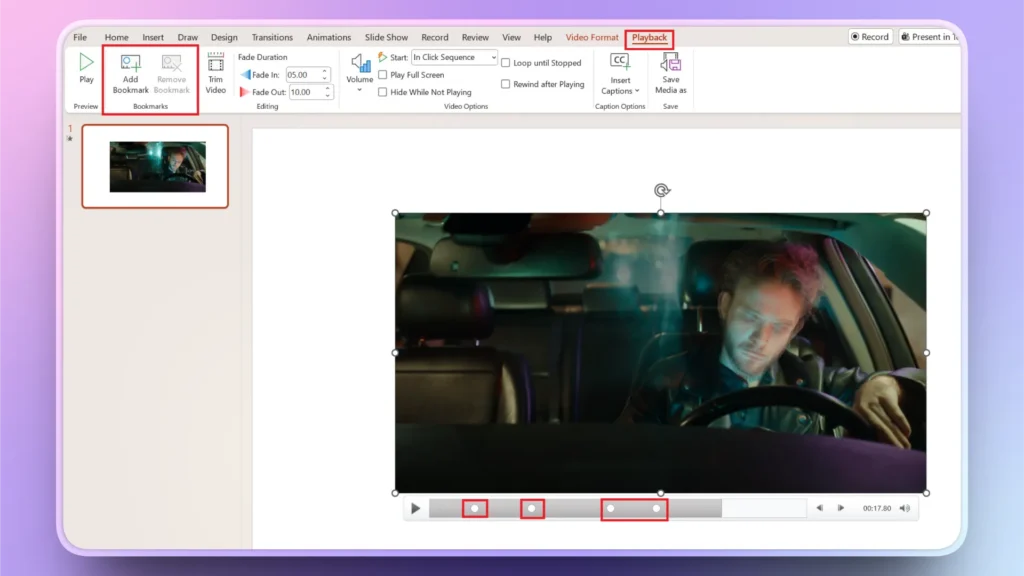
Bookmarks in videos help with easy navigation to important steps or moments in the video. While the video plays, click the Add Bookmark button, and a mark will be added to the navigation bar.
To remove a bookmark, select the mark on the navigation bar and click the Remove Bookmark button in the Playback tab.
How to Crop, Resize, or Rotate Videos in PowerPoint?
The Size and Arrange sections in the Video Format tab have all the options related to cropping, rotating, aligning, and resizing videos in PowerPoint. Here is how to do it.
Crop a Video
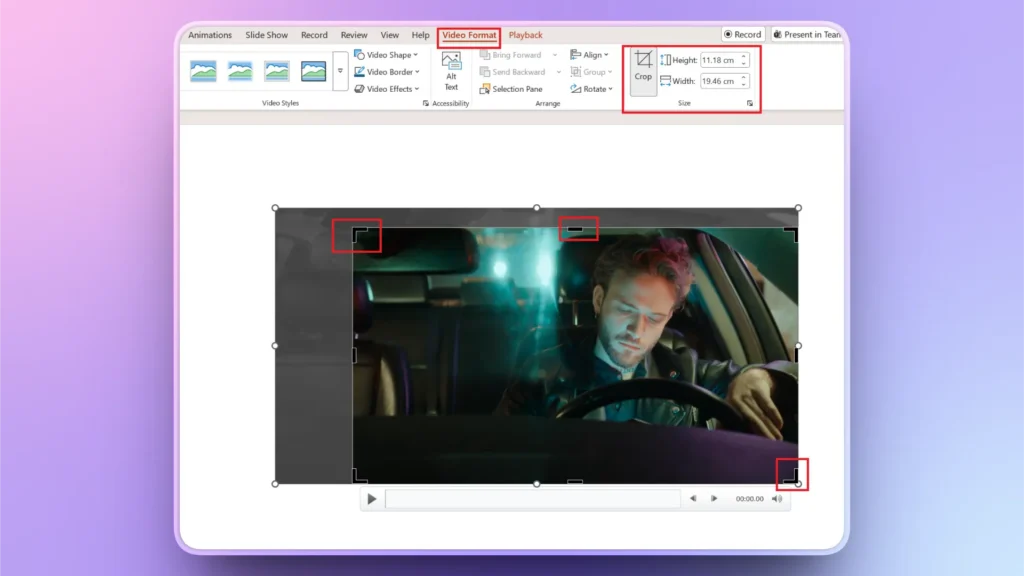
Select your video and go to the Video Format tab, and then go to the Size section and click the Crop button.
Drag the corners or center of the video to adjust the frame, and once you have finalized the frame size, click Crop, and the selected video will be saved.
Resize a Video
To change the size of the video, enter values in the Height and Width boxes right next to the Crop Video button in the Size section.
Rotate or Align a Video
Select your video >> Video Format tab >> Rotate or Align video and make choices according to your project needs.
How to Adjust Video in PowerPoint?
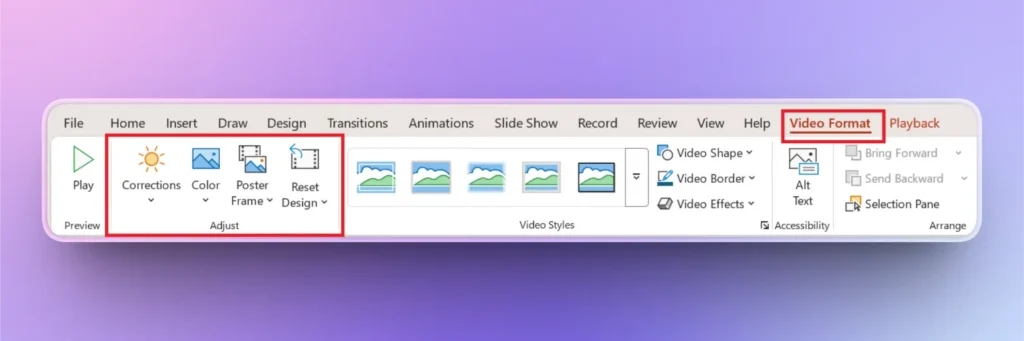
You can make certain corrections to your videos in PowerPoint. Adjust section in Video Format tab allows you to:
- Adjust brightness and contrast for the video
- Change the colors of the video
- Set the poster frame for the video
- Reset design
How to Adjust Playback Settings in PowerPoint?
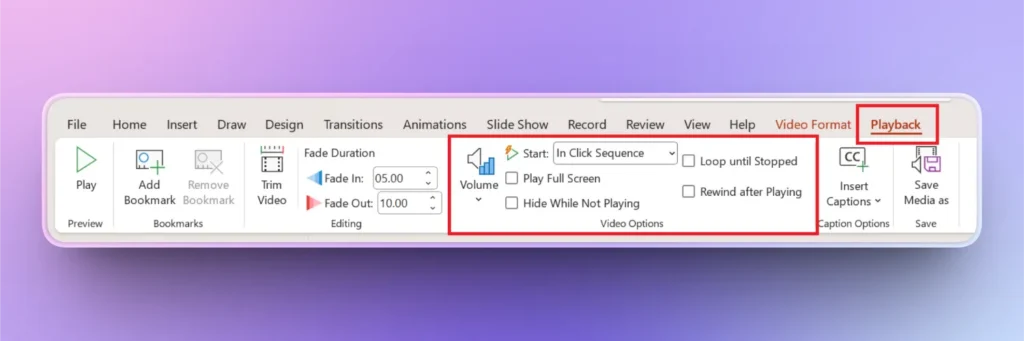
Do you want the video to play automatically, or do you want to play it by clicking on the video? Do you want to use the full volume for the video, or do you want to play the video in a sequence or loop?
All these many similar options are available on the Playback tab in PowerPoint. Select your video and go to the Playback tab, and make any changes that you like.
Limitations of Editing Videos in PowerPoint
PowerPoint has some useful and basic video editing tools, but you cannot expect full flexibility and control. Here are some limitations that you might face while editing videos in PowerPoint.
- No advanced timeline editing
- Limited transitions compared to professional editors
- Manual alignment for animations and audio syncing
- Time-consuming for complex projects
If you face any similar issues, you can always turn to dedicated video editing tools or use online video editing sites for more control.
Conclusion
The playback and Video format tabs in PowerPoint have many useful features for video editing for slides. Videos are an important and useful part of presentations, but don’t forget the importance of good design and valuable content for slides.
If you need an AI tool that can generate professional presentations for you in PowerPoint, download Twistly now for free and enjoy the best AI presentation maker 2026, and enjoy the real power of AI for presentations.
Create PowerPoint
Slides with AI
Build AI-powered presentations from
any prompt, doc, or video














Start Making AI Presentations in Seconds
Instant Access
Begin exploring Twistly’s full suite of features immediately
No Commitments
No credit card required, and you can cancel anytime
Dedicated Support
Our team is here to assist you every step of the way during your trial.