



Drafting a client proposal presentation using AI involved using AI tools like Twistly to automate outline generation, template customization, and slide creation. From content to design layouts, every aspect of a client proposal presentation is drafted using AI.
For some users, the idea of using AI for client proposal presentations may be new. That’s why we have explained every single step to draft a client proposal presentation using AI within minutes.
What is a Client Proposal?
A client proposal is a formal, persuasive document sent to a potential client outlining how a service provider can solve their specific problems, detailing the project scope, timeline, and pricing.
Twistly is an amazing tool that can generate high-converting client proposals using AI and also streamline the entire process.
Why are Manual Client Proposals Hard to Draft?
Creating a polished and persuasive client proposal deck takes time. These decks are not like simple presentations where a few images and text boxes make things work.
You have to start with a persuasive pitch, compelling outline, design professional and attractive slides, then write content and add visuals to these slides. Every aspect of a client’s proposal presentation requires personalization.
Getting desired results with a manual approach in PowerPoint can take hours or even days to draft effective client proposals.
Importance of an Effective Client Proposal
Most entrepreneurs, service providers, sellers, and startup owners don’t realize the importance of professional client proposals. A formal approach to pitch your idea or service to potential clients can help answer many important questions that stakeholders, investors, and clients may have, including:
- Do you understand their problem?
- Can you deliver results?
- What is your strategy?
- How much will it cost?
- What happens next?
A well-structured client proposal presentation with all these answers can leave a long-lasting impact on your clients and help convince them to take action.
Steps to Draft a Client Proposal Presentation Using AI
The idea of using Twistly is to automate the entire process and still get personalized results for every client proposal presentation. Twistly offers several customization options where you can customize content and designs according to your target audience and market.
Do you already have the Twistly add-in installed in your PowerPoint software? If not, use the link below to claim your free trial version of Twistly. Once installed, follow these simple steps to draft a client proposal presentation using AI.
Create PowerPoint Slides with AI
Build AI-powered presentations from any prompt, doc, or video

Step 1: Understand Client Brief
Even before opening PowerPoint, you need to collect all data and information provided by the client. You need to be familiar with the target industry, business goals, pain points, and target audience/competitors in the business.
Once you have collected this information, the next phase is to core the proposal structure for your presentation. Depending on the client’s needs and demands, you may customize the structure, but here is an effective structure that works for most client proposals.
If you are not sure about the best structure for your presentation, Twistly can generate the best possible outline based on your instructions.
| Slide Section | Purpose |
|---|---|
| Title Slide | Introduce your proposal |
| Client Problem | Show understanding of pain points |
| Proposed Solution | Explain your approach |
| Strategy/Process | Outline execution steps |
| Deliverables | Clarify what client receives |
| Timeline | Set expectations |
| Pricing | Present packages or investment |
| Case Studies | Build trust and credibility |
| ROI/Benefits | Highlight expected results |
| Next Steps | Encourage action |
Step 2: Personalize Presentation for Target Audience
Twistly offers multiple options to create a presentation. Let’s say we want to create a presentation on a topic.
Now, you can customize presentations for your target audience, define the type of presentation, and the content. More personalization will get better results for your project.
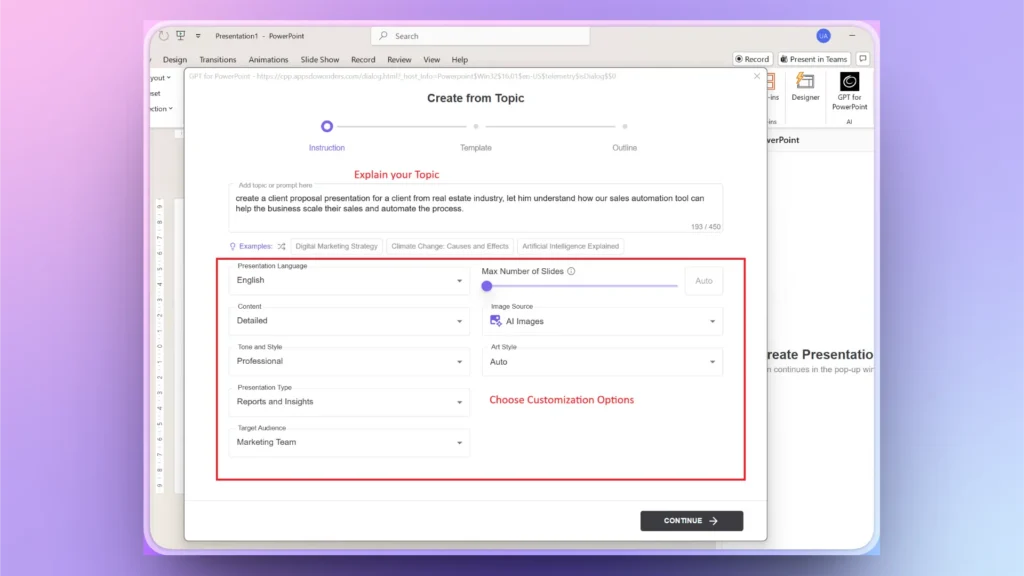
Step 3: Choose a Professional Template
Twistly has multiple AI PowerPoint templates that are fully customizable with AI and native PowerPoint features. Pick any template that you like and preview the slides. You can also choose a custom color for the template according to your branding.
Note: Twistly also allows users to upload their own brand presentations and create custom templates with AI for future projects. Upload your existing presentation, and Twistly will automatically fetch important elements from the PPT and create a reusable template.
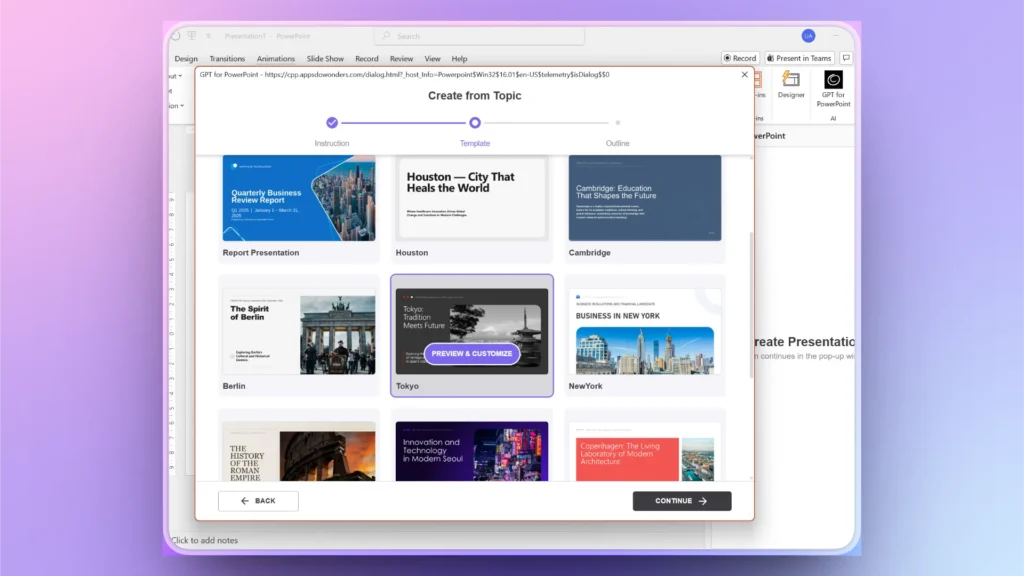
Step 3: Review of Client Proposal Outline
AI will generate an outline that covers the most points, but if you see any specific point missing, use the available options to delete, rearrange, or add slides to your outline.
Step 4: Your Slides are Ready
Within a few seconds, your final slides will be ready. Depending on your provided information, the final presentation may lack some aspects. Go through the slides and then add any missing slides.
If everything seems fine, simply save your client proposal deck and present with confidence.
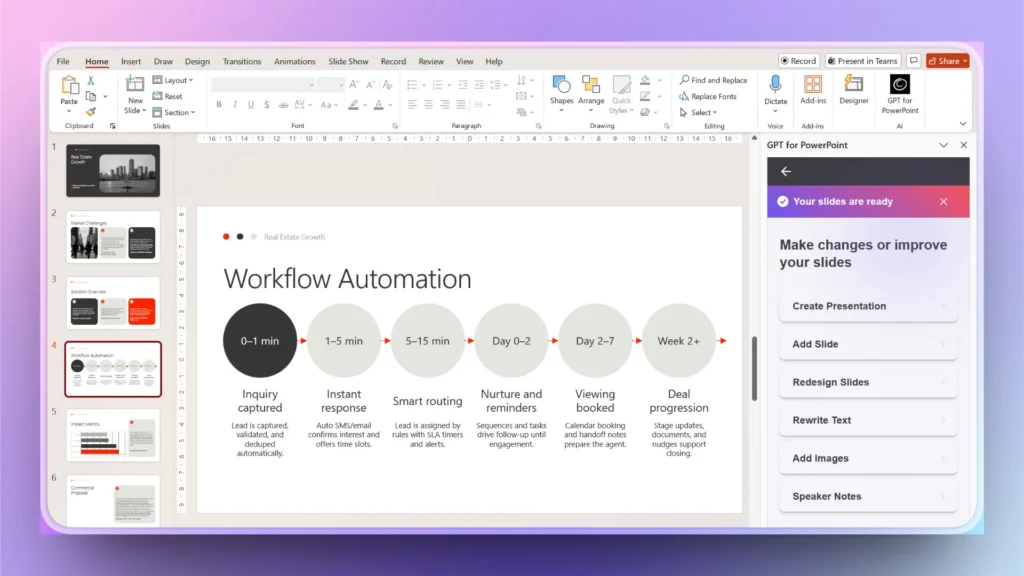
Step 5: Add Custom Slides
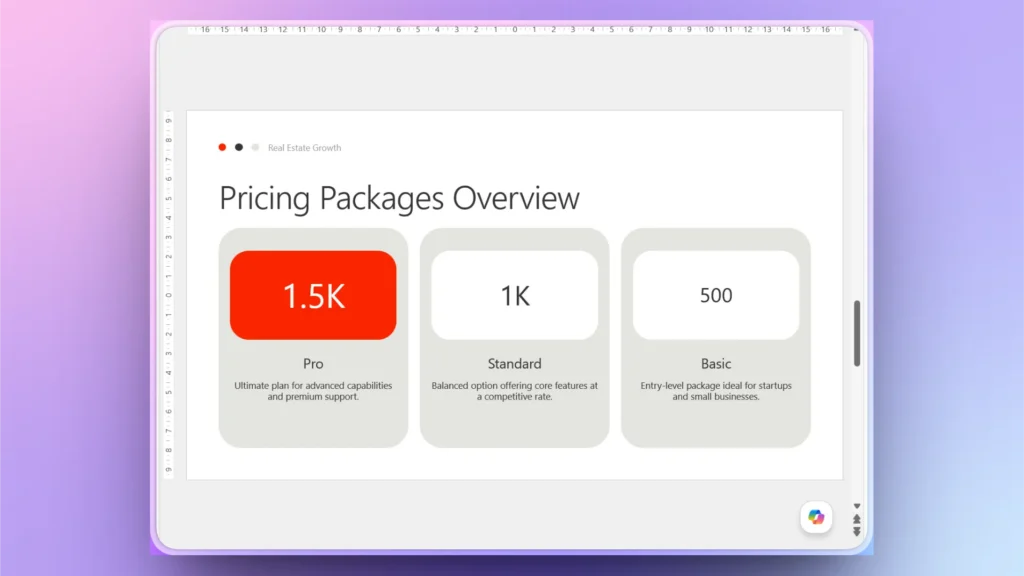
Let’s assume the final presentation is missing the Pricing slide. Now, you can use the AI features of Twistly to create this custom slide. The process is easy.
Add Slide >> pick Slide Outline >> Explain your Slide.
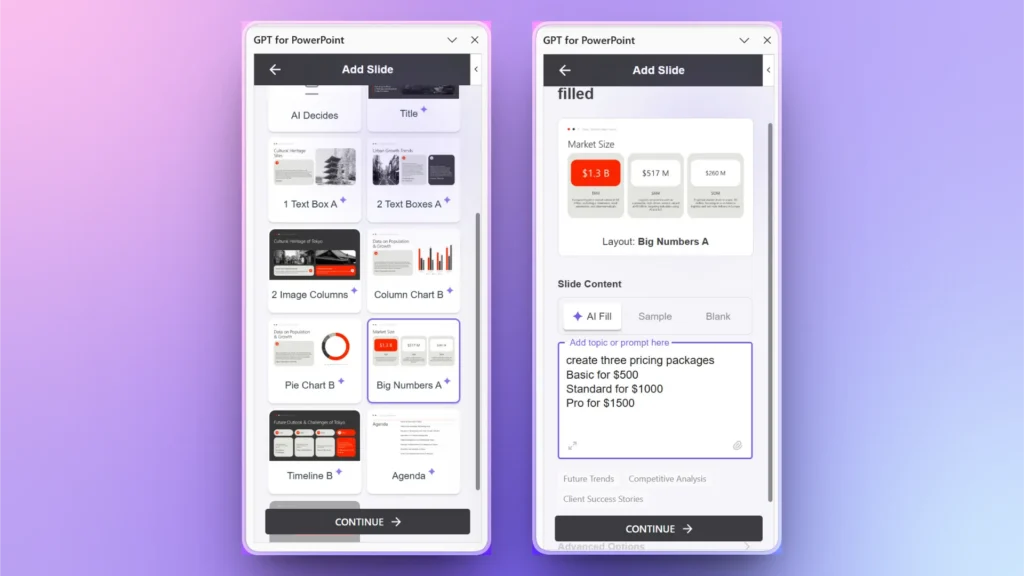
Within a few seconds, Twistly will generate a custom pricing slide that fully aligns with your client proposal theme. You can still make any possible and desired change to this or all slides with AI. Your imagination is the only limit here.
Get the Best AI Tool to Draft Client Proposals
Whether you are a marketer, salesperson, entrepreneur, or startup owner, Twistly is the best AI tool to create powerful PowerPoint presentations. With little changes to your presentation preferences, you can get a customized presentation for any niche or industry.
Download your free trial now and start using Twistly without a credit card. Give it a try, and if you are satisfied, upgrade your subscription to premium for a competitive price.
Create PowerPoint
Slides with AI
Build AI-powered presentations from
any prompt, doc, or video


Conclusion
Twistly is one of the best options to draft a client proposal presentation using AI for users who want speed and quality work. Unlike other AI presentation makers, Twistly does not require you to abandon PowerPoint.
Add-in lives and works inside PowerPoint, offering complete automation and the combined power of AI features and native PowerPoint tools. Download now and start making impressive presentations within seconds.












Start Making AI Presentations in Seconds
Instant Access
Begin exploring Twistly’s full suite of features immediately
No Commitments
No credit card required, and you can cancel anytime
Dedicated Support
Our team is here to assist you every step of the way during your trial.