



To create a statement of work, you can use any template or get help from AI tools like Twistly to create optimized slides for each step of the project.
The statement of work is the most important document in every project. Most people prefer using MS Word for creating SOW, but using PowerPoint offers more control over the visual appeal of the document.
When your clients ask you to send over the documents, they usually refer to a statement of work where you explain the timeline, deliverables, and other important details of the project.
If you haven’t created this document before, this guide will help you create a statement of work in PowerPoint. Even if you are not good at PowerPoint and designing slides, it’s not going to be an issue with AI.
What is a Statement of Work (SOW)?
A Statement of Work is a professional document that defines the scope of work between a client and a business. Managers, freelancers, marketers, and other service sellers may have to create an SOW for their projects. It also includes:
- Scope of project
- Deliverables
- Timeline for completion
- Responsibilities
- Expectations
It helps both parties to clearly understand what to expect from the partnership. A clear and professionally created statement of work can prevent unnecessary confusion between parties involved.
Importance of Statement of Work
Have you been working with clients without any formal documentation? If things go sideways, a statement of work can save you from any trouble. Here are some benefits of creating a statement of work for your next projects and partnerships:
- Assignment details become easier to understand for complex projects
- Slides are more engaging than long documents for SOW
- Set boundaries for the clients and clearly explain what they can expect
- Assign responsibilities and set out targets
Creating a Statement of Work in PowerPoint
If you are not comfortable with using PowerPoint templates for a statement of work, here are simple steps that you can follow to create an SOW from scratch in PowerPoint using manual and AI tools.
Step 1: Start with a Clean Template
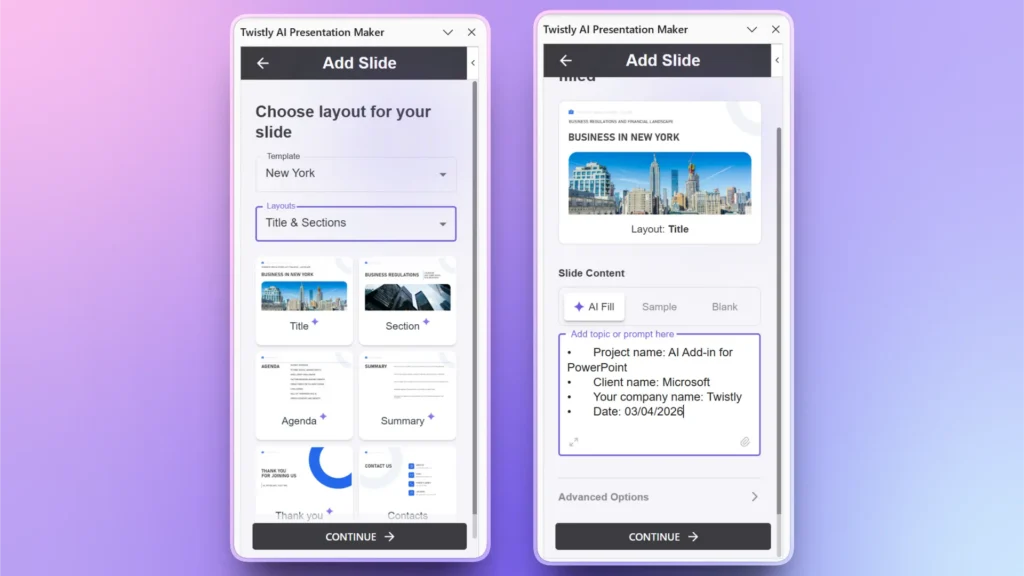
Open PowerPoint and start a blank presentation. We will start with a strong title slide where you will include:
- Project name
- Client name
- Your company name
- Date
We can create a title slide in Twistly. Open Twistly >> Edit Slides >> Add Slide >> choose Title Slide >> explain your project details.
Step 2: Project Overview Slide
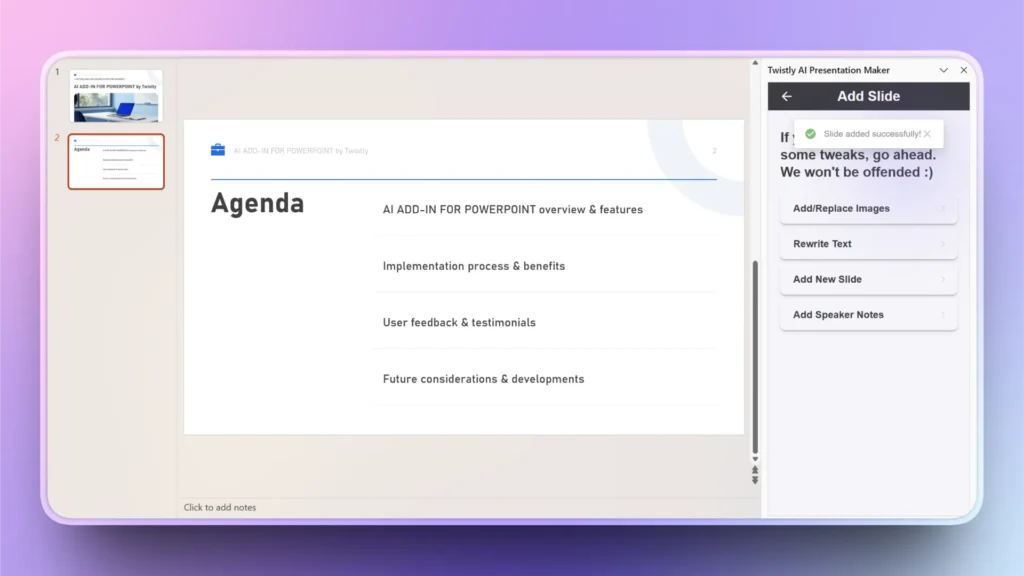
The next slide will offer a summary of the project so stakeholders can easily understand the basics of the project.
Click Add Slide >> choose Agenda slide layout >> review the project overview slide created by Twistly
Step 3: Define Objectives Clearly
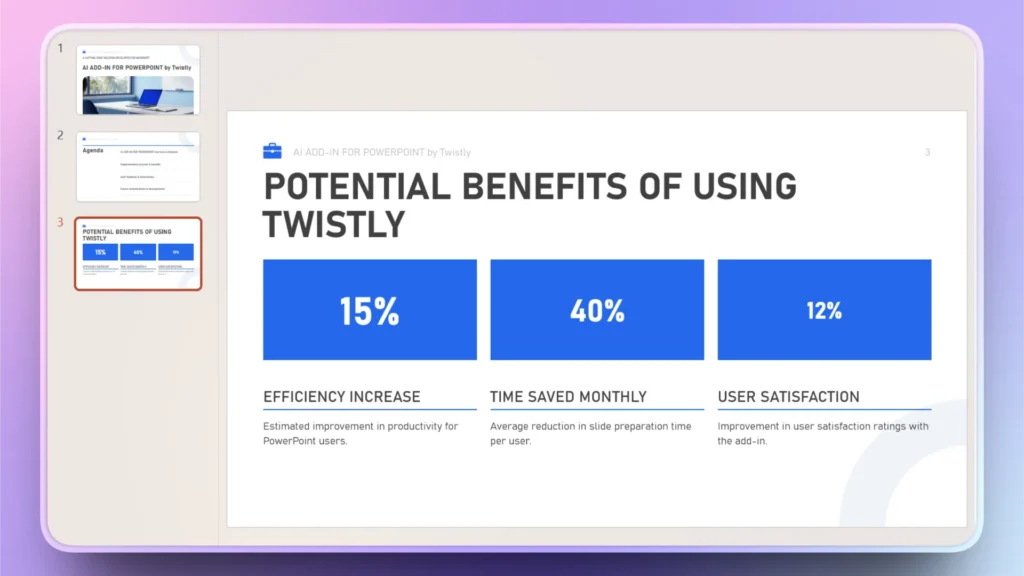
The next slide can define what you are trying to achieve with this project and what benefits you will offer to the business or client. Adding data and visualizations can also have a great impact on your SOW.
Add Slide >> select Big Number slide layout or any other layout >> explain the benefits of letting AI do the work for you.
Step 4: Outline Scope of Work
What is the core of your statement of work, and what services will you offer to the client during this project? This slide should give a brief description of the tasks and services that you will offer.
Add Slide >> apply Text and Content filter >> choose slide layout with Text Boxes and explain your services or scope of work.
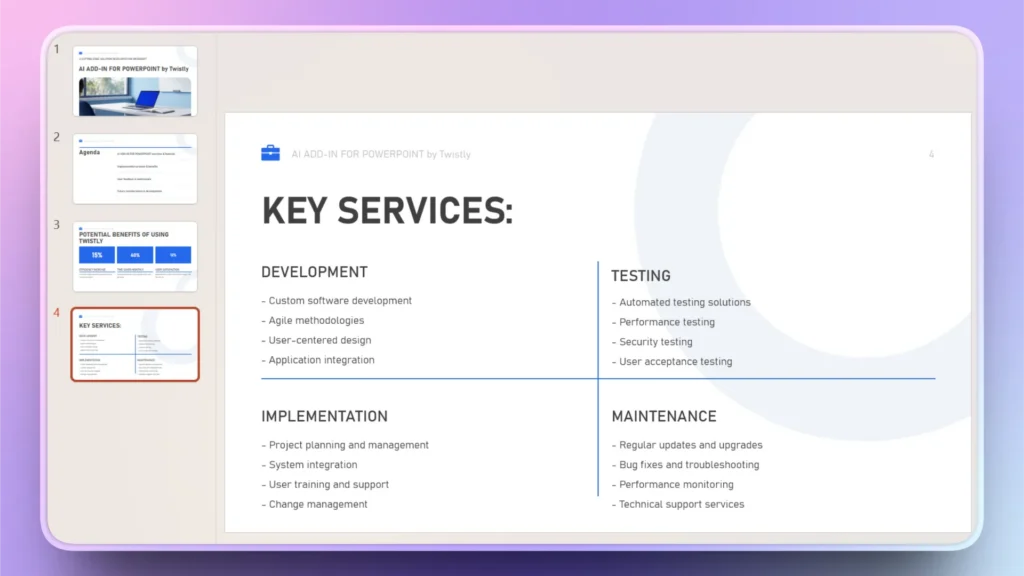
You can also add deliverables in this slide. The idea is to offer clarity regarding different aspects of the project.
Step 5: Add Timelines
Timelines define different stages of the project. From research to development and implementation, this slide will give an idea of what to expect and when to expect it.
Add Slide >> set filter to Timeline and Process >> select a Timeline slide layout.
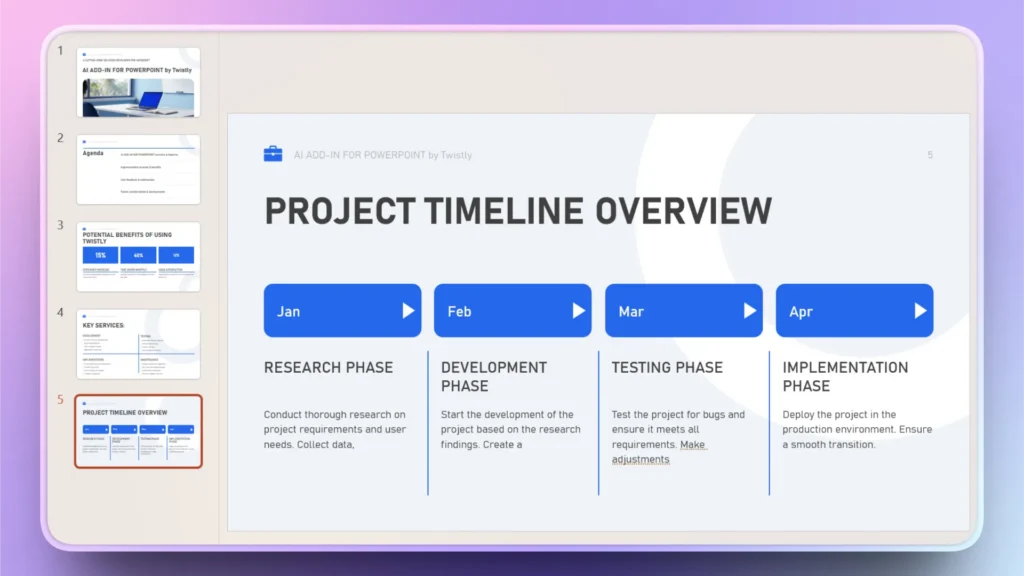
Step 6: Define Roles and Responsibilities
For this slide, you can also introduce your team and define their roles in the project. This slide is useful for introducing talent behind the scenes.
Add Slide >> set filter to Special/storytelling >> select Team slide layout.

Step 7: Review and Add Custom Slides
For a simple and professional statement of work, these slides are enough, but you can always add more slides according to your needs.
Review the generated slides, and if something is missing, follow the same method of adding slides with Twistly.
Twistly has multiple slide layouts available for users. Select any slide layout, and Twistly will automatically create content or format slides for you. Add as many slides as you require.
Try Twistly for Free
You can download and try Twistly for free for a limited time before making any financial commitments. From statement of work to tutorial, informational guides, business presentations, investment pitches, and simple slides, Twistly can generate anything for you in PowerPoint.
It is not just a slide designer but a complete AI presentation assistant that works for unlimited possible use cases. Click the link below to install the free trial version of the add-in.
Create PowerPoint
Slides with AI
Build AI-powered presentations from
any prompt, doc, or video


Conclusion
Creating a Statement of Work in PowerPoint is a smart way to present your project professionally with the Twistly AI add-in. Following the entire process does not take more than a few minutes.
If you want to create a complete presentation from scratch, enter a presentation topic or upload a file with all details, and Twistly will turn your data into a visually engaging PowerPoint presentation in just a few minutes.












Start Making AI Presentations in Seconds
Instant Access
Begin exploring Twistly’s full suite of features immediately
No Commitments
No credit card required, and you can cancel anytime
Dedicated Support
Our team is here to assist you every step of the way during your trial.