


¿Cómo crear una declaración de trabajo (SOW) en PowerPoint?

Para crear una declaración de trabajo, puedes usar cualquier plantilla o recurrir a herramientas de IA como Twistly para crear diapositivas optimizadas para cada fase del proyecto.
La declaración de trabajo es el documento más importante de cualquier proyecto. La mayoría prefiere usar MS Word para crear la SOW, pero PowerPoint ofrece más control sobre el atractivo visual del documento.
Cuando tus clientes te piden que les envíes la documentación, normalmente se refieren a una declaración de trabajo en la que explicas el calendario, los entregables y otros detalles importantes del proyecto.
Si nunca has creado este documento, esta guía te ayudará a crear una declaración de trabajo en PowerPoint. Aunque no se te den bien PowerPoint ni el diseño de diapositivas, con la IA no será un problema.
¿Qué es una declaración de trabajo (SOW)?
Una declaración de trabajo es un documento profesional que define el alcance del trabajo entre un cliente y una empresa. Directivos, freelancers, profesionales del marketing y otros proveedores de servicios pueden necesitar crear una SOW para sus proyectos. También incluye:
- Alcance del proyecto
- Entregables
- Plazo de finalización
- Responsabilidades
- Expectativas
Ayuda a ambas partes a entender claramente qué esperar de la colaboración. Una declaración de trabajo clara y profesional evita confusiones innecesarias entre las partes implicadas.
Importancia de la declaración de trabajo
¿Has trabajado con clientes sin ninguna documentación formal? Si algo sale mal, una declaración de trabajo puede ahorrarte problemas. Estas son algunas ventajas de crear una declaración de trabajo para tus próximos proyectos y colaboraciones:
- Los detalles del encargo se entienden mejor en proyectos complejos
- Las diapositivas resultan más atractivas que los documentos largos para una SOW
- Marca límites a los clientes y explica claramente qué pueden esperar
- Asigna responsabilidades y fija objetivos
Cómo crear una declaración de trabajo en PowerPoint
Si no te sientes cómodo usando plantillas de PowerPoint para una declaración de trabajo, estos son unos sencillos pasos para crear una SOW desde cero en PowerPoint con herramientas manuales y de IA.
Paso 1: empieza con una plantilla limpia
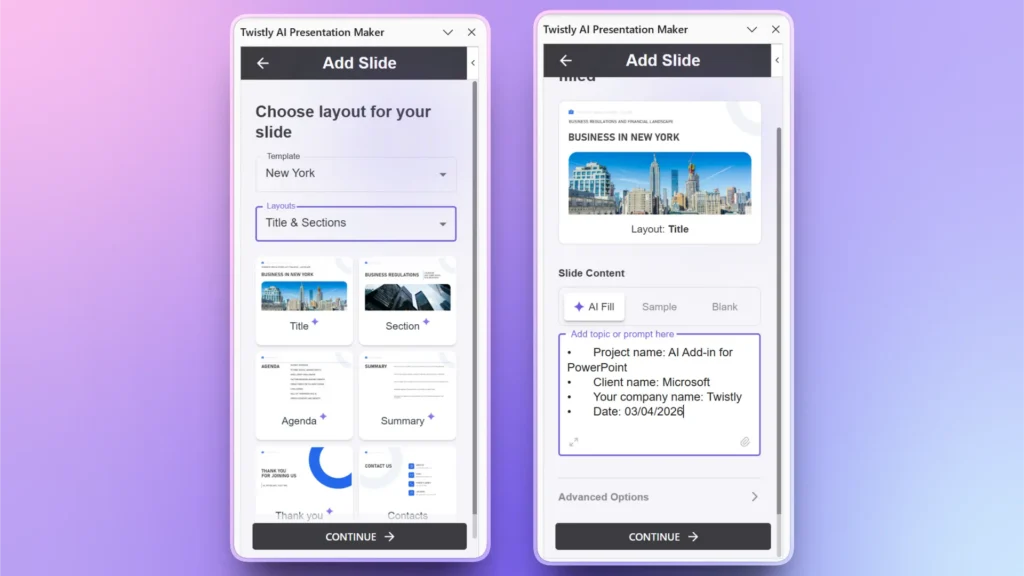
Abre PowerPoint y crea una presentación en blanco. Empezaremos con una diapositiva de título potente en la que incluirás:
- Nombre del proyecto
- Nombre del cliente
- Nombre de tu empresa
- Fecha
Podemos crear una diapositiva de título con Twistly. Abre Twistly >> Edit Slides >> Add Slide >> elige Title Slide >> explica los detalles de tu proyecto.
Paso 2: diapositiva de resumen del proyecto
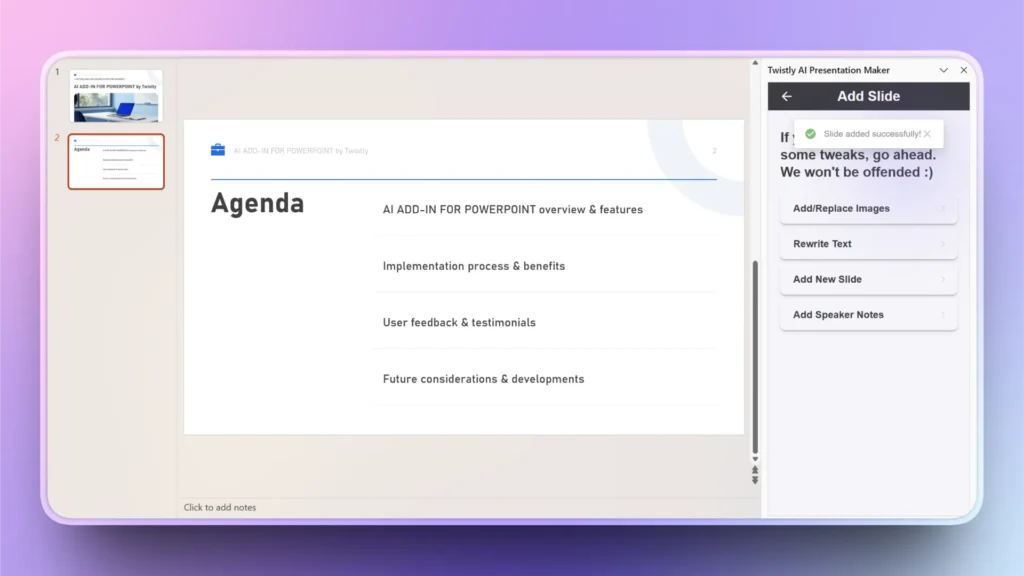
La siguiente diapositiva ofrecerá un resumen del proyecto para que las partes interesadas entiendan fácilmente lo básico.
Haga clic en Add Slide >> elige el diseño Agenda >> revisa la diapositiva de resumen del proyecto creada por Twistly
Paso 3: define claramente los objetivos
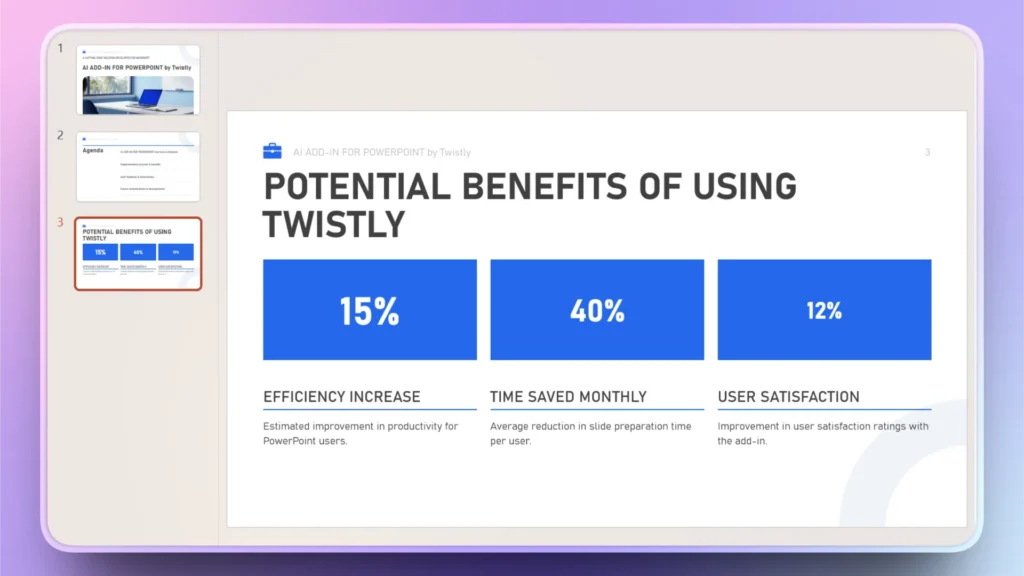
La siguiente diapositiva puede definir qué quieres conseguir con este proyecto y qué beneficios ofrecerás a la empresa o al cliente. Añadir datos y visualizaciones también puede tener un gran impacto en tu SOW.
Add Slide >> selecciona el diseño Big Number u otro diseño >> explica las ventajas y deja que la IA haga el trabajo por ti.
Paso 4: describe el alcance del trabajo
¿Cuál es el núcleo de tu declaración de trabajo y qué servicios ofrecerás al cliente durante el proyecto? Esta diapositiva debe describir brevemente las tareas y los servicios que ofrecerás.
Add Slide >> aplica el filtro Text and Content >> elige un diseño de diapositiva con cuadros de texto y explica tus servicios o el alcance del trabajo.
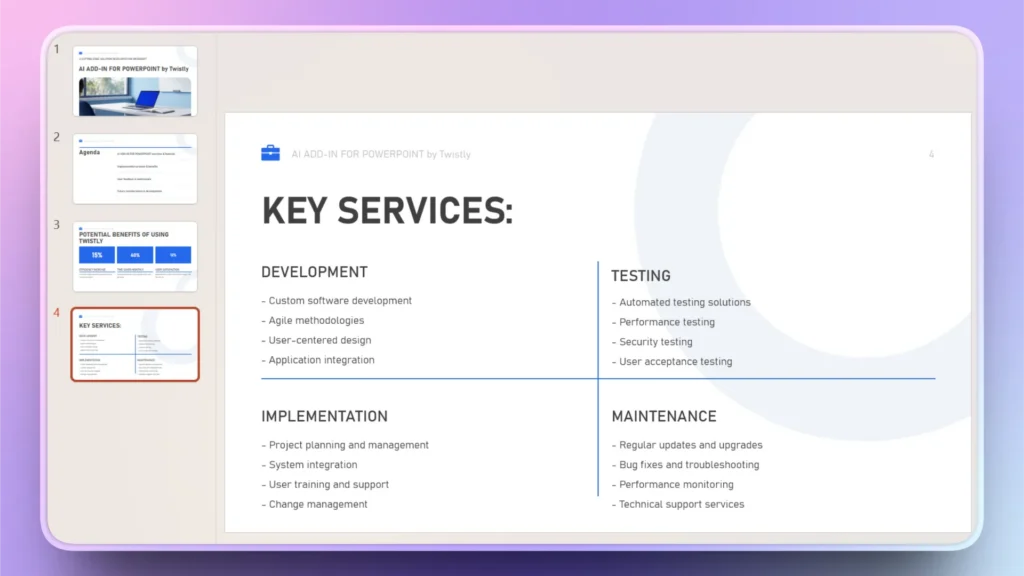
También puedes añadir los entregables en esta diapositiva. La idea es aportar claridad sobre los distintos aspectos del proyecto.
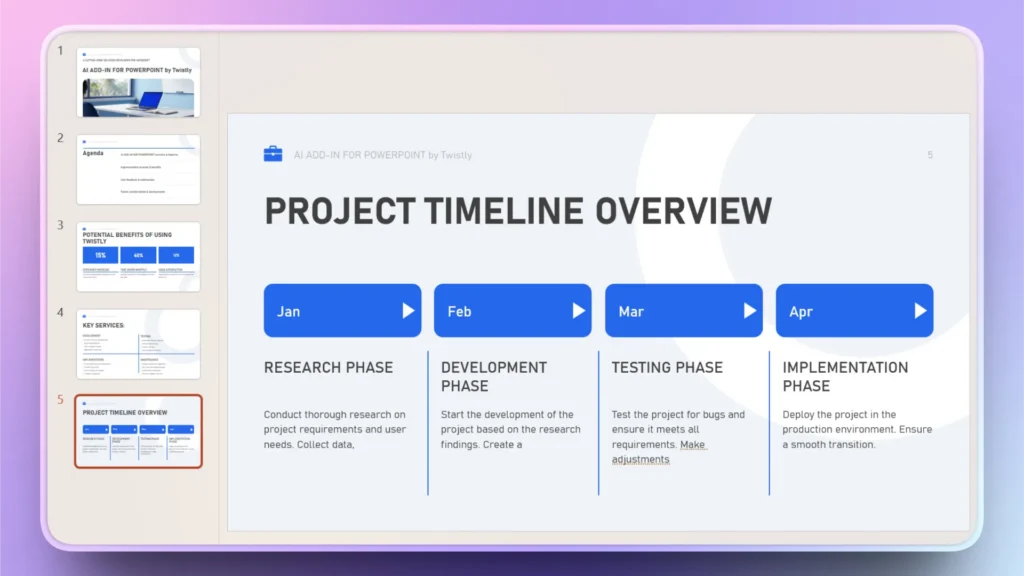
Paso 5: añade el calendario
El calendario define las distintas fases del proyecto. Desde la investigación hasta el desarrollo y la implementación, esta diapositiva muestra qué esperar y cuándo.
Add Slide >> aplica el filtro Timeline and Process >> selecciona un diseño de cronograma.
Paso 6: define funciones y responsabilidades
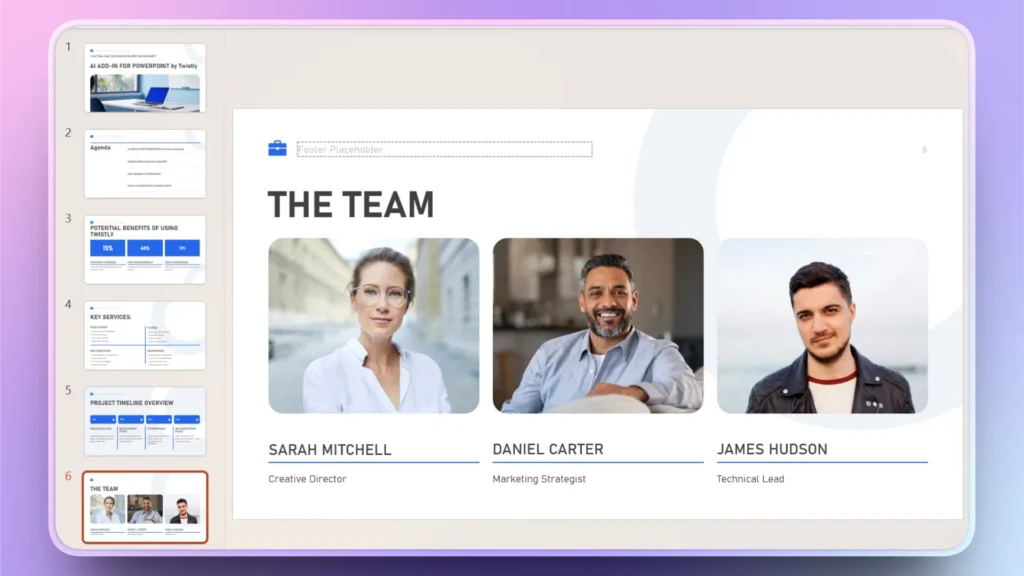
En esta diapositiva también puedes presentar a tu equipo y definir su función en el proyecto. Es útil para dar a conocer el talento que trabaja entre bastidores.
Add Slide >> aplica el filtro Special/storytelling >> selecciona Team de cronograma.
Paso 7: revisa y añade diapositivas personalizadas
Para una declaración de trabajo sencilla y profesional, estas diapositivas son suficientes, pero siempre puedes añadir más según tus necesidades.
Revisa las diapositivas generadas y, si falta algo, sigue el mismo método para añadir diapositivas con Twistly.
Twistly ofrece varios diseños de diapositiva. Selecciona cualquiera y Twistly creará el contenido o dará formato a las diapositivas automáticamente. Añade tantas diapositivas como necesites.
Pruebe Twistly gratis
Puedes descargar y probar Twistly gratis durante un tiempo limitado antes de asumir ningún compromiso económico. Desde declaraciones de trabajo hasta tutoriales, guías informativas, presentaciones empresariales, pitches para inversores o diapositivas sencillas, Twistly puede generar cualquier cosa por ti en PowerPoint.
No es solo un diseñador de diapositivas, sino un asistente de presentaciones con IA completo para infinidad de casos de uso. Haz clic en el enlace de abajo para instalar la versión de prueba gratuita del complemento.
Crear PowerPoint
Diapositivas con IA
Cree presentaciones basadas en IA a partir de
cualquier mensaje, documento o vídeo


Conclusión
Crear una declaración de trabajo en PowerPoint con el complemento Twistly AI es una forma inteligente de presentar tu proyecto con profesionalidad. Todo el proceso no lleva más de unos minutos.
Si quieres crear una presentación completa desde cero, introduce el tema o sube un archivo con todos los detalles, y Twistly convertirá tus datos en una presentación de PowerPoint visualmente atractiva en solo unos minutos.












Empieza a hacer presentaciones con IA en segundos
Acceso instantáneo
Empieza a explorar inmediatamente todas las funciones de Twistly
Sin compromisos
No necesitas tarjeta de crédito y puedes cancelar cuando quieras
Asistencia dedicada
Nuestro equipo te ayudará en cada paso durante tu periodo de prueba