


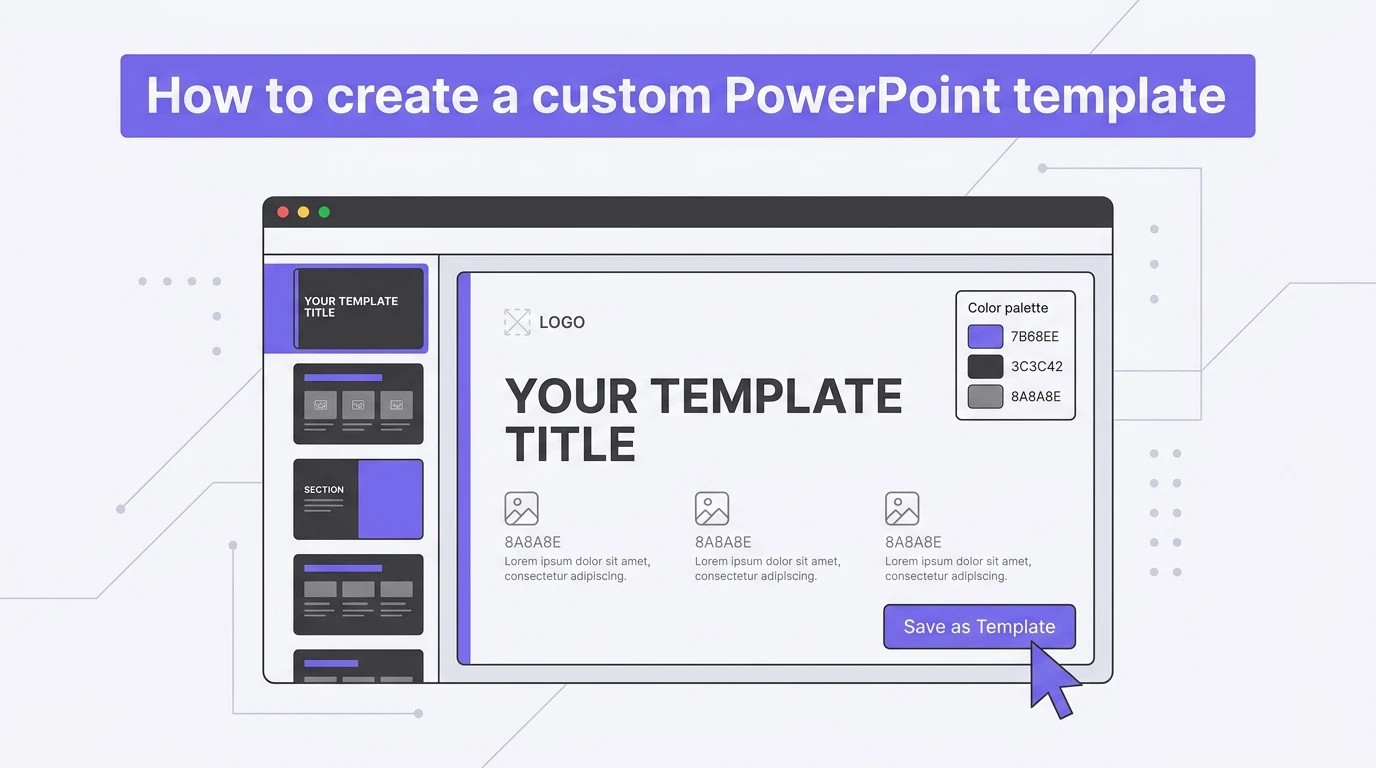
To create a custom PowerPoint template, start with a blank presentation and then create slide layouts in the Slide Master from the View tab. You will have to make many other changes, too, but everything will happen in the slide master view.
A normal user may not need to create a custom PowerPoint template because they can rely on readily available templates. For unique and professional AI PowerPoint templates, Twistly is your best resource.
Create PowerPoint
Slides with AI
Build AI-powered presentations from
any prompt, doc, or video


If you are from marketing or want a custom template for your team, creating a template can help you achieve brand consistency. Here is everything you need to know about creating and saving PowerPoint templates.
What is a Custom PowerPoint Template?
A PowerPoint template is a pre-designed presentation file with custom fonts, layouts, placeholders, and other elements. Instead of creating a presentation from scratch, users can edit and modify templates for quicker results.
Without a Template: Imagine your brand uses the company logo as background, and all slides use the Cambria font. Conventionally, you will have to add a logo as a background to every slide and then choose Cambria as the font.
With PowerPoint Template: When you create a template with a logo as background and Cambria as font family, users don’t need to redo these changes. Every slide will automatically have the said background and font.
Some other benefits of custom PowerPoint templates include:
- Brand consistency across presentation
- Time efficiency for editing and designing slides
- Professional appearance and aesthetics
- Built for team collaboration
Creating a Custom PowerPoint Template
In a few steps, you can create a basic PowerPoint template, but remember that a more complex template will require more customization while creating it.
We will focus on basic steps, and once you are familiar with the process, you can make further advancements and customizations to the template elements.
Step 1: Open Slide Master View
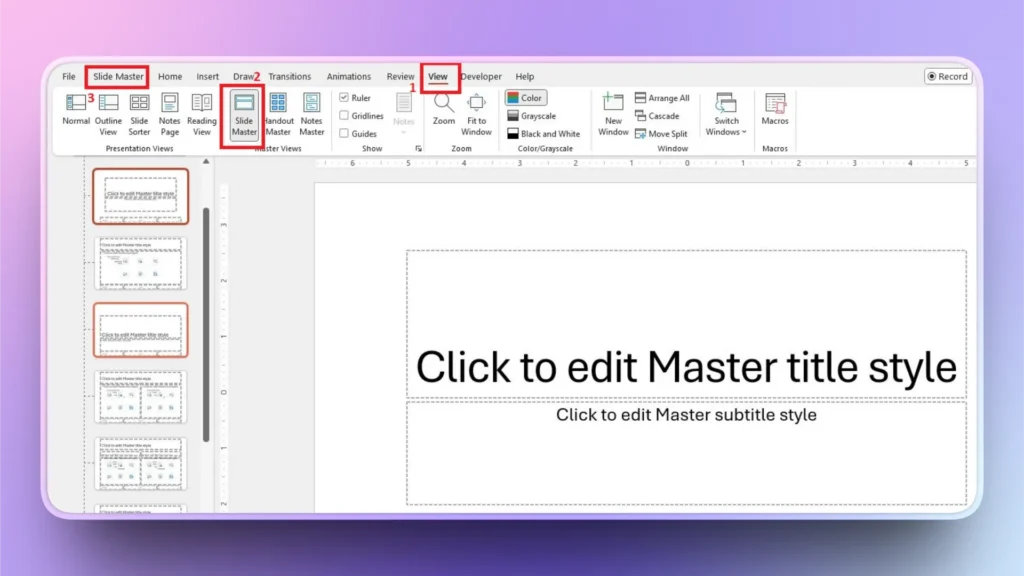
Open PowerPoint, start a blank presentation, and then click View tab >> Slide Master. A dedicated Slide Master tab will appear in the top ribbon.
Step 2: Customize Master Slide
The very first slide in the Slide Master View is called Master Slide. Any layout changes made to this slide will be applied to all slides in the presentation.
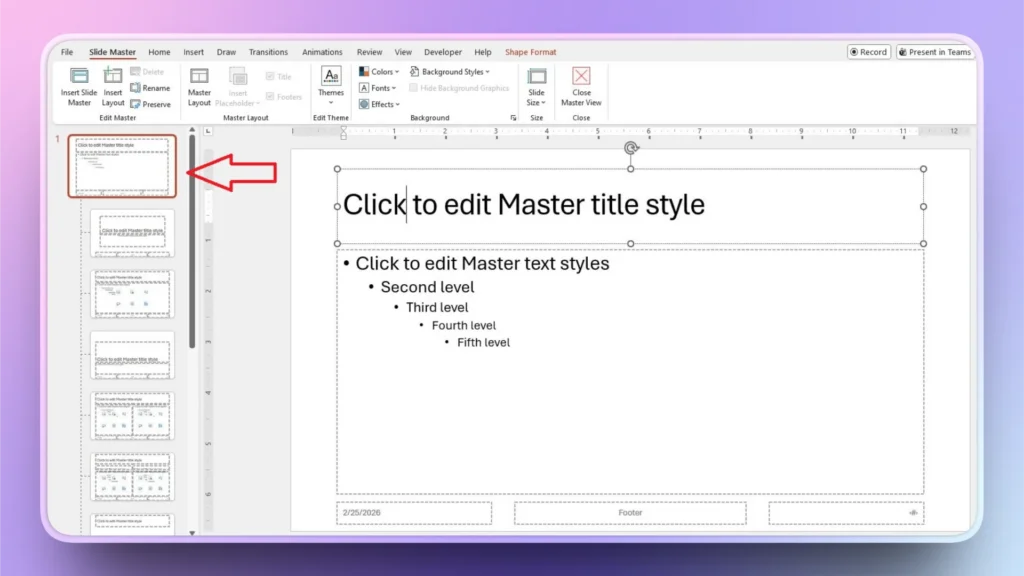
Here are some common customizations that you can make for a custom PowerPoint template.
| Customization | Description |
| Set Fonts | Click Fonts → Customize Fonts |
| Define Theme Color | Click Colors → Customize Colors |
| Insert Company Logo | Click Insert → Pictures |
| Set Background | Click Background Styles |
Step 3: Edit Layout for Individual Slides
Under the master slide, there are other slides like the title slide, the section slide, two content slides, and other slides. Select any slide and then edit it as per your requirements.
You can also resize, remove, or add placeholders, and add other elements. Make sure you already have a design in mind that you want to follow.
Step 4: Close Slide Master
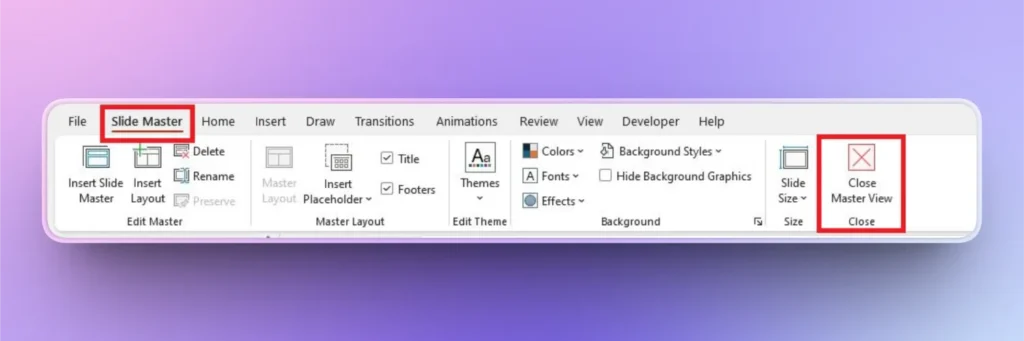
Once all changes are done, click the Close Master View button, and PowerPoint will take you to normal view.
How to Save a Custom Template?
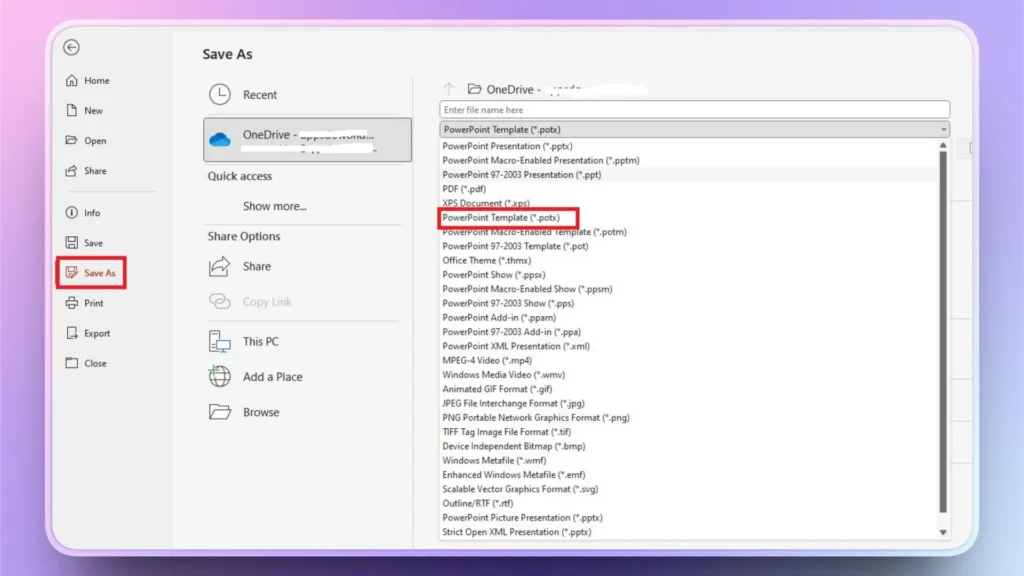
We have followed all steps to create a custom PowerPoint template, and now we want to save it for future use or for sharing purposes with other team members. Saving it as a normal presentation won’t save it as a template.
- Click File >> Save As
- Choose location
- Select file type: PowerPoint Template (*.potx)
- Click Save
How to Use Saved Templates?
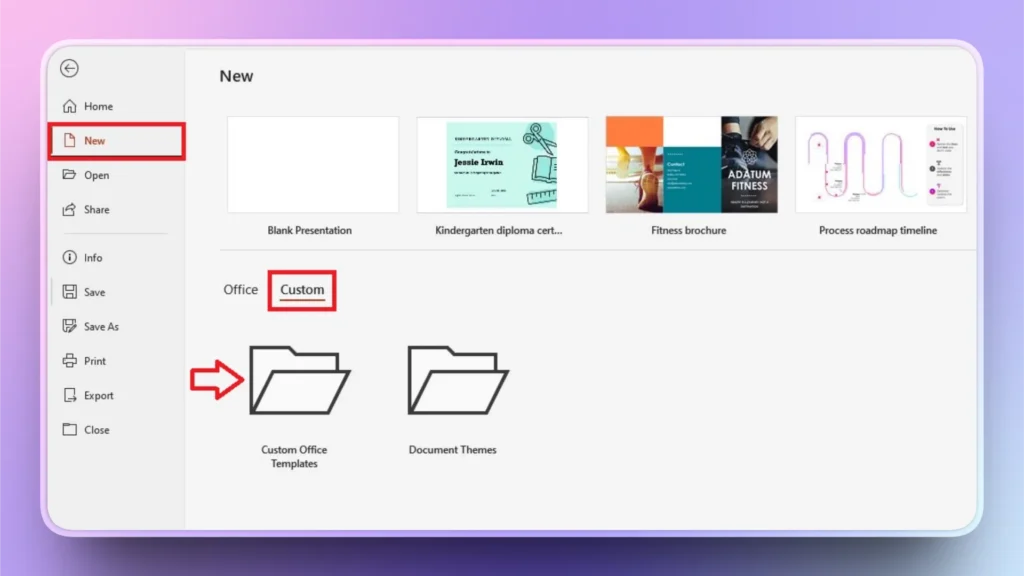
Once saved, you want to make new presentations with the custom template. Here is how to use a custom template in PowerPoint.
- Open PowerPoint
- Click New
- Select Custom
- Choose your saved template
The folder named “Custom Office Templates” has all the custom-designed templates. You can select any template and then edit it.
How to Find Unique PowerPoint Templates?
Creating a professional and custom PowerPoint template is not easy. It takes time, experience and lots of editing. What are other options to make your presentations unique?
- Use readily available templates in PowerPoint.
- Download 3rd-party templates
- Hiring a professional designer
- Buy premium templates
Free templates are overused, buying premium templates is expensive, and hiring a designer does not work for frequent users. You should have a solution to find the best and unique AI PowerPoint templates.
AI PowerPoint Templates by Twistly
Twistly is an AI add-in for PowerPoint that works inside PowerPoint and offers a wide range of AI PowerPoint templates that are fully customizable with AI and native PowerPoint tools.
Users can change the entire template color according to their brand theme and make other changes as needed. Without any manual editing or formatting, Twistly will automatically make a complete presentation for your selected template.
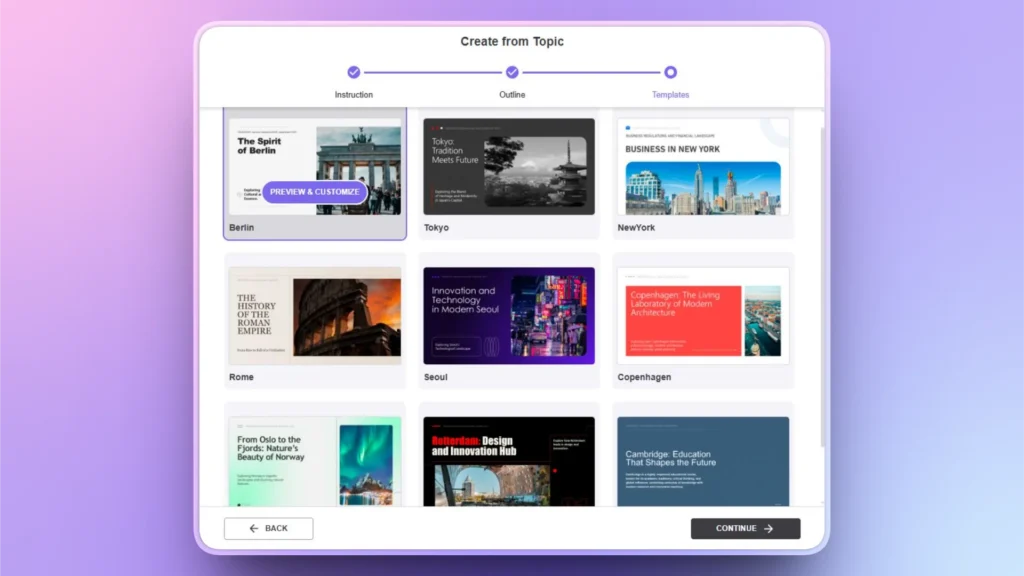
Select a Template
Twistly has professionally designed AI templates that are suitable for almost any possible presentation topic and niche, from study to professional business pitches. Select and preview any template.
Preview Template
Before making a presentation with the template, click the Preview and Customize button to view all the slides in that template.
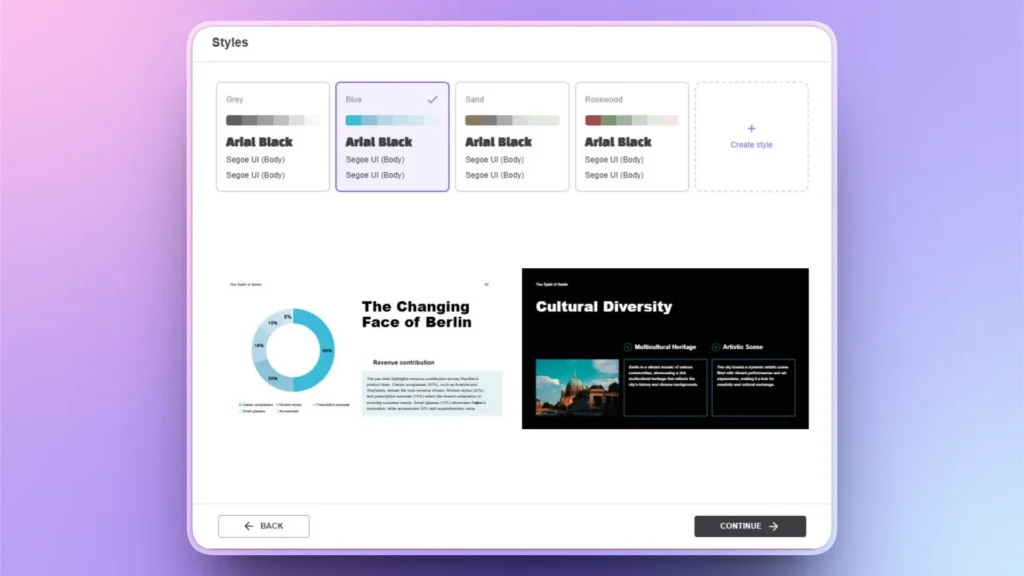
Change Color and Style
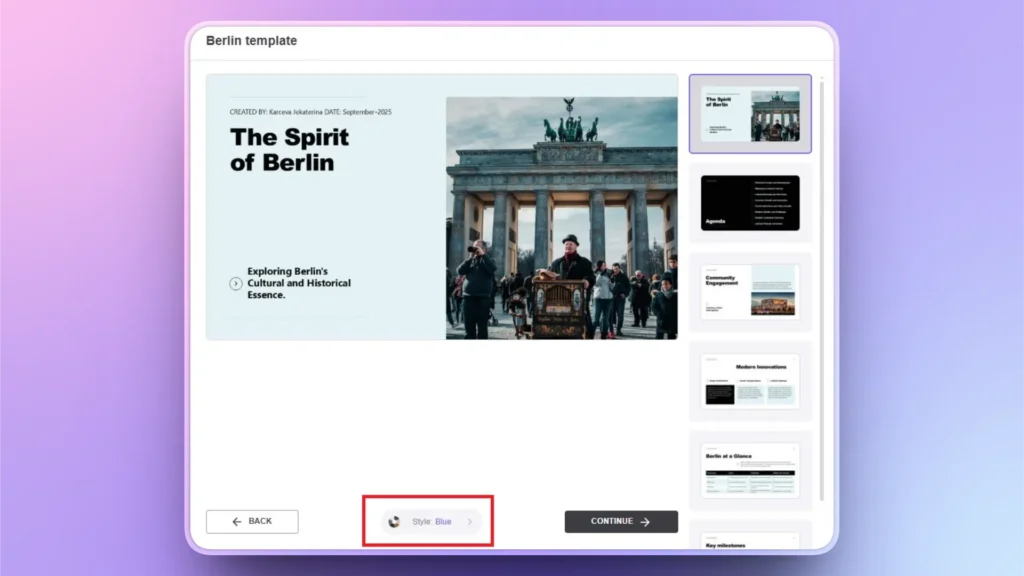
Click the Style button in the preview window, and you will get multiple options and color combinations for the slides. Clicking any color option will show the real-time changes to the slides.
Download Twistly for Unique Templates
If you want your presentation to look great and professional without much effort, download and install the Twistly free trial version now. Experience the amazing features of this custom ChatGPT for PowerPoint before purchase.
Create PowerPoint Slides with AI
Build AI-powered presentations from any prompt, doc, or video

Conclusion
Use Slide Master View to create and design a custom PowerPoint template and then save it for future use and access it via custom templates. Instead of redesigning slides every time, invest 30–60 minutes in creating a strong template and save countless hours in the future.
For an even better and more convenient experience with PowerPoint presentations, try Twistly and generate amazing and professional presentations with AI.
Twistly works inside PowerPoint, so you don’t need to switch between multiple apps and websites. One window for all features and tools.










Start Making AI Presentations in Seconds
Instant Access
Begin exploring Twistly’s full suite of features immediately
No Commitments
No credit card required, and you can cancel anytime
Dedicated Support
Our team is here to assist you every step of the way during your trial.