


To convert a slideshow to MP4, go to Settings >> Export >> Create a Video or use the Save As option to save the slideshow in your desired format. Saving a slideshow as a video offers shareable and visually appealing material that is compatible across different channels.
When you share PPT files with someone, the receiver must have PowerPoint or any other software installed to open the files. Video materials are easy to run as compared to PPTs and other formats.
Videos are more suitable if your slides are about entertainment, education, marketing, or informational topics. For data-heavy slides, videos don’t perform well. How to convert a slideshow and how to make your content more accessible to everyone? This article has answers to all your questions.
Benefits of Converting a Slideshow to MP4
MP4 is a universally accessible format for video content, and you can play an MP4 video on almost every device or share it across any social network.
Unlike PPTs, no additional software or program is required to run MP4 files, as smartphones and laptops already support most video formats. Here is why you should convert a slideshow to MP4 for the next project:
- Universally compatible format for smartphones, tablets, and laptops
- Easy sharing across devices and channels
- No need to install any presentation software
- MP4 supports animations, transitions, and quality visuals
- Perfect for sharing content for better engagement
Method 1: Convert a Slideshow to MP4 via Export Option
There are multiple options to save a slideshow as a video, and we will discuss the easiest one first. You are probably familiar with the Export option in PowerPoint that allows you to save a slideshow in different formats.
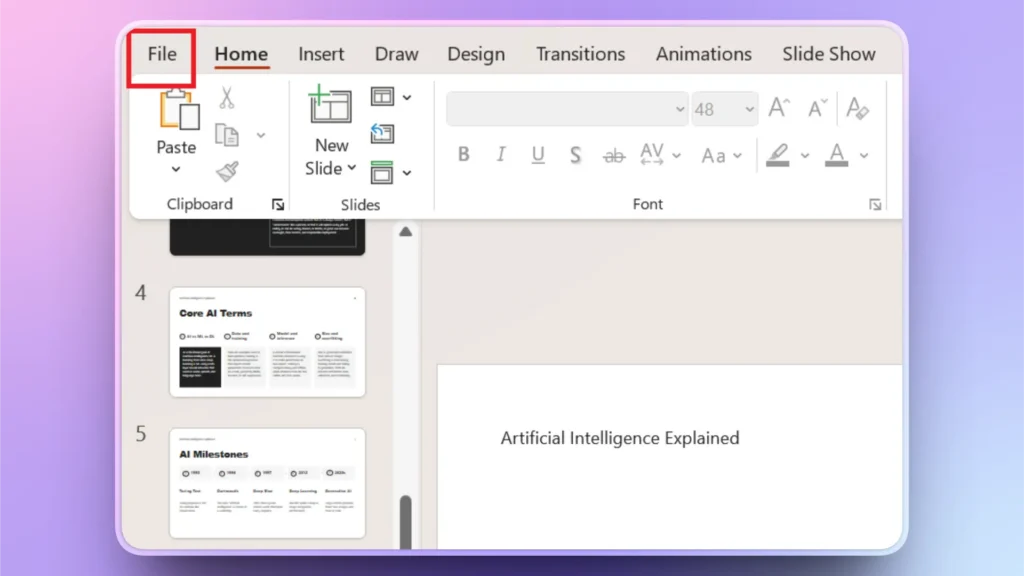
Step 1: Open Presentation >> File
Open the slideshow that you want to convert to MP4 and click the File option from the top ribbon.
Step 2: Export Slideshow
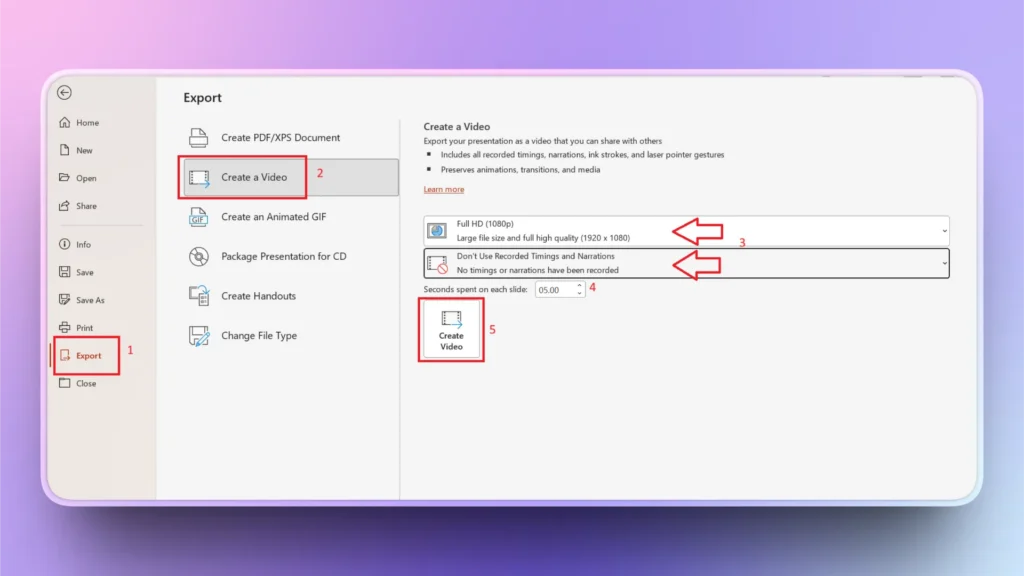
In the File option, click Export and then choose the Create a Video option. Here, you can:
- Select the video quality for the slideshow
- Select whether to use recorded timings and narrations
- Record a custom video for the slideshow
- Set time spent on each slide
Step 3: Create and Save Video
Click the Create Video button, and then a new dialog box will open where you can choose a destination folder on your computer to save the video.
Once the MP4 video is saved, the slides will play like a normal video that you can share with anyone or on other platforms.
Method 2: Save Slideshow as .MP4 Video
The Save As feature in PowerPoint can be used to save your slideshow in different formats. The process is quite similar to Method 1 (save slideshow via Export option) and offers almost the same results, but with fewer controls.
Here are simple steps to save any slideshow or presentation as a video in PowerPoint without using any additional tools.
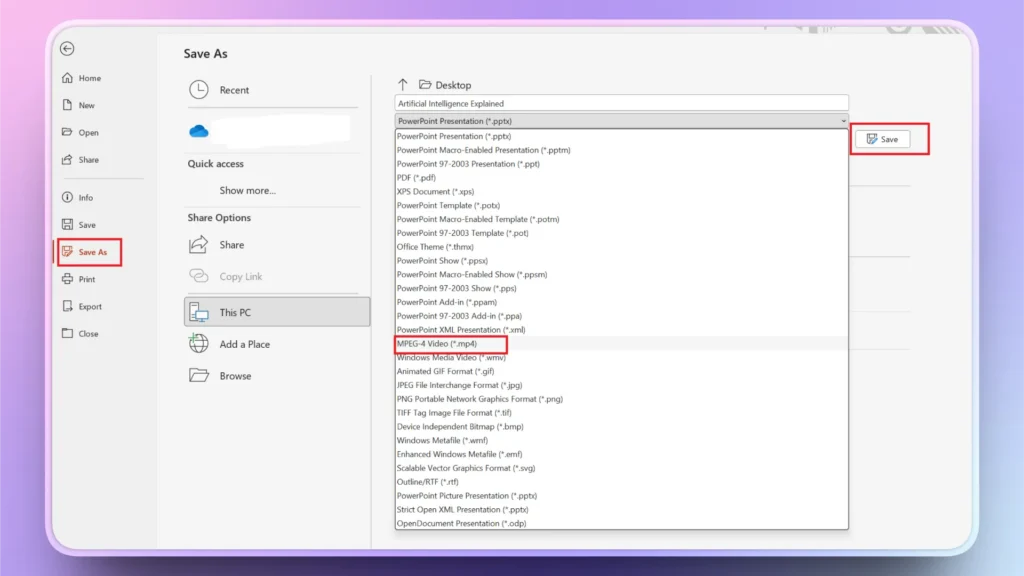
Step 1: Go to File >> Save As >> select Destination folder on your computer
Step 2: Choose MP4 as the format and click Save, and the slideshow will be saved as a video on your computer.
Method 3: Convert a Slideshow to MP4 using Online Tools
If you have a finished presentation shared by someone else and you want to convert it to an MP4 video, there are online tools that can be used. You have less control over the slide timing and other factors, but it works well for most use cases.
Without installing any extra tools or software, you can easily convert a slideshow to MP4 using online websites. Make sure your selected online conversion tool is safe and does not share users’ data with others.
Note: If you are not sure about the safety and privacy of the online PPT to MP4 converter, don’t upload any file that contains sensitive information or financial data.
How to Add Value to Your Presentations with AI?
Converting your slideshow to an MP4 video is not the only way to interact with a larger audience for better engagement. There are multiple other ways to make your slideshow more accessible to a global audience.
Possibility 1: You made a presentation for an English audience, and now you can translate that same presentation into another language to target foreign users. This is one way.
Possibility 2: Another way is to replace complicated text with visuals that are easily understood by a non-technical audience.
Similarly, there are many other possibilities to improve, optimize, and polish your presentations for better engagement. Good news, any PowerPoint user can do all of this and many other great things with one AI tool, Twistly.
What is Twistly for PowerPoint?
Twistly is just like a custom ChatGPT for PowerPoint that can create new presentations from scratch with AI or optimize and polish existing slides and presentations with AI.
If you are a new user and want a reliable and accurate AI tool for making professional presentations, download the free trial version of Twistly and give it a try to make presentations within minutes.
Create PowerPoint
Slides with AI
Build AI-powered presentations from
any prompt, doc, or video


How can Twistly Add Value to your Slideshow?
AI offers unlimited opportunities to improve, polish, and optimize slides, and here are possible ways to engage with the audience in more interactive and effective ways:
- Generate speaker notes for yourself to explain topics
- Translate your presentations into other languages with AI
- Turn complex data into visually engaging charts and graphs
- Create lists and tables that are easy to understand
- Support complex points with relevant visuals or AI images
- Add slides to add additional information related to the topic
You have many other great features and tools that can rewrite text, translate PPTs, explain topics, or shorten your paragraphs. It is up to you to use AI in creative and interesting ways to make your content easy to understand for the readers.
Conclusion
Learning how to convert a slideshow to MP4 transforms your presentations into powerful, shareable content. PowerPoint’s native features to save slides as videos are ideal, but online tools are also great for PPTs.
Sticking to the traditional workflow of creating PowerPoint presentations requires hours, while AI tools like Twistly offer more effective and faster solutions. Would you like to spend 4 hours on a manual presentation or 90 seconds on a professional PPT with Twistly?
Create PowerPoint Slides with AI
Build AI-powered presentations from any prompt, doc, or video













Start Making AI Presentations in Seconds
Instant Access
Begin exploring Twistly’s full suite of features immediately
No Commitments
No credit card required, and you can cancel anytime
Dedicated Support
Our team is here to assist you every step of the way during your trial.