


A la hora de convertir una presentación a MP4, Ir a Archivo >> Exportar >> Crear un vídeo o usa la opción Guardar como para guardar la presentación en el formato que quieras. Guardar una presentación como vídeo te ofrece un material atractivo y fácil de compartir, compatible con distintos canales.
Cuando compartes archivos PPT con alguien, el destinatario necesita tener PowerPoint u otro software instalado para abrirlos. Los vídeos son más fáciles de reproducir que los PPT y otros formatos.
Los vídeos son más adecuados si tus diapositivas tratan sobre entretenimiento, educación, marketing o temas informativos. En las diapositivas con muchos datos, los vídeos no funcionan tan bien. ¿Cómo convertir una presentación y hacer que tu contenido sea más accesible para todos? Este artículo responde a todas tus preguntas.
Ventajas de convertir una presentación a MP4
MP4 es un formato de vídeo universalmente accesible: puedes reproducir un vídeo MP4 en casi cualquier dispositivo o compartirlo en cualquier red social.
A diferencia de los PPT, para reproducir archivos MP4 no necesitas ningún software ni programa adicional, ya que los smartphones y portátiles admiten la mayoría de los formatos de vídeo. Estos son los motivos para convertir una presentación a MP4 en tu próximo proyecto:
- Formato compatible con smartphones, tablets y portátiles
- Fácil de compartir entre dispositivos y canales
- No es necesario instalar ningún software de presentaciones
- MP4 admite animaciones, transiciones y elementos visuales de calidad
- Perfecto para compartir contenido y lograr más interacción
Método 1: convertir una presentación a MP4 con la opción Exportar
Hay varias formas de guardar una presentación como vídeo, y empezaremos por la más sencilla. Seguramente ya conoces la opción Exportar de PowerPoint, que te permite guardar una presentación en distintos formatos.
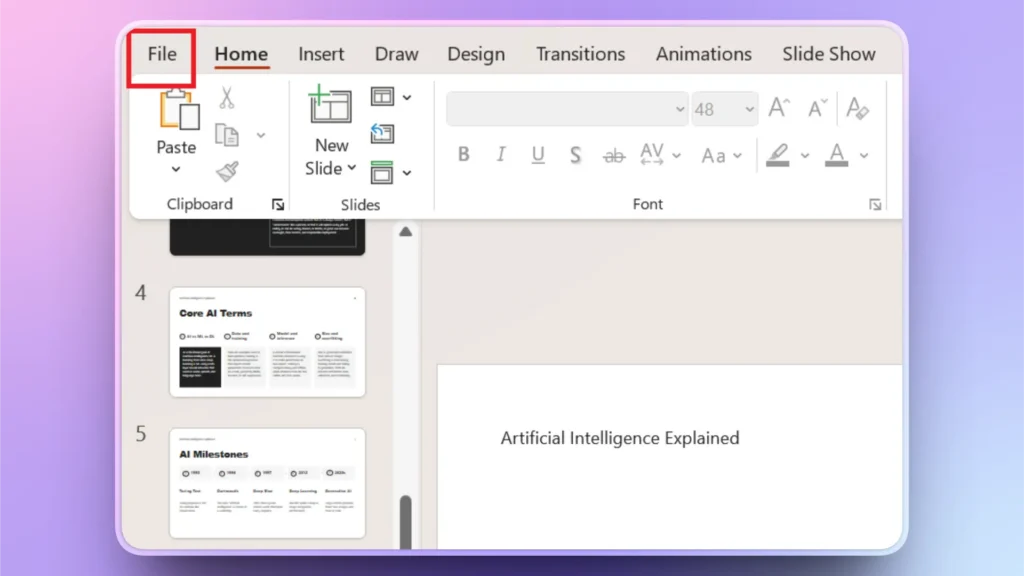
Paso 1: Abrir Presentación >> Archivo
Abre la presentación que quieras convertir a MP4 y haz clic en la opción Archivo de la cinta superior.
Paso 2: exporta la presentación
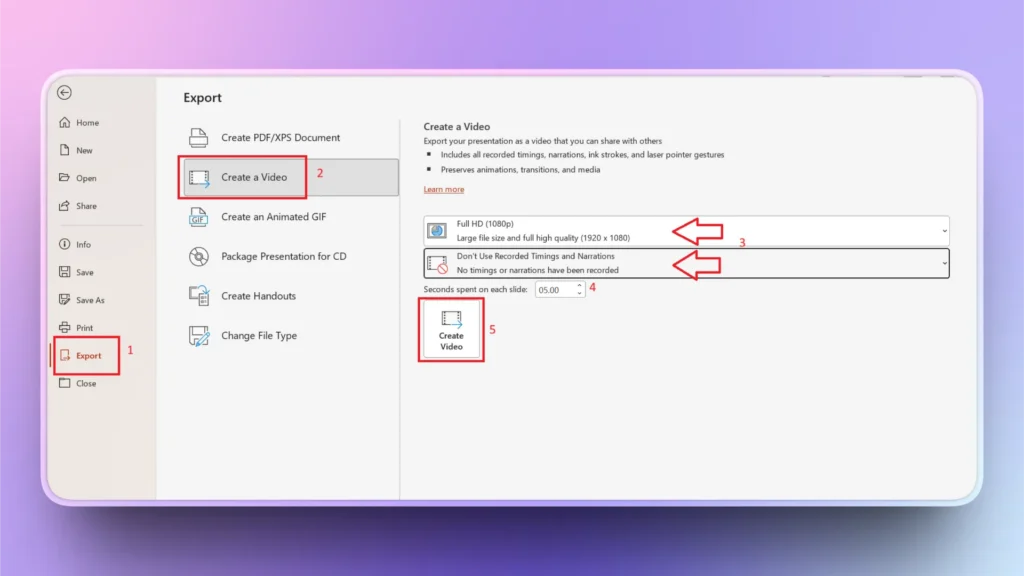
En la opción Archivo, haz clic en Exportar y luego elige Crear un vídeo. En esta opción puedes:
- Seleccionar la calidad del vídeo de la presentación
- Elegir si quieres usar los intervalos y narraciones grabados
- Grabar un vídeo personalizado para la presentación
- Definir el tiempo que se muestra cada diapositiva
Paso 3: crea y guarda el vídeo
Haga clic en el botón Crear vídeo y se abrirá un nuevo cuadro de diálogo en el que podrás elegir una carpeta de destino de tu ordenador para guardar el vídeo.
Una vez guardado el vídeo MP4, las diapositivas se reproducirán como un vídeo normal que puedes compartir con cualquier persona o en otras plataformas.
Método 2: guardar la presentación como vídeo .MP4
La función Guardar como de PowerPoint te permite guardar tu presentación en distintos formatos. El proceso es muy similar al método 1 (guardar la presentación con la opción Exportar) y ofrece casi los mismos resultados, pero con menos controles.
Estos son los sencillos pasos para guardar cualquier presentación como vídeo en PowerPoint sin usar herramientas adicionales.
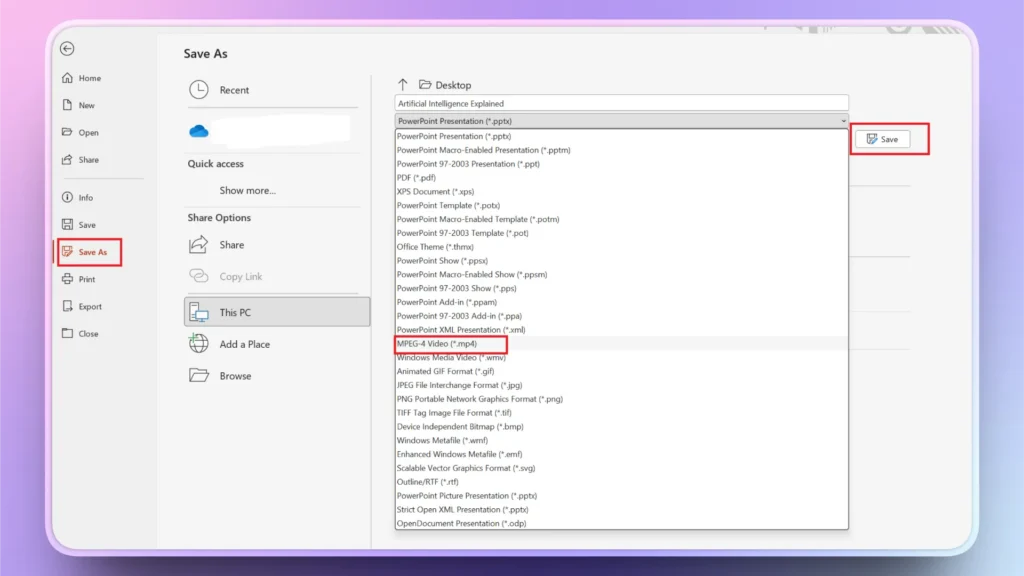
Primer paso: Ir a Archivo >> Guardar como >> selecciona la carpeta de destino en tu ordenador
Segundo paso: Elija MP4 como formato y haz clic en Guardar, y la presentación se guardará como vídeo en tu ordenador.
Método 3: convertir una presentación a MP4 con herramientas online
Si tienes una presentación terminada que te ha compartido otra persona y quieres convertirla en un vídeo MP4, puedes usar herramientas online. Tendrás menos control sobre los intervalos de las diapositivas y otros aspectos, pero funciona bien en la mayoría de los casos.
Sin instalar herramientas ni software adicionales, puedes convertir fácilmente una presentación a MP4 con sitios web online. Asegúrate de que la herramienta de conversión que elijas sea segura y no comparta los datos de los usuarios con terceros.
Nota: Si no estás seguro de la seguridad y la privacidad del conversor online de PPT a MP4, no subas ningún archivo que contenga información confidencial o datos financieros.
¿Cómo aportar valor a tus presentaciones con IA?
Convertir tu presentación en un vídeo MP4 no es la única forma de llegar a un público más amplio y lograr más interacción. Hay muchas otras maneras de hacer que tu presentación sea más accesible para un público global.
Posibilidad 1: Hiciste una presentación para un público de habla inglesa y ahora puedes traducirla a otro idioma para llegar a usuarios de otros países. Esta es una opción.
Posibilidad 2: Otra opción es sustituir el texto complicado por elementos visuales que un público no técnico entienda fácilmente.
Del mismo modo, hay muchas otras posibilidades para mejorar, optimizar y pulir tus presentaciones y lograr más interacción. La buena noticia es que cualquier usuario de PowerPoint puede hacer todo esto y muchas otras cosas con una sola herramienta de IA: Twistly.
¿Qué es Twistly para PowerPoint?
Twistly es como un ChatGPT personalizado para PowerPoint que puede crear presentaciones nuevas desde cero con IA u optimizar y pulir diapositivas y presentaciones existentes con IA.
Si eres un usuario nuevo y buscas una herramienta de IA fiable y precisa para crear presentaciones profesionales, descarga la versión de prueba gratuita de Twistly y pruébala para crear presentaciones en minutos.
Crear PowerPoint
Diapositivas con IA
Cree presentaciones basadas en IA a partir de
cualquier mensaje, documento o vídeo


¿Cómo puede Twistly aportar valor a tu presentación?
La IA ofrece infinitas oportunidades para mejorar, pulir y optimizar las diapositivas. Estas son algunas formas de conectar con el público de manera más interactiva y eficaz:
- Genera notas del orador para explicar los temas
- Traduce tus presentaciones a otros idiomas con IA
- Convierte datos complejos en gráficos y diagramas visualmente atractivos
- Crea listas y tablas fáciles de entender
- Respalda los puntos complejos con elementos visuales relevantes o imágenes generadas con IA
- Añade diapositivas con información adicional relacionada con el tema
Tienes muchas otras funciones y herramientas que pueden reescribir texto, traducir PPT, explicar temas o acortar tus párrafos. Depende de ti usar la IA de forma creativa e interesante para que tu contenido sea fácil de entender para tus lectores.
Conclusión
Aprender a convertir una presentación a MP4 transforma tus diapositivas en un contenido potente y fácil de compartir. Las funciones nativas de PowerPoint para guardar las diapositivas como vídeo son ideales, pero las herramientas online también son una gran opción para los PPT.
Seguir el flujo de trabajo tradicional para crear presentaciones de PowerPoint lleva horas, mientras que herramientas de IA como Twistly ofrecen soluciones más eficaces y rápidas. ¿Prefieres dedicar 4 horas a una presentación manual o 90 segundos a una presentación profesional con Twistly?
Crear diapositivas de PowerPoint con IA
Crea presentaciones basadas en IA a partir de cualquier mensaje, documento o vídeo









Empieza a hacer presentaciones con IA en segundos
Acceso instantáneo
Empieza a explorar inmediatamente todas las funciones de Twistly
Sin compromisos
No necesitas tarjeta de crédito y puedes cancelar cuando quieras
Asistencia dedicada
Nuestro equipo te ayudará en cada paso durante tu periodo de prueba