


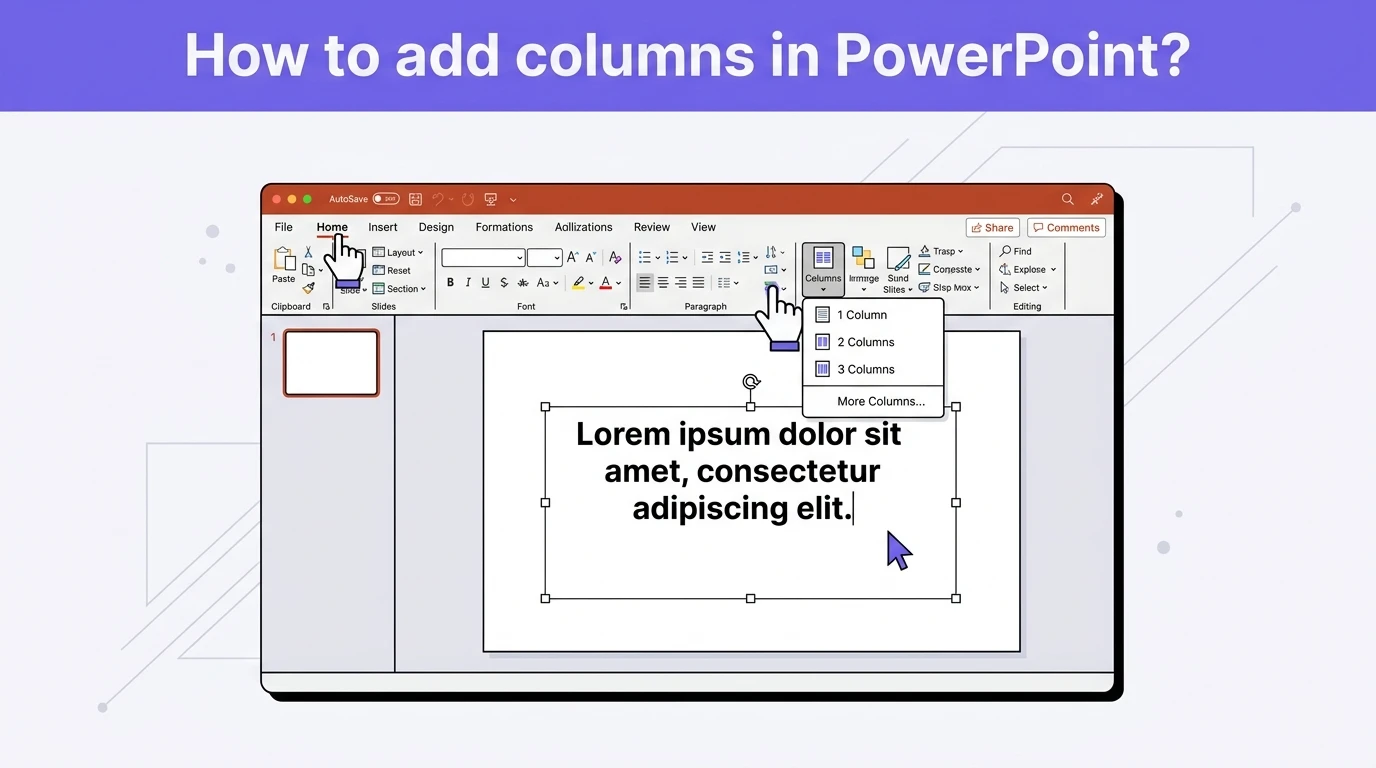
To add columns in PowerPoint, select the text box in your slide >> Home Tab >> Paragraph section >> choose Column numbers. Apart from available column numbers, you can input custom numbers of columns too.
To add columns in a PowerPoint table, select a cell >> Table Layout tab >> Insert Column left or right. Columns in PowerPoint help with organized and more structured slides.
Visual balance and balanced readability are two major benefits of adding columns in PowerPoint. What are the detailed steps to add columns? This article has everything you need to know about columns.
Method 1: How to Add Columns to a Text Box?
Text boxes are commonly used in PowerPoint slides, and slides have one column per text box by default. Sometimes, you must add more columns to present data, compare products, or structure text in better ways.
Here are the steps you need to follow to add columns to a text box in PowerPoint.
Step 1: Insert a Text Box into a Blank Slide
Open the PowerPoint presentation and add a blank slide. You can add columns to an existing slide, too. For this tutorial, we are considering a blank slide. Insert a text box into the slide.
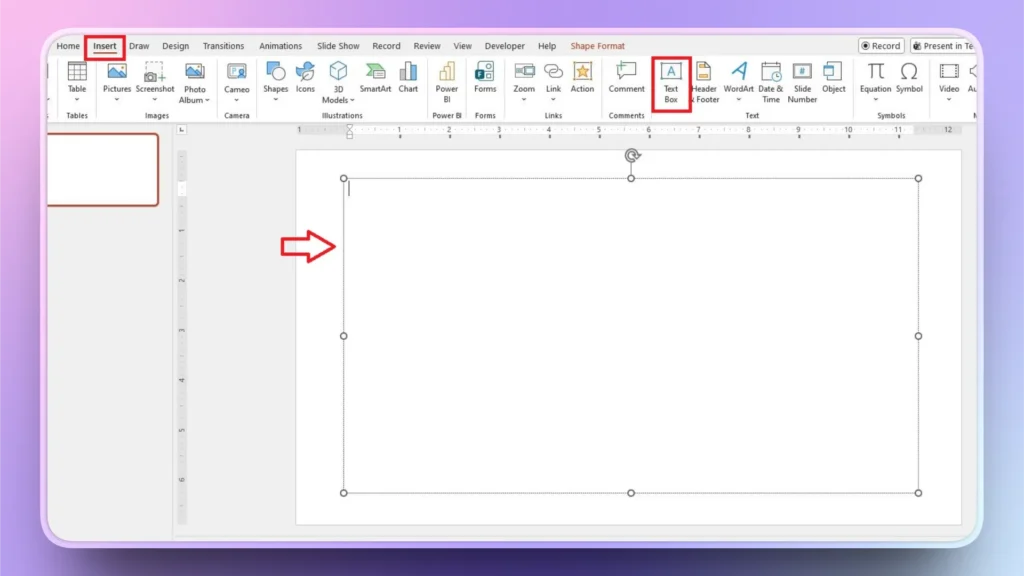
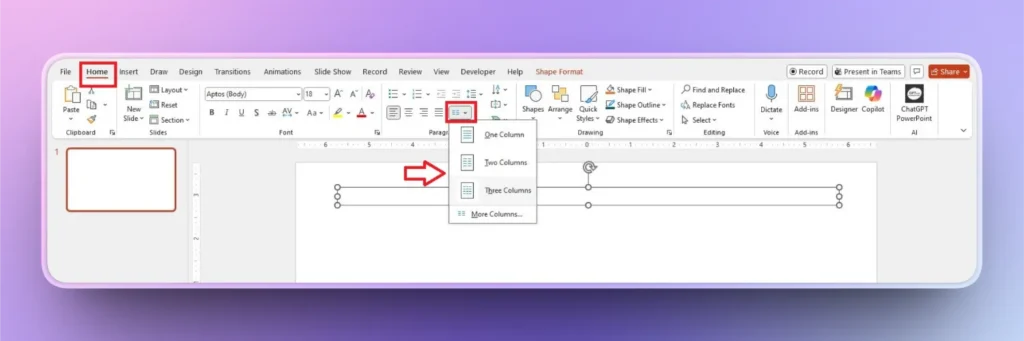
Step 2: Select Text Box >> Home Tab >> Paragraph Section
Select the text box by clicking on the border of the text box. Go to the Home Tab and then head to the Paragraph section.
Click the Add or Remove Columns button and then select the two, three, or more columns option. If you want more than three columns, click the More Columns option and then enter the number of columns.
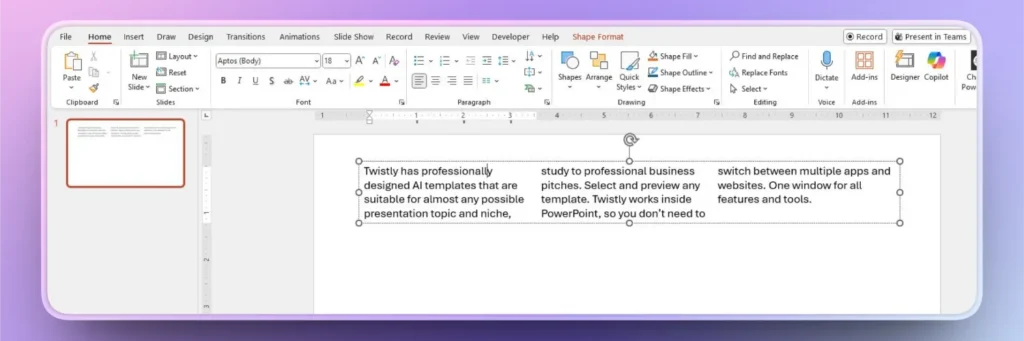
Step 3: Input Text into Columns
Now, start writing text in the text box, and you will see that instead of a long paragraph, the text is broken down into three columns, making the text look more organized and easier to read.
Method 2: Easier Way to Add a Slide with Two Columns
In the first method (adding columns to text), you have more flexibility regarding the number of columns for the slide. For a simpler and basic approach to add columns to slides, you can choose a readily available slide layout with two columns.
PowerPoint templates have multi-column slide layouts that can save time. This is a direct method with less flexibility.
Step 1: Select Multi-column Slide Layout
Open your PowerPoint presentation and then click the Layout option in the Home tab. Choose Two Content, Comparison, or any other slide layout from the drop-down menu.
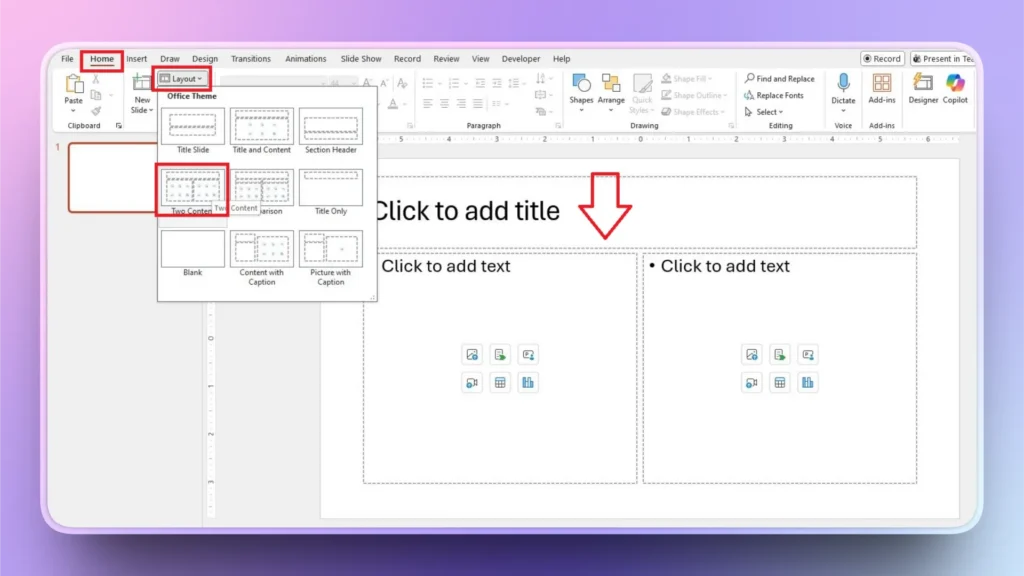
Now, you can use this slide layout, delete placeholders, or insert any other elements as per your design requirements.
Method 3: Add Columns to a PowerPoint Table
Working with tables in PowerPoint becomes easier if you know how to edit and modify a table according to your requirements. Here is how to edit a table and add columns and rows.
Step 1: Insert a Table in PowerPoint
Open your presentation slide and go to the Insert tab. Click Table and then select the number of rows and columns to draw a table on your slide.
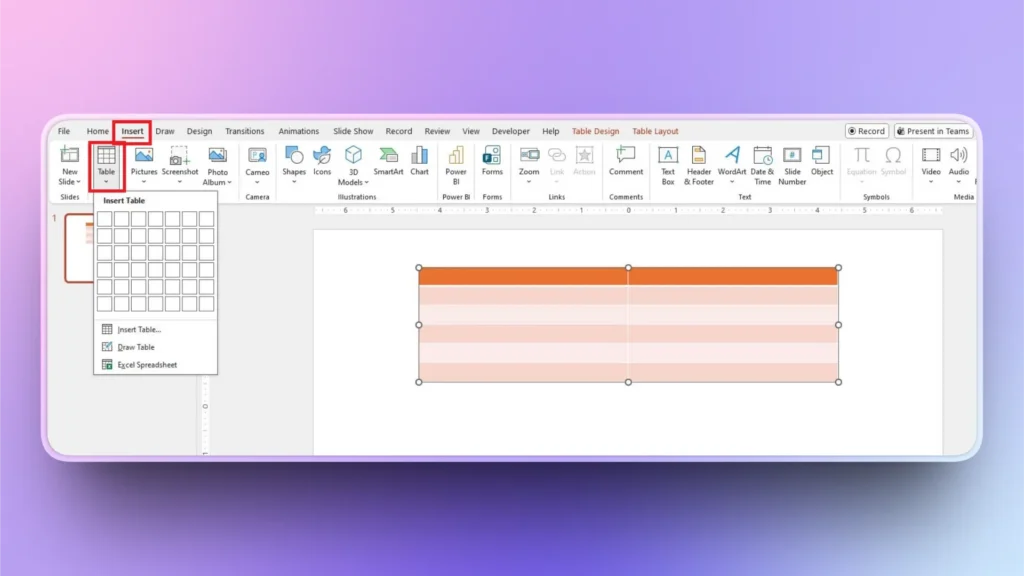
Step 2: Insert Columns from Table Layout
Select table from your slide >> Table Layout tab >> Insert Column. You can choose to Insert Column Left or Insert Column Right, depending on the cell that you have selected on the slide.
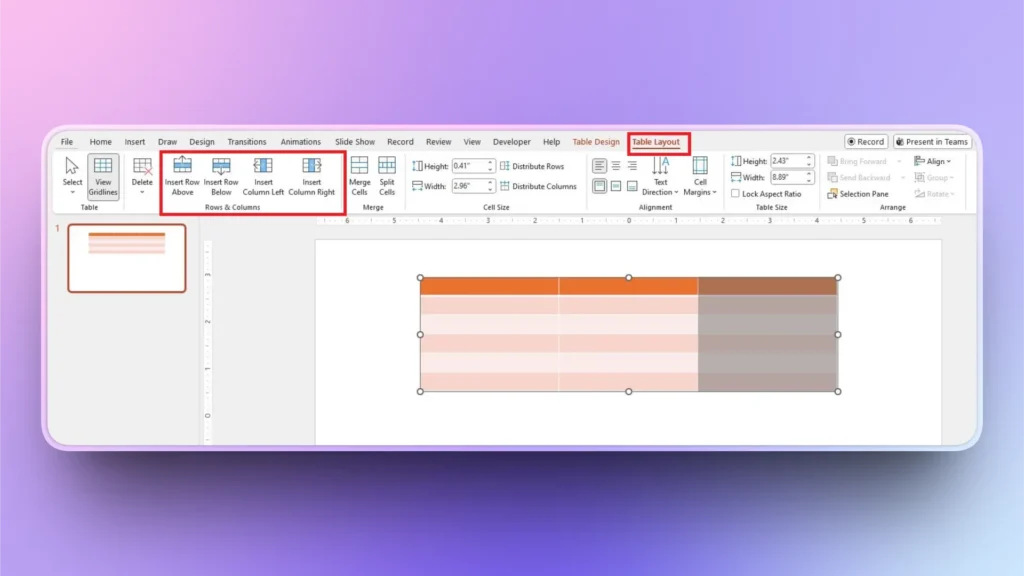
To insert a row, select any row from your table and then select the option: Insert Row Above or Insert Row Below.
How to Add Text Columns with AI?
Adding columns with these methods takes time, and then you have to manually find and write content for the columns. Would you like to know a trick where you can do the things below automatically?
- Create columns
- Design a complete slide
- Format text boxes
- Write content for columns
Twistly is an AI add-in for PowerPoint where you can simply select the slide layout and input the topic for the slide. AI will automatically design slides and then write content for columns, offering you a ready-to-present slide within seconds.
Steps to Create Multi-column Slides with Twistly
Whether you need two-column slides or three and four-column slides, Twistly has all the popular slide layouts available for users. You don’t need any design or PowerPoint experience to add columns in PowerPoint with Twistly.
Step 1: Open PowerPoint and Twistly
Open your existing PowerPoint presentation or a new presentation and launch Twistly.
Click Edit Slides and then choose the Add Slides option as shown in the image below.
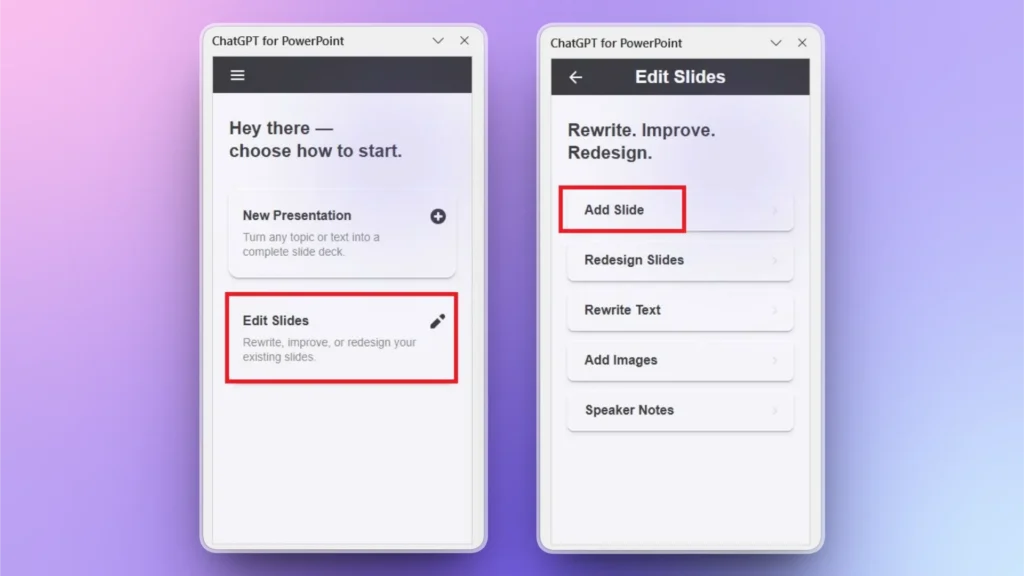
Step 2: Choose Slide Layout
Set the Layout filter to Text and Content, and then browse through available layouts to find your desired slide layout with columns.
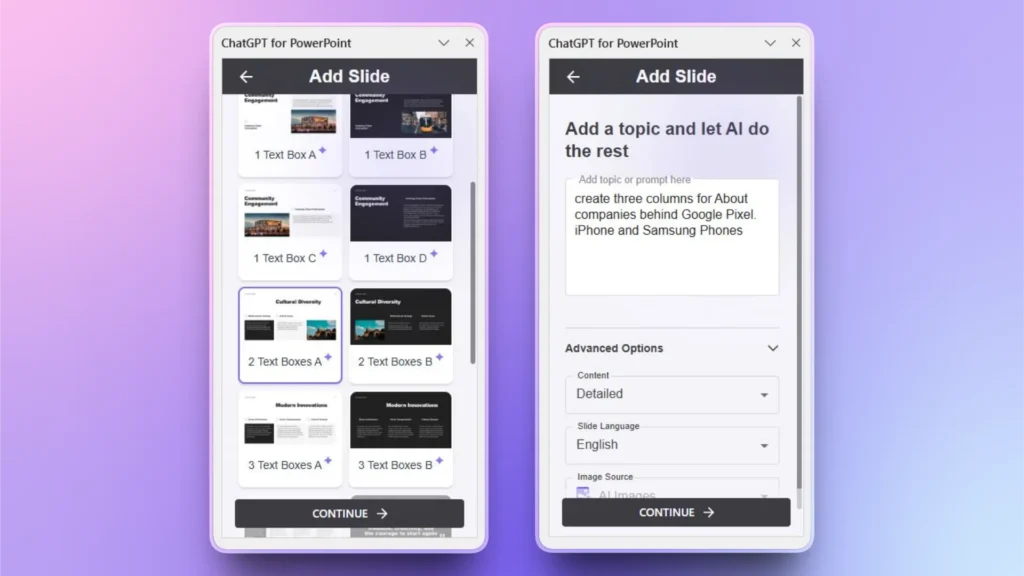
Step 3: Explain your Slide
Input your AI prompt or topic for the slide. You can use plain English, and AI will understand the context of the slide. Within seconds, you will have the final slide with columns, text, and an image. Everything happened automatically, without any manual editing.

Free Trial Version of Twistly
There aren’t many AI tools that offer free trial versions for new users. Team behind the development of Twistly takes pride in their product, and that’s why all new users can download Twistly now to claim their free trial.
Use the link below to download and install Twistly for free. No credit card is required for the trial version. Give it a try, and you are going to love the AI features of this custom ChatGPT for PowerPoint.
Create PowerPoint
Slides with AI
Build AI-powered presentations from
any prompt, doc, or video


Conclusion
To add columns in PowerPoint, you can use the Paragraph section for text boxes, use slide layouts, or add columns with tables in PowerPoint. Every method has certain use cases, limitations, and benefits.
Are you tired of doing everything manually in PowerPoint? Download Twistly and enjoy AI presentations for a more productive experience. Twistly is fast, accurate, convenient, and flexible.
If you’re building professional presentations regularly, mastering layout tools like columns will significantly elevate your slide quality. Or you can let AI do the hard work for you while you focus on things that matter the most.












Start Making AI Presentations in Seconds
Instant Access
Begin exploring Twistly’s full suite of features immediately
No Commitments
No credit card required, and you can cancel anytime
Dedicated Support
Our team is here to assist you every step of the way during your trial.