


To add an image through text in PowerPoint, use the Text Fill feature and then select an image that you want to add. The other option is to use the Merge option for image and text.
Adding an image through text in PowerPoint gives a more personalized and attractive look to your slides and important headings.
Adding an image through text means placing a picture inside the letters of your text so the image appears clipped or masked by the text shape.
Method 1: Add an image through Text via “Text Fill.”
This is the easiest way to add an image through text in PowerPoint, as you can easily use existing features to style your text or heading. Here is how to use the Text Fill feature.
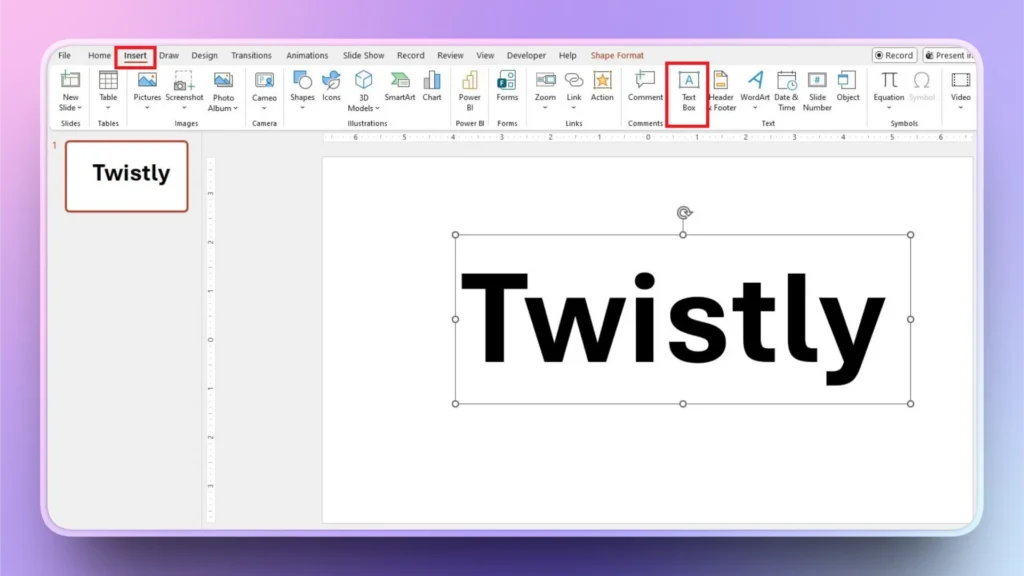
Step 1: Add your Text to the slide
Open your PowerPoint presentation and insert a text box on a blank slide. Keep text short and increase the font size.
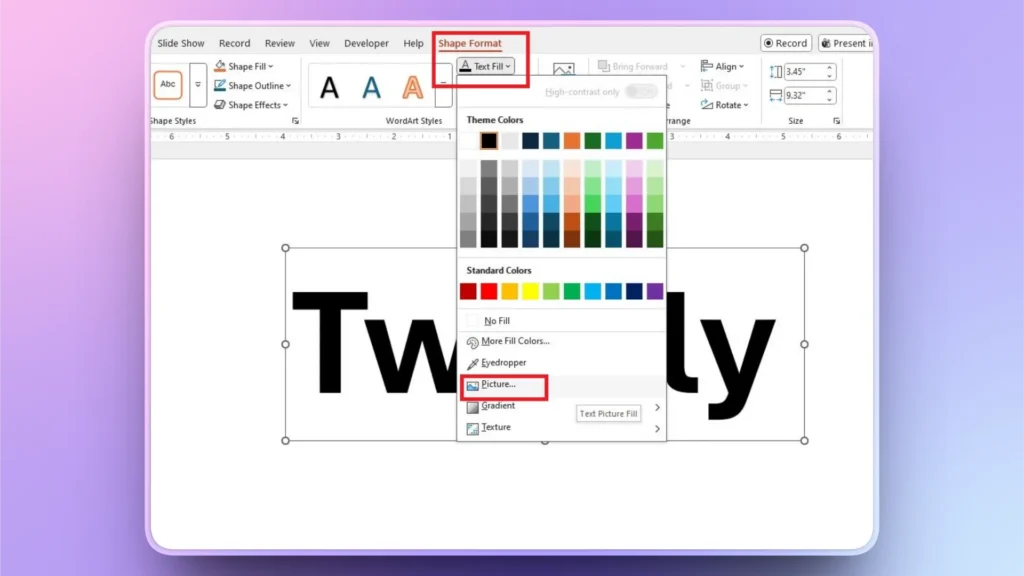
Step 2: Set Picture as Text Fill
Select your text and go to the Shape Format tab. Click the Text Fill button and from the menu, select Picture. From the available options, upload any image from your device or use an image from online sources.
Step 3: Adjust or Resize Text
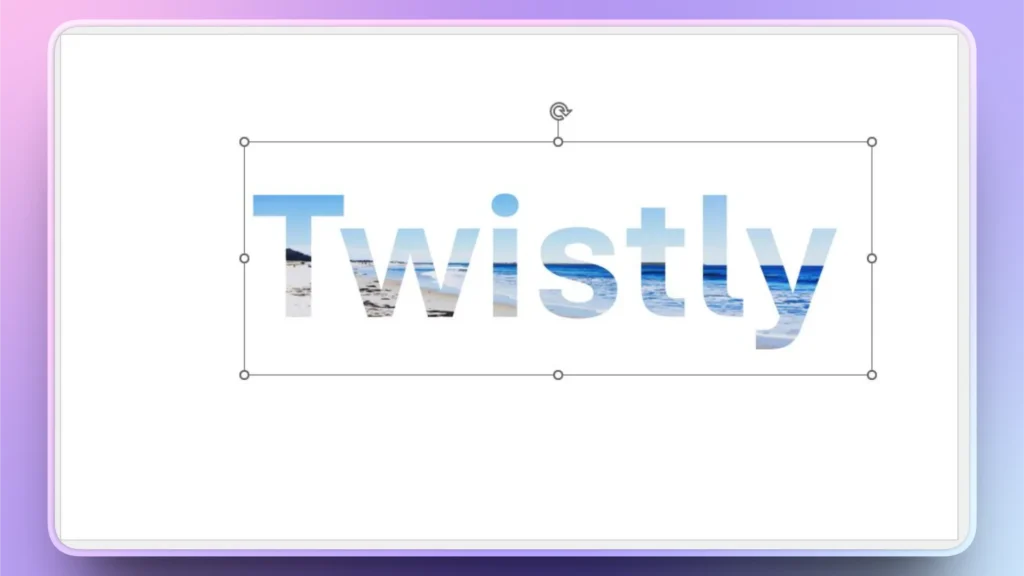
After selecting the image, your text will change according to the selected image, and then you can change text position, resize it, or make other changes as needed.
Method 2: Add an image through Text using Merge Shapes
This method is also great for adding an image through text in PowerPoint, but it may seem a little more complicated than Method 1 (using the Text Fill feature).
Step 1: Add Text and Insert Image
We will use the same text box from method 1 and then insert an image into the slide. Adjust the image in a way that the text is covered by the image.
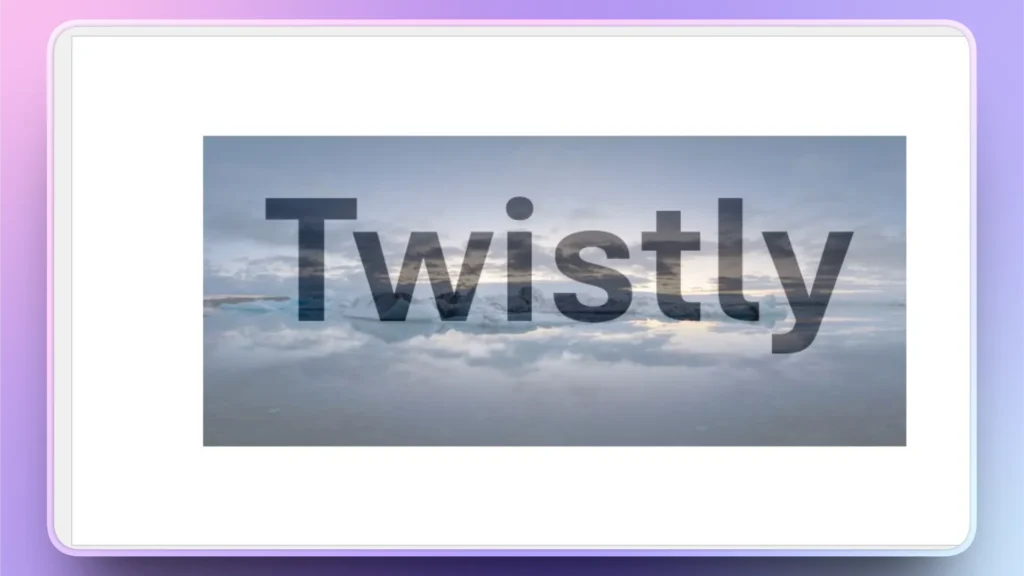
Step 2: Select Image and Text
Drag your mouse across the slide and make sure that both image and text are selected at the same time.
Go to Shape Format >> Merge Shapes >> Intersect. When you click the Intersect option, the image will be added to the text.
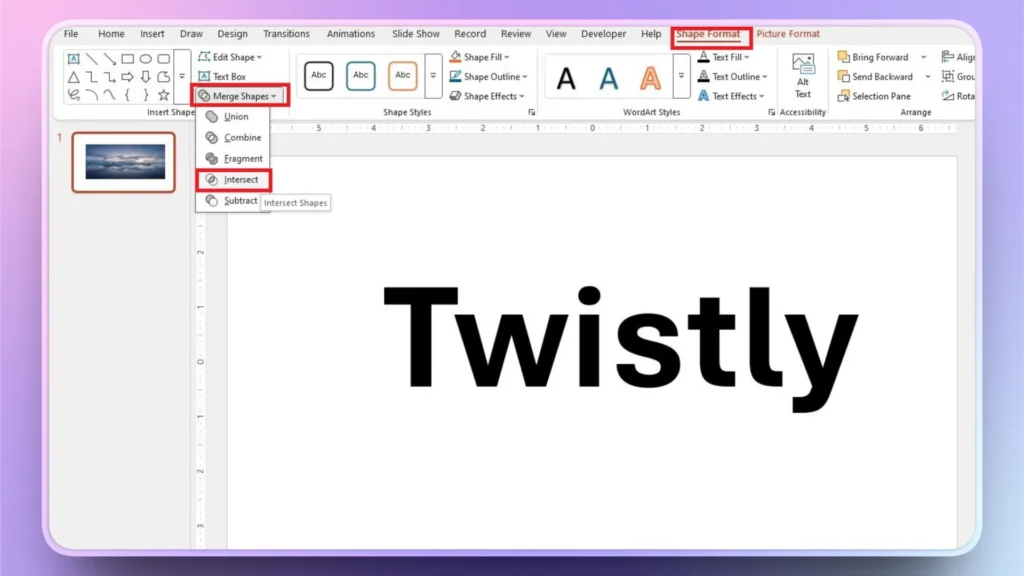
Step 3: Resize or Rearrange Text
Your stylized text is ready, and you can now arrange it as you want. While adding an image through text, make sure to use short text only.
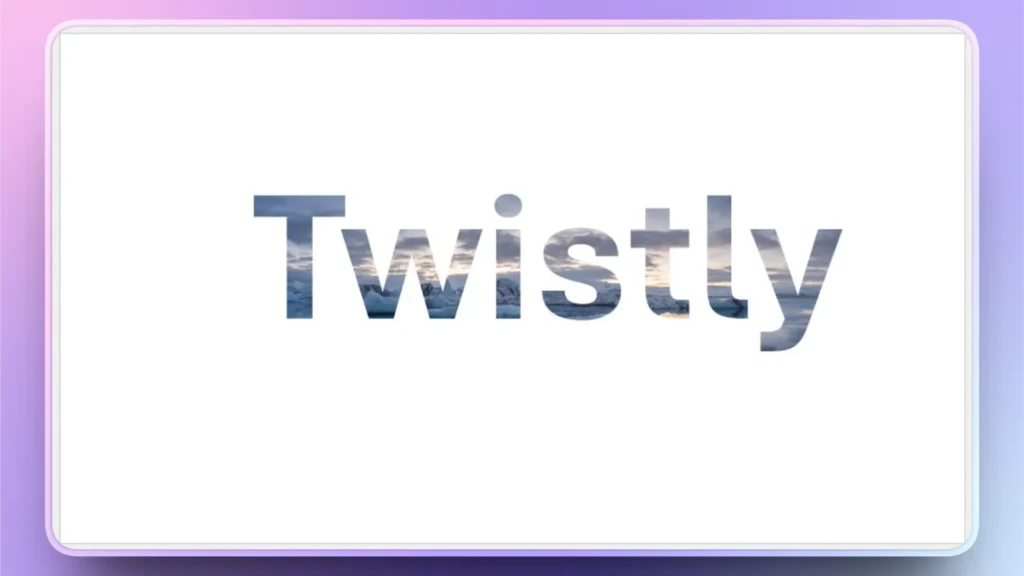
Bonus Tips for Adding an Image through Text
For the best visual effects, use fonts like Arial Black, Impact, and League Spartan because these fonts display images with more clarity.
High-resolution images work best when you need to add an image through text in PowerPoint. Increasing letter spacing can also make your text look more appealing. Here are some other mistakes that you should avoid when styling text with images:
- Using small font sizes
- Choosing low-contrast images
- Overusing image-filled text on every slide
- Using thin fonts
- Ignoring readability
Make Visually Attractive Presentations with Twistly
PowerPoint gives many tools and features to make your presentations attractive, but all these methods are time-consuming and require experience. When you are working on tight deadlines, you cannot afford to spend hours on every little thing.
What is Twistly?
Twistly is an AI-powered PowerPoint add-in designed to help you create visually polished, structured, and professional slides in minutes instead of hours.
Twistly is an AI add-in that offers instant AI presentations for PowerPoint users. You just enter the topic or other type of input, and AI will generate amazing professional slides for you.
Create PowerPoint
Slides with AI
Build AI-powered presentations from
any prompt, doc, or video


How to use Twistly for Smart Presentations?
You need prior design or PowerPoint experience to make pro-level presentations with AI. If you know how to open PowerPoint and save a presentation, you are good to use Twistly.
Step 1: Open PowerPoint and Twistly
Start a blank PowerPoint presentation and launch Twistly by clicking the icon from the top ribbon in the Home tab.
Click New Presentation in the Twistly window and choose the input type. Let’s say we want to create a presentation on a topic.
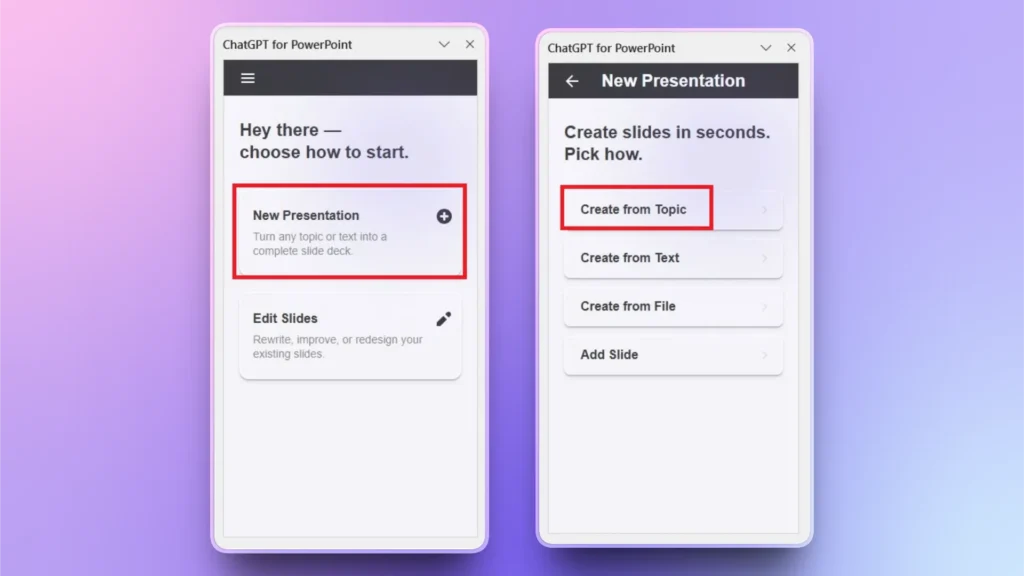
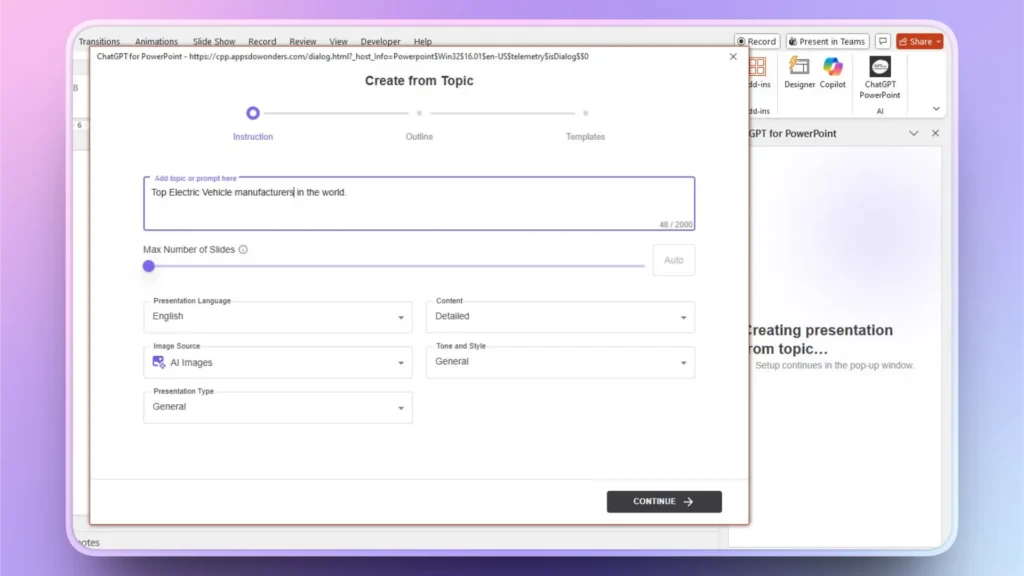
Step 2: Enter your Topic and Select other Settings
Input your presentation topic, and you can also set other preferences like presentation style, target audience, number of slides, language for the presentation, and content type.
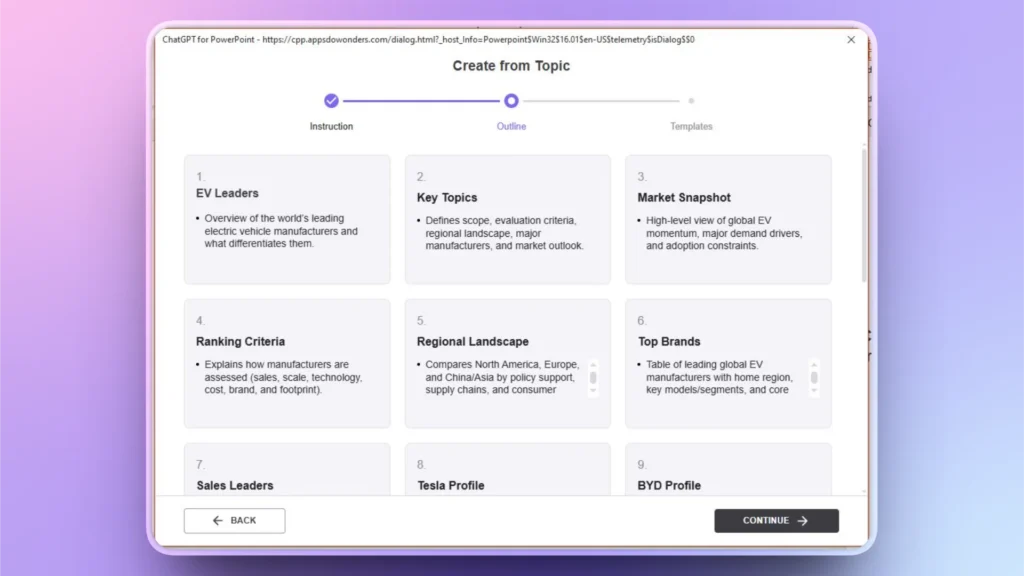
Step 3: Review the AI Outline
Twistly will generate an outline for possible slides for the presentation. Review the outline, delete or add slides if needed, and click Continue if everything seems fine.
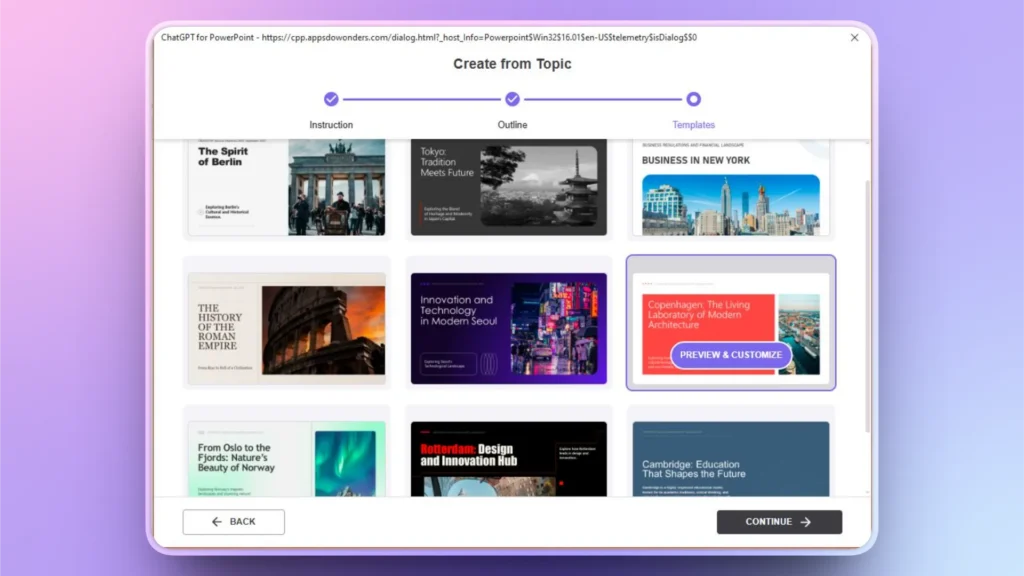
Step 4: Select an AI PowerPoint Template
From a wide range of professional AI PowerPoint templates, pick a template that you like. You can preview the slides and even change the template color according to your needs.
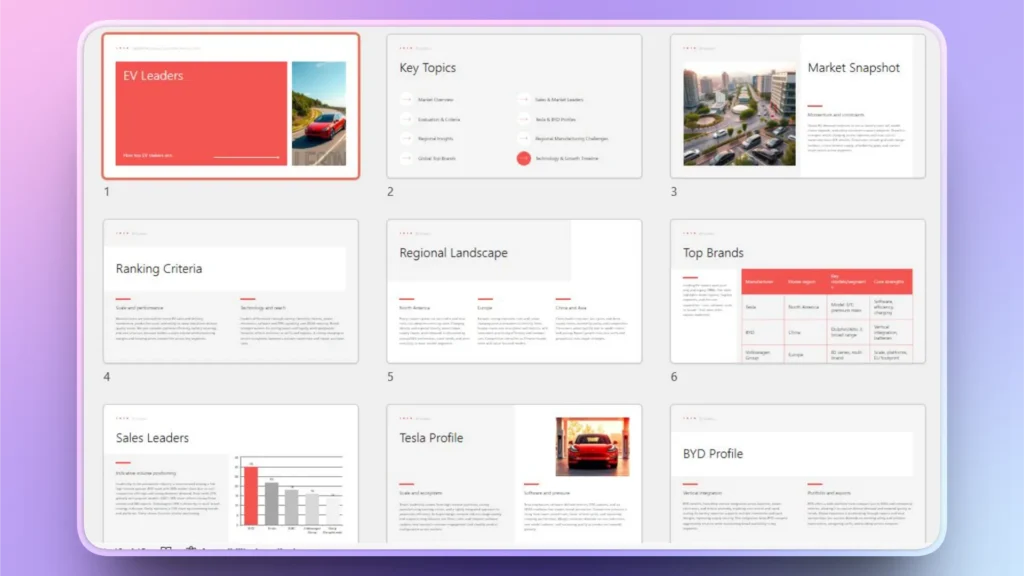
Step 5: Review your Final Slides
Within seconds, Twistly will give you the final slides that you can review and edit with the AI features of Twistly. If at any point you need native PowerPoint tools, all resources are accessible, all the time.
Spice up your PowerPoint Presentations with AI
Instead of manually adjusting fonts, resizing text boxes, repositioning images, and tweaking formatting, Twistly intelligently handles layout and design balance for you.
You can download and install the free trial version of Twistly by using the link below. Turn the work of hours into a few clicks. Enjoy ChatGPT-like capabilities for PowerPoint with Twistly.
Create PowerPoint Slides with AI
Build AI-powered presentations from any prompt, doc, or video

Conclusion
Adding an image through text in PowerPoint via the Text Fill or Merge option can instantly upgrade your boring PowerPoint slide design.
If you frequently design presentations and want to save time creating visually strong slides, AI-powered tools can help streamline the process. Download Twistly now and enjoy the free trial version for a limited time. No financial commitment is required during the trial period.











Start Making AI Presentations in Seconds
Instant Access
Begin exploring Twistly’s full suite of features immediately
No Commitments
No credit card required, and you can cancel anytime
Dedicated Support
Our team is here to assist you every step of the way during your trial.