



You can write an executive summary slide with AI using a single AI tool, Twistly. Instead of using multiple AI tools for generating slides, writing content, and formatting PPT, you can do everything with a single tool. Twistly is a complete AI presentation maker for PowerPoint that can create custom slides and complete presentations.
When executives and senior managers review presentations, they rarely analyze each slide. Decision-makers want quick, well-structured, and easy-to-grasp data before investing more attention to details.
In the entire deck, the executive summary slide is the most important slide. In this article, we will teach you how to write an executive summary slide with AI.
What is an Executive Summary Slide?
The executive summary slide has a high-level overview of your entire presentation. This single slide highlights all the important points of your presentation. The summary slide offers all the information that a manager or executive needs to understand quickly about the topic.
You can consider it as a decision-making slide. Executives don’t have much time, and they need quick and well-structured answers to important questions like:
- What problem are you solving?
- Why does this matter?
- What solution are you proposing?
- What results can be expected?
- What action do you want from them?
Our aim is to write an executive summary slide with AI that quickly answers all these questions.
What is the Best AI Tool for Professional Slides?
Before getting started with the process of writing an executive summary slide, we need to choose an AI tool that offers the best features and maximum results.
Twistly is one of the most popular AI tools for PowerPoint presentations. If you create a business presentation for a formal audience, Twistly will automatically add an executive summary slide that summarizes the whole presentation.
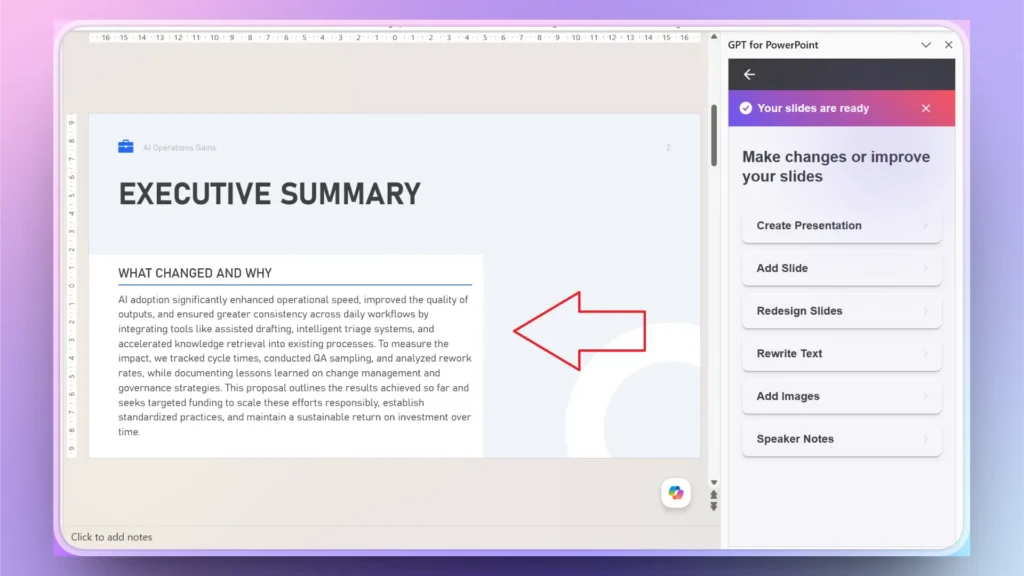
What if you have a presentation but not the executive summary slide? Twistly can still help you create a custom slide within seconds. The process is easy and takes less than a few seconds and clicks.
How to Write an Executive Summary with AI?
Twistly works best for presentations made with AI, but you can try it for general presentations, too. Let’s assume you previously made a presentation with Twistly, and now you want to write an executive summary slide for existing presentations. Here are the steps to follow to create an executive summary slide using Twistly AI.
Step 1: Open your Presentation and Twistly
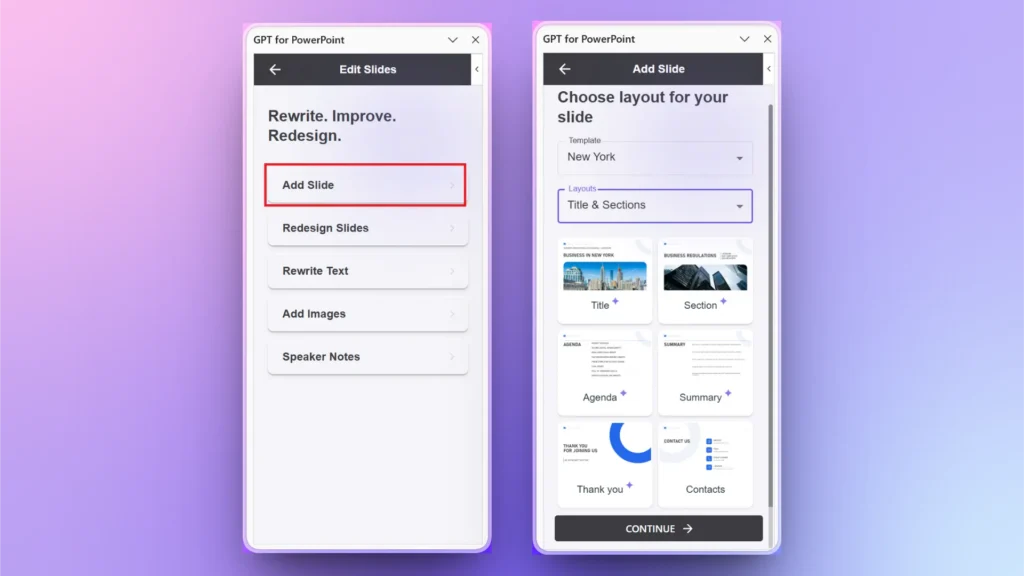
Open your existing presentation and launch Twistly. A dedicated Twistly pane will appear. Follow this path:
Edit Slides >> Add Slide >> Summary Layout.
Explain what you want to achieve with this slide, or let AI do the work. Twistly will automatically summarize your whole presentation in this slide.
Step 2: Review your Summary Slide
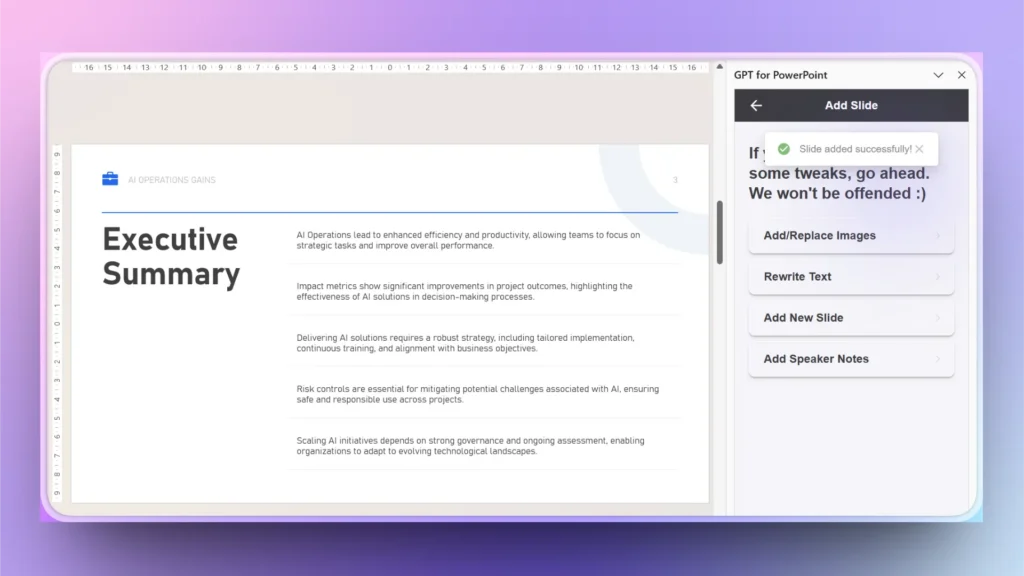
Twistly will format, design, and structure the slide with an effective summary of the presentation. Review the slide content, and if everything seems fine, you are done with the executive summary slide.
How to Edit/Improve the Executive Summary Slide?
Twistly not only creates but also rewrites, improves, and edits slides for perfection. There is always room for improvement, and there are many AI options related to the design and content of slides.
Here is how to improve or edit an executive summary slide with Twistly AI.
Step 1: Rewrite Summary Text
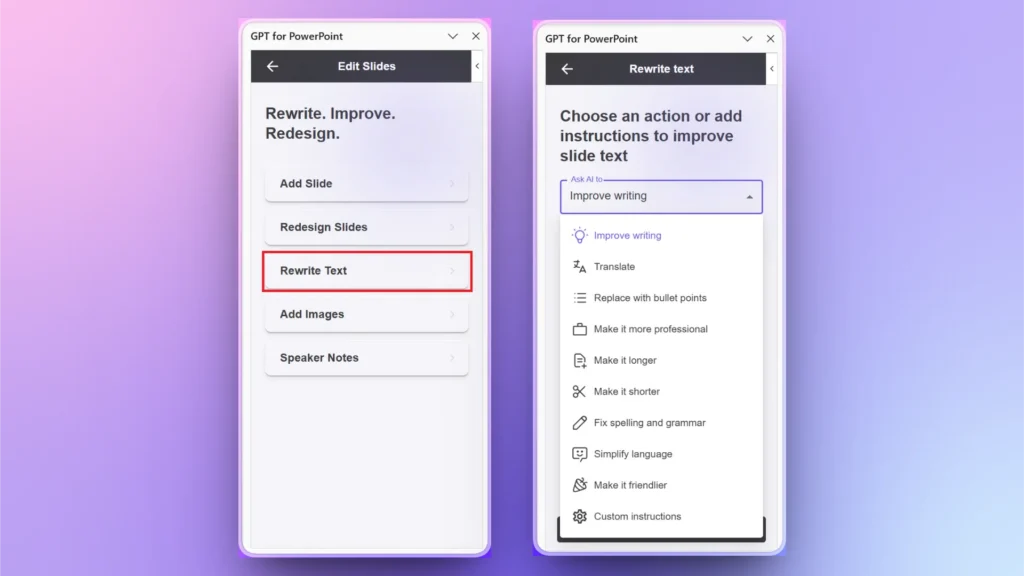
Do you want the executive summary slide text to be more detailed, professional, or optimized? There are several AI actions that you can perform with Twistly related to the content of the slides.
Twistly >> Edit Slides >> Rewrite Text >> select AI Text Editing option
Step 2: Add Speaker Notes
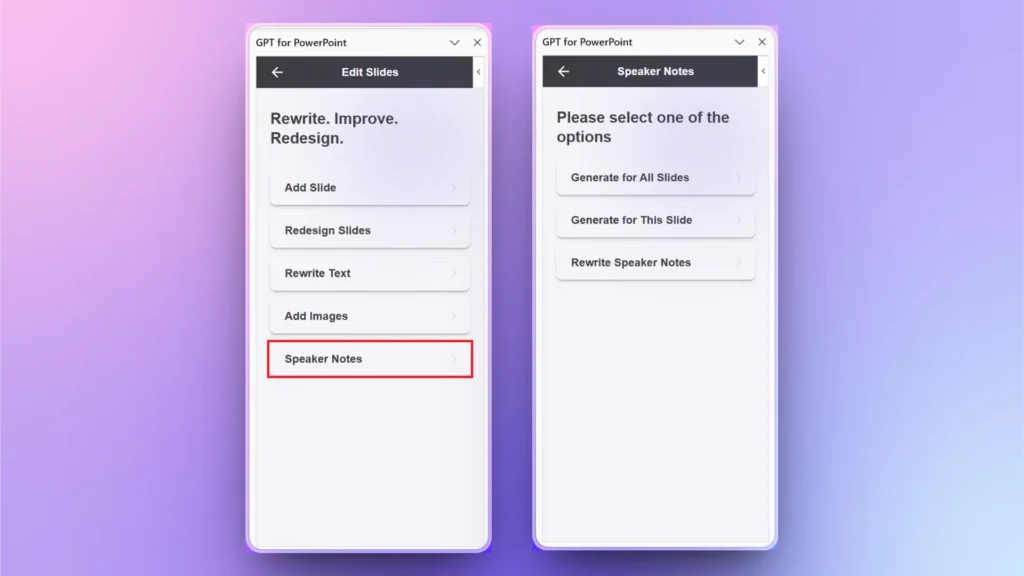
You can also add speaker notes for your executive summary slide, any other slide, or all slides in a presentation. The process is simple, and Twistly will automatically analyze your slides and their contents to create speaker notes.
Edit Slides >> Speaker Notes >> Select Slides for Speaker Notes
You can choose all slides or your selected slide for creating speaker notes. You can also rewrite speaker notes from the same window.
How to Add an Image to an Executive Summary Slide?
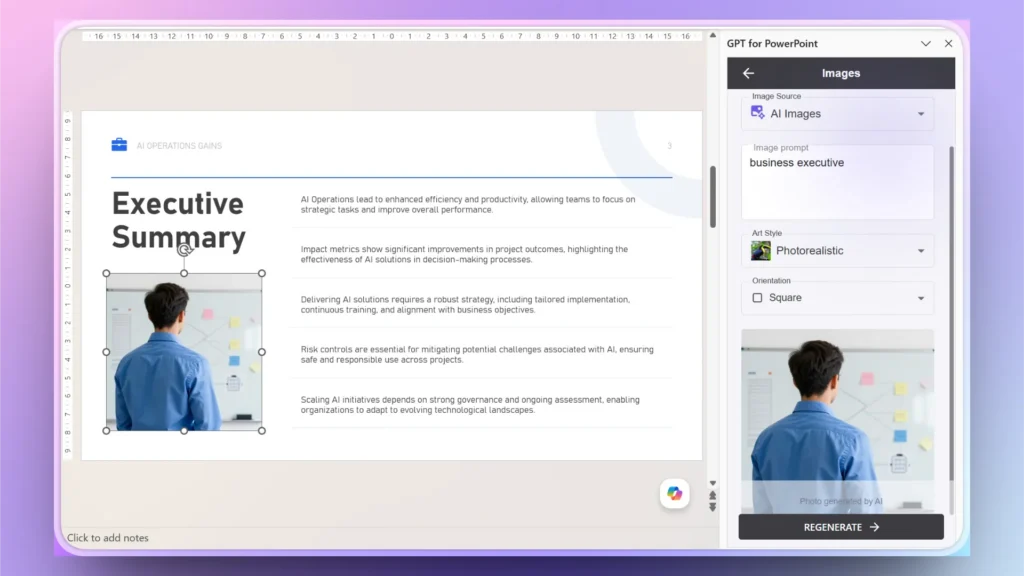
Images and visuals are not necessary for executive summary slides, but if you want to insert a relevant image, Twistly can help you. Twistly allows adding images to your slides from sources like free stock image sites or images created with its own AI image generator.
Edit Slides >> Add Image >> choose AI as Image Source >> AI Prompt >> Insert Image
Twistly will give you an AI image for the prompt that you can add to a slide with a simple click. For more images, click the Regenerate button, and Twistly will give you more AI images.
Best Tips for Writing an Executive Summary Slide
Summary slides demand more time and attention to details. Best summary slides are brief, and you should aim for:
- 30–60 seconds of reading time
- Minimal text
- Maximum clarity
Use industry-related terms that are clearly understood by the executives. As you are dealing with an experienced audience, you don’t need to explain every simple concept. Support your claims with meaningful numbers whenever possible.
Get Twistly for Free
You may have doubts about the capabilities of Twistly, as the market is full right now with general AI tools. Twistly is nothing like the so-called AI presentation generators that you have already experienced. It integrates ChatGPT-like capabilities into PowerPoint.
Without any financial commitment, you can try Twistly’s free trial now. Use the link below to claim your free trial or download Twistly from the PowerPoint add-in library.
Create PowerPoint Slides with AI
Build AI-powered presentations from any prompt, doc, or video

Final Verdict
An executive summary slide is more than a presentation introduction, and Twistly can write an executive summary slide with AI, within seconds. Always aim for speed and quality, and Twistly offers both features under one roof.












Start Making AI Presentations in Seconds
Instant Access
Begin exploring Twistly’s full suite of features immediately
No Commitments
No credit card required, and you can cancel anytime
Dedicated Support
Our team is here to assist you every step of the way during your trial.