


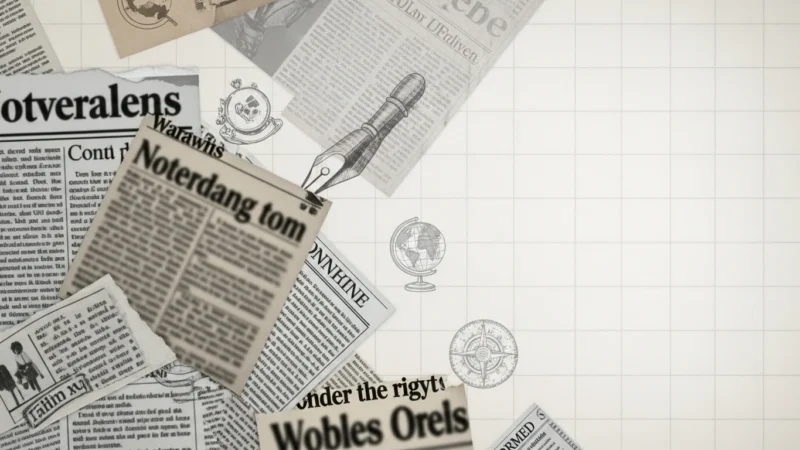


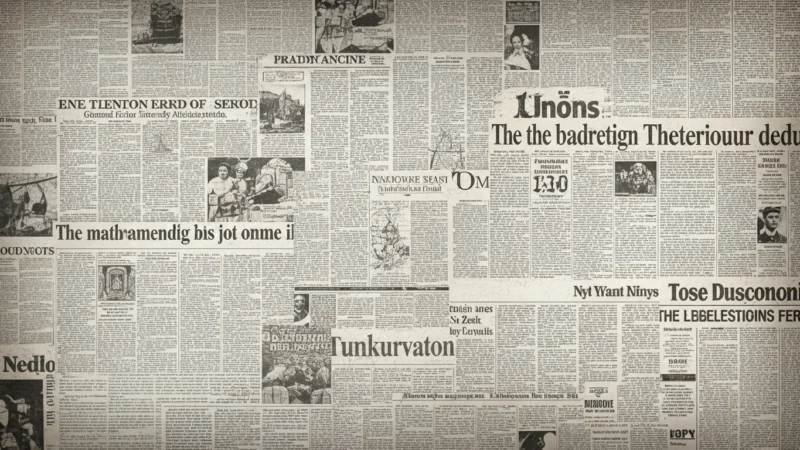


The Newspaper PowerPoint Background collection is designed to bring a clean, editorial, and informative feel to your presentations.
Inspired by classic newspaper layouts, bold headlines, column-based structures, and black-and-white print styling, these backgrounds help create a sharp and recognizable look that feels structured and easy to scan.
Perfect for news reports, school projects, media presentations, newsletters, history topics, or creative storytelling, this newspaper PowerPoint background keeps your slides visually distinct, readable, and professional.
It works especially well when you want your presentation to feel like a front page, feature article, or editorial spread without making the design too heavy.
Features:
-
Collection of newspaper-themed background images and presentation designs.
-
High-resolution quality, compatible with PowerPoint and Google Slides.
-
Editorial-style designs with headline blocks, column layouts, monochrome palettes, vintage print details, and clean page structure.
-
Ideal for media projects, school assignments, newsletters, history content, announcements, and report-style presentations.
-
Easy to customize with your own titles, articles, images, colors, and layout adjustments.
-
Creates a classic, organized, and professional look across slides.
What’s included?
How to Get Started
1
Open Format Background
Click the “Design” tab on the ribbon, then at the far-right end, click Format Background. The Format Background pane will open on the right side of your window.
2
Choose Your Fill Type
In the pane, select one of the fill options: Solid fill, Gradient fill, Picture or texture fill, or Pattern fill.
3
Customize the Background
Based on your selection, choose a color, an image (by clicking Insert under “Picture Source”), or adjust settings like transparency, direction, or pattern.
4
Apply Your Change
The change will apply to the current slide by default. To apply it to all slides in your presentation, click the Apply to All button at the bottom of the Format Background pane.
Watch How It Works
See how to use this template in PowerPoint