


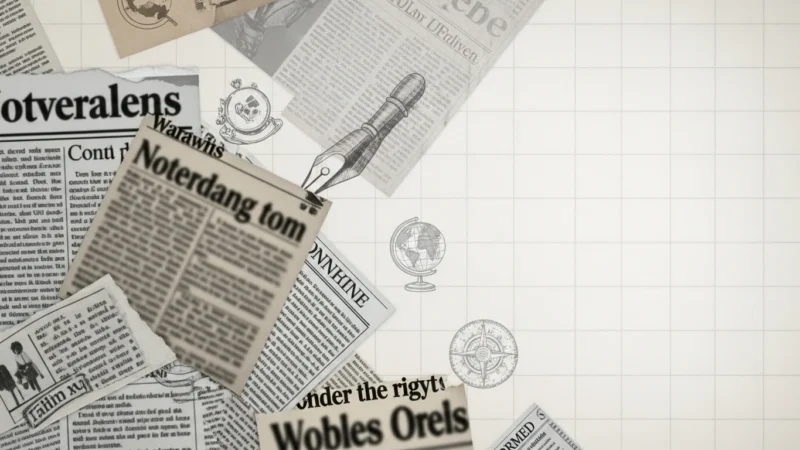


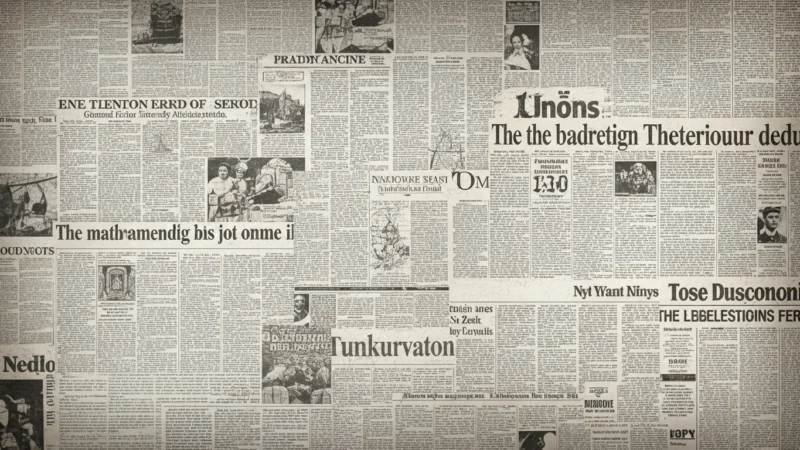


The Newspaper PowerPoint Background collection is designed to bring a clean, editorial, and informative feel to your presentations.
Inspired by classic newspaper layouts, bold headlines, column-based structures, and black-and-white print styling, these backgrounds help create a sharp and recognizable look that feels structured and easy to scan.
Perfect for news reports, school projects, media presentations, newsletters, history topics, or creative storytelling, this newspaper PowerPoint background keeps your slides visually distinct, readable, and professional.
It works especially well when you want your presentation to feel like a front page, feature article, or editorial spread without making the design too heavy.
Características:
-
Collection of newspaper-themed background images and presentation designs.
-
Alta resolución, compatibles con PowerPoint y Google Slides.
-
Editorial-style designs with headline blocks, column layouts, monochrome palettes, vintage print details, and clean page structure.
-
Ideal for media projects, school assignments, newsletters, history content, announcements, and report-style presentations.
-
Easy to customize with your own titles, articles, images, colors, and layout adjustments.
-
Creates a classic, organized, and professional look across slides.
Cómo empezar
1
Formato abierto Antecedentes
Haga clic en la pestaña “Diseño” de la cinta de opciones y, en el extremo derecho, haga clic en Formato Fondo. Se abrirá el panel Formato de fondo en la parte derecha de la ventana.
2
Elija su tipo de relleno
En el panel, seleccione una de las opciones de relleno: Relleno sólido, Relleno degradado, Relleno de imagen o textura, o Relleno del patrón.
3
Personalizar el fondo
En función de su selección, elija un color, una imagen (haciendo clic en Inserte en “Fuente de imagen”), o ajustar parámetros como la transparencia, la dirección o el patrón.
4
Aplique su cambio
Por defecto, el cambio se aplicará a la diapositiva actual. Para aplicarlo a todas las diapositivas de la presentación, haga clic en el botón Aplicable a todos situado en la parte inferior del panel Formato de fondo.
Vea cómo funciona
Vea cómo utilizar esta plantilla en PowerPoint