


Last updated
You can convert a Word document to PowerPoint in three practical ways. PowerPoint can build slides from a Word outline for free. Copilot in PowerPoint can draft a deck from your document if your Microsoft 365 plan includes it. An AI presentation maker such as Twistly Online can turn a .docx file into designed, editable slides. The right choice depends on how your document is formatted and how finished you need the slides to look.
This guide walks through each method step by step, shows what carries over (text, images, tables, design), and compares them side by side. It also explains what happened to Word’s old “Export to PowerPoint” button and how to simply put a Word page on a slide when you don’t need a conversion at all.
Key Takeaways
- Slides from Outline is free and built into PowerPoint, but it only copies outline text (headings, or every paragraph if there are no headings), and the slides use the open presentation’s theme. When we opened a sample report in PowerPoint, the body paragraphs and the table were dropped.
- Copilot in PowerPoint writes a designed draft from a Word file, but it needs a Microsoft 365 plan that includes Copilot in the PowerPoint app.
- An AI tool like Twistly Online condenses a .docx file into slides with a template, reused images and editable tables, and downloads them as a PowerPoint file.
- Word for the web’s Export to PowerPoint feature is being deprecated, according to Microsoft, so don’t build a workflow around it.
Which Word to PowerPoint method should you use?
Use Slides from Outline when your document is already a clean outline and you want plain slides for free. Use Copilot when your Microsoft 365 plan already includes it. Use an AI presentation maker when you want a finished-looking deck from a long, unstructured document without reformatting it first.
| Feature | Slides from Outline (PowerPoint) | Copilot in PowerPoint | Twistly Online (AI) |
|---|---|---|---|
| Cost | Included with PowerPoint | Needs a Microsoft 365 plan with Copilot in the apps | Free plan: 3 presentations; paid plans unlimited |
| What you need | PowerPoint desktop app | PowerPoint (desktop, web, Mac or iPad) and a qualifying license | A web browser |
| Document prep | Effectively required: heading styles or outline levels (otherwise one slide per paragraph) | Recommended: Word Styles | No reformatting needed (the document is condensed) |
| Design applied | Uses the open presentation’s theme (plain default in a new file) | Yes | Yes, 53 templates or AI Choice |
| Images carried over | No (text only) | Copilot tries to include them | Yes, reused where they fit |
| Tables carried over | No (text only) | Not documented | Yes, as editable PowerPoint tables |
| Rewrites and condenses text | No, copies text as-is | Yes | Yes |
Sources: Microsoft Support, Import a Word document; Microsoft Support, Create a new presentation with Copilot in PowerPoint; Twistly Docs, From Text or a File. Microsoft pages retrieved 2026-11-26; Twistly Docs retrieved 2026-11-13. Disclosure: Twistly is our product. The Microsoft columns are based on Microsoft’s own documentation.
Method 1: Import a Word outline into PowerPoint (free)
PowerPoint’s Slides from Outline command reads the structure of a Word document and creates one slide for each top-level heading. It’s the quickest free way to move text into slides, as long as your document uses heading levels. Microsoft lists it for PowerPoint for Microsoft 365, 2024, 2021, 2019 and 2016 (Microsoft Support, retrieved 2026-11-26).
Step 1: Set up the outline in Word
- Open the document in Word and select View > Outline.
- Select each line that should become a slide title and set it to Level 1.
- Select each line that should become a bullet point and set it to Level 2.
- Shorten heading lines so they read well as slide titles and bullets.
- Select File > Save, then File > Close. The Word document must be closed, or PowerPoint can’t import it.
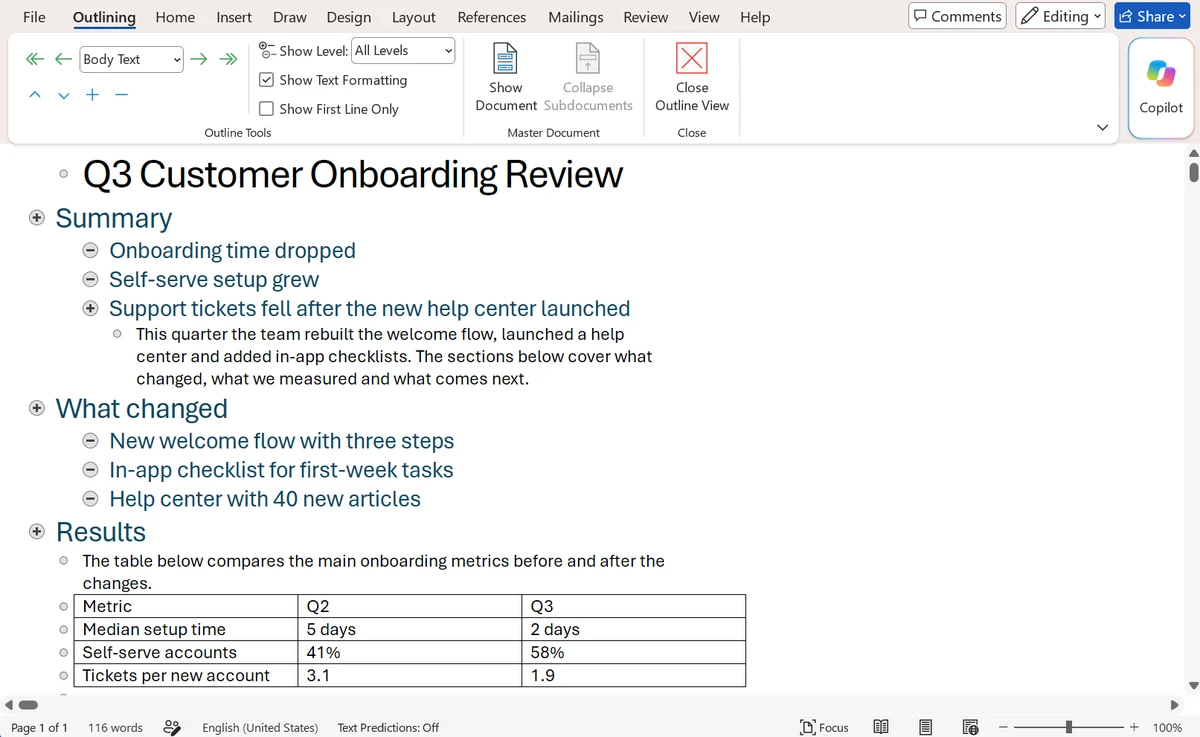
If you already use the built-in Heading 1 and Heading 2 styles, your outline levels are mostly set, as in the sample report above. Anything left at the Body Text level, such as normal paragraphs and tables, is the part to watch: see what happened to it in our test below.
Step 2: Create the slides in PowerPoint
- Open PowerPoint and create a new presentation or open an existing one.
- Select Home > New Slide (the arrow below the button) and choose Slides from Outline.
- In the Insert Outline dialog, select your Word document and choose Insert.
PowerPoint creates a new slide for each Heading 1. If the document has no Heading 1 or Heading 2 styles, it creates a slide for every paragraph instead, which usually means dozens of crowded slides.
What Slides from Outline gives you
We tested PowerPoint’s handling of a Word file on 2026-11-26 by opening the sample report shown above in PowerPoint for Microsoft 365 (desktop) with File > Open, which also builds slides from the document’s outline. We didn’t run the Slides from Outline button itself in this test, so treat the result as a close guide rather than an exact match. PowerPoint made one slide for the title line and one for each Heading 1, and turned each Heading 2 into a bullet. The body paragraphs and the table were left out completely, so the “Results” slide came out with a title and nothing else.
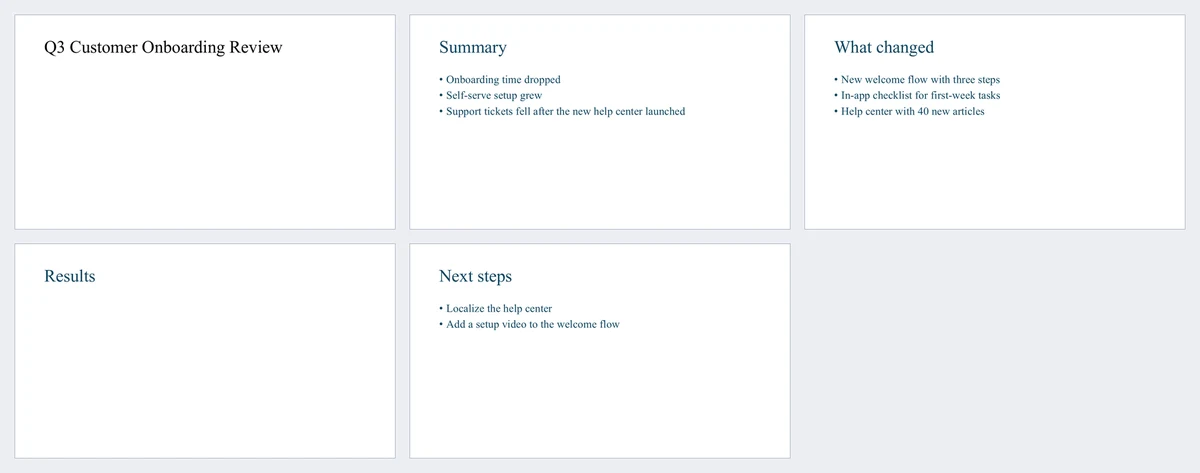
So you get text only: no images and no tables. The slides take the theme of the presentation you import into, so a new blank file gives you plain default slides. Tip: open your company template or a themed deck first, then import. Otherwise, apply a design afterwards with Design > Themes or Designer, and add visuals and tables by hand. For a short, well-structured document this is fine. For a 20-page report, the formatting work afterwards can take longer than the import saves.
Method 2: Use Copilot in PowerPoint
Copilot in PowerPoint can create a full draft presentation, including a design and images, from a prompt that points to your Word document. Microsoft’s support page includes a section on best practices for creating a presentation from a Word document (Microsoft Support, last updated October 2026, retrieved 2026-11-26).
How to create slides from Word with Copilot
- Start a new presentation in PowerPoint. If your organization has a standard template, start from that file so Copilot keeps its look.
- Open Copilot with the Copilot icon at the bottom-right of the window.
- In the prompt box, ask Copilot to create a presentation from your Word document. Microsoft’s page doesn’t document a specific control for attaching the file, so follow Copilot’s prompts in your version. Copilot may ask follow-up questions about the audience, length or imagery, which you can answer or skip.
- Review the draft and edit it like any other presentation.
Microsoft’s tips for Copilot and Word files
- Use Styles in Word. Headings help Copilot understand the document’s structure and split it into slides.
- Keep the file under 24 MB. Microsoft says Copilot works best with Word documents smaller than that.
- Images are reused. Copilot tries to include images from your Word document.
Which Microsoft 365 plans include Copilot in PowerPoint
Copilot in PowerPoint isn’t included with every Microsoft 365 plan. On work or school accounts, it needs the Microsoft 365 Copilot add-on license. Microsoft’s license page says an account labeled “Copilot Chat (Basic)” doesn’t have access to Copilot in Word, Excel, PowerPoint and OneNote. On personal Microsoft accounts, it’s available with qualifying plans such as Microsoft 365 Personal, Family or Premium, and only the subscription owner can use it in the desktop apps (Microsoft Support, What Copilot license do I have, retrieved 2026-11-26). If Copilot can’t create a presentation for you, your plan or your organization’s settings probably don’t include it.
Method 3: Convert Word to PowerPoint with AI (Twistly Online)
An AI presentation maker reads the whole document, picks out the key points and builds designed slides from them, so you don’t have to reformat the file first. Twistly Online runs in the browser and accepts .docx files up to 300 MB (Twistly Docs, retrieved 2026-11-13). When the slides are ready, you download them as a PowerPoint file.
Step 1: Upload your Word document and choose settings
- Go to app.twistly.ai and select Create from File.
- Select Upload file and choose your .docx file. Twistly also accepts .pdf, .pptx, .txt, .xlsx, .xls and .html, one file per presentation.
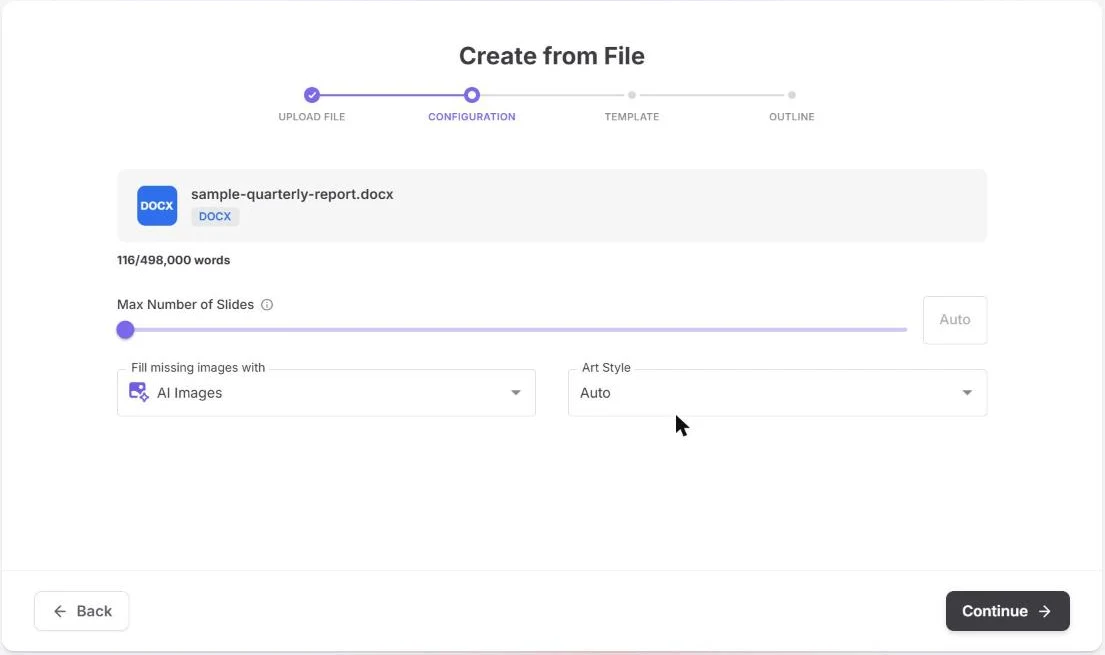
- On the Configuration screen, set Max Number of Slides or leave it on Auto, and choose how to fill missing images (AI images by default) and the art style. Then select Continue.
Twistly condenses the document into slides. It doesn’t reproduce it page by page, so a 15-page report becomes a focused deck rather than 15 slides of paragraphs.
Step 2: Pick a template
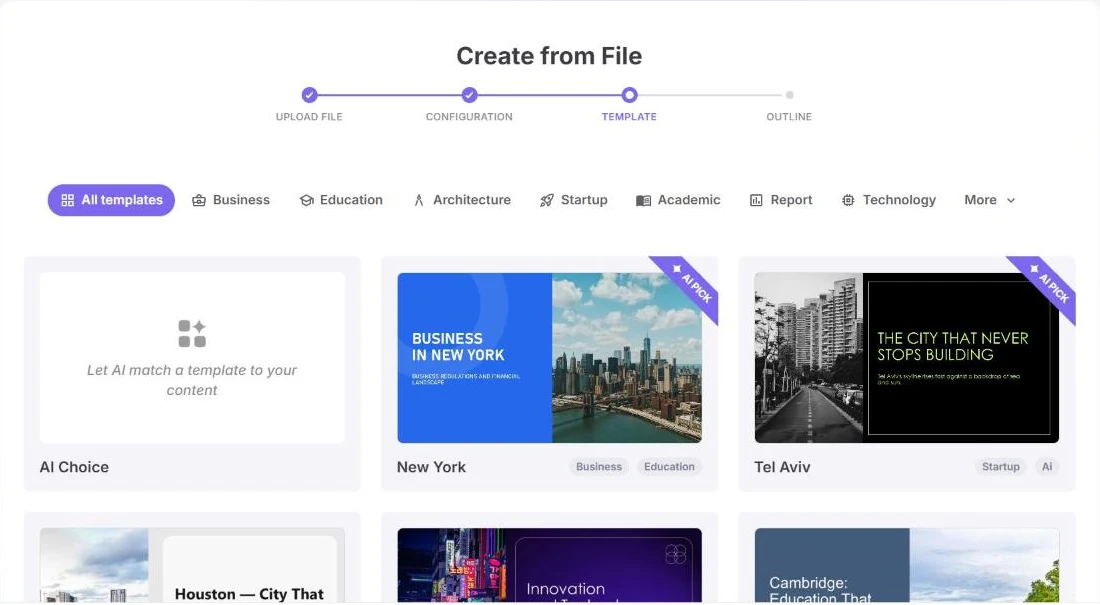
Choose one of 53 templates, or select AI Choice to let Twistly pick a design that fits your content (Twistly Docs, Templates, retrieved 2026-11-13). Templates marked AI Pick are the ones Twistly suggests for your document. The free plan includes 15 of the templates.
Step 3: Check the outline and generate
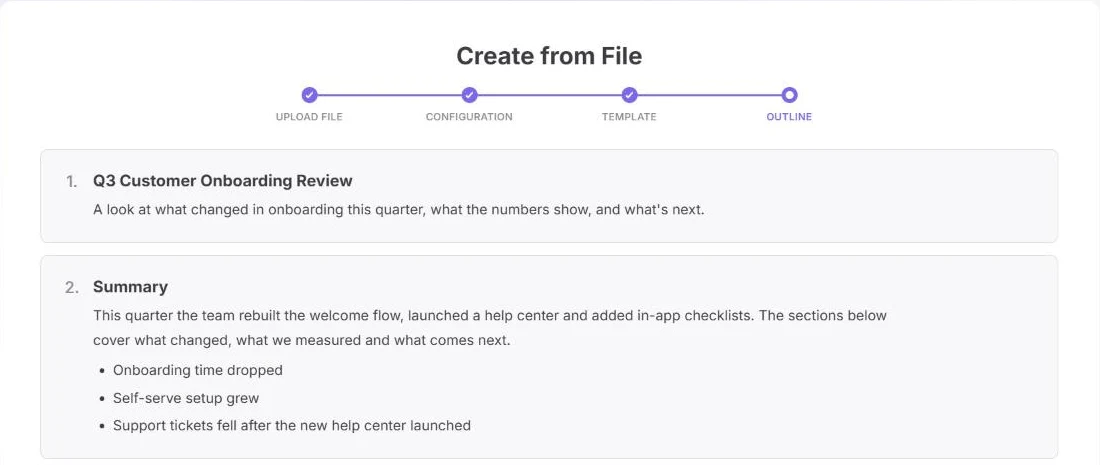
Twistly reads the document and shows the outline it plans to turn into slides, one card per slide. Check that the sections and points are the ones you want, then select Generate. With our sample report, the outline kept the summary paragraph that PowerPoint dropped when we opened the file. (We ran this test on a paid Twistly account on 2026-11-26; free decks are capped at 7 slides and carry a “Made with Twistly” badge.)
Step 4: Edit the slides and download the PowerPoint file
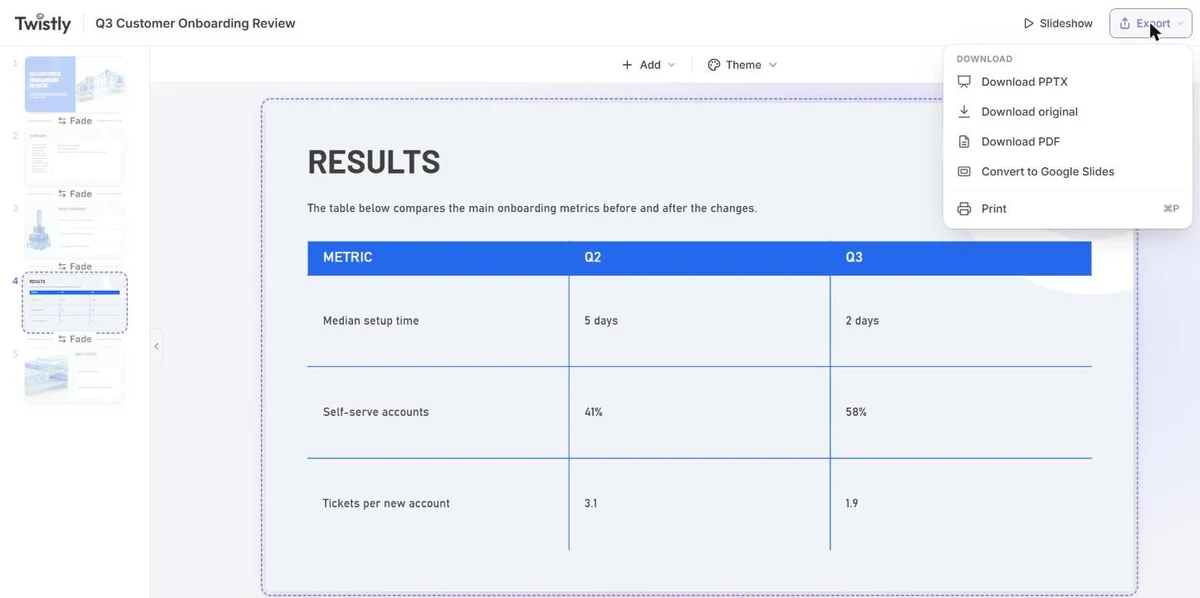
The finished deck opens in an editor, where you can edit text, add slides (paid plans), change the theme or ask Twistly Agent for changes in plain language (Twistly Docs, Twistly Agent, retrieved 2026-11-13). When it looks right, select Export > Download PPTX to get the PowerPoint file. The same menu also offers Download PDF and Convert to Google Slides.
A few details matter when the source is a Word file:
- Tables stay tables. Tables in your document arrive as real, editable PowerPoint tables. In our test, the metrics table that PowerPoint left out when we opened the file came through on its own Results slide.
- Images are reused where they fit the slides.
- The slide language follows the document. A German document produces German slides.
For more on this workflow, see the AI Word to PPT converter overview, or try the free online Word to PPT tool.
Free plan limits
The free plan gives you 3 presentations of up to 7 slides each, with no card required, and free decks carry a “Made with Twistly” badge. Paid plans remove the badge and raise the slide limit to 15 (Starter) or 50 (Pro and Team) (Twistly Docs, Free Plan and Credits; Plans and What’s Included, retrieved 2026-11-13).
Just need the Word page on a slide? Insert it as an object
If you only want a Word page to appear on a slide, such as a signed letter or a one-page summary, insert it as an object instead of converting it. Microsoft notes this inserts a static snapshot of the document and works best for a single page with pictures (Microsoft Support, retrieved 2026-11-26).
- Select the slide where the document should go.
- Select Insert > Object.
- Choose Create from file, select Browse and pick the Word document.
- Leave Link and Display as icon cleared, then select OK.
Checking Display as icon inserts an icon that opens the document in Word instead. Checking Link keeps the object connected to the original file. The same approach works for other file types; see how to insert a PDF in PowerPoint.
Common mistakes when converting Word to PowerPoint
Importing a document without heading styles. PowerPoint then makes one slide per paragraph. Fix: apply Heading 1 and Heading 2 (or outline levels) before you use Slides from Outline.
Keeping full paragraphs on slides. Text copied straight from a report is too dense to read from the back of a room. Fix: cut each slide to a few short points, or use a tool that condenses the text for you. As a pacing check, see how many slides to have per minute.
Leaving the Word file open during the import. PowerPoint can’t insert an outline from a document that’s still open. Fix: save and close it first.
Relying on Word’s Export to PowerPoint button. Microsoft says the feature is being deprecated. Fix: use one of the three methods above instead.
Frequently asked questions
Can you convert a Word document to PowerPoint for free?
Yes. PowerPoint’s Slides from Outline command comes at no extra cost with the PowerPoint desktop app, but it only copies text and needs heading styles. Twistly Online’s free plan converts a Word file into a designed deck of up to 7 slides, 3 times, without a credit card.
What happened to Word’s “Export to PowerPoint” button?
Word for the web had a File > Export > Export to PowerPoint presentation option. Microsoft’s support page now says the option is being deprecated. It also only worked in English, didn’t run in Safari or Internet Explorer, and handled text only (Microsoft Support, retrieved 2026-11-26).
Can I convert Word to PowerPoint on a Mac?
Yes. Microsoft lists Copilot in PowerPoint for PowerPoint for Microsoft 365 for Mac, so it works with a qualifying plan. Twistly Online runs in the browser, so it works the same on a Mac as on Windows. Microsoft’s Slides from Outline instructions are written for the PowerPoint desktop app and don’t include separate Mac steps.
Will my images and tables carry over?
It depends on the method. Slides from Outline copies outline text only. When we opened our sample report in PowerPoint, the body paragraphs and the table were dropped. Copilot tries to include images from the document. Twistly reuses images and converts tables into editable PowerPoint tables; in our test the same table landed on its own slide.
Turn your Word document into slides in minutes.
Upload your .docx file to Twistly Online and get a designed, editable PowerPoint deck, with tables kept editable and your images reused where they fit.
Conclusion
To convert Word to PowerPoint, match the method to your document. A tidy outline and a free tool point to Slides from Outline. A Microsoft 365 Copilot license makes Copilot the natural pick. A long report you want turned into finished slides fits an AI tool like Twistly Online. Whichever you choose, trim the text, keep one idea per slide, and check the result before you present. If you’re starting from raw notes rather than a document, you can also convert text to PPT with AI.









Start Making AI Presentations in Seconds
Instant Access
Begin exploring Twistly’s full suite of features immediately
No Commitments
No credit card required, and you can cancel anytime
Dedicated Support
Our team is here to assist you every step of the way during your trial.