



An ideal webinar presentation is more than just attractive slides, but a communication tool to keep your audience engaged. From start to finish, interactive webinar slides should deliver the same level of quality and value. Designing such interactive webinar slides is not easy.
There are certain design and formatting rules that marketers and presenters have to follow. How to use AI to create interactive webinar slides so that you can get maximum work done in less time?
From business training sessions, product introductions, and educational sessions to marketing seminars, AI tools can be a great resource for a variety of events and occasions.
Importance of Interactive Webinar Slides
Normal and generic slides don’t work for online sessions, as attracting a remote audience is harder than interacting with live audiences. Your slides need to have polls, questions, and survey forms so that participants don’t lose focus. Some benefits of interactive webinar slides include:
- Higher participation and attention from the audience
- Better delivery of the message and knowledge
- Meaningful insights and feedback from webinar participants
- Improved conversion rates
- Stronger connection with the presenter and the audience
If you think achieving these results seems impossible for you, try AI tools like Twistly that offer all-in-one solutions for all presentation projects.
Creating Interactive Webinar Slides with AI
AI-powered webinar slides go beyond conventional presentations. Tools like Twistly generate content and add images based on the context of the slides. When you need to turn data into charts or change a complex paragraph to a bullet list, all of this happens with a click.
Twistly is a popular AI add-in for PowerPoint that works inside PowerPoint. Users don’t need to switch between multiple apps or websites. On a single screen, you have complete ChatGPT for PowerPoint.
As you have the right AI tool to assist you in making interactive webinar slides, here are some steps that you can follow according to the topic and audience. Users can make certain changes to these steps according to their target audience or the nature of the webinar.
Step 1: Define your Audience and Goal of Webinar
Even the latest AI tools like Twistly need some sort of guidelines and instructions to understand your goals. While writing your command or topic of the presentation in Twistly, don’t forget to define your audience.
This factor helps a lot with creating more customized and personalized content that is suitable for your audience. Is your webinar promotional, educational, or informative? What type of action do you desire once the webinar is over?
Defining these aspects will help Twistly adjust the tone and style of the content and other elements used in webinar slides. You can easily define these factors while writing your command in the Twistly window.
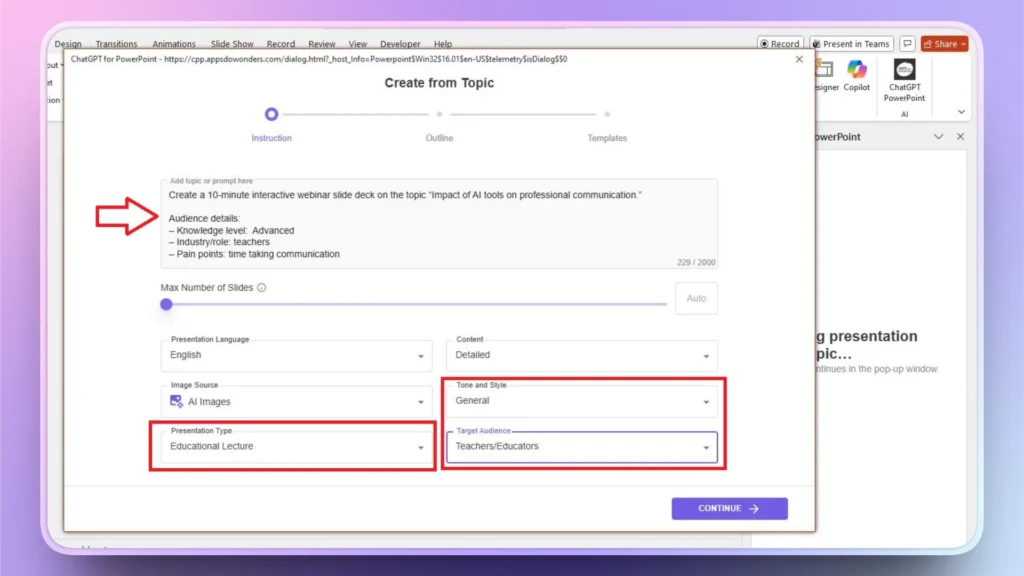
Step 2: Generate Webinar Outline for Slides
Once you have defined the key factors, the next step is to come up with a possible outline for the slides. Interactive webinar slides need to add value and must be informative. The flow of the information in the slide deck should be logical.
Twistly will suggest an outline for the potential slides for the presentation. Give it a read, and if you want, any slide can be removed, repositioned, or added to the outline. If everything seems fine, click Continue so you can move to the next step.
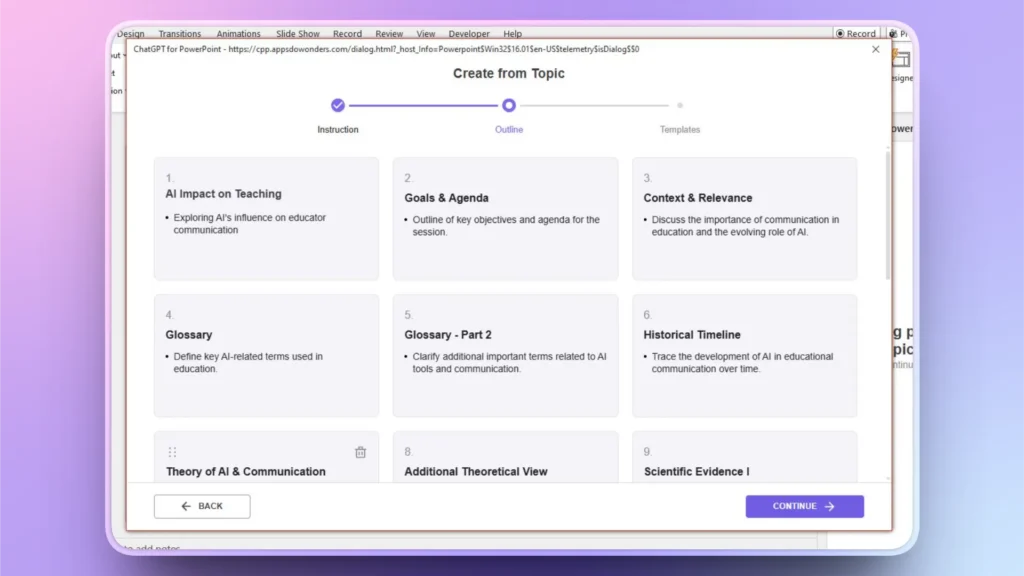
Step 3: Make your Slides Visually Attractive
As you have confirmed the outline for the slides, the next step is to make the slides visually attractive. You don’t need to design slides from scratch, as Twistly has optimized AI PowerPoint templates that are perfect for webinars.
Click and preview slides in any available PowerPoint template, and you don’t need to worry about images, tables, charts, or any other elements for the slides.
When you select the template, everything is already covered in the template, and Twistly will format and insert tables, images, text, and charts automatically into the slides.
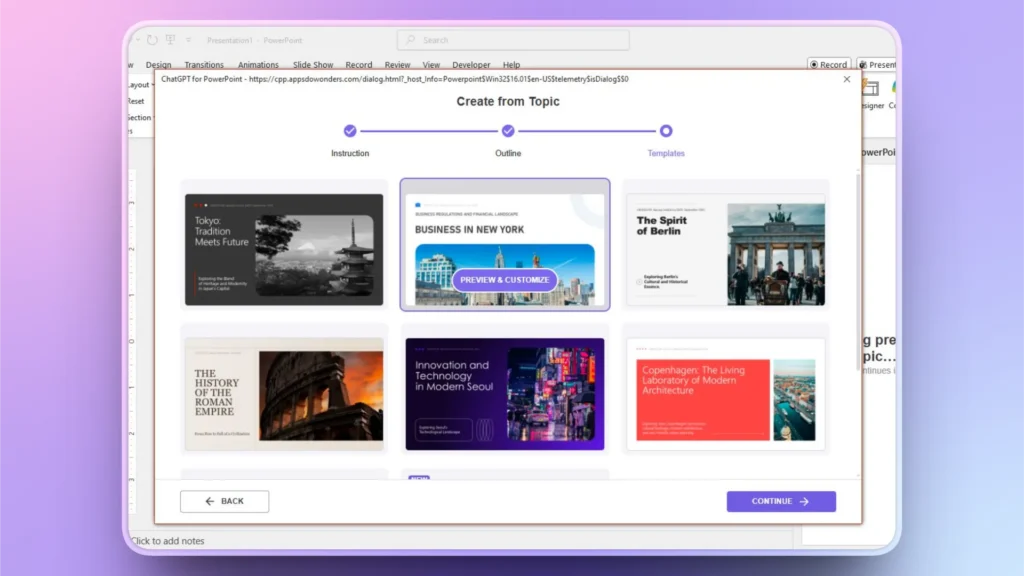
Step 4: Review your Slides before Presenting
Twistly will generate all slides within 60-90 seconds, and you will be able to review, edit, or optimize these AI-generated interactive webinar slides with AI features. Manual review is always suggested for better output.
If you need to make any changes, like adding a new image, changing text, or adding a new slide with more info, simply ask Twistly to do it. With a few clicks, you can perform any of these actions for your existing presentation.
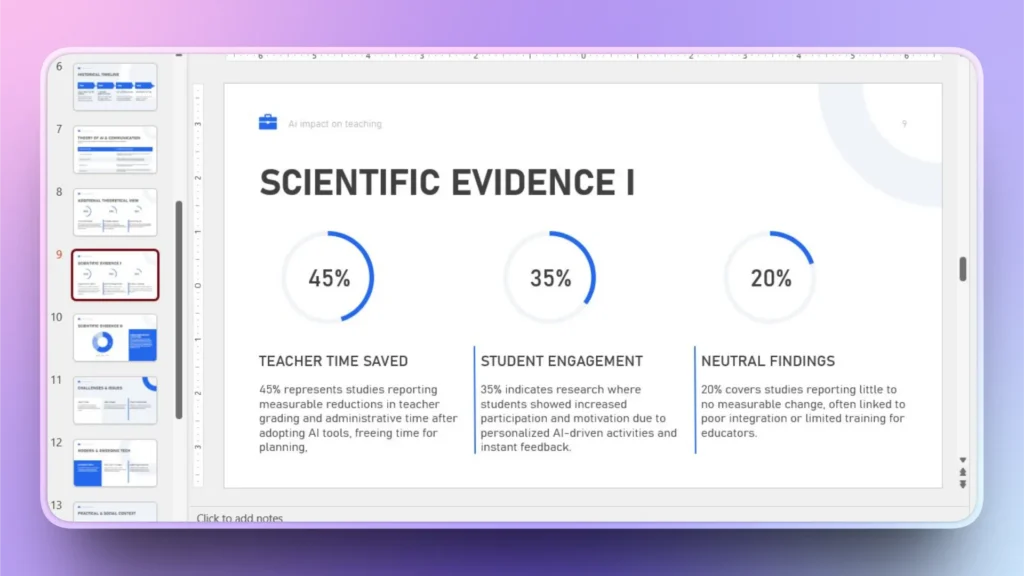
Localize Webinar Slides with Twistly
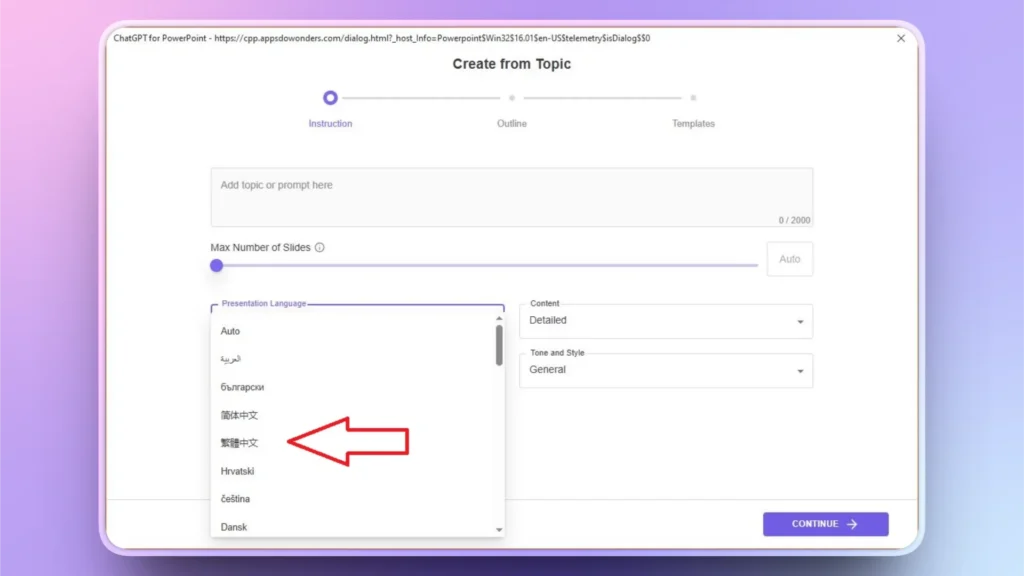
If your webinar includes audiences from other countries who don’t speak your language, you can easily create PowerPoint presentation slides in multiple languages with Twistly.
Making presentations in different languages helps attract more users. You don’t need to be exceptionally good at speaking other languages because you will provide input in English or any other supported language and results with generated in your selected language.
All you have to do is change your desired language while providing input or a topic for the presentation, as shown in the first step. All other steps are the same for making presentations in any other language.
Try Twistly for Free- Exclusive Offer
For our readers, a free trial version of Twistly is available without a credit card required. You can start using Twistly for creating interactive webinar slides with AI or for any other type of PowerPoint presentation. Some other reasons to grab this amazing offer include:
- Works natively inside PowerPoint
- Creates full webinar decks from multiple input methods
- Suggests interactive slide placements
- Maintains full design and content control
- Ideal for live webinars
Create PowerPoint Slides with AI
Build AI-powered presentations from any prompt, doc, or video

Conclusion
Twistly allows the smartest solution to use AI to create interactive webinar slides for any event or online training session. Generating a complete webinar presentation deck does not take more than a few minutes.
Let AI handle the presentation part for your next webinar so you can focus on other matters that can help you achieve the best results and attract new audiences for your business or service.
Start Making AI Presentations in Seconds
Instant Access
Begin exploring Twistly’s full suite of features immediately
No Commitments
No credit card required, and you can cancel anytime
Dedicated Support
Our team is here to assist you every step of the way during your trial.