


How to Summarize a 50 Page PDF into a Slide Deck?

A quick Google search will reveal that you need almost 2-8 hours to summarize a 50-page PDF into a slide deck. For a more professional presentation, it may take you even one or two days. At offices, employees have to turn detailed reports into digestible and engaging slides.
In classrooms, students may also want to turn a detailed report or essay into a slide deck. The manual way to summarize a 50-page PDF into a slide deck will take you hours, no matter how good you are.
There is another smart and faster way to turn a PDF into PowerPoint presentation slides. With the use of our recommended AI tool, it won’t take you more than 90 seconds. Isn’t it amazing to do 8 hours of work in less than two minutes?
Summarizing a PDF into a Slide Deck
We will mainly cover the process to summarize a 50-page PDF into a slide deck, but you can follow the same steps and methods for a Word document, Google Docs, or any other document. First, let’s explore the manual method of turning a PDF into a slide deck.
Method 1: Manually Summarize a PDF into a Slide Deck
The manual method to summarize a 50-page PDF into a slide deck requires time, effort, and PowerPoint expertise. The biggest challenge is to navigate these challenges manually. Let’s start with the manual steps.
1. Read the PDF Carefully
You don’t need to read the document word by word, but make sure you clearly understand the main points in almost every section of the document. You can start by reading the headings, sub-headings, and highlighted sections, including tables and bullet points.
Make sure you highlight the important information and points at this stage. Highlighted materials will make it easier for you to identify the important information.
2. Extract Themes and Messages
Make another document where you will note down the previously highlighted points and core messages. You can make a short document, tables, or simple bullet lists with extracted data and messages.
3. Plan Presentation Structure
Once you have all the information after spending 2-3 hours, it’s time to turn that extracted information into a slide deck. Choose a template, structure, and layout, collect visuals and other elements for your PowerPoint presentation.
4. Turn Summaries to Slide Content
Start making a presentation by turning important points from the PDF into content for the slides. You will have to manually write the content and add visuals. If data visualization is required, the process will become even more time-consuming.
You also need to focus on the presentation design at this stage. Without an engaging design, it will be hard for you to attract the attention of the audience.
5. Add Speaker Notes, Review, and Refine
Till this step, you have already spent almost 3-5 hours on the process. The final step is to create speaker notes for the presentation and then review the complete presentation.
If any further changes aren’t required, save your slide deck and be ready for the event or presentation.
Completing these 5 simple steps to summarize a 50-page PDF into a slide deck will easily take you 5-8 hours, if done professionally.
Method 2: Summarize a PDF into a Slide Deck with AI
Would you like to learn about a tool that can turn a 50-page PDF into a slide deck in less than 90 seconds? You won’t even have to extract data, read a PDF, or design slides. AI PPT will do everything for you.
Twistly for PowerPoint
Yes, all of this is possible with Twistly, a customized ChatGPT for PowerPoint. Twistly is an AI PPT maker add-in for PowerPoint that works inside the software.
You upload a PDF document, and Twistly will summarize the content and turn the document into engaging slides. Follow these simple steps to turn a PDF or Word document into a PowerPoint presentation.
Step 1: Open PowerPoint and Twistly
Start a blank PowerPoint presentation and launch the Twistly add-in. Choose the “Create Presentation from a File” option. You can choose any other input method depending on the available data type.
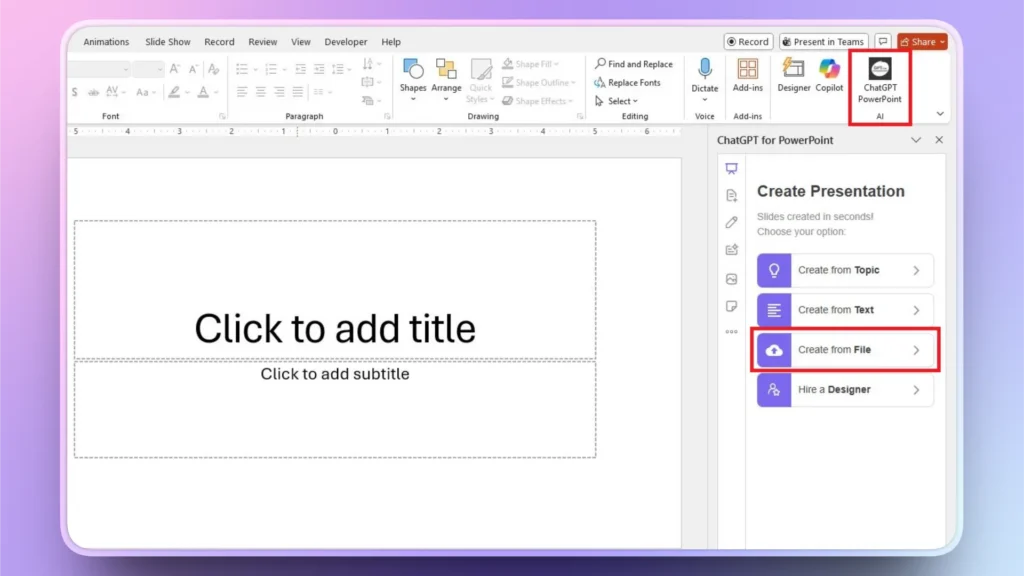
Step 2: Upload your PDF Document
Click the Upload button and then select the PDF document from your computer that you want to summarize. You can also select whether to use the original text from the document or summarize the content.
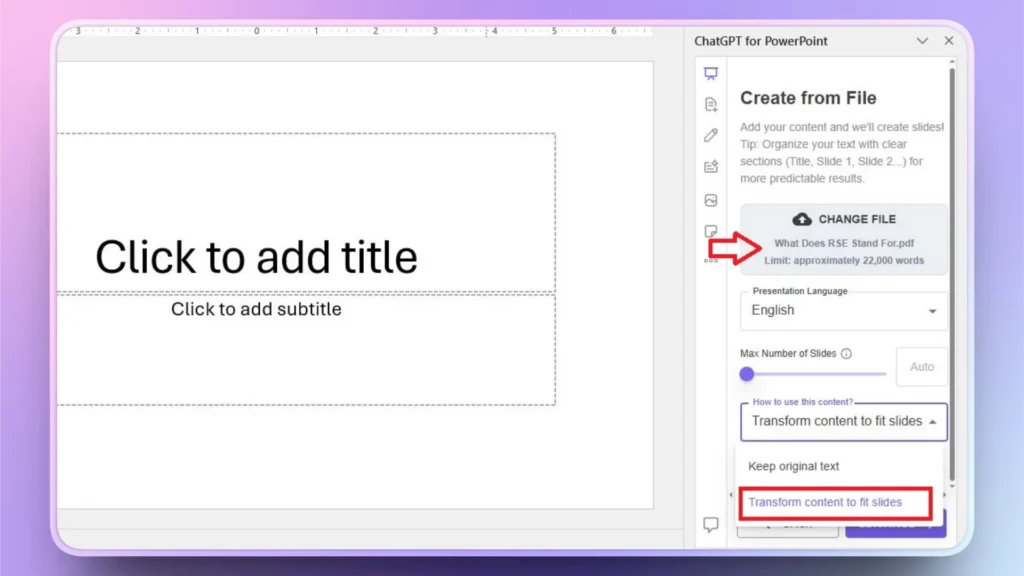
Step 3: Review Outline and Select Theme
Twistly will generate an outline for the slides that you can edit or review. Confirm the outline and then select the desired AI template from the next step. You can choose any theme that suits the topic.
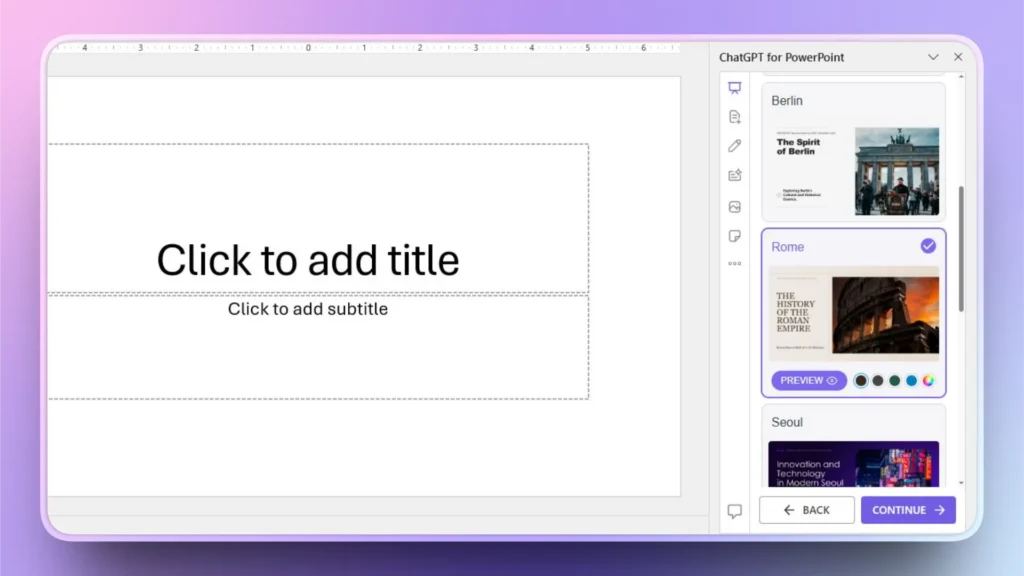
Step 4: Review or Present Slides
Within a few seconds, your presentation slides will be ready. The time required for the final presentation depends on the length of the document, internet speed, and your chosen settings.
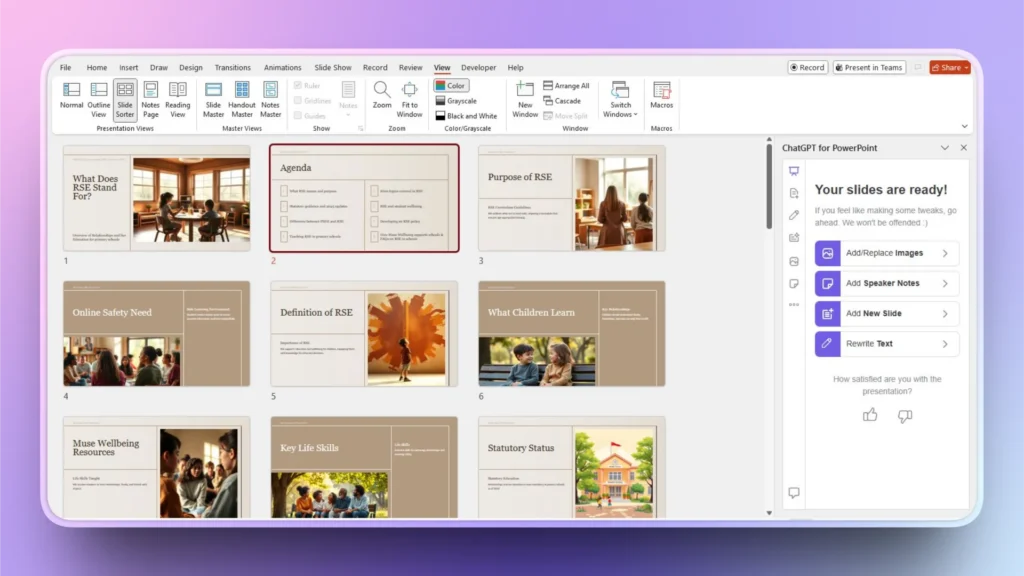
As you can see in the above image, Twistly made up to 34 slides, based on the PDF document. You can specify the number of slides according to your needs. This whole process did not take more than two minutes.
Be Smart, Be Productive with Twistly
Instead of wasting hours and days on conventional presentations through manual methods, try Twistly for free and generate instant slides with AI. New users can try the free trial version of Twistly by clicking the link below.
Millions of PowerPoint users can rely on Twistly for their important presentations and daily assignments. There are many other powerful AI features in Twistly that make it an ideal PowerPoint assistant for anyone.
Create PowerPoint Slides with AI
Build AI-powered presentations from any prompt, doc, or video

Conclusion
Summarizing a 50-page PDF into a slide deck isn’t about shrinking content; it’s about turning data into digestible slides. Manual methods can be frustrating and time-consuming, and that’s why we highly recommend using Twistly for PowerPoint presentations, a smarter and faster way.
Twistly is backed by the latest AI models that allow normal users and experts to turn topics, texts, and documents into attractive and professional presentations.


Start Making AI Presentations in Seconds
Instant Access
Begin exploring Twistly’s full suite of features immediately
No Commitments
No credit card required, and you can cancel anytime
Dedicated Support
Our team is here to assist you every step of the way during your trial.