



To remove background graphics in PowerPoint, go to the Design tab >> Format Background >> select Solid Fill and check the Hide Background Graphics option in the same pane. These settings will remove all background graphics and other elements from a slide.
You might want to remove background graphics in PowerPoint for a simpler and cleaner design. PowerPoint allows users to remove background graphics from selected slides or all slides in a presentation.
This article will help you polish slides by removing unwanted logos, colors, graphics, or backgrounds, and as a bonus, we will also share the easiest way to remove the background from an image inside PowerPoint.
Method 1: Remove Background Graphics in a Single Slide
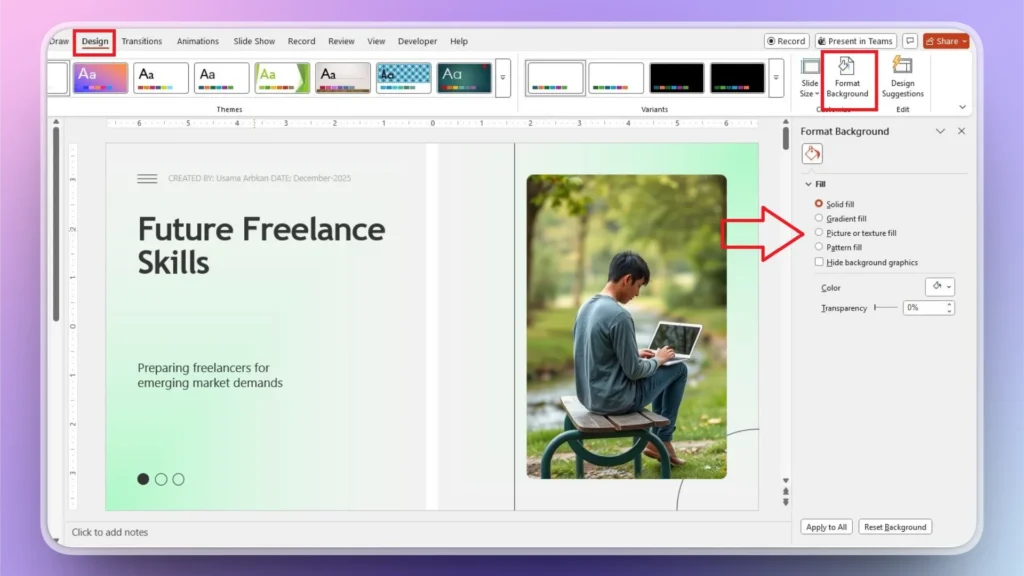
To remove background graphics in a single slide, go to the Design tab and then use the Format Background feature. For a more step-by-step guide, follow the next steps.
Step 1: Access Design Tab >> Format Background
Open your presentation and navigate to the slide where you want to remove background graphics. Go to the Design tab and then click the Format Background option. A new pane will appear on the right side.
Step 2: Select Solid Fill or any Color
If the background is set to Pattern Fill, Gradient Fill, or any other option, select Solid Fill and then choose white or any other color from the Color option, and background graphics will be removed.
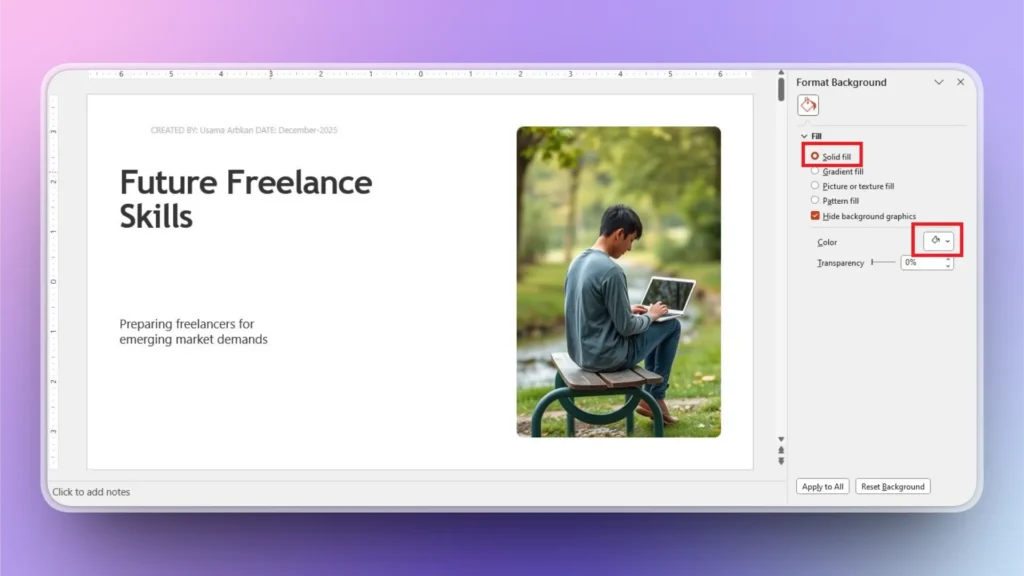
Note: If some elements still remain unchanged, don’t forget to check the “Hide Background Graphics” options because many elements are separately added as graphics, not as background.
Method 2: How to Remove Background from All Slides?
To remove the background from all slides in a presentation, you need to use Slide Master View. This tab offers controls for the options that are automatically applied to all slides in a presentation.
If some graphics did not remove successfully in method 1 (using the Design tab to remove graphics), the Slide Master method might work more effectively.
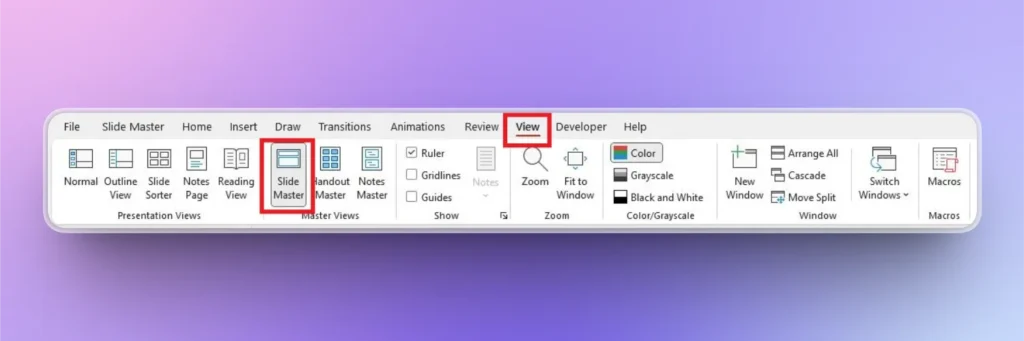
Step 1: Access Slide Master View
Open your presentation and click View tab >> Slide Master, and then a new Slide Master tab will appear in the top ribbon.
Step 2: Edit Master Slide
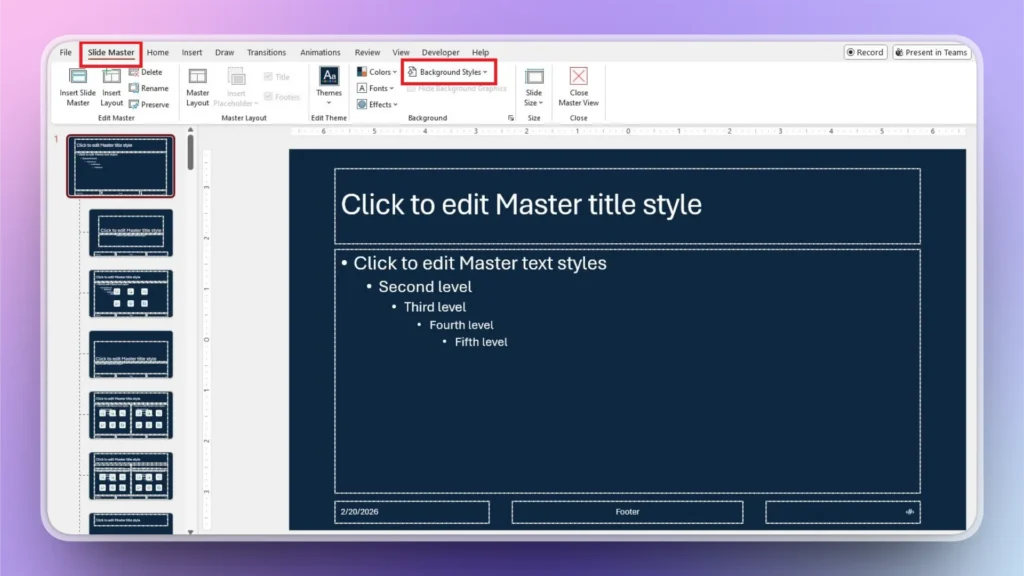
Click the Slide Master tab and then navigate the thumbnail pane to find the very first slide with a bigger thumbnail.
Once the Master Slide is selected, click the Background Styles button to show available options. Any changes made to this slide will be reflected on all slides in the presentation.
Step 3: Remove Background Graphics from Master Slide
Set the background style to white, and you will see that the background graphics in all slides are changed to a white background.
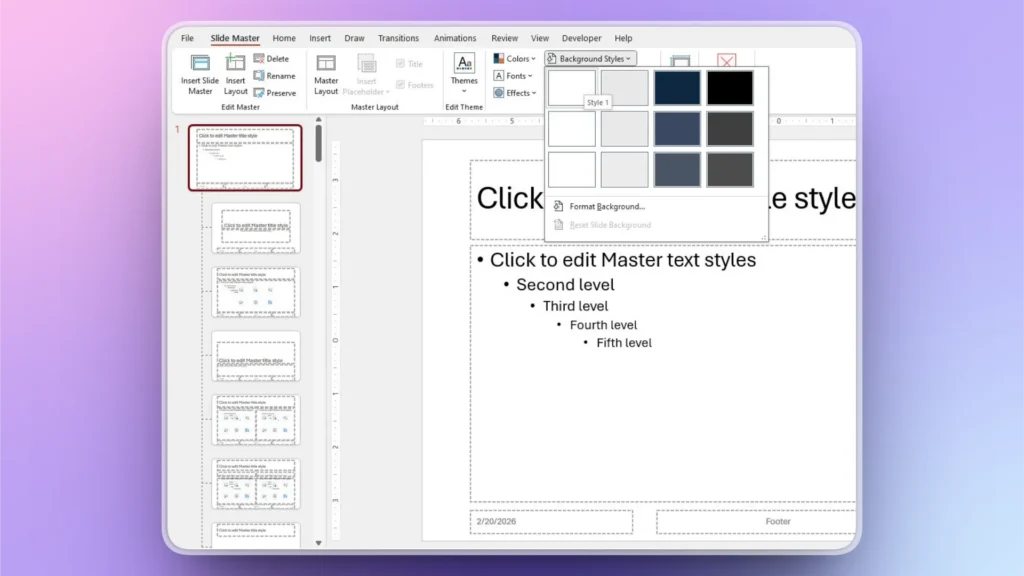
Once changes are made, click the Close Slide Master button to exit the editing view.
Bonus Tip: How to Remove Background from a Picture?
To remove background from a picture, you can use the built-in Remove Background Feature in the Picture Format tab. Without using any 3rd party image editor or tool, here is how to remove the background from a picture inside PowerPoint.
Step 1: Select your Picture >> Picture Format Tab
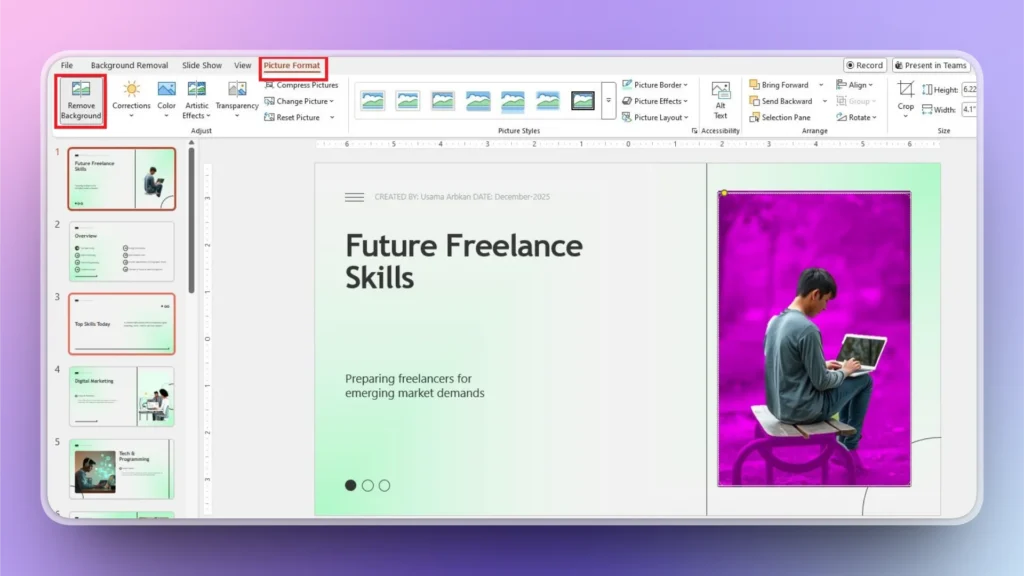
Go to the slide with the picture, click the picture, and you will see the Picture Format tab in the top ribbon.
Click the Remove Background button, and PowerPoint will automatically select areas of the photos that need to be removed.
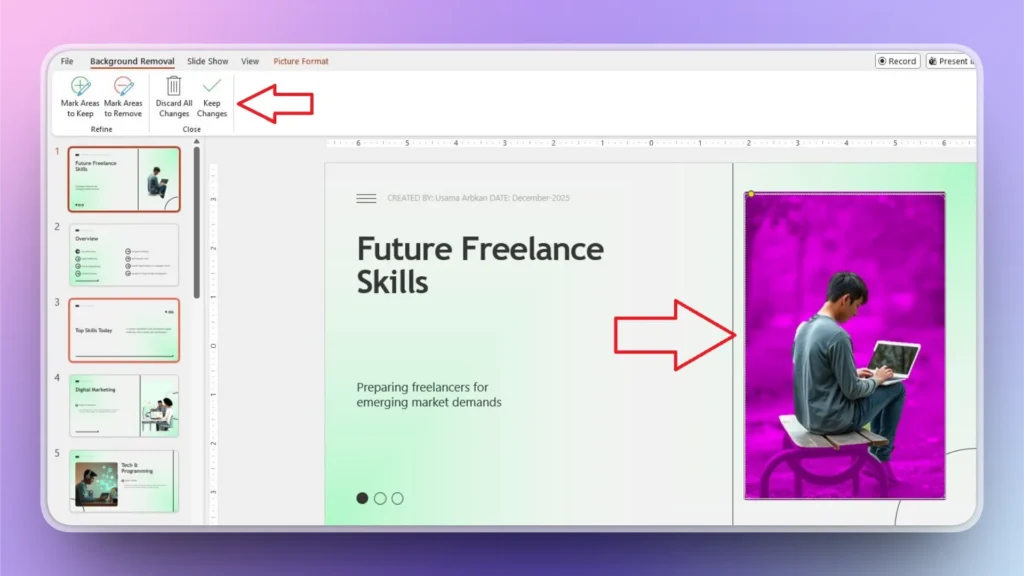
Step 2: Confirm Background Removal
If the suggested changes are accurate, click Keep Changes. Otherwise, for manual edits, use the other two options: Mark Areas to Keep/ Mark Areas to Remove.
How to Generate Attractive Graphics in PowerPoint?
Removing or deleting graphics in PowerPoint is easy, but finding eye-catching and relevant images is still a challenge.
While we are on the topic of graphics and visuals, let us introduce an AI tool that can take care of most tasks that users find challenging about PowerPoint, from finding images to designing slides.
Generating Custom Images with Twistly
Twistly can fetch and insert images from free stock image sites, or users can generate custom AI images for their presentations.
The best thing about Twistly is the complete integration of AI inside PowerPoint. It means that users don’t need to leave PowerPoint and visit other tools to get the job done.
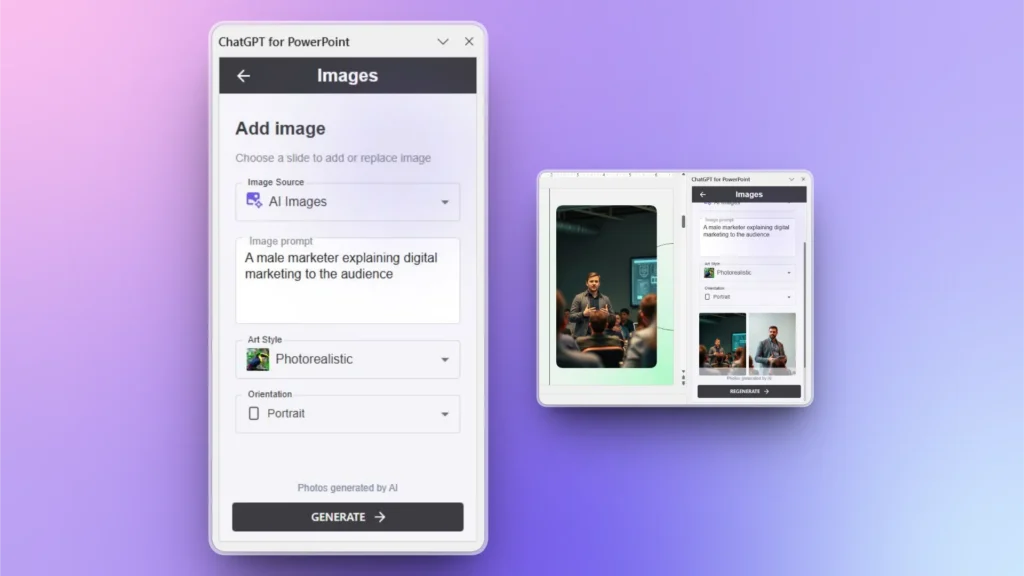
Step 1: Select Add Image from Twistly
Open the PowerPoint slide where you want to replace or add an image. In the Twistly window, select Edit Slides and then click the Add Image option.
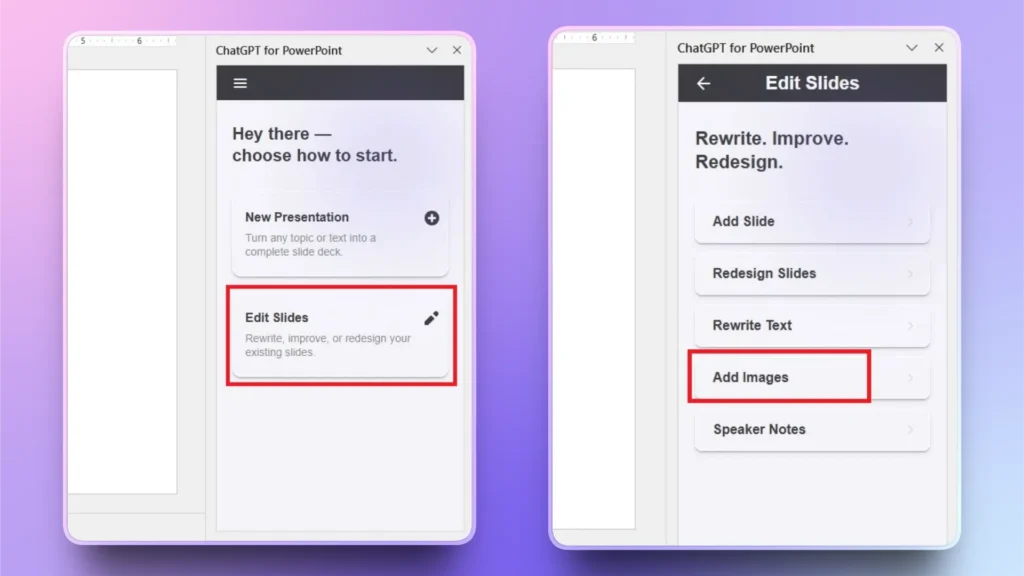
Step 2: Input AI Prompt
Choose AI Image as the source and then input your AI prompt. Twistly will generate two ideas, and you can insert any image with a single click into your slide.
For more image ideas, click the Regenerate button and get more images. You don’t need to resize or adjust the image manually, as Twistly will automatically format the picture.
Is Twistly a Free Add-in?
Twistly is a paid add-in with premium features, but our readers can try this custom ChatGPT for PowerPoint for free. The trial version can be claimed by new users by using the link below.
For user satisfaction, we proudly offer the free trial version so you can get a real-time experience of the AI features offered by Twistly. To unlock all premium features, browse through all available packages and upgrade for a competitive price.
Create PowerPoint
Slides with AI
Build AI-powered presentations from
any prompt, doc, or video


Conclusion
You can remove background graphics in PowerPoint by using the Design tab, Slide Master, or Remove Background feature. 3rd party tools can offer better results for image background removal, but for removing graphics from a slide or entire presentation, you don’t need any additional tool.
Visuals are an important part of any presentation, so pay attention to the little details. If you don’t find relevant images, use the AI image generator by Twistly and get custom images for presentations inside PowerPoint. Claim your Free Trial Version for Twistly and start making professional presentations within seconds.








Start Making AI Presentations in Seconds
Instant Access
Begin exploring Twistly’s full suite of features immediately
No Commitments
No credit card required, and you can cancel anytime
Dedicated Support
Our team is here to assist you every step of the way during your trial.