


To make a slideshow in TikTok, you need to use the mobile app, and pressing the “+” button will help you publish a slideshow, story, or post on your feed. A TikTok slideshow can turn static photos and images into engaging content.
TikTok allows creators and users to add songs, custom audios, stickers, transitions, effects, and many more creative elements to their content, images, and videos.
Even if you are a newbie to TikTok, this guide will guide you through a step-by-step process for making a slideshow on TikTok.
What is a Slideshow on TikTok?
The idea of a TikTok slideshow is similar to a PowerPoint slideshow, as it is a video-style content created from multiple images or media that plays sequentially with added music, text, effects, and transitions.
Filming a video takes time, so users use TikTok to turn their existing photos into dynamic videos. Slideshows on TikTok are popular for:
- Photo dumps
- Product showcases
- Storytelling posts
- Tutorials
- Fashion and outfit reveal
- Travel recaps
Step-by-Step Guide on Making a TikTok Slideshow
The process of making a TikTok slideshow on iPhone and Android smartphone apps is almost the same. For this tutorial, we are using visuals from an Android TikTok app.
Before getting started, make sure you have the photos that you want to use for the slideshow and the latest TikTok app installed on your smartphone. The slideshow feature is currently unavailable at the official desktop version of the app.
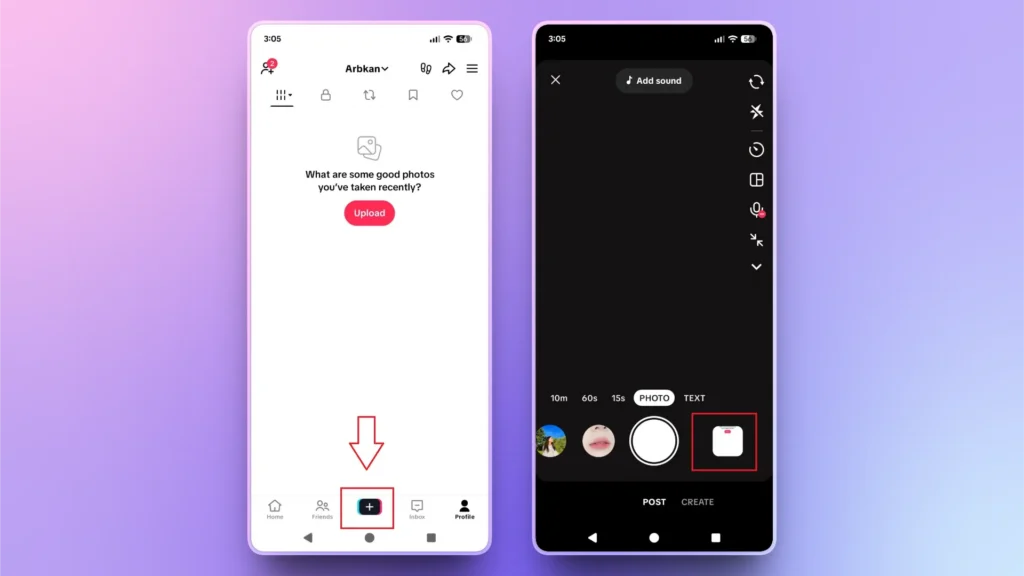
Step 1: Create a Post and Select Images
Open the TikTok app on your smartphone and click the “+” button at the bottom of the screen. Click the Image icon at the bottom right, as you need to pick images from the gallery.
You can use other options to take real-time photos, too.
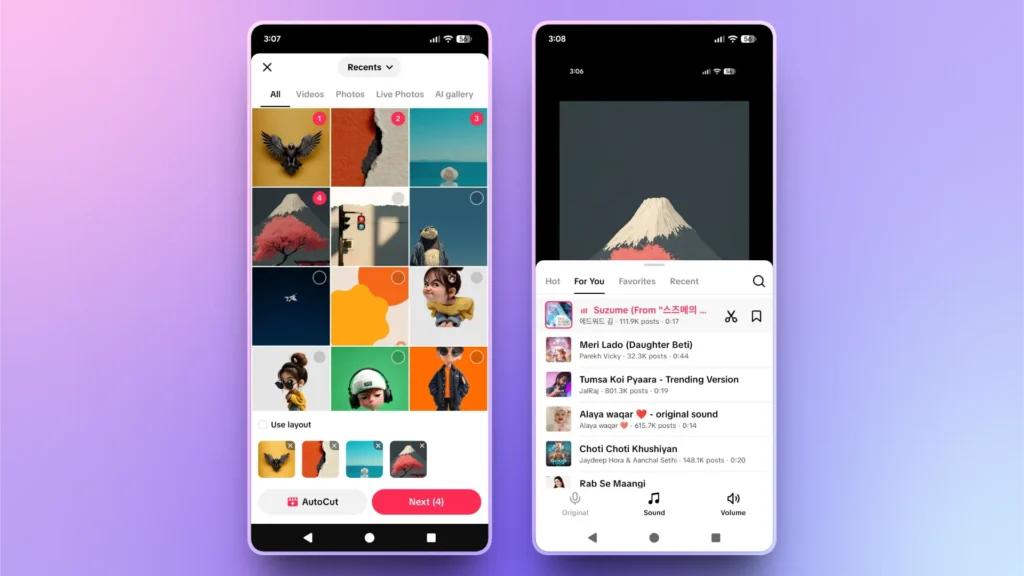
Step 2: Select Images and Set Audio
TikTok will open your phone’s gallery, where you can select multiple photos that you want to add to the slideshow. Select photos and click Next.
Now, you will see the sound option at the top of the screen, click it, and available sounds will appear that you can choose for the slideshow.
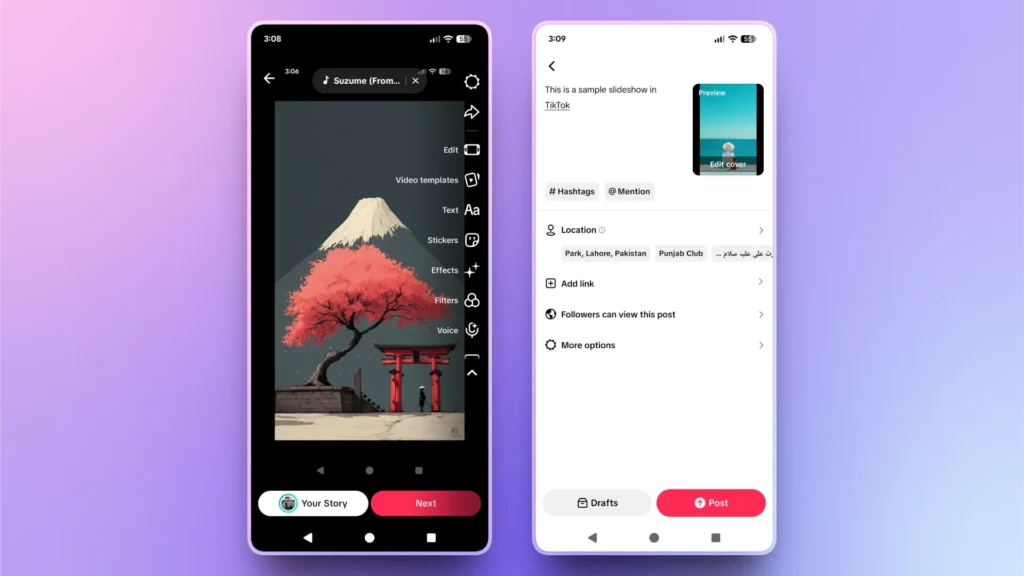
Step 3: Customize Slideshow and Post
After setting a sound, you can add further elements like effects, stickers, text, and custom voices. Once finished, click Next.
The final screen will ask you to add a caption, hashtags, and a location. You can also add links and make other changes to the video settings.
Once everything is finished, post the slideshow or download it, and you can also save it to Draft.
How to Edit an Existing Slideshow on TikTok?
Once you have posted a slideshow, you cannot edit the uploaded version. If you need to make any changes, the ideal way to deal with this situation is to download the slideshow, make edits, and delete the previously uploaded slideshow.
Now, upload the revised video. It is always advised to preview the final content before posting. During the review process, you can find issues before making the video available to the public.
How to Make Your TikTok Slideshow Go Viral?
Almost every TikTok creator wants their content to go viral, but getting views on TikTok is not easy. If you don’t have a huge following on the platform, the chances of your video going viral are pretty slim.
But certain steps can help your video get noticed by the audience. To increase engagement, you can:
- Use trending sounds and songs in your slideshow
- Add visual hooks in your first slide to engage the viewer
- Keep slides fast so viewers can consume more content in less time
- Use high-quality, interesting, and original photos
- Strong captions can also help with SEO
How to Make a Slideshow on PowerPoint?
You can make a slideshow on PowerPoint with Twistly, and you won’t have to make all these edits or design changes manually, as mentioned in the TikTok slideshow guide.
TikTok slideshows are mostly for entertainment and marketing purposes, but PowerPoint presentations are an essential part of professional communication.
What is Twistly?
Twistly is an AI add-in that lives inside PowerPoint and works just like ChatGPT for presentations. Users can write content, add images, design slides, and create complete presentations with Twistly.
What makes Twistly better than other AI PPT makers? Unlike other tools, Twistly does not require users to switch between different apps and tabs.
From images to design and content, everything happens inside PowerPoint. No need to switch between multiple apps and websites.
Create PowerPoint
Slides with AI
Build AI-powered presentations from
any prompt, doc, or video


Steps to Make a PowerPoint Slideshow with Twistly
The process is kept quite simple for PowerPoint users. Even newbies can generate pro-level presentations with Twistly. You just need to:
- Open PowerPoint and launch Twistly, and choose the input type
- Enter the topic of your presentation
- Review the AI-generated outline for presentation and select a template
- Your final slides are ready so that you can review or edit with AI or PowerPoint tools
How to Install and Download Twistly for PowerPoint?
If you are a new user and want to get a free trial version of Twistly, click the link below and start your trial version. To install the add-in directly in PowerPoint, go to the add-in library of PowerPoint and search for Twistly. Download and install it.
Create PowerPoint Slides with AI
Build AI-powered presentations from any prompt, doc, or video

Conclusion
Making a slideshow on TikTok is simple, fast, and highly effective for boosting engagement without filming videos. Adding sounds, stickers, transitions, and other effects to your video can make your content even more interesting and entertaining.
Whether you are a content creator or a professional, slideshows have an important role in personal and professional communication. In the professional world, PowerPoint plays the most important role in presenting ideas and data.
If you think PowerPoint is complicated or you don’t have the required experience and knowledge, try Twistly and change your way of making smart presentations.









Start Making AI Presentations in Seconds
Instant Access
Begin exploring Twistly’s full suite of features immediately
No Commitments
No credit card required, and you can cancel anytime
Dedicated Support
Our team is here to assist you every step of the way during your trial.