


PowerPoint is the most popular presentation tool, trusted and used by millions of users. Does it mean PowerPoint is free from errors and troubles? No, many users have faced a similar issue, stating “PowerPoint found a problem with content in filename. PowerPoint can attempt to repair the presentation.”
How to fix the ” PowerPoint found a problem with content error without losing the contents of the file? If you don’t handle this error properly, you may not be able to view or edit the contents of the presentation file.
What is the “PowerPoint Found a Problem with Content” Error?
This problem usually occurs when users try opening presentations downloaded from online sources like OneDrive, Dropbox, or email attachments. PowerPoint will tell you to click the Repair button in the warning window to fix the issue, but it does not seem to work.
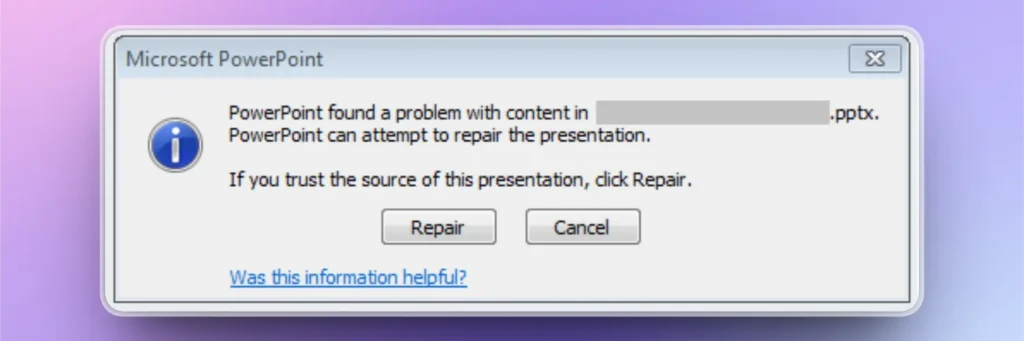
PowerPoint has strict security protocols to protect users’ data, and this error is triggered when the system detects malicious, incomplete, or corrupted elements in a file. This error may seem frustrating, but it protects the data integrity by blocking the unsafe presentation files.
To fix the ” PowerPoint Found a Problem with Content error, you have two options in the warning pop-up:
- Repair – PowerPoint tries to fix the file automatically
- Cancel – Stops the file from opening
Methods to Fix “PowerPoint Found a Problem with Content” Error
There can be different reasons behind this error, and we will discuss possible methods to resolve this issue. If one method does not work for your corrupted presentation file, you can try the next one.
Exclusive Tip: AI Tool for Instant Presentations
If nothing works for your corrupted presentation and you need to make a new one instantly, we have the solution for such situations, too. Twistly is an AI tool for PowerPoint that can create instant presentations on any topic, within a minute or two.
Create PowerPoint
Slides with AI
Build AI-powered presentations from
any prompt, doc, or video


Method 1: Add File Location to Trust Center
Sometimes the file does not have any issues, but the location of the downloaded file triggers the warning. When you download files from the internet, the download folder is different from the trusted locations in PowerPoint.
If you see an error for an externally downloaded presentation file, you can try adding the destination folder to the Trust Center of PowerPoint.
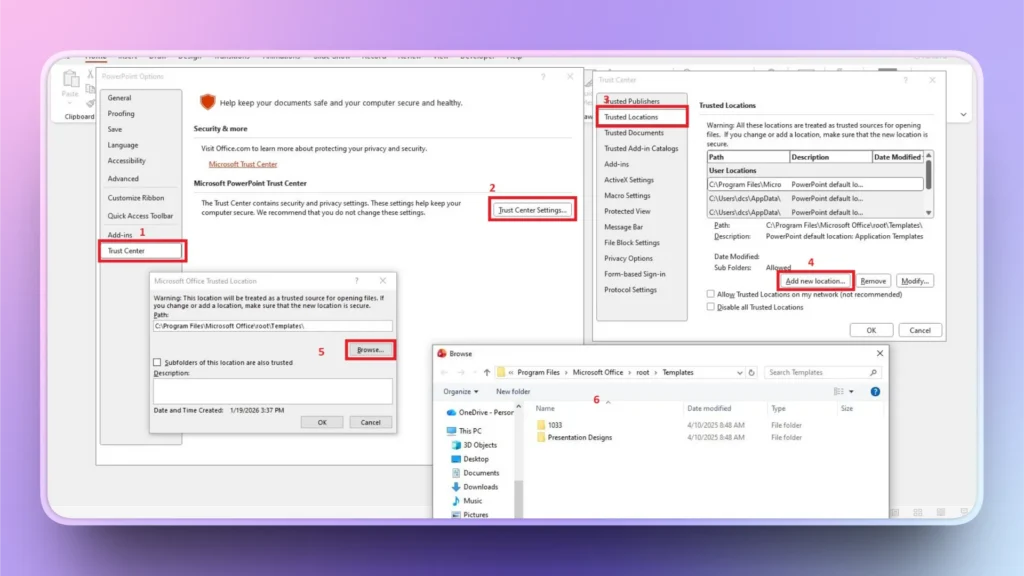
Step 1: Open PowerPoint and click File >> Options
Step 2: Click Trust Center >> Trust Center Settings.
Step 3: Choose Trusted Locations from the new window and click Add New Location
Step 4: Browse your folder with the file and click Add.
Try opening the same file again, and your presentation file will run smoothly. If it still does not work, follow the next methods to fix the PowerPoint Found a Problem with Content error.
Method 2: Disable Protected View in PowerPoint
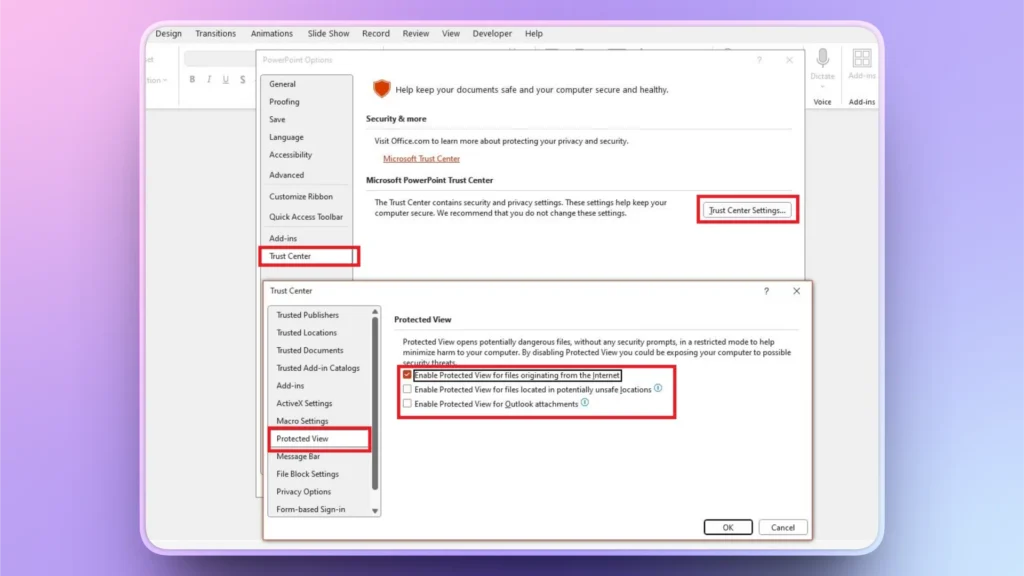
Protected View in PowerPoint is also a security feature to keep your data and software protected against possible threats and malicious files. By default, protected view modes are enabled.
To fix the error, we will disable protected view modes. The process is easy, and all you have to do is follow the steps.
Step 1: Open PowerPoint >> File >> Options >> Trust Center >> Trust Center Settings.
Step 2: Go to Protected View and then uncheck all options.
Method 3: Move File to Another Folder
Another simple solution to fix the error is to move the downloaded presentation file from the existing folder to another folder where all other presentations are saved.
You can easily cut/copy the corrupted file and then paste it into the folder where other presentation files are already saved. It will probably save the file as a trusted file and fix the issue.
Method 4: Repair Presentation File
This method rarely works, but you can still give it a try. When you see the error for the first time, click the Repair button, and if it fixes the problem, you are good to go. If not, then all these other methods are still there to save you from trouble.
How to Create a New Presentation Urgently?
You have tried all these methods, but could not restore the contents or fix the issue. The deadline is due in the next few hours, and you don’t have enough time to create a new one from scratch. What should you do in this situation?
The ideal solution is to use Twistly to create a new presentation from scratch within 90 seconds. Twistly is an AI tool for PowerPoint that brings ChatGPT-like capabilities to your software.

How to Create Instant Presentations with Twistly?
Twistly is an add-in that you can install in PowerPoint, so you don’t need to switch between apps and websites while making presentations. From content to images and design, everything happens inside PowerPoint.
Step 1: Open PowerPoint and launch Twistly, and choose the input method to create a presentation
Step 2: Input your data, topic, or text, and select other options according to your requirements
Step 3: Review the AI-generated outline for the slides and make changes if necessary
Step 4: Select an AI PowerPoint template that suits your presentation topic
Step 5: Review the final slides and present your slides with confidence.
These 5 simple steps need no manual editing or formatting. You just have to select simple options, and AI will do the rest. It takes less than 90 seconds to create a complete presentation with Twistly.
Download Twistly for Free
You don’t need to worry about lost opportunities or corrupted presentations anymore because ChatGPT for PowerPoint can save your day.
Download the free trial version of Twistly now and experience the best AI PPT maker of 2026, for free.
Create PowerPoint Slides with AI
Build AI-powered presentations from any prompt, doc, or video

Conclusion
You can fix the “PowerPoint Found a Problem with Content” error by adding the location to the trust center or by using other methods in this article. Users don’t need to worry about these errors, but handle the process with care.
PowerPoint is a great tool, but it still needs some additional add-ins like Twistly to make presentations easier and more convenient for beginners and professionals.











Start Making AI Presentations in Seconds
Instant Access
Begin exploring Twistly’s full suite of features immediately
No Commitments
No credit card required, and you can cancel anytime
Dedicated Support
Our team is here to assist you every step of the way during your trial.