


PowerPoint presentations can have useful visuals, images, and charts that you might need for other projects. Do you know how to extract high-quality images from a PowerPoint file without affecting the image quality?
You probably think that taking a screenshot of the slide or using Snipping Tool to save images from PPT is a smart move, but it isn’t. This way, you will get blurred and low-quality images, and we don’t want that.
We are after extracting images from an existing PowerPoint without losing any pixel of the photo. Apart from extracting photos, we will also teach you how to find high-quality photos for the slides. Just stay with us till the end.
Extracting High-resolution Images from PowerPoint
There are different methods to copy or extract images from PowerPoint presentations. You may feel that the easiest method offers a lower resolution for the images. We have another method to overcome that issue, too.
First of all, let’s start with the easiest method to extract images from a PowerPoint file. The resolution may not be top-notch, but the process is easy.
Method 1: Use the “Save as Picture” Option
PowerPoint allows users to save any visual element from the slide to the computer. You don’t even need to use any additional tools or software to extract or copy images from PowerPoint files with this method.
Step 1: Open the slide with the Image
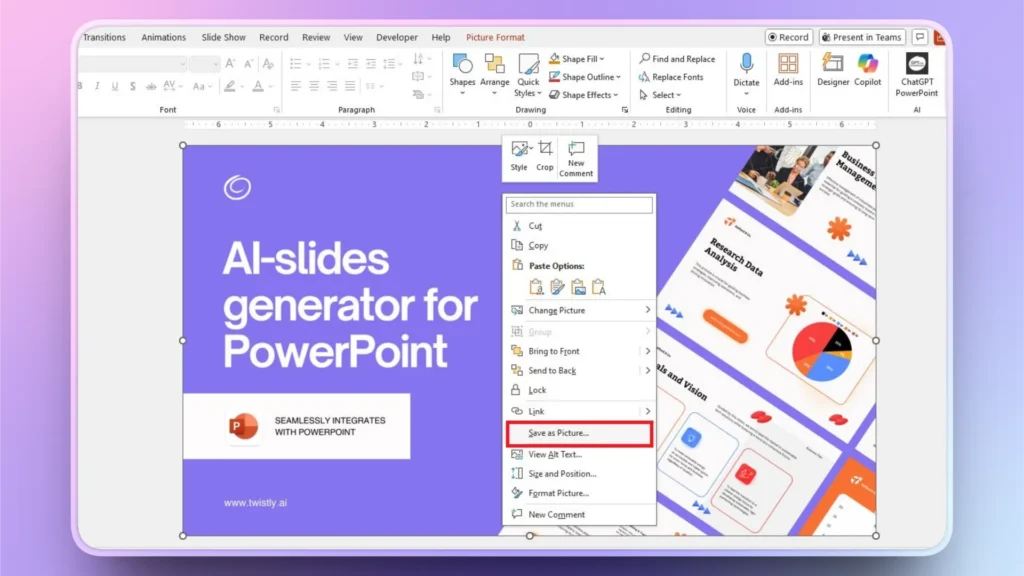
Open your PowerPoint presentation and then navigate to the slide with the target image. Right-click on the image and choose “Save as Picture” from the list.
Step 2: Save to your Device
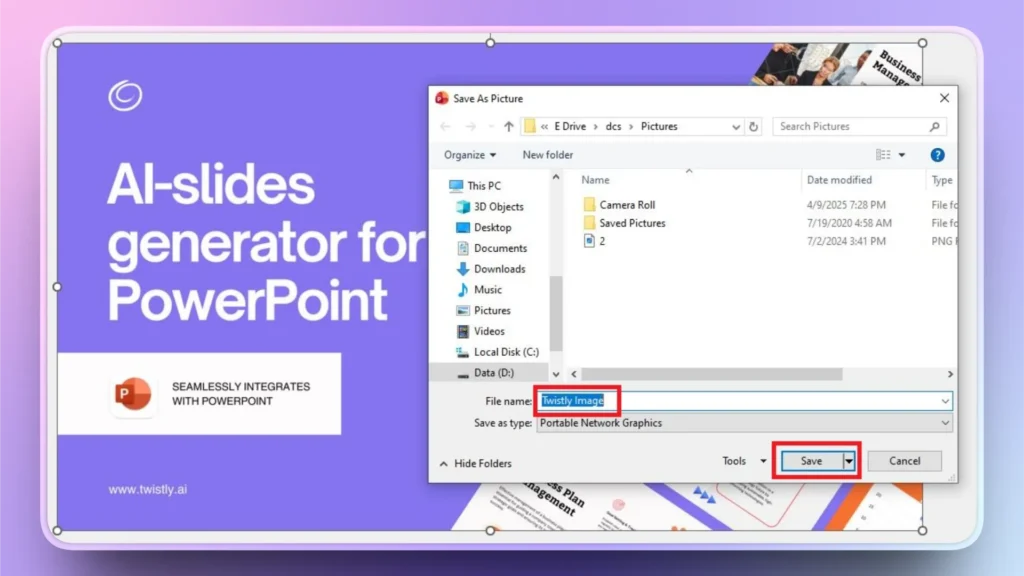
A pop-up will appear where you can select the destination folder on your computer to save the image from the slide.
Name the image file and click Save, and the image from your PowerPoint file will be saved in your selected folder on your computer.
Why isn’t the Best Method to Extract Photos?
You can easily extract photos from any slide with two clicks, but professionals don’t prefer this method for several good reasons.
When you upload or insert any photo to your presentation slides, PowerPoint automatically compresses the image size to keep the slides lightweight.
As a result, using this method usually does not give high-quality photos. You can instruct PowerPoint not to compress your photos in slides. How to do that? We will learn that in the next sections.
Method 2: Save All Images from a Presentation via .zip Extension
Changing the extension of your PowerPoint file can also help you extract all images from a file at once. Here are simple steps that you can follow to save all images at once from a PowerPoint file.
Step 1: Change the File Extension
Go to the folder where your PowerPoint presentation is saved and change the .pptx extension to .zip and save changes.
- From: presentation.pptx
- To: presentation.zip
If you have installed any compression tool like WinRAR, you can also use that tool to compress the file.
Step 2: Extract the Zip File
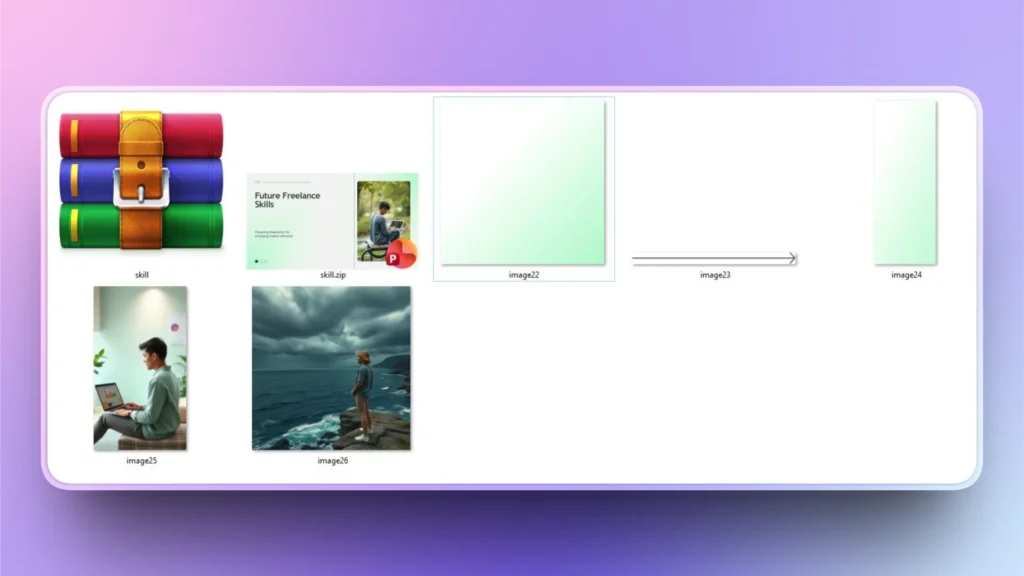
Right-click the compressed file, click Extract all, and go to the media folder in the extracted file. For the WinRAR software, you may see similar visuals.
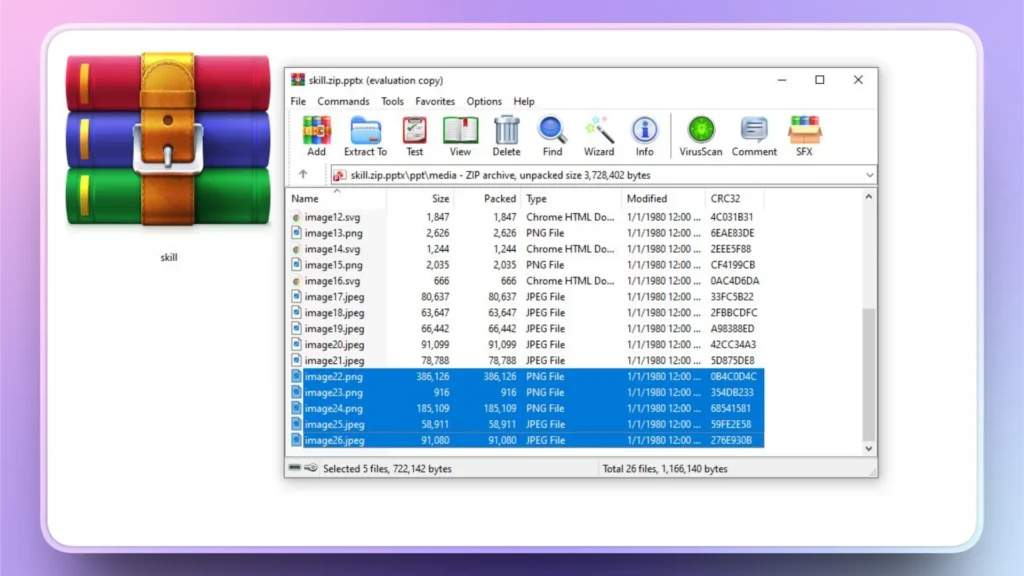
Now, select the images that you want to copy from the presentation and paste them into your destination folder on your computer.
Step 3: View All Extracted Images
You can view these images, and you will see that all photos are of high quality, and you extracted the desired image in a single step.
How to Disable Image Compression in PowerPoint?
As seen in the first method to extract high-quality images from PowerPoint, the saved photos don’t have the desired quality. This happens due to automatic image optimization and compression features in PowerPoint.
You can turn off this feature so that all images added to the presentation slides maintain the real quality of the photos.
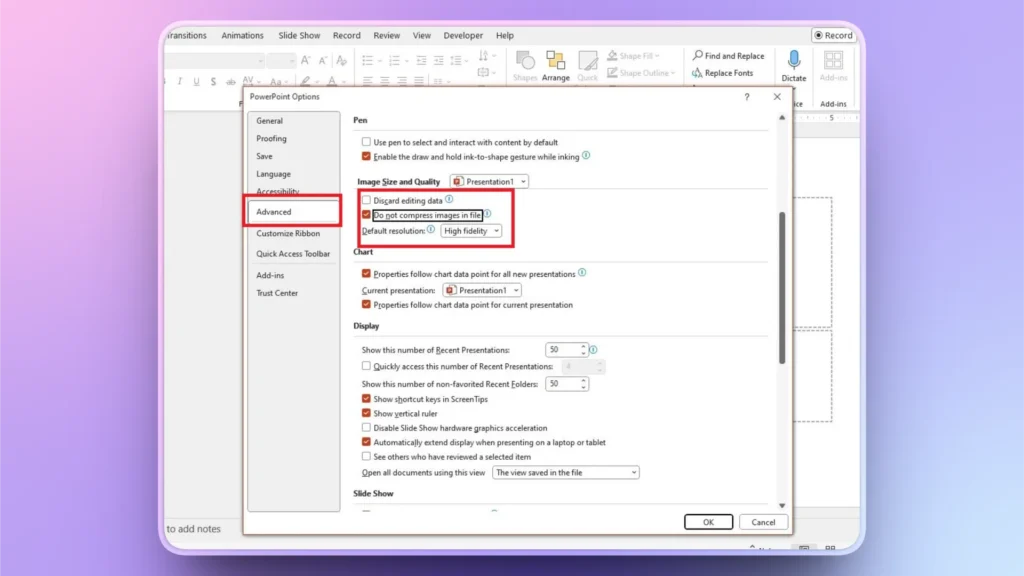
Open PowerPoint >> click File >> Options >> Advanced >> scroll down to Image Size and Quality.
Here, check the “Do not compress images in file” and save changes. Now, all images in your slides will maintain the original resolution.
How to Find High-quality Images for PowerPoint Presentations?
In this tutorial, you have learned how to extract high-quality images from a PowerPoint file. But if you don’t know how to find the high-quality images for PowerPoint, that’s an even bigger problem.
Using images from Google web image results is not the ideal way to find images for professional presentations. We have the right tool for this purpose, Twistly.
What is Twistly for Images?
Twistly is not only meant to find high-quality images from stock photo sites, but it also lets you create custom AI images inside PowerPoint. Apart from images, this one tool takes care of writing content, designing slides, and other aspects of professional presentation.
Option 1: Insert High-quality Images for Stock Photo Sites
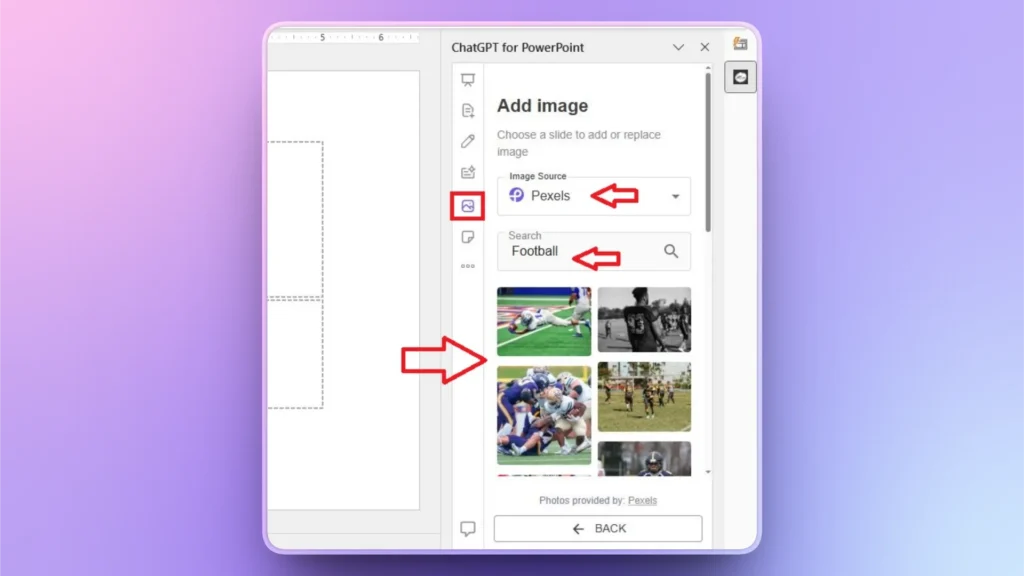
Step 1: Open PowerPoint, launch Twistly, and click the Add Image option
Step 2: Choose Image Source and then input your keyword to find relevant images from the source
Step 3: Click the Insert button, click the required image, and that photo will be automatically added to your slide.
Option 2: Create Custom AI Images
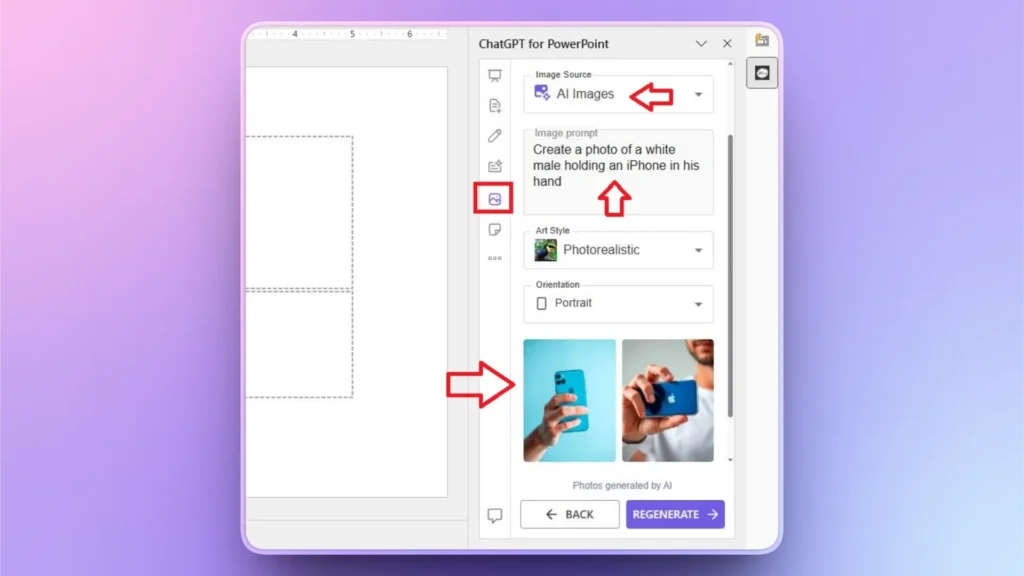
Step 1: Select AI as the image source and enter your AI prompt for the image
Step 2: Select your image from the results and insert it into the slide
Step 3: Click Regenerate for more AI image results
Conclusion
You can extract high-quality images from a PowerPoint file by using the Save as Picture feature or by using the .zip extension for bulk extraction. Make sure you have disabled the image compression so that photos don’t lose quality in the slides.
If you are impressed by how useful Twistly can be for your PowerPoint presentations, give it a try for free. Click the button below to download the free trial version and experience true ChatGPT for PowerPoint.
Create PowerPoint
Slides with AI
Build AI-powered presentations from
any prompt, doc, or video












Start Making AI Presentations in Seconds
Instant Access
Begin exploring Twistly’s full suite of features immediately
No Commitments
No credit card required, and you can cancel anytime
Dedicated Support
Our team is here to assist you every step of the way during your trial.