


You can either use paid SWOT analysis templates or use AI to create a customized presentation for a more professional look. A SWOT analysis presentation is an important part of one’s professional career. In the education, consultancy, and business world, SWOT is a strategic planning framework.
Manually designing a SWOT analysis presentation can take hours, even for proficient users. With AI, you can create personalized and editable SWOT analysis presentations in PowerPoint.
Let’s start with the basic overview of SWOT analysis, and then we will go through the step-by-step guide on how to create a SWOT analysis presentation with AI.
What is a SWOT Analysis Presentation?
SWOT stands for strengths, weaknesses, opportunities, and threats. A SWOT analysis presentation turns these aspects into visually attractive slides for smarter and clearer communication. Our focus is to turn insights into PowerPoint presentations with AI.
SWOT analysis presentations have wide applicability in business, education, sales, marketing, and consultancy niches. Other common uses include:
- Business strategy meetings
- Startup pitch decks
- Marketing planning
- Product launches
- Academic and training presentations
Creating a SWOT Analysis Presentation with AI
Finding the right tool for any task has now become a real challenge. There are hundreds of AI tools available that offer no real value to users. In this article, we will create a SWOT analysis presentation with an AI tool that is trusted and used by millions of users, Twistly.
What is Twistly?
Twistly is an AI add-in for PowerPoint that brings ChatGPT-like capabilities to PowerPoint. You can ask Twistly to generate individual slides or complete presentations based on the input, including AI prompts, topics, text, and documents.
Users can explain their presentation goal and idea in simple words, and AI will turn that data or input into visually appealing presentations.
Requirements for Creating SWOT Analysis PPT with AI
Requirement 1: Before turning insights and data into PPT slides, you need information, company data, and other details that you need for the slides. You can use ChatGPT or custom-generated data as input for Twistly.
Requirement 2: Another thing is to install the Twistly add-in in your PowerPoint software. You can get Twistly from Microsoft AppSource or use the link below to download a free trial version.
The add-in library in PowerPoint also has the Twistly add-in as the highest-rated AI add-in for presentations.
Create PowerPoint
Slides with AI
Build AI-powered presentations from
any prompt, doc, or video


SWOT Analysis Presentation with Twistly
As you have the data ready as input, and the Twistly add-in is also installed. Now, follow these simple steps to create a SWOT analysis presentation with AI, within a few minutes.
Step 1: Open PowerPoint and Twistly
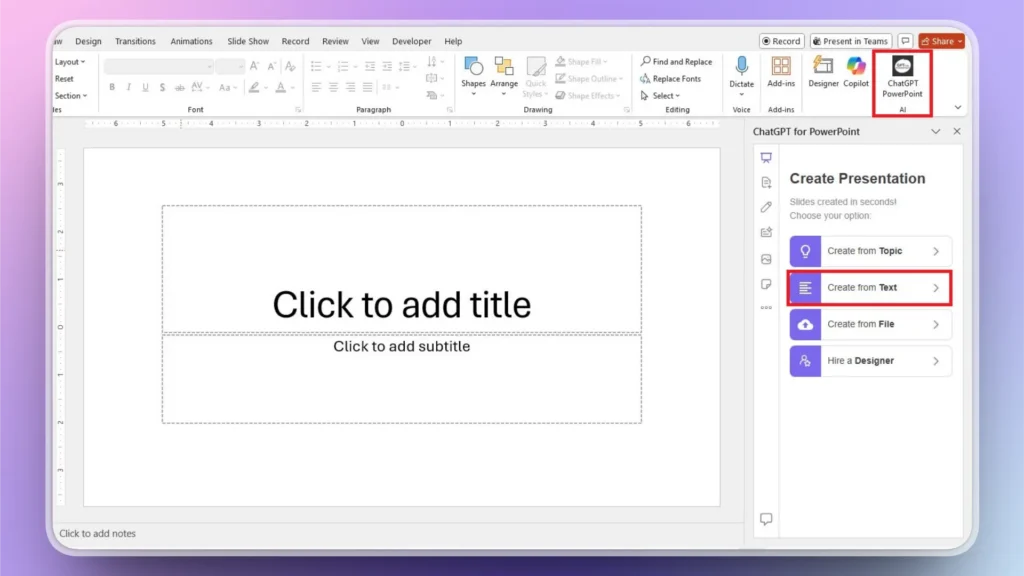
Start a blank PowerPoint presentation and launch Twistly. As shown in the image below, you have several input methods available. Choose the “Create from Text” option.
Step 2: Paste your Data or Instructions
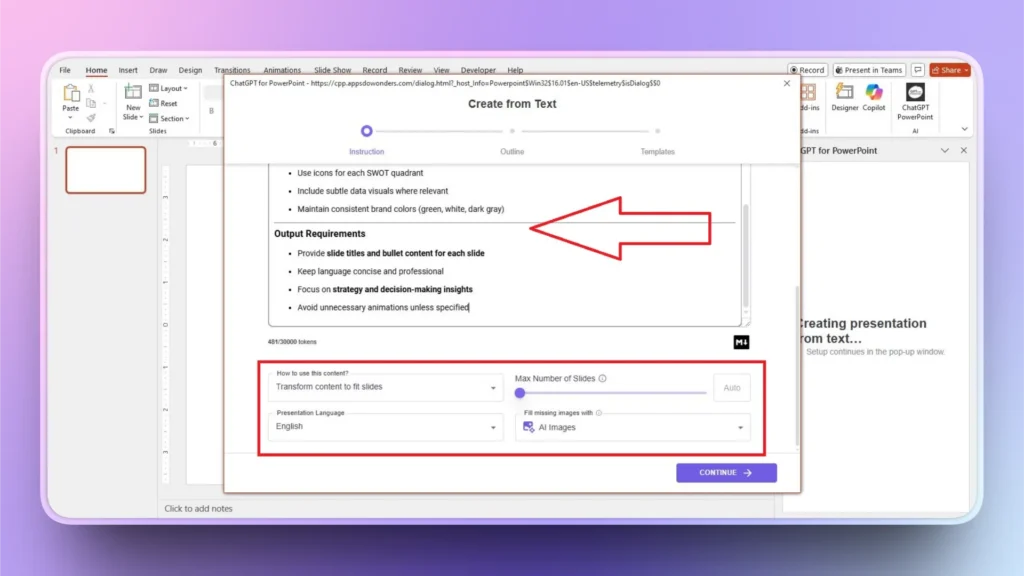
A new window will appear where you can paste the data and then set the language for the presentation, image source, content tone, and number of slides.
Paste the text that you have, or get help from ChatGPT for a more personalized SWOT analysis for your company or project.
Step 3: Review the Slide Outline
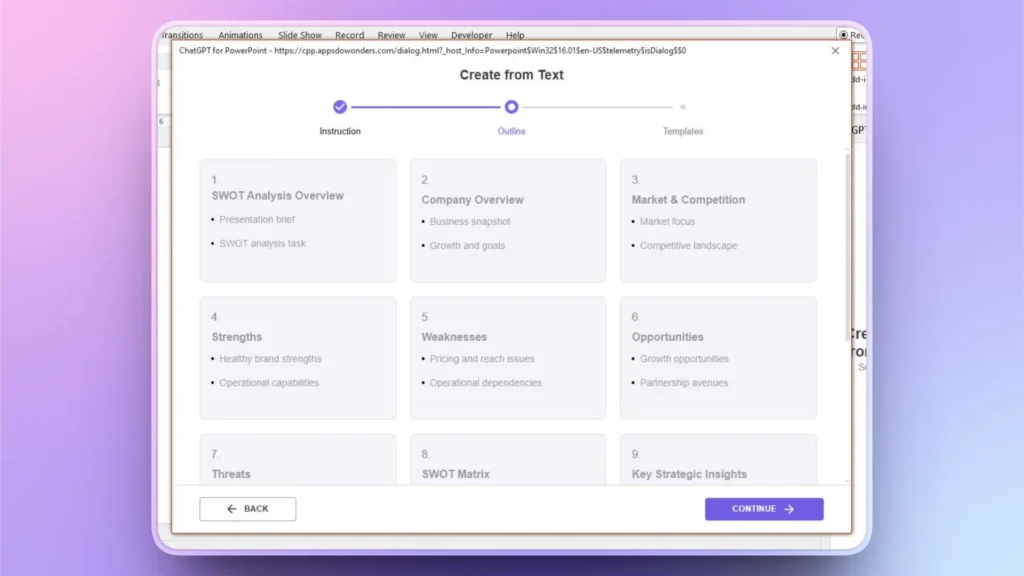
Twistly will generate a potential outline for all the slides based on your input. Review this outline and make changes if needed. If any specific slides are missing, you can add or delete slides, too.
Step 4: Select an AI PowerPoint Template
Twistly has several AI PowerPoint templates that are fully optimized and editable for different types of topics. Select a template that suits your branding and then click Continue.
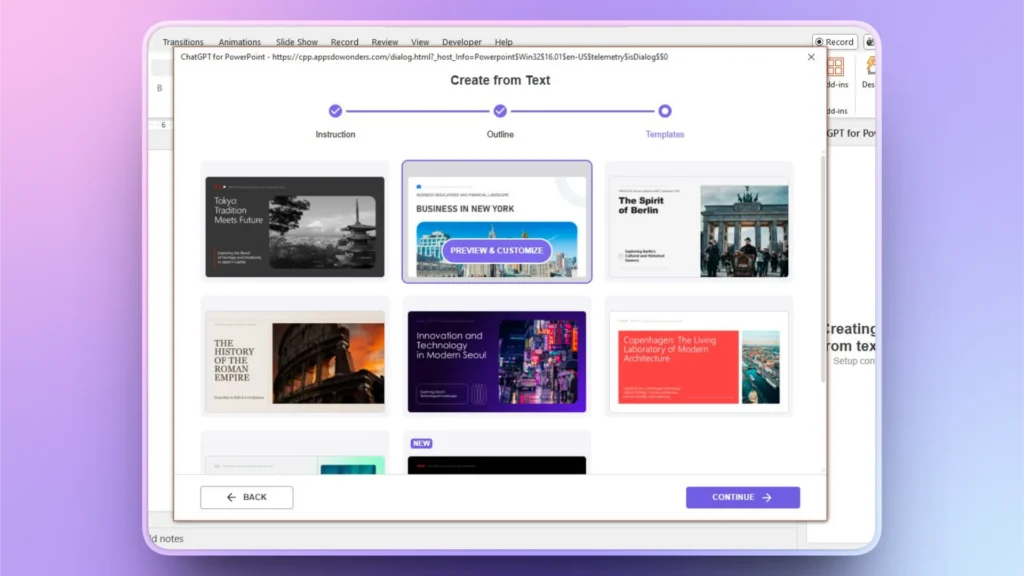
Step 5: Your SWOT Analysis Presentation is Ready
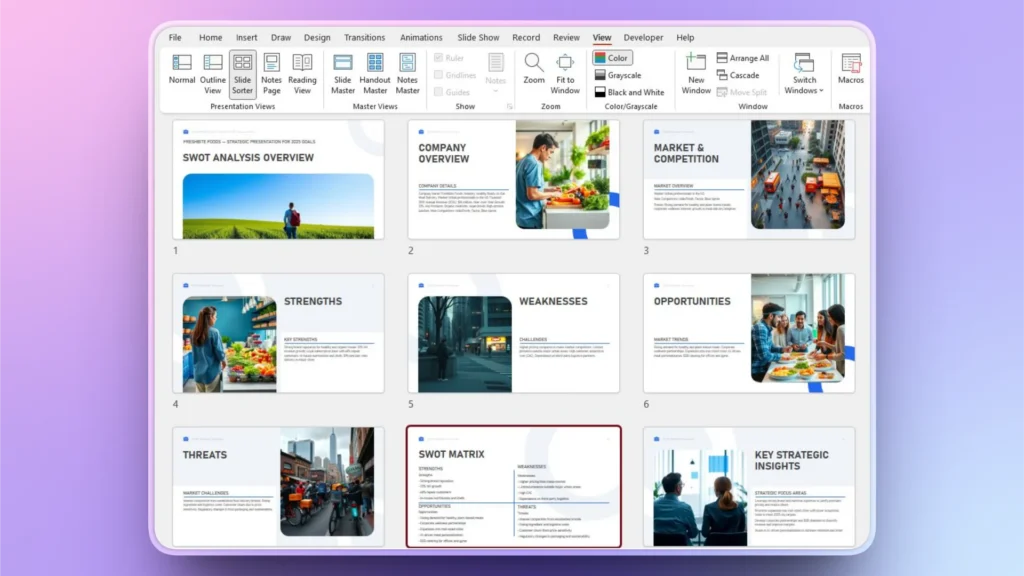
Within a minute or two, Twistly will generate a complete presentation, including a dedicated SWOT analysis slide.
As you can see, within a few clicks and moments, Twistly generated an entire presentation for you with all the details, visuals, data visualization elements, and professional formatting.
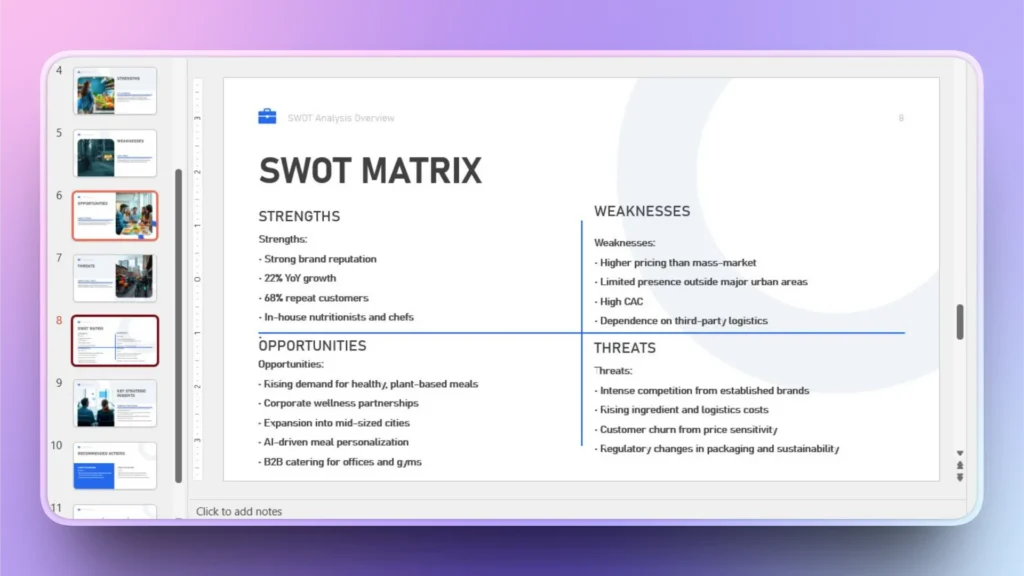
Benefits of using Twistly for SWOT Analysis Presentation
Have you ever used any other AI PPT maker? You probably need multiple tools and sites to get things done. With Twistly, everything happens inside PowerPoint. From generating images to writing content and formatting slides, AI lives in PowerPoint.
Why create a SWOT analysis presentation with AI tools like Twistly? Because you get to enjoy several perks, including:
- Generate content and slides in minutes
- AI helps uncover patterns and gaps
- Balanced SWOT quadrants
- Clean layouts, icons, and visuals
- Adapt tone for executives, investors, or teams
How to Optimize Presentation for Executives?
You have a SWOT analysis presentation with 12-15 slides, but the CEO does not have time to sit through the entire presentation. How to ensure that executives have all the important data and information about your presentation?
Creating an Executive Summary Slide
Adding an executive summary to the presentation will provide all key information in one slide. You don’t need to create this slide from scratch. Twistly has an AI solution for the executive summary slide, too.
Follow these simple steps, and you will have an instant summary slide for your SWOT analysis presentation.
Step 1: Add Executive Summary Slide
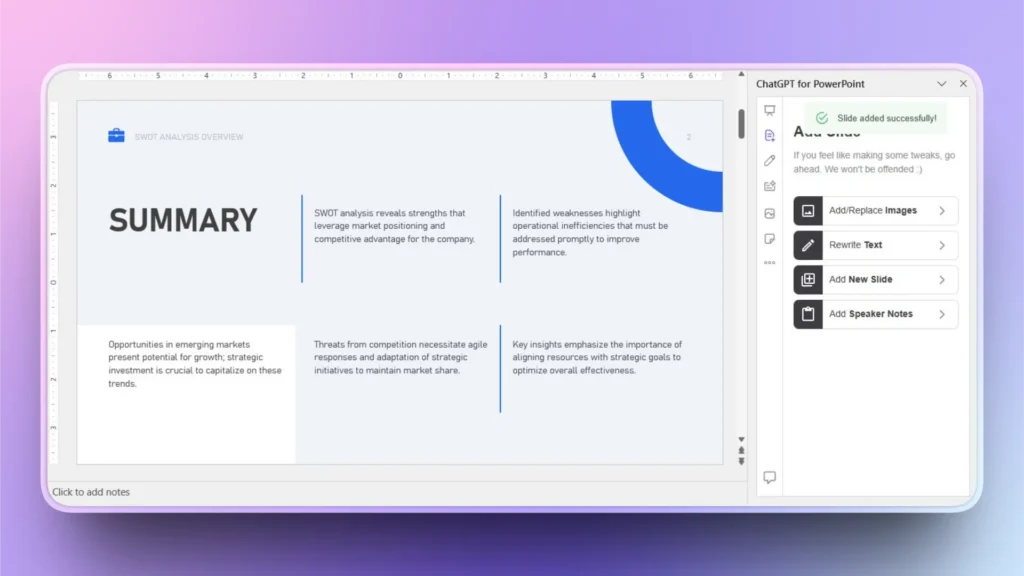
Go to the “Add a Slide” option in Twistly and then select the Title and Sections option from the Layout menu, and then select the Summary layout from the available options.
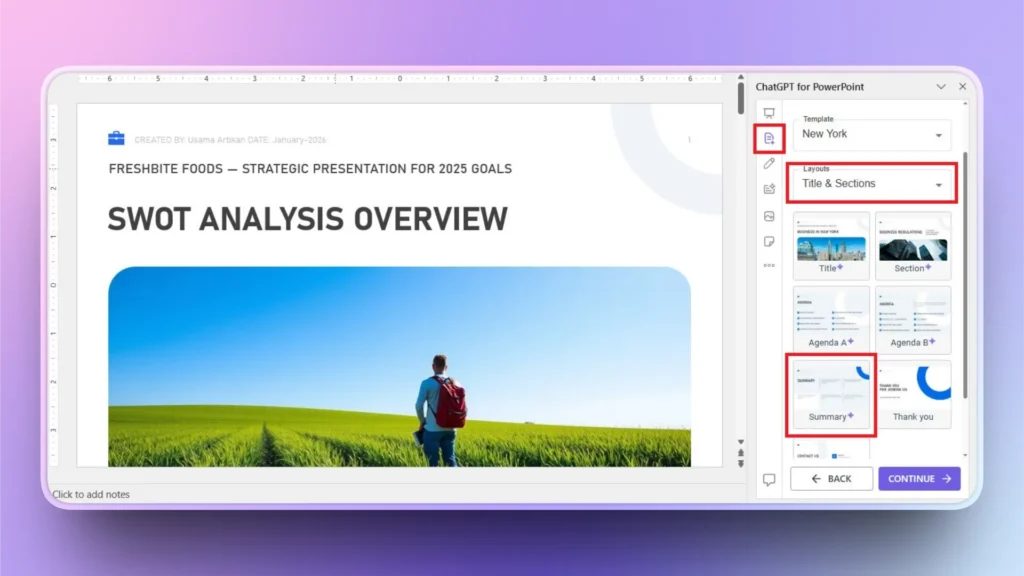
Step 2: Review the Summary Slide
AI will generate the slide within a few seconds. Give it a read and make changes if needed. Slides generated with Twistly rarely need any changes or edits.
Conclusion
You can create a SWOT analysis presentation with an AI tool like Twistly, but don’t forget to review the output and dedicated SWOT slide. Blindly trusting AI-generated results may leave room for mistakes and errors.
If any specific point or slide is missing from your presentation, you can always turn to Twistly to generate slides with AI. Whether you need a simple slide or a content-heavy presentation, Twistly works best for all types of PowerPoint presentation projects. Download Twistly now and claim your free trial version.
Create PowerPoint Slides with AI
Build AI-powered presentations from any prompt, doc, or video












Start Making AI Presentations in Seconds
Instant Access
Begin exploring Twistly’s full suite of features immediately
No Commitments
No credit card required, and you can cancel anytime
Dedicated Support
Our team is here to assist you every step of the way during your trial.