


How to Create a Self-running Kiosk Presentation for Trade Shows?
Trade shows offer great branding opportunities for businesses and companies. But presenting your service or product requires a unique and interactive approach, as you have only a few seconds to grab the attention of the audience.
If you have set up a booth, staff cannot speak to everyone at the same time, but you can create a self-running kiosk presentation to display important details about your business or product.
A self-running kiosk presentation can run in a loop, unattended, and display your message visually. You can turn a self-running kiosk presentation into an effective marketing tool when your booth staff are busy handling other queries.
What is a Self-running Kiosk Presentation?
As the name suggests, a self-running presentation does not need human input to display the next slide in a presentation. A presentation is labelled as a self-running deck if it:
- Plays automatically without continuous human input
- Loops continuously
- Uses animations, transitions, and other elements of a PPT
- It is optimized for unattended viewing
At trade shows, you can use larger displays, screens, touchscreen kiosks, tablets, or digital signage to run these presentations with customized branding materials.
Creating a Self-running Kiosk Presentation
Once you have created the presentation, the next step is to set up the slideshow. We need to make some additional changes to the slideshow settings for a self-running presentation. Open your PowerPoint presentation and follow these steps.
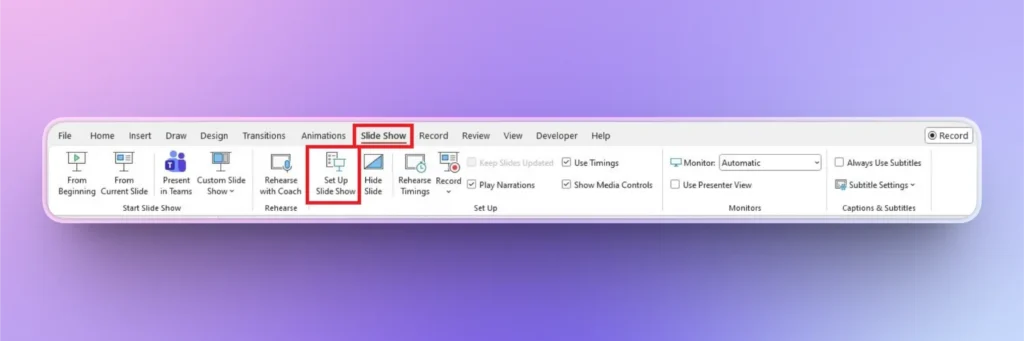
Step 1: Set up Slideshow
Open your PowerPoint presentation, click the Slide Show tab, and then click the Set Up Slide Show option.
Step 2: Set up for Kiosk
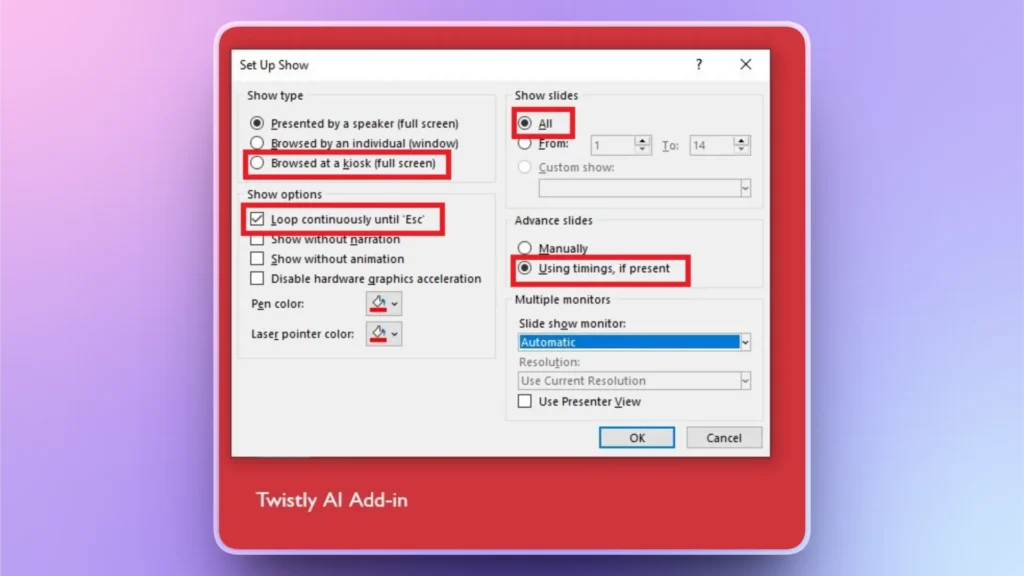
A new settings window will open where you need to select:
- Show type >> Browsed at a Kiosk (full screen)
- Show option >> Loop continuously until ‘Esc.’
- Show slides >> All or select any specific slide numbers
- Advance slides >> Using timings, if present
- Multiple monitors >> Automatic
After selecting these settings, click Ok and your slideshow is set up for a self-running presentation.
Step 3: Select Slide Timing
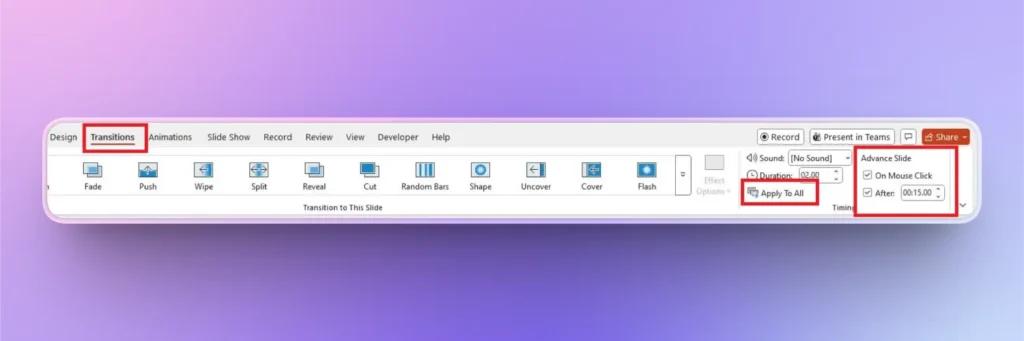
By default, the slideshow will show the next slide after a few seconds. We might want to increase the duration for each slide. PowerPoint will show the next slide automatically after your set duration.
Click Transitions tab >> Advance Slide >> After: set duration in seconds >> click Apply to All.
Step 4: Start Slideshow
Your presentation is all set to run without any manual input once started.
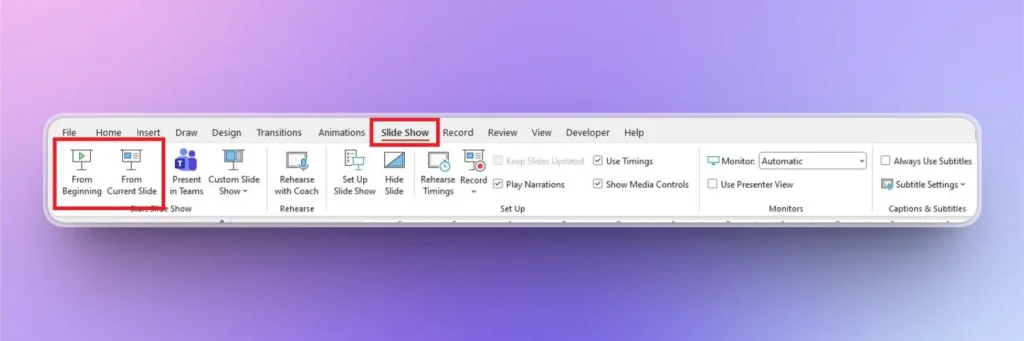
Go to the Slide Show tab >> choose whether to play From Beginning or From Current Slide, and your slides will start playing and keep running in a loop until you stop the slideshow.
Add Narration or Sound to Slideshow
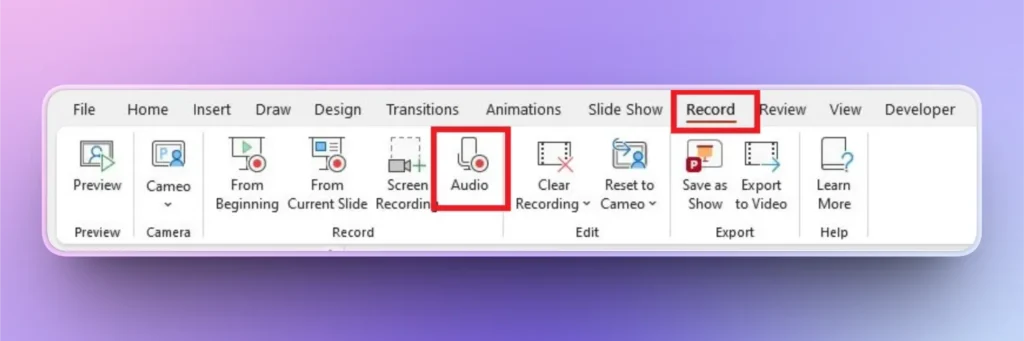
For a more personalized presentation, you can add sound, music, or live narration to your slides. The Record tab offers different tools and options to add sounds to your slides.
Use the options in the given tab to start recording your narration or to add other sounds to the self-running kiosk presentation for trade shows.
Benefits of using Self-running Kiosk Presentations
Marketing your business or product with the right tools is important for grabbing the attention of the audience. A self-running presentation requires less investment and almost no human intervention or input.
Here are some benefits of using a self-running presentation for a kiosk in a trade show:
- Attract the attention of the audience instantly
- Communicate your brand message without any dedicated staff
- Deliver consistent branding and play your message for as long as you want
- Increasing audience engagement and generating leads with less investment
If you don’t want to spend a lot on advanced marketing tools, create a self-running presentation and automate the marketing process at a lower cost.
How to Create a Branding Presentation with AI?
Here comes another challenge: how to create an interesting presentation that can attract the audience? Do you need to be a PowerPoint expert to create brand presentations for the kiosks in trade shows?
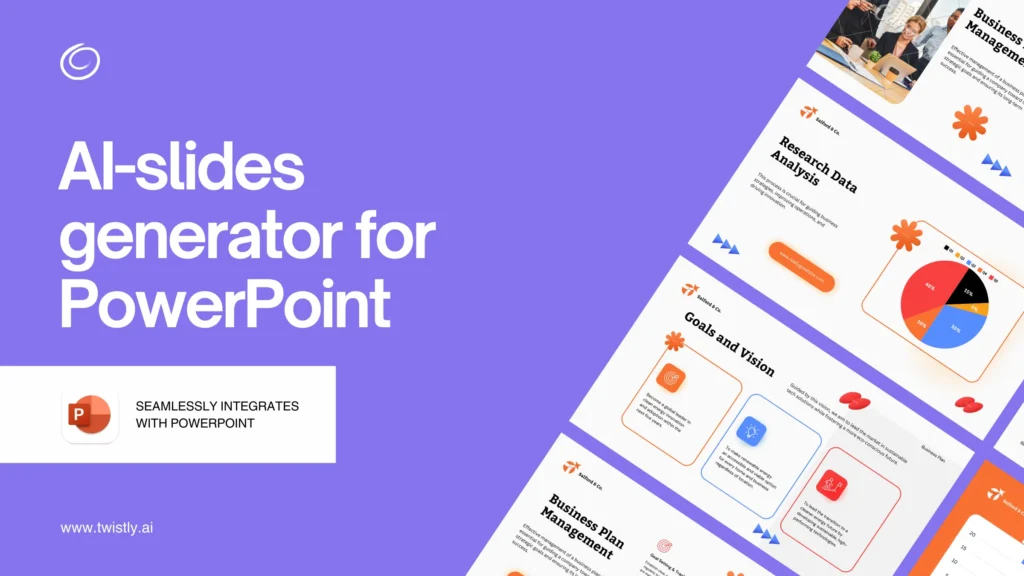
We can help you generate a professional presentation for your brand within seconds. Yes, you read it right, Twistly is an AI add-in for PowerPoint that can generate a complete presentation within seconds.
How to Use Twistly for Branding Presentations?
Twistly lives inside PowerPoint, and you don’t need to switch between multiple apps and websites. You can download the Twistly add-in from the official website, Microsoft AppSource, and the PowerPoint add-in library.
You don’t need to be an expert in writing, designing, or PowerPoint to create professional presentations with Twistly. AI makes your job easier and more convenient. Just follow these simple steps.
Step 1: Open PowerPoint and start a new presentation, and launch the Twistly add-in
Step 2: Choose an input method and enter your topic, AI prompt, paste text, or upload a document
Step 3: Review the AI-generated slide outline and then select a branded AI PowerPoint template
Step 4: Your PowerPoint presentation will be ready within seconds
This whole process of making professional presentations with AI takes less than 90 seconds. If you need to make any further changes to the presentation, use AI features in Twistly or native PowerPoint tools.
Try Twistly for Free
Even a non-technical person can generate pro-level presentations with Twistly. This is a multi-purpose AI tool for every PowerPoint user.
We understand that you are tired of so-called AI PPT makers, and that’s why we offer a free trial version of Twistly for new users. Before making any financial commitment, use Twistly for free without a credit card.
Create PowerPoint
Slides with AI
Build AI-powered presentations from
any prompt, doc, or video


Final Verdict
A self-running kiosk presentation is one of the most cost-effective ways to maximize your trade show presence. This tutorial teaches you everything that you need to know for a self-running presentation. If you want more useful sources to improve your PowerPoint experience, visit our Blog and try Twistly for free.
When designed correctly with Twistly, a self-running presentation works like a silent salesperson, adding value and driving engagement.


Start Making AI Presentations in Seconds
Instant Access
Begin exploring Twistly’s full suite of features immediately
No Commitments
No credit card required, and you can cancel anytime
Dedicated Support
Our team is here to assist you every step of the way during your trial.