


Los cuadros de texto en PowerPoint pueden ser una herramienta útil o dejar sus diapositivas con un aspecto desordenado si no se manejan con cuidado. Ya sea que esté limpiando una vieja cubierta de diapositivas, simplificando una diapositiva ocupada o arreglando una plantilla que alguien más diseñó, saber cómo eliminar correctamente un cuadro de texto es esencial.
En proceso puede parecer sencillo a primera vista (y puede serlo), pero hay algunos detalles importantes que pueden ahorrarle quebraderos de cabeza y desastres accidentales de maquetación.
Paso 1: Haga clic en el borde, no en el texto
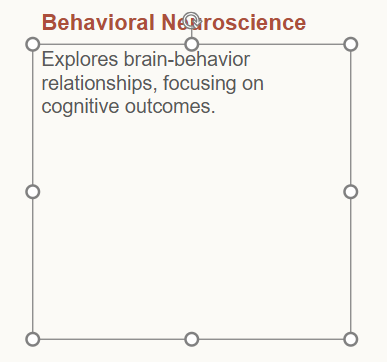
Lo más importante es recordar: haga clic en el borde, no dentro de la caja.
Cuando haga clic dentro, entrará en modo de edición y sólo podrá cambiar o borrar texto, no el cuadro en sí. En su lugar, pase el ratón por el borde del cuadro de texto hasta que cambie el cursor.
Cuando lo veas, haz clic para seleccionar todo el cuadro de texto. Verás que aparece un contorno sólido o unas asas a su alrededor. Eso significa que estás listo para moverlo o eliminarlo.
Paso 2: Pulse Suprimir (o Retroceso)
Después de seleccionar el borde del cuadro de texto, basta con pulsar el botón Borrar o Retroceso del teclado. El cuadro completo y todo su texto desaparecerán inmediatamente.
Si cometes un error, no te asustes. Sólo hit Deshacer (Ctrl + Z) para traerlo de vuelta.
Comprobación de objetos agrupados
A veces, los cuadros de texto se agrupan junto con formas, imágenes o iconos, de manera que se mueven como una unidad. Usted puede saber si ese es el caso de las diapositivas que ha creado usted mismo, pero si está editando un PowerPoint que fue creado por otra persona, puede ser fácil eliminar por error un grupo entero.
Para asegurarte de que sólo borras lo que quieres:
- Haz clic con el botón derecho del ratón en el cuadro de texto.
- Busque Grupo en el menú.
- Si está agrupado, seleccione Desagrupar primero.
- A continuación, haga clic en el borde y elimínelo como de costumbre.
Este pequeño paso evita borrar accidentalmente formas o desplazar otros elementos que estaban bloqueados.
Crear PowerPoint
Diapositivas con IA
Cree presentaciones basadas en IA a partir de
cualquier mensaje, documento o vídeo


Utilizando el Patrón de Diapositivas para Eliminar los Cuadros de Texto del Diseño
Si el cuadro de texto forma parte del diseño original de la diapositiva (por ejemplo, un marcador de posición de título o un área de contenido), tendrá que eliminarlo mediante la función Patrón de diapositivas.
- Ir a la Ver ficha.
- Haga clic en Patrón de diapositivas.
- Elija el diseño de diapositiva específico que contiene el cuadro de texto que desea eliminar.
- Seleccione el borde del cuadro de texto y pulse Suprimir.
- Salga de la vista Patrón de diapositivas pulsando Cerrar Vista maestra.
Este cambio se aplicará a cada diapositiva que utilice ese diseño en particular. Es una forma eficaz de limpiar globalmente los marcadores de posición que no necesita, especialmente si está personalizando una plantilla corporativa o de conferencia.
Consejos para una cubierta más limpia
Ahora bien, eliminar cuadros de texto puede cambiar el diseño general de tus diapositivas. Teniendo esto en cuenta, aquí tienes algunos consejos para mantener tus diapositivas limpias y bien organizadas.
- Compruebe cada diapositiva individualmente después de quitar los cuadros de texto para asegurarse de que no se ha desplazado nada más. A veces el contenido de la diapositiva se realinea inesperadamente.
- Utilizar directrices y cuadrículas para ayudarle a ver si aparecen nuevos problemas de alineación.
- Si su cuadro de texto tenía animaciones asignadas, al eliminarlo también se eliminará el efecto de animación. Revise su panel de animación para poner en orden los activadores sobrantes.
Aunque eliminar un cuadro de texto parezca sencillo, dedicar unos segundos a comprobar las conexiones de agrupación y diseño puede ahorrarle frustrantes correcciones posteriores. Esta limpieza rápida no solo despeja las diapositivas, sino que también da a la presentación un aspecto más profesional y pulido.











Empieza a hacer presentaciones con IA en segundos
Acceso instantáneo
Empieza a explorar inmediatamente todas las funciones de Twistly
Sin compromisos
No necesita tarjeta de crédito y puede cancelar en cualquier momento
Asistencia dedicada
Nuestro equipo está aquí para ayudarle en cada paso del camino durante su juicio.