


Cómo cambiar el color del borde de la tabla en PowerPoint
Las tablas en PowerPoint son útiles, pero no siempre se ven bien fuera de la caja. Los bordes por defecto suelen ser grises, un poco finos y no siempre combinan bien con el resto de la diapositiva. La buena noticia es que es fácil cambiar el color del borde para hacer que sus tablas se vean más pulidas o alineadas con su marca.
Le mostraremos cómo hacerlo.
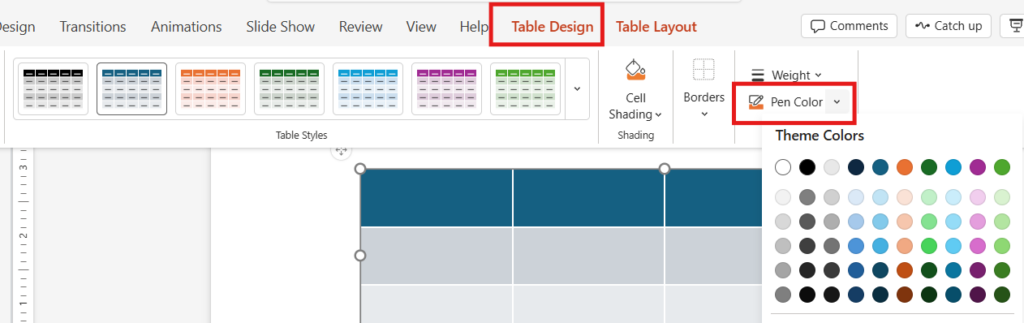
Si aún no has añadido ninguno, sólo tienes que ir a Insertar > Tabla, elige el tamaño y suéltala en la diapositiva. Una vez que la tabla esté en la diapositiva y haya hecho clic dentro de ella, verá dos pestañas adicionales en la cinta: Diseño de la mesa y Diseño. La mayor parte de lo que necesitará está en Diseño de mesas.
Paso 1: Elija qué parte de la tabla desea actualizar
Antes de hacer nada, tendrá que elegir qué parte de la tabla va a actualizar los colores. Puede aplicar cambios de color de borde a toda la tabla o sólo a una parte de ella. Seleccione toda la tabla, algunas celdas, una fila... lo que tenga sentido.
Si sólo quieres cambiar el contorno, selecciona toda la tabla. Si sólo está ajustando las líneas interiores (como para separar filas), puede resaltar esas celdas específicas en su lugar.
Cambiar el color del borde de la tabla
Busque el Color del bolígrafo en la pestaña Diseño de tabla. Suele estar junto a los ajustes de estilo de línea y peso. Haga clic en él y elija un color.
Puedes elegir uno de los colores del tema o elegir Más colores de bordes si intenta igualar el color de una marca o desea algo personalizado. Los códigos hexadecimales también funcionan.
Consejo: Utiliza colores de contraste medio. Los bordes superclaros pueden desaparecer en un proyector. Los superoscuros pueden ser demasiado, a menos que ése sea el objetivo.
[Leer más: Psicología del color y qué colores funcionan mejor en PowerPoint]
Definir el estilo y el grosor de la línea
Antes de aplicar nada, compruebe el peso de la línea (espesor) y estilo (sólido, discontinuo, etc.). Estos ajustes se encuentran justo al lado de la herramienta Color de la pluma. PowerPoint aplicará los ajustes que estén activos cuando añada los bordes, así que configúrelos primero.
Una vez establecidos el color, el peso y el estilo, haga clic en el botón Fronteras desplegable. Esto le permite aplicarlo a las partes específicas que desee. Puede ser sólo el exterior, todos los bordes, sólo la parte superior, etc.
Si quieres más control, mientras el puntero sigue pareciendo un lápiz después de seguir los pasos anteriores, simplemente haz clic en el borde que quieras cambiar. Puede dibujar manualmente los bordes donde desee.
Consejos rápidos para el diseño de mesas
Por supuesto, el diseño importa, y no conviene exagerar con el color. Aunque el color puede ser útil para que el público entienda mejor la tabla, un exceso puede hacer lo contrario. Tenga en cuenta lo siguiente...
- No te pases con el color. Si todo resalta, nada resalta.
- Utilice bordes sutiles para crear estructura sin distracciones.
- Si tus diapositivas son oscuras, asegúrate de que los bordes tengan suficiente contraste para que se vean con claridad.
Cambiar los colores de los bordes de las tablas en PowerPoint es uno de esos pequeños detalles que hacen que tus diapositivas parezcan menos plantillas y más intencionadas. No lleva mucho tiempo, y una vez que lo has hecho unas cuantas veces, es algo natural.












Empieza a hacer presentaciones con IA en segundos
Acceso instantáneo
Empieza a explorar inmediatamente todas las funciones de Twistly
Sin compromisos
No necesita tarjeta de crédito y puede cancelar en cualquier momento
Asistencia dedicada
Nuestro equipo está aquí para ayudarle en cada paso del camino durante su juicio.