


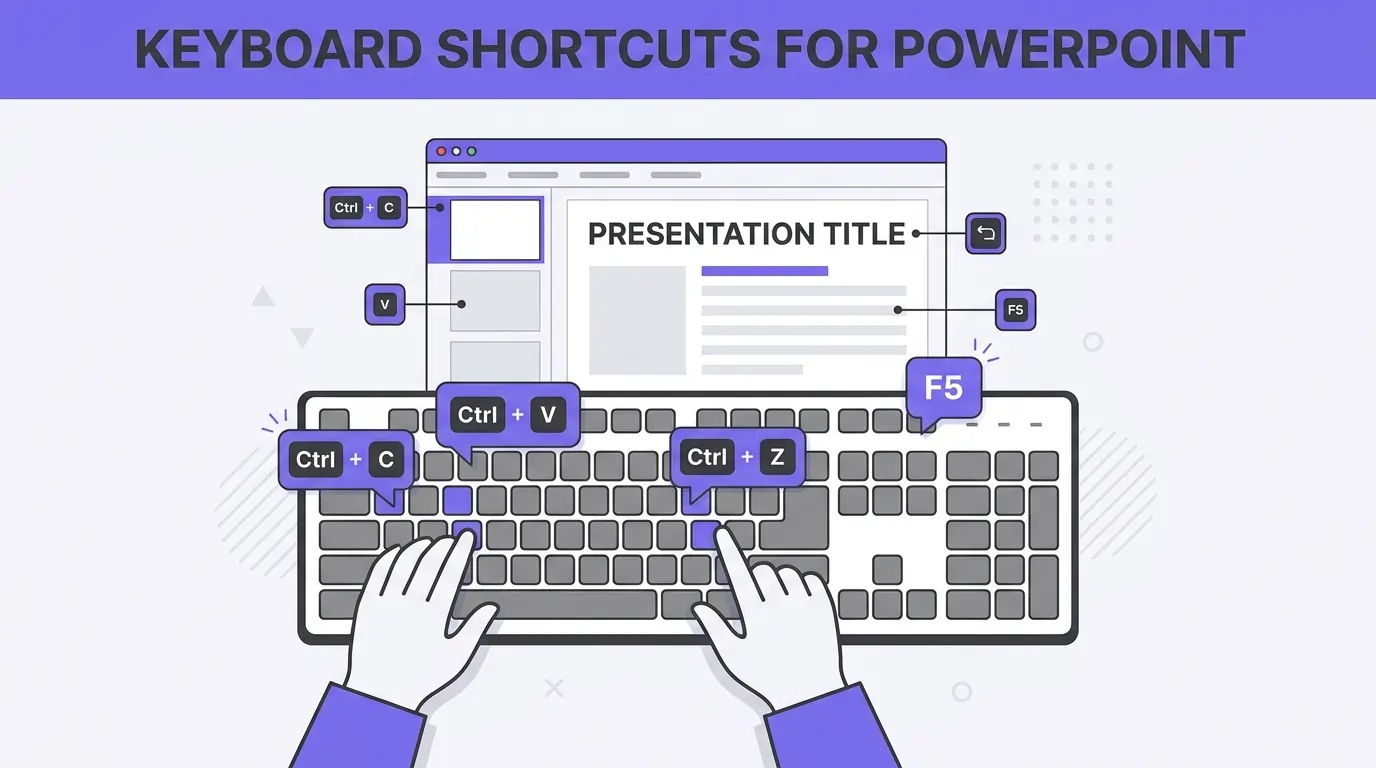
Keyboard shortcuts for PowerPoint can help you create, edit, and present your slides faster, more efficiently, and conveniently. You might have seen professional PowerPoint users rarely use a mouse while making slides.
They like to do everything from the keyboard, and with the right keyboard shortcuts for PowerPoint, you can also improve your productivity. In this article, we will talk about some popular keyboard shortcuts for PowerPoint that every user must know.
Why Use Keyboard Shortcuts for PowerPoint?
Frequent PowerPoint users know that switching between the mouse and keyboard can slow down the speed.
Certain tasks are performed frequently while making almost every presentation, so you can minimize 3-4 mouse clicks to a single keyboard shortcut. PowerPoint shortcuts can be used to:
- Save time while creating slides
- Maintain focus without breaking workflow
- Increase editing speed
- Improve presentation delivery
- Work like a power user
You are still allowed to use the mouse when needed, but once you are comfortable with using keyboard shortcuts, you won’t prefer using the mouse anymore.
Let’s have a look at popular keyboard shortcuts for PowerPoint, and we have divided these shortcuts into different categories.
Basic PowerPoint Editing Shortcuts
Use these shortcuts while editing any slide or presentation. Plus ‘+’ sign between two keystrokes means that both keys should be used as a combination.
| Acción | Shortcut |
| New Presentation | Ctrl + N |
| Open Presentation | Ctrl + O |
| Guardar | Ctrl + S |
| Guardar como | F12 |
| Imprimir | Ctrl + P |
| Deshacer | Ctrl + Z |
| Rehacer | Ctrl + Y |
| Copia | Ctrl + C |
| Paste | Ctrl + V |
| Cut | Ctrl + X |
| Select All | Ctrl + A |
Text Formatting Shortcuts for PowerPoint
Text is a major part of every PowerPoint presentation, and little changes and edits are required for almost every line of text in slides. With these text formatting shortcuts, you can easily save time and be more productivity.
| Acción | Shortcut |
| Bold | Ctrl + B |
| Italic | Ctrl + I |
| Underline | Ctrl + U |
| Increase Font Size | Ctrl + Shift + > |
| Decrease Font Size | Ctrl + Shift + < |
| Alinear a la izquierda | Ctrl + L |
| Center Text | Ctrl + E |
| Alinear a la derecha | Ctrl + R |
| Justificar | Ctrl + J |
PowerPoint Slide Management Shortcuts
Whether you want to add a new slide, move or copy a slide, these slide management keyboard shortcuts can be quite useful.
| Acción | Shortcut |
| Nueva diapositiva | Ctrl + M |
| Duplicate Slide | Ctrl + D |
| Delete Slide | Borrar |
| Move to Next Slide | Page Down |
| Move to Previous Slide | Page Up |
| Go to Slide Number | Type number + Enter |
Object and Shapes Shortcuts
For a consistent layout and visual appeal, you need to focus on the objects and shapes in the slides. From aligning objects to sending them forward to backwards, almost every task can be done with keyboard shortcuts.
| Acción | Shortcut |
| Group Objects | Ctrl + G |
| Ungroup Objects | Ctrl + Shift + G |
| Bring Forward | Ctrl + ] |
| Send Backward | Ctrl + [ |
| Align Objects | Alt + H, G, A |
| Rotate Object | Alt + H, G, R |
Shortcuts for PowerPoint Slideshow
While presenting your slides, you don’t want to disrupt the flow with your mouse cursor jumping across the screen. Make sure to use slideshow shortcuts for performing different tasks.
| Acción | Shortcut |
| Start from the beginning | F5 |
| Start from the current slide | Mayúsculas + F5 |
| End Slideshow | Esc |
| Next Slide | Spacebar / Right Arrow |
| Previous Slide | Left Arrow |
| Black Screen | B |
| White Screen | W |
| Jump to Slide | Slide number + Enter |
How to Save Time with Twistly for PowerPoint?
The basic idea of using keyboard shortcuts for PowerPoint is to save time and be more productive. What if we could offer a solution where you don’t need to worry about shortcuts or anything else?
AI tools have changed almost every aspect of our personal and professional lives, but PowerPoint has been slow to adapt to AI. Luckily, Twistly bridged the gap between professional presentations and AI.
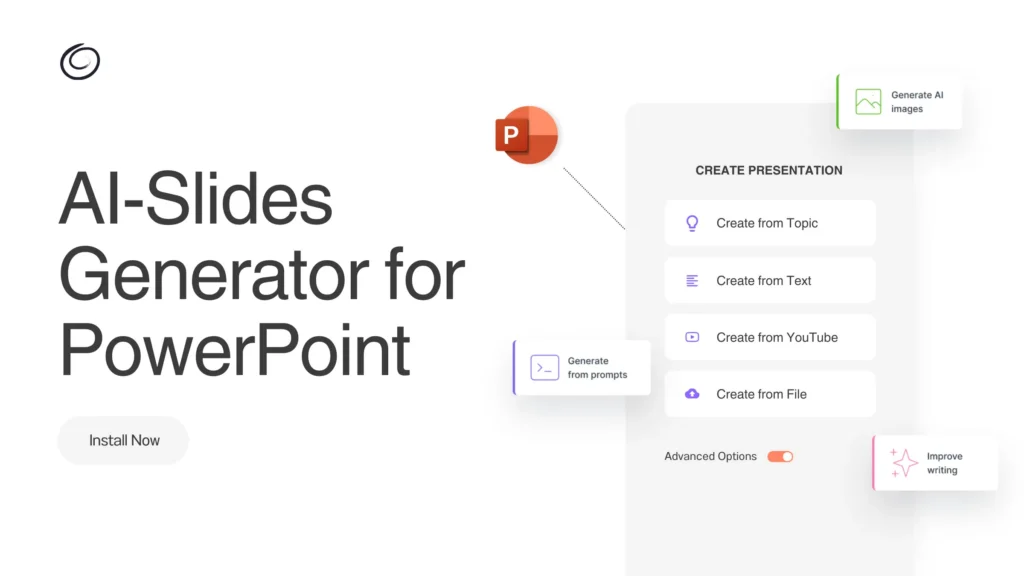
Complemento Twistly para PowerPoint
Now, users can enjoy ChatGPT-like capabilities for PowerPoint with Twistly. What does it mean for a normal PowerPoint user and a professional one?
With Twistly, you can generate an entire presentation from just a topic, no editing, writing, or designing. Yes, you read that right.
Do you need to edit or improve your existing presentation? Twistly has that covered, too. From adding individual slides to improving design or content, Twistly has unlimited AI features that are hard to cover in this article. There is a lot to explore, and you need to try Twistly right now.
Pruebe Twistly gratis
We understand your concerns related to AI tools these days. But we have managed to stay ahead of the competition by offering a totally free trial version of Twistly for all new users.
Use the link below to download for free before any financial commitment. It lives inside PowerPoint, so there is no need to use multiple tools for presentations.
Crear diapositivas de PowerPoint con IA
Crea presentaciones basadas en IA a partir de cualquier mensaje, documento o vídeo

Conclusión
Keyboard shortcuts for PowerPoint are essential for anyone who regularly creates or delivers presentations. Mastering these popular and commonly used shortcuts can improve your presentation experience and boost your productivity.
When it comes to productivity and instant presentations, there is no better option than Twistly. If you have ever missed ChatGPT for presentations, now is the time to experience the same AI capabilities with Twistly for PowerPoint.












Empieza a hacer presentaciones con IA en segundos
Acceso instantáneo
Empieza a explorar inmediatamente todas las funciones de Twistly
Sin compromisos
No necesita tarjeta de crédito y puede cancelar en cualquier momento
Asistencia dedicada
Nuestro equipo está aquí para ayudarle en cada paso del camino durante su juicio.