


In a modern interconnected world, an office team can have members from different countries who speak different languages. Creating localized presentations for global teams with AI is now possible with tools like Twistly.
Managers, HR teams, or members can make PowerPoint presentations in different languages without learning foreign languages.
One way to create localized presentations for global teams is to use translation tools, but that’s not a very effective solution. You will have to repeat the same process.
Challenges with Conventional Translation Tools
Imagine you are making a presentation in English, but you need to make the same presentation for a team in Saudi Arabia. Here is how a normal process of localized presentation would go without AI tools:
- You made a professional presentation in English
- You copied slide content from an English presentation and pasted it into a translation software.
- The next step is to copy the translated text and then paste it into the Arabic presentation
- Repeat this same process for all 30 slides
- The entire presentation now needs formatting and other adjustments
In a busy office environment, this seems almost impossible. If you make multiple presentations every day, manual methods of making presentations for global teams may not work for you.
How AI Helps with Presentation Localization
Tools like Twistly are not just for slide designing, but they are also collaboration tools. You can create presentations for the entire team, in different languages, or even translate any part of the slide to 30+ languages.
Here is how AI tools help with creating localized presentations for global teams:
- Automate text conversion by analyzing the context
- Instead of manual text translation, automatically translate text to different languages
- Generate custom visuals, specific to the country and culture
- Add speaker notes to explain the slide
What is the Best AI Tool for Localized Presentations?
AI will make your job faster, better, and more convenient, but the next challenge is to choose the right tool to do the right job. There are multiple AI translation tools available, but we want a tool that can help with creating a complete presentation.
An ideal AI tool for creating localized presentations for global teams should offer different AI features that support better and improved presentations. For this purpose, Twistly is among the best AI tools for localized presentations.
Create PowerPoint
Slides with AI
Build AI-powered presentations from
any prompt, doc, or video


How to Localize Presentations with Twistly?
You don’t need to be an expert in any foreign language to make presentations for team members who speak that language. Luckily, you don’t even need to change the language settings of your PowerPoint software.
If you want to make a PowerPoint presentation in Arabic, you can input data in English, but the output will be in Arabic. Isn’t it awesome? Let’s see how to create localized presentations for global teams with Twistly AI.
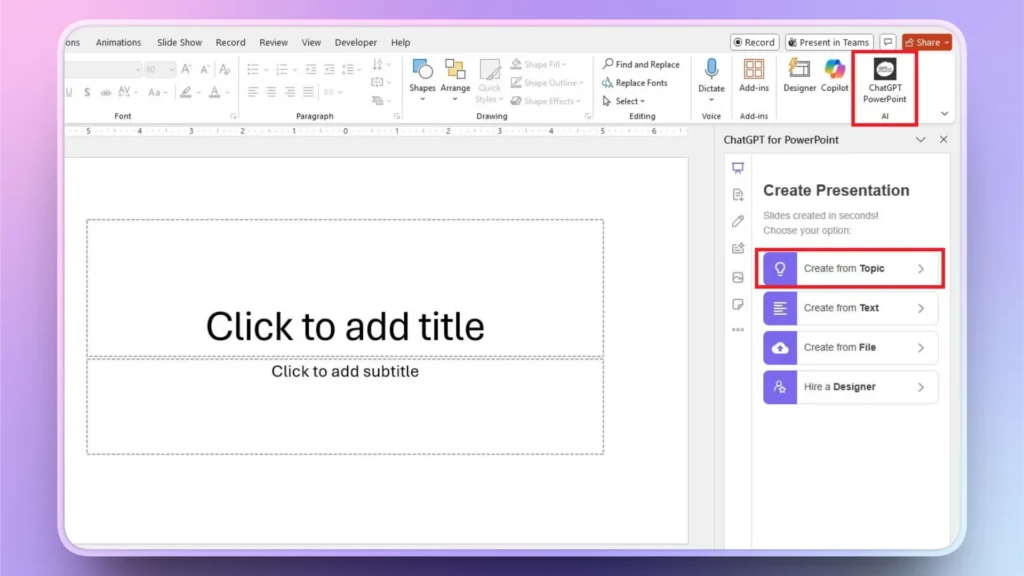
Step 1: Choose the Input Method for Twistly PPT
Open a blank PowerPoint presentation and launch Twistly. There are multiple input methods available to make presentations, and we will choose the first one, PPT, from a topic/AI prompt.
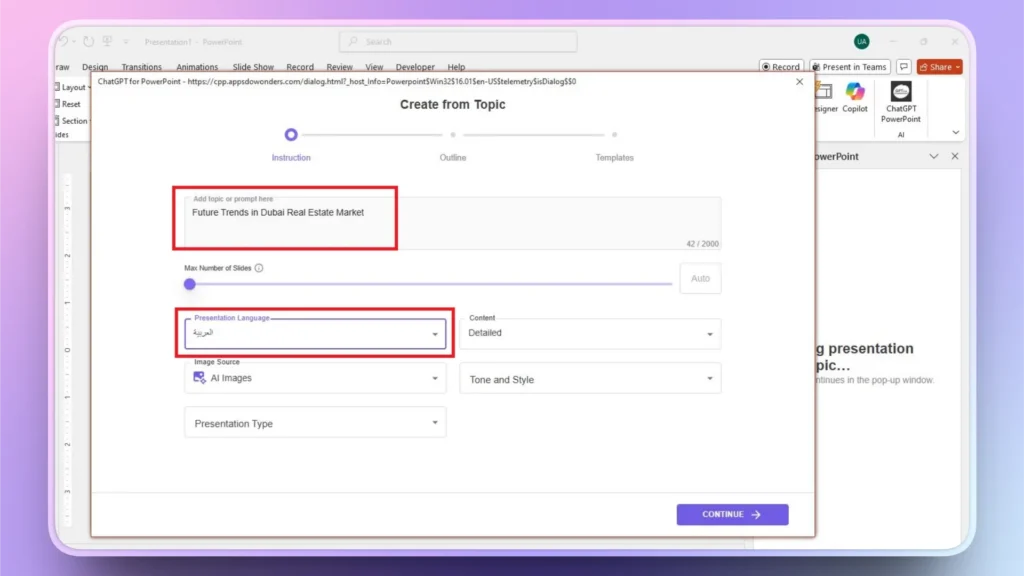
Step 2: Input your Topic and Choose Language
In the next step, provide the topic for presentation or write an AI prompt to create a presentation. You can choose any language from the available options; 30 different languages are supported. Click Continue to move to the next step.
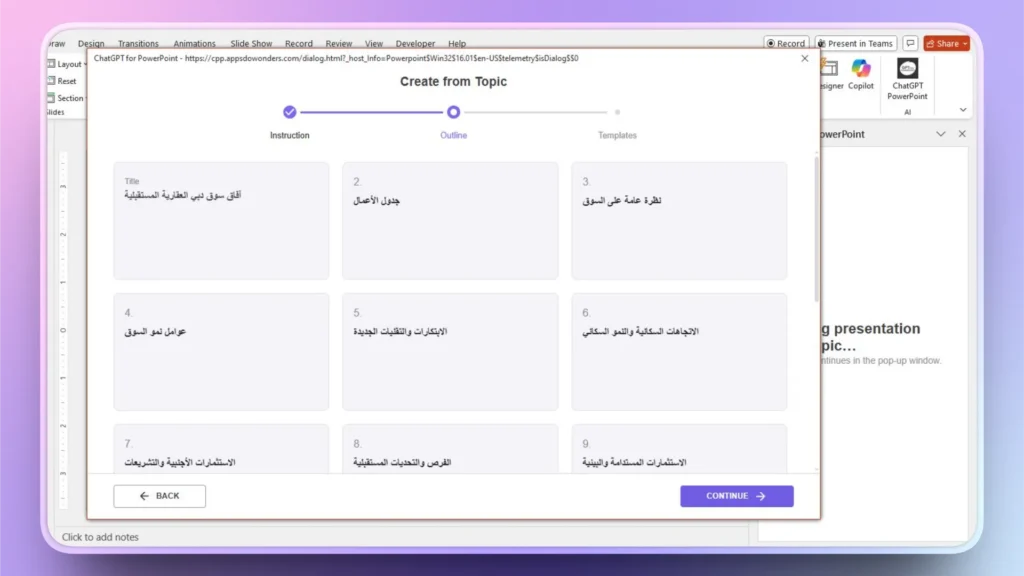
Step 3: Review Slide Outline
AI will give you a possible outline for the slides in Arabic. Review these slides and make changes if necessary, and click Continue if everything seems fine.
Step 4: Select AI Template
Twistly has some amazing AI PowerPoint templates. Pick any theme that you like; you can change the color, too. Click Continue for the final step.
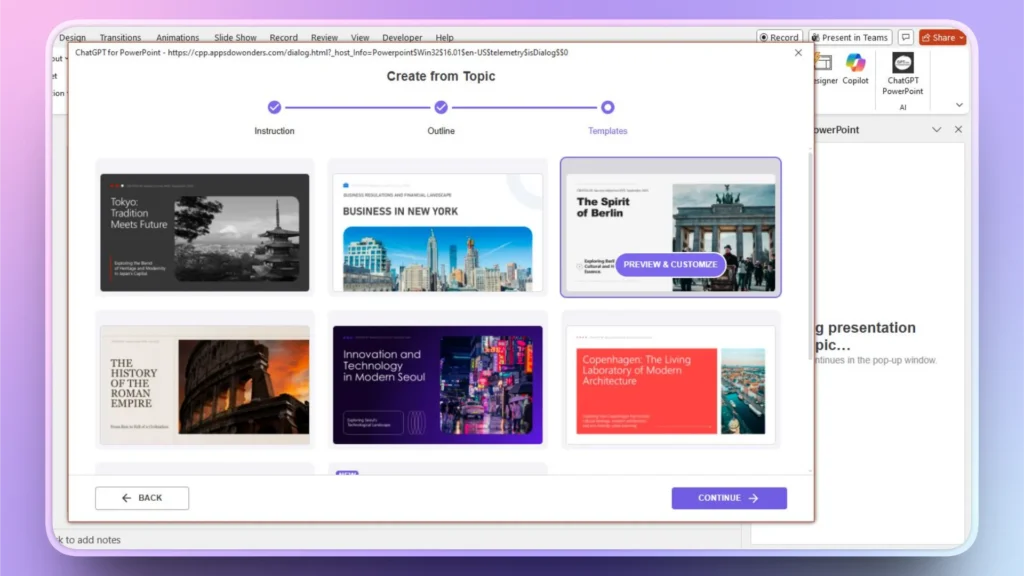
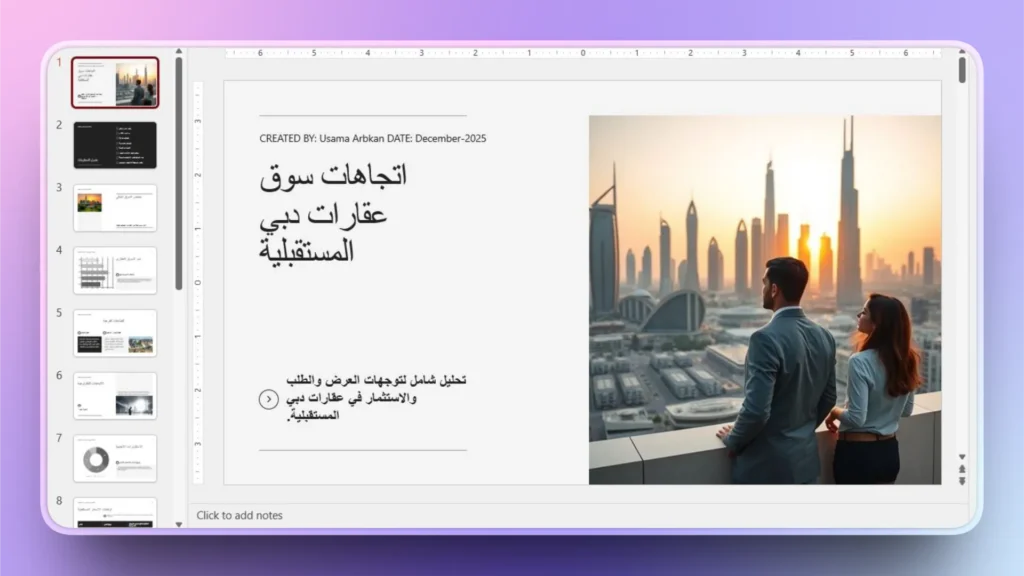
Step 5: Review your Final Slides
Within a few seconds, your Arabic slides will be ready. As you don’t know Arabic, you can simply review possible formatting changes and other elements. Mostly, the results are accurate and presentable right away.
How to Translate Slides with Twistly?
If you have a PowerPoint presentation in a foreign language and you want to translate selected text or an entire slide into another language, it is easy with Twistly. You need no extra tool as Twistly has everything inside PowerPoint.
For this example, we will use the Arabic presentation that we just made with Twistly. Follow these steps to translate selected text or an entire slide into another language.
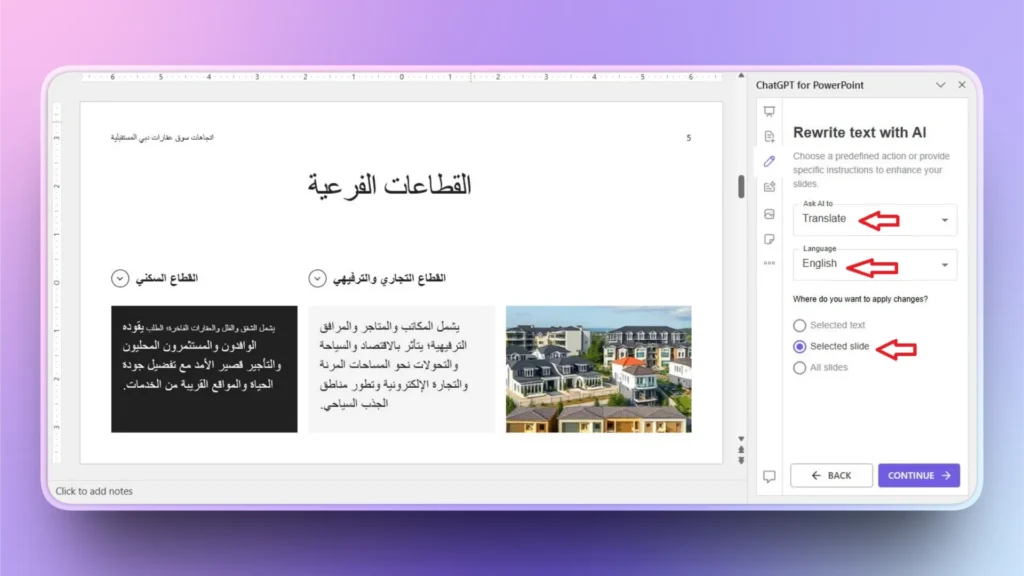
Step 1: Select the Rewrite Text Option
Open the PPT slide that you want to translate and then click Rewrite Text from the Twistly menu.
Select Translate from the drop-down menu and then select the language for translation as shown in the image below.
You can also choose to translate selected text, selected slide, or all slides in the presentation. Click Continue to translate the Arabic slide to English.
Step 2: Review Translated Slide
Twistly will take a moment to translate the slide, and you will have a translated slide in English. Review the slide to verify the correctness.
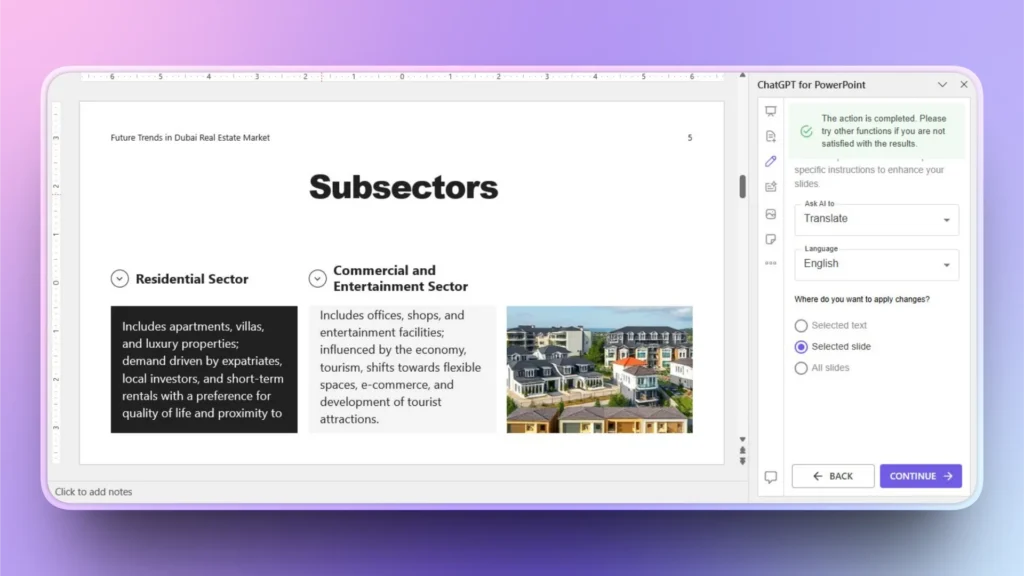
Note: You can use the same process and select Check Grammar and Spelling Mistakes from the dropdown menu to remove any mistakes and errors in the translated text.
Generate Custom Images with Twistly
For more personalized and localized PowerPoint presentations, you can add custom AI images to slides according to culture. In this example, if you are targeting Dubai teams, you can show individuals in slides in Islamic dress.
Twistly has a built-in AI image generator. Click the ” Add Image option and select AI Images as the source, and then write your prompt. You will have instant AI images for your slides.

Conclusion
Creating localized presentations for global teams with Twistly AI does not take any special experience or command of a foreign language. With simple settings, you can make PowerPoint presentations in different languages or translate your existing presentations.
Twistly ensures that you don’t have to restructure your translated presentations, as AI will keep everything smooth and intact during translation. If you want to expand your team and communication skills, download the Twistly trial version for free and enjoy without a credit card or long-term commitment.
Create PowerPoint Slides with AI
Build AI-powered presentations from any prompt, doc, or video





Start Making AI Presentations in Seconds
Instant Access
Begin exploring Twistly’s full suite of features immediately
No Commitments
No credit card required, and you can cancel anytime
Dedicated Support
Our team is here to assist you every step of the way during your trial.