



Twistly, Office Timeline, Pickit, and some others are among the best PowerPoint add-ins for making presentations. What add-in is best for you, and which one should you install right away?
This article explores 6 best PowerPoint add-ins for making presentations. Making presentations in stock PowerPoint can be quite time-consuming and frustrating.
With these PowerPoint add-ins, you can boost productivity, make impressive slides, and enjoy other benefits.
What are PowerPoint Add-ins?
PowerPoint add-ins are third-party or Microsoft-developed extensions that integrate directly into Microsoft PowerPoint to expand its features.
Add-ins are just like mini applications in PowerPoint that add new features, improve workflows, offer new panels, automate tasks, or increase the capabilities of PowerPoint. Add-ins are typically installed via:
- Microsoft AppSource
- Office Add-ins Store
- Direct installation from developer websites
Imagine you must follow 10 steps to insert a meaningful chart into a PowerPoint slide. With an add-in like Twistly, you can add a complete chart to your slide with a few clicks.
Benefits of PowerPoint Add-ins
The right add-in can reduce hours of work to just a few minutes or even seconds. There are many benefits of using the best PowerPoint add-ins for making presentations, including:
- Save time and effort with automation
- Improve the quality of your slide designs
- Enhance data visualization with AI tools
- Better workflow and improved productivity
- Engage the audience in better ways
- Maintain brand consistency
- Reduce manually repetitive tasks
What are the Best PowerPoint Add-ins?
The list of best PowerPoint add-ins can be quite long, but we will cover the top 6 add-ins for making presentations that every user must install or try for daily tasks.
Some add-ins are complete AI suites, while some offer specific features or capabilities only. Give this article a detailed read so you can choose the best PowerPoint add-ins for making presentations.
PowerPoint Add-in # 1: Twistly (Best & Complete AI PPT Maker)
Used and trusted by more than 3 million professionals, Twistly is currently the best PowerPoint add-in for making presentations.
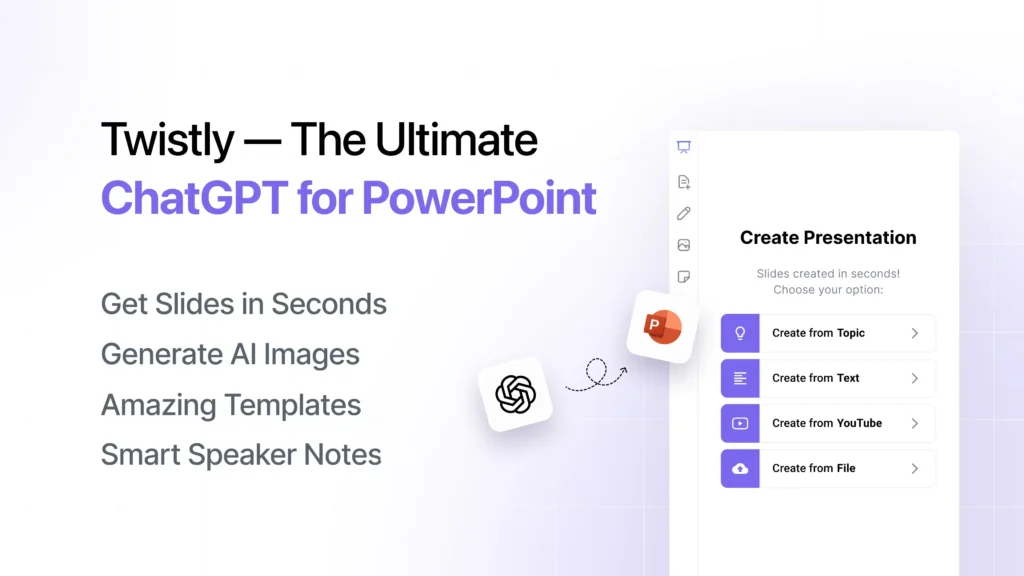
Twistly does not focus on a specific problem or feature, but it offers a complete set of AI features that any PowerPoint user may need to make professional presentations. This add-in lives inside PowerPoint and integrates ChatGPT-like AI features for making slides and complete presentations.
Key Features of Twistly
Whether you need to create a slide, insert an image, rewrite text, insert a table, or generate a complete presentation from scratch, Twistly does it all. The list of complete AI features of Twistly is long, but here are the top AI features that are most useful for making professional presentations.
AI Presentation Maker
Create complete presentations from different types of input methods, from a topic, an AI prompt, a document, or even text. AI will process your input to give a professional and attractive presentation.
Instant Slide Generator
AI helps to generate individual slides for a presentation. Choose any slide layout from the available options or let AI choose the best layout according to your input.
Smart Content for Slides
Unlike other AI tools, Twistly does not just give you content suggestions but writes complete AI content. From tables to text boxes, AI content is generated for a complete presentation.
AI Speaker Notes
Create speaker notes for a specific slide or an entire presentation. Instantly generate speaker notes that can boost your presentation delivery.
Rewrite, Optimize, and Improve Content
Polish your existing slides with AI content, ask AI to rewrite content, turn data into bullet lists, shorten or lengthen your content, and perform many other AI actions with Twistly.
Free Stock and AI Images
Automatically find and insert relevant high-quality images to PowerPoint slides. Use the built-in AI image generator for custom images and visuals for presentations.
Why is Twistly Ranked at Number 1?
Twistly has earned the top position by offering a smooth AI experience for millions of PowerPoint users. Do you need more reasons to try Twistly for making PowerPoint presentations?
- Reduces hours of design work to minutes.
- Make professional results accessible even without design skills.
- Works with both new and existing slides effortlessly.
- Standardizes slide quality across departments.
Get Twistly for Free
Are you afraid of trying new AI tools because of so many options available? We offer a free trial version of Twistly for new users so they can try the best PowerPoint AI add-in for making presentations without any doubt or risk. Use the link below to try Twistly for free.
Create PowerPoint
Slides with AI
Build AI-powered presentations from
any prompt, doc, or video


PowerPoint Add-in # 2: Pickit
If you need an add-in that can take care of visuals and images for your PowerPoint presentations, Pickit is a great tool. You should not expect it to work like an AI PPT maker or Twistly because this add-in mainly focuses on providing royalty-free images for slides.
It works with the Designer tool in PowerPoint, and users can share their company images, and other members can also use those company images or visual resources.
Features of Pickit
- Access to a large built-in image library
- Find on-brand visuals quickly.
- No risk of copyright infringement
Pros and Cons of Pickit
| Pros of Pickit | Cons of Pickit |
| Access to a large library of royalty-free, high-quality images | Some premium images may require a subscription |
| Licensed content reduces copyright risk | Limited support for presentations, as it is focused on images only |
| Helps maintain presentation aesthetic and consistency | Not ideal for highly specialized or niche visuals |
PowerPoint Add-in # 3: Forms
Adding polls, quizzes, and other similar elements to PowerPoint presentations takes time, experience, and lots of editing work. With the Form add-in, you can easily create surveys directly in your slides.
This add-in is offered by Microsoft Corporation, but there are some negative reviews about this add-in, so you need to consider public feedback, too. Not an ideal add-in for beginners, but with some effort, you can make it work for your presentation.
Key Features of Forms
- Engage with the audience with interactive surveys, polls, and quizzes
- Built-in question types for easier slides
- Works smoothly as part of other Microsoft products
- Collect results instantly
Pros and Cons Forms
| Pros of Forms | Cons of Forms |
| Great for live feedback during presentations | Limited customization compared to standalone form tools |
| Responses can be viewed instantly within PowerPoint | Requires an internet connection for real-time form responses |
| Integrates seamlessly with the Microsoft 365 ecosystem | Not a full survey platform |
PowerPoint Add-in # 4: Power BI Tiles
For data-heavy presentations with lots of visualization elements, Power BI Tiles is a great add-in. You can embed a Power BI dashboard directly into your PowerPoint software with this add-in.
When you add any new data to the chart, PowerPoint slides are automatically updated. You need an active internet connection for this add-in to work properly.
A normal user may not need the analysis tools and features offered by this add-in, but executives and analysts must try this add-in.
Features of Power BI Tiles
- Integration of a live Power BI dashboard
- Live chart data updates for PowerPoint
- Automatically refreshing data
- Ideal for analysts and businesses
Pros and Cons of Power BI Tiles
| Pros of Power BI Tiles | Cons of Power BI Tiles |
| Preserves formatting and styling of dashboards | Requires proper licensing and access |
| Helps eliminate manual data capture | Refresh and rendering of large or complex visuals can be slow |
| Supports multiple Office applications | Some users report occasional add-in instability |
PowerPoint Add-in # 5: Emoji Keyboard
Emojis are not meant for professional presentations or business pitches, but somehow these visuals have become part of common presentations. Normal keyboards make it harder for users to insert emojis into slides.
With Emoji Keyboard, you can easily add emojis and other characters to your PowerPoint slides. The interface of this add-in is quite simple, and it only focuses on emojis to make your slides more interactive and engaging.
Features of Emoji Keyboard
- Entertaining visuals for better engagement
- Hundreds of emojis
- Easy interface and interactive navigation
- Fresh and modern emojis
Pros and Cons of Emoji Keyboard
| Pros of Emoji Keyboard | Cons of Emoji Keyboard |
| Makes it easy to insert emojis directly into slides | Limited to emojis, no graphics or visuals |
| Enhances visual expression and audience engagement | Not essential for highly data-driven slides |
| Simple to use with no learning curve | Doesn’t improve core slide design or structure |
PowerPoint Add-in # 6: PP Timer
Managing time during a presentation is the most critical thing. If you don’t know how to effectively use your on-stage time, then you may not be able to deliver your message effectively. PP Timer is a great add-in that offers many useful time management tools.
You can add countdown, stopwatch, or custom alerts to your slides. These tools help you allocate enough time to each slide. Trainers, teachers, and public speakers must use this add-in for time management and other relevant tasks and alerts.
Features of PP Timer
- Countdown and stopwatch
- Custom time settings
- Visual cues and alerts
- Works offline
- Ideal for timed sessions
Pros and Cons of PP Timer
| Pros of PP Timer | Cons of PP Timer |
| Helps manage presentation time effectively | Some versions may be basic with limited customization |
| Encourages better pacing | May not automatically sync with slide transitions |
| Available for free |
What’s Best for What?
These 6 best PowerPoint add-ins for making presentations offer different perks, limitations, and flexibility. If you want a single add-in that can do the most, then Twistly is the ultimate choice. It can replace Pickit, Forms, Emoji Keyboard (generate AI emojis), and many other popular add-ins.
Based on our article, here is the summary of popular add-ins that you can use for making PowerPoint presentations. This table will help you filter out the best add-in for the relevant task.
| Add-in | Primary Purpose | Key Strength | Best For | Limitations | Overall Value |
|---|---|---|---|---|---|
| Twistly (Best Overall) | Complete AI-powered presentation creation | End-to-end AI slide & presentation generation inside PowerPoint | Students, professionals, teams, executives, marketers, everyone | Requires internet for AI features | Most powerful & complete solution, replaces multiple tools with one AI suite |
| Pickit | Stock image library | Royalty-free, brand-safe visuals | Users needing quality images | Only image-focused, no AI content or slide creation | Useful for visuals, but limited scope |
| Forms | Interactive polls & quizzes | Live audience engagement | Trainers, educators | Limited customization, requires internet | Good for engagement, not full presentation building |
| Power BI Tiles | Live dashboards & data visualization | Real-time data embedding | Analysts, executives | Licensing required, heavy for casual users | Excellent for data-heavy slides only |
| Emoji Keyboard | Emoji insertion | Quick emoji access | Casual presentations | No design or content support | Minor enhancement tool |
| PP Timer | Presentation timing | Countdown & stopwatch | Public speakers, trainers | Basic functionality | Helpful utility, but not content-focused |
Conclusion
Using these 6 best PowerPoint add-ins for making presentations can transform your workflow and improve your overall PowerPoint experience. Whether you want AI-generated slides, better visuals, stronger data storytelling, or audience engagement tools, there’s an add-in that fits.
If you don’t want to spend time and money on multiple add-ins and want a single add-in that can do the most, try Twistly. This add-in works just like ChatGPT for PowerPoint, where you can ask AI to make slides, generate an entire presentation, create AI images, rewrite or improve text, and much more great things.
Twistly is one of the most-reviewed AI add-ins for PowerPoint, used by millions of users. Download Twistly now and become part of the productive PowerPoint community.
Create PowerPoint Slides with AI
Build AI-powered presentations from any prompt, doc, or video













Start Making AI Presentations in Seconds
Instant Access
Begin exploring Twistly’s full suite of features immediately
No Commitments
No credit card required, and you can cancel anytime
Dedicated Support
Our team is here to assist you every step of the way during your trial.