



To build a QBR presentation with AI, you still need to have the raw data and other content for AI to process. You need to tell AI about your business, sales, revenue, profits, and other factors for the automation of slide creation.
When you build a QBR presentation using Twistly, you can upload any document containing these details or paste data from any file. There are multiple input options to feed data and details to AI for building quarterly business review presentations.
In this article, we will learn how to build a QBR presentation using AI. Before getting started step-by-step, make sure to have the data file ready for the AI.
QBR Presentations may be draining your Team
Quarterly business review presentations are not a one-time effort, but every quarter, teams must work on the same presentations. These tasks may be draining your team without you realizing the impact. From sales managers to executives, operation leads, and marketing staff, everyone has to be involved in the process.
- An average manager in a small to medium-sized business spends 8-12 hours on QRB data.
- Teams and designers spend up to 20 hours creating slides for QRB
- Most businesses use the same template for QRBs
- Businesses may need different presentations for different stakeholders
Pulling data from different departments is hard, but turning that data into a structured presentation is even harder. With AI, you can skip the harder part, creating QRB presentations within minutes.
Benefits of using Twistly for Building QRB Presentations
Manual creation of QRB presentations comes at a price: human effort. Building charts, writing content, formatting slides, finding images, and many other tasks can be daunting.
Twistly is like a custom ChatGPT for PowerPoint that removes all the pain points from the process. You provide data, Twistly runs it, and turns that data into interactive QRB presentations.
- Generate presentation outlines
- Structure business narratives
- Summarize performance data
- Create professional slide content
- Build presentation-ready visuals
Teams can reduce manual efforts without affecting the quality of the final quarterly business review presentations. But how does Twistly work, and how to make a QRB presentation with Twistly? Your answers are in the next sections.
Create PowerPoint
Slides with AI
Build AI-powered presentations from
any prompt, doc, or video


Steps to Build a QRB Presentation with Twistly
The very first step is to collect data, numbers, sales, revenue, and other data that you need to add to the QRB presentation. Save that data as a document. Once the data is ready, follow these steps to build a QRB presentation with AI, Twistly.
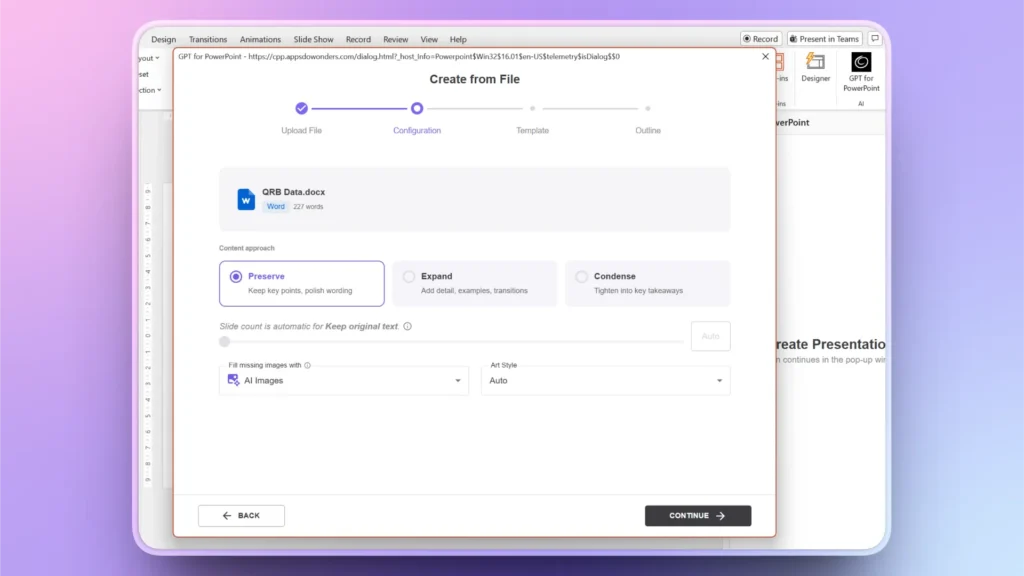
Step 1: Upload your QRB Data
Open PowerPoint, start a new blank presentation, and launch Twistly. In the Twistly window, choose Create Presentation from File and then upload your QRB data file.
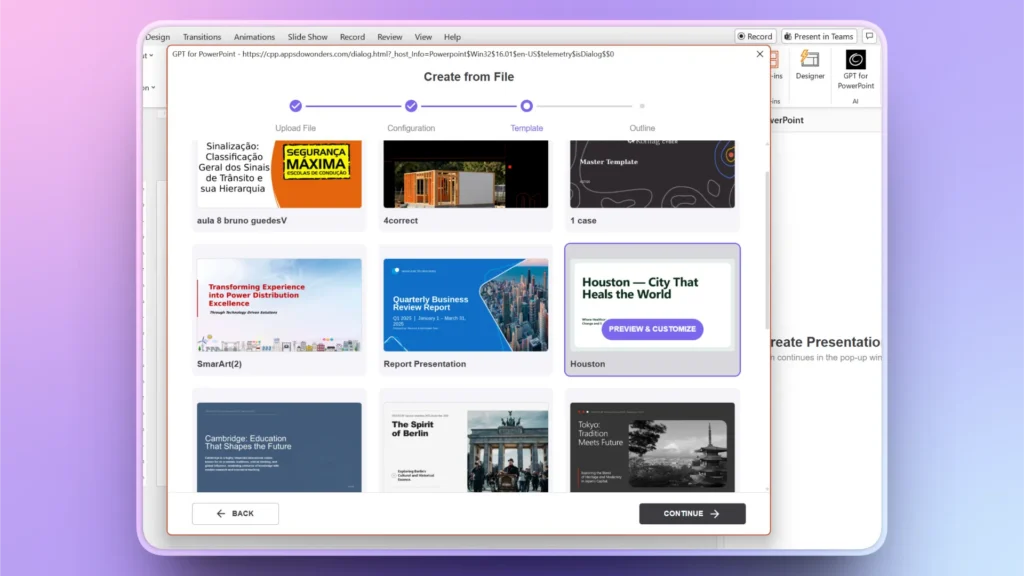
Step 2: Pick a Template and Review Outline
After uploading your file, pick any AI PowerPoint template from the Twistly library that you want, and then review the AI outline generated by Twistly.
Step 3: Your QRB Presentation is Ready
Within moments, Twistly will generate file QRB slides for you, based on the provided data. You can make any changes to the final slides with the AI features of Twistly.
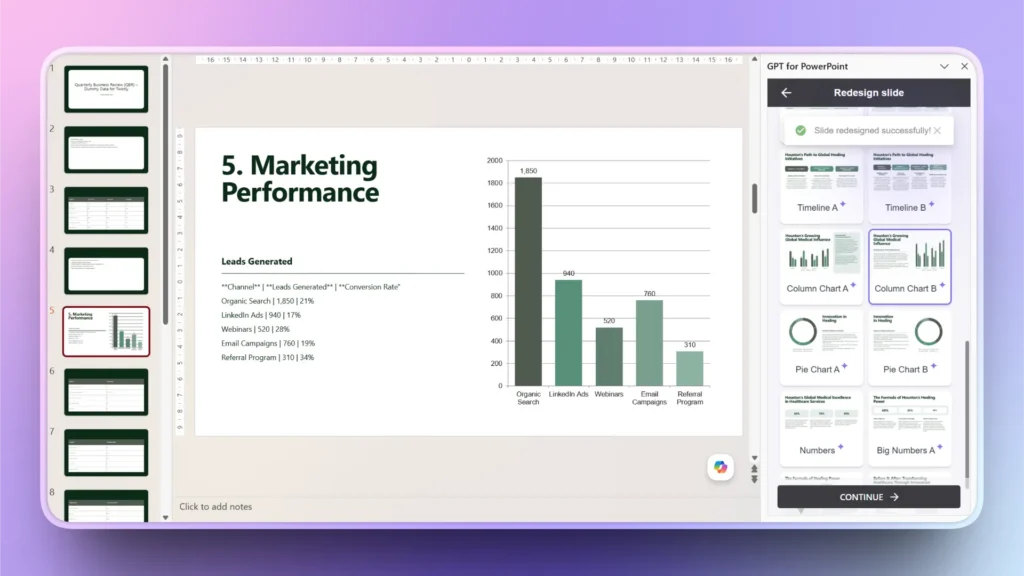
How to Redesign QRB Slides with Twistly?
You have the final QRB deck, but some changes are required to specific files. How to edit or redesign slides without manual editing? The process is simple.
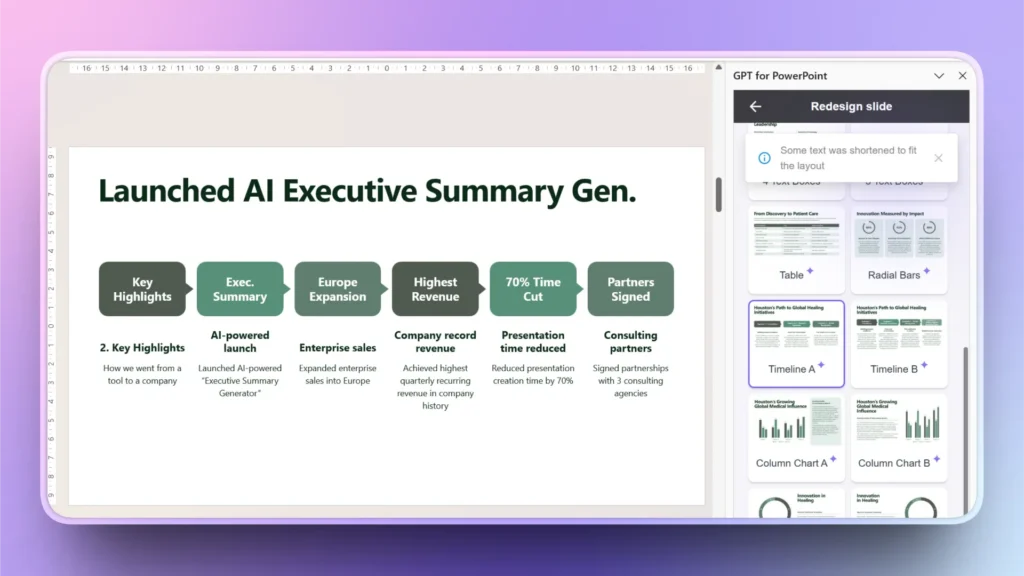
Edit Slides >> Redesign Slides >> Pick Slide Layout
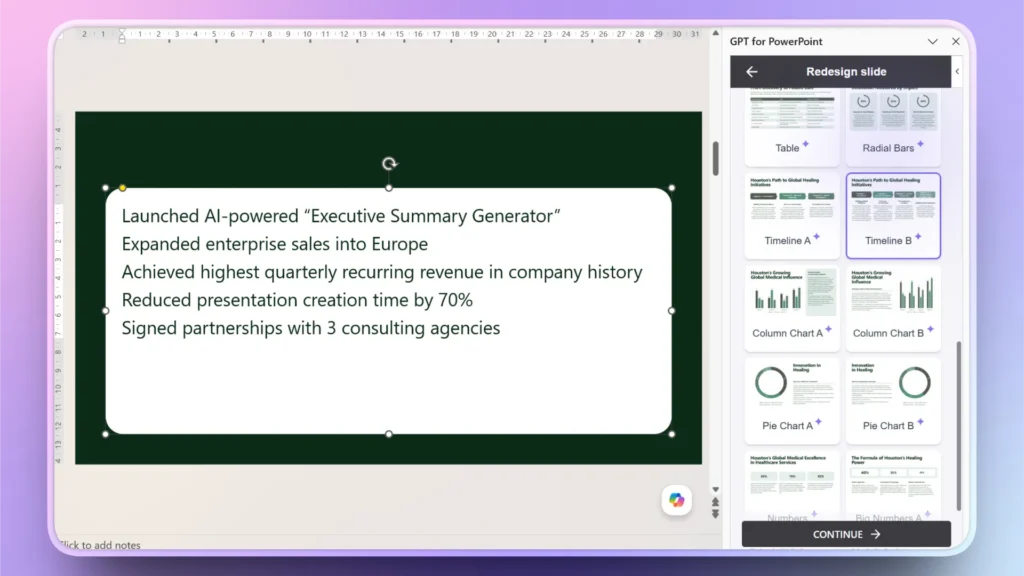
Wait for a few moments, and Twistly will turn your selected slide into a new slide. Imagine we want to create a timeline from a slide with simple data. Follow the given steps, and you can have the desired results.
How to Generate Speaker Notes for QRB Presentation?
Quarterly business review presentations have lots of numbers, data, and insights. Presenters may need additional information and data to speak in front of the audience.
For that purpose, speaker notes are quite useful, but writing speaker notes manually will take hours. Manual review of each slide is needed to write speaker notes.
Generating Speaker Notes with Twistly
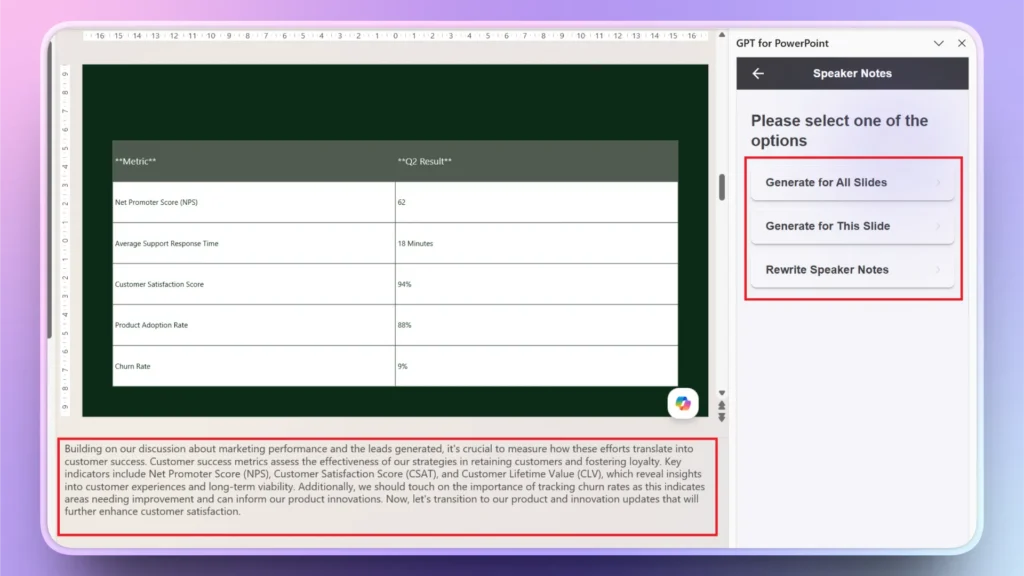
As always, Twistly has the best solution to generate speaker notes with AI. Within seconds, you can write AI speaker notes for a specific slide or all slides in your QRB presentation. Here is how to write speaker notes with Twistly.
Edit Slides >> Speaker Notes >> select Slide/Slides >> Speaker Notes are ready
Enjoy Faster Presentations with AI
Twistly is used for almost every PowerPoint presentation, including QRBs, marketing decks, investment pitches, tutorials, class projects, and presentations of all sorts. The process is almost the same and simple for every presentation.
Creating a general presentation with Twistly takes less than a few minutes. For QRBs and other high-level presentations, you can have the final decks in less than 5 minutes.
Get Twistly for Free
Do you want to try Twistly for free for a limited time? If yes, use the link below to claim your free trial. Get a real-time experience of AI features that can help you build a QRB presentation using AI, within minutes.
Create PowerPoint Slides with AI
Build AI-powered presentations from any prompt, doc, or video

Conclusion
Use Twistly to build a QBR presentation using AI by uploading your data file. AI will analyze files and generate a complete deck. AI helps transform operational data into meaningful business narratives that executives can understand quickly.
Twistly helps businesses simplify professional PowerPoint creation through AI-powered automation. As AI continues transforming business operations, automated presentation creation is becoming an essential part of efficient, scalable corporate reporting.
If you want to be ahead of the AI race, start using Twistly now because more than 3 million users have already transformed their workflow with Twistly. Join the fastest-growing community of smart PowerPoint users.










Start Making AI Presentations in Seconds
Instant Access
Begin exploring Twistly’s full suite of features immediately
No Commitments
No credit card required, and you can cancel anytime
Dedicated Support
Our team is here to assist you every step of the way during your trial.