



If your company already has a professional presentation and you want to use that same template for all future PPTs, you can create a reusable PowerPoint template from an existing deck. Manual methods to create a reusable PowerPoint template aren’t feasible for everyone. This process takes time, effort, and expertise.
The easiest way to create a reusable PowerPoint from your existing deck is to use AI to scrape logo, colors, fonts, and layouts from the original presentation.
What AI tool is best for creating reusable PowerPoint templates? How to create a scalable PowerPoint template instantly? All these questions are answered in this article.
Benefits of a Reusable PowerPoint Template
Creating a presentation from scratch can take 4-5 hours. When you have a branded presentation template, it takes less time to modify the template because you have existing layouts, fonts, logos, and other placeholders for the slides.
Apart from time saving, there are many other benefits of reusable PowerPoint templates:
- Brand consistency
- Faster slide creation
- Reduced design errors
- Professional presentation standards
- Scalability across teams
Manually, you may misplace logos, use the wrong fonts in different slides, use inconsistent layouts across multiple slides, or waste useful resources on creating presentations from scratch. To prevent all these issues, create a reusable PowerPoint template from your existing deck.
Create a Smart Custom Template from an Existing Deck with Twistly
Fast-growing companies and agencies cannot afford to allocate valuable resources and talent to create manual presentations. They want faster and more convenient ways to make consistent presentations for their brand.
Instead of creating a .POTX file and then saving it for future use via manual formatting, smarter brands rely on automated custom template creation by Twistly.
AI add-in, Twistly, can scrape fonts, logos, layouts, and other elements from existing decks and automatically save them as a custom PowerPoint template. Saved AI PowerPoint templates can be used to create instant presentations with AI, for any niche, topic, or input.
Create PowerPoint
Slides with AI
Build AI-powered presentations from
any prompt, doc, or video


What’s Unique About Twistly?
Creating a template in PowerPoint is hard, but Twistly automates the whole process, inside PowerPoint, without switching between multiple apps.
Users can upload their existing decks, and Twistly will scrape:
- Brand colors
- Font styles
- Layout structure
- Visual components
- Chart formatting
And Twistly will save everything as My Template inside PowerPoint. For future presentations, any team member can access this branded template and use it for presentations, ensuring brand consistency across all presentations.
Steps to Create a Reusable Template with Twistly
You need no manual scraping to create a reusable PowerPoint template from your existing deck, as AI does everything for you.
To get started with Twistly, you need to have an existing deck that you want to create a template from, and the Twistly add-in installed in your PowerPoint software.
Once you have these two things ready, the next process is simple and straightforward. Follow these steps for automatic AI PowerPoint templates for your future presentations.
Step 1: Start a Blank Presentation and Launch Twistly
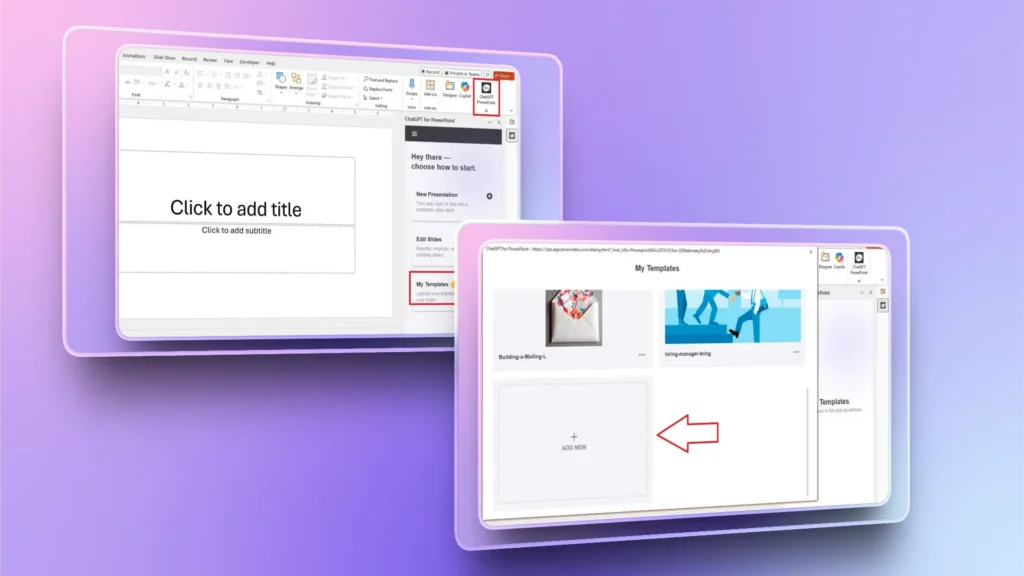
Start a blank PowerPoint presentation or open Twistly and click the My Templates button in the Twistly window.
In the new window, click the Add New button, and you will be able to add your existing deck so AI can use that file for creating a template.
Step 2: Upload your Existing Deck
Click the Select File button to choose your existing deck from your computer. Once the file is uploaded, Twistly will analyze the deck for possible limitations or slides that won’t be saved for the custom template.
You can make recommended changes and reupload the deck again, or click the Save Anyway button to save the deck as a custom template.
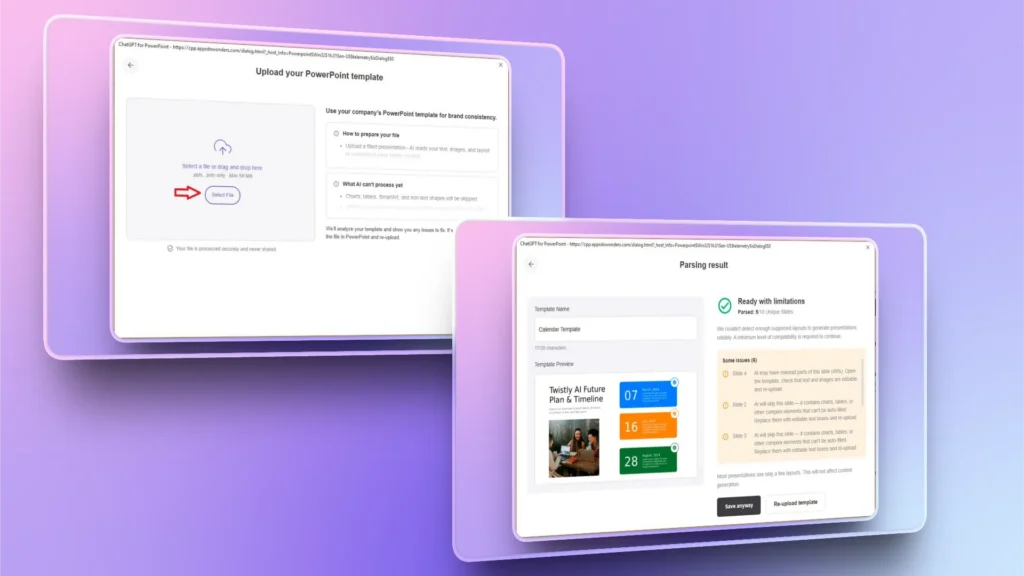
Your custom template is saved in the My Templates collection, and you can access the saved template while creating a new presentation.
Step 3: Create New Presentation
Go to the Twistly window and then create a new presentation by choosing any input method: from an AI prompt, a topic, text, or a document.
Step 4: Select your Custom Template
Twistly has multiple professionally designed AI PowerPoint templates, and now you will see recently saved templates in the library. Choose your custom template and click continue.
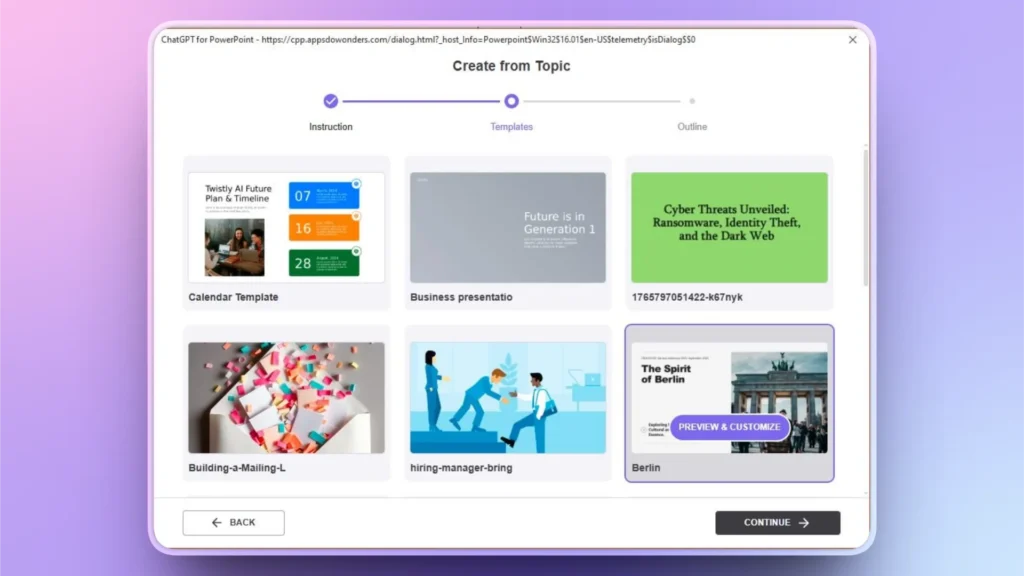
Review the AI-generated outline for the slides and make changes if needed. Click Continue to and wait for a few seconds.
Step 5: Review your Final Presentation Slides
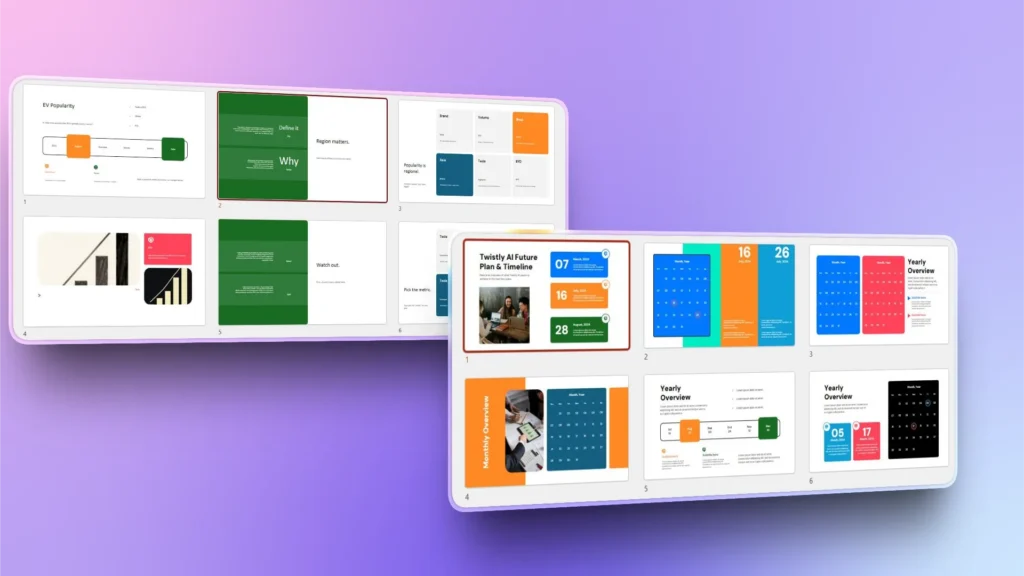
Within a few seconds, Twistly will create the final slides based on the custom template. From writing to formatting and layouts, everything follows the same design principles of the original deck. Here is the visual showing both, new PPT and original deck.
AI PowerPoint Templates vs. Conventional Templates
Twistly transforms your old deck into a scalable brand automation tool, within minutes, without any manual editing. Creating a manual PowerPoint template is not that easy.
If you have been doing things manually in PowerPoint, let’s see how Twistly can improve your productivity and PowerPoint experience.
| Feature | Traditional PowerPoint Template | Twistly Custom Template |
|---|---|---|
| Requires manual formatting | Yes | No |
| Extracts brand from existing deck | No | Yes |
| Auto-generates branded slides | No | Yes |
| Protects brand consistency | Weak | Strong |
| Scales for recurring reports | Limited | Excellent |
| Ideal for agencies | No | Extracts brand from the existing deck |
Ideal for Agencies and Teams
My Templates feature is currently available for Team subscription only. It means that if you are a team of members who need to maintain brand consistency across all presentations, Twistly is the best tool for you. If you make frequent presentations for clients or projects:
- Save a Custom Template for each client
- Switch between brand systems instantly
- Generate fully branded decks for each client in minutes
There is no need to spend hours making everything from scratch when you can use the AI features of Twistly to make professional presentations within seconds.
Do you want to try Twistly for free? Download the free trial version now and start making awesome presentations with a custom ChatGPT for PowerPoint. No redesigning. No confusion. No brand mistakes.
Create PowerPoint Slides with AI
Build AI-powered presentations from any prompt, doc, or video

Conclusion
Creating a reusable PowerPoint template from your existing deck with Twistly takes only a few clicks, and you can maintain brand consistency across all PPTs.
Your existing deck already contains your brand identity. Twistly simply transforms it into a scalable, automated presentation system. Try Twistly now and be part of a smarter community where productivity is everything, and automation is redefining daily tasks and business operations.








Start Making AI Presentations in Seconds
Instant Access
Begin exploring Twistly’s full suite of features immediately
No Commitments
No credit card required, and you can cancel anytime
Dedicated Support
Our team is here to assist you every step of the way during your trial.