


How to Keep Brand Consistency Across All Your PowerPoint Presentations?
To keep brand consistency across all your PowerPoint presentations, use a custom template with custom fonts, colors, and style for all PPTs. For easier and convenient presentations with custom templates, you can try the brand My Template feature in Twistly.
Brand consistency across all your PowerPoint presentations does not mean creating beautiful and pretty slides; it’s about building trust, authority, and recognition. Maintaining the same style, font, and color choice across dozens or even hundreds of presentations can be hard.
With Twistly, you can upload a custom template, scrap a template from an existing presentation, and make it available for all your team members. They can access and make presentations with that custom template with AI, within seconds. Decks made by different members on different topics follow the same structure.
Importance of Brand Consistency for Business Presentations
The content of the slide is important, and visuals can also be attractive to the audience. But having inconsistent colors, random fonts, and no specific style for your presentation can weaken your brand perception. Your presentations are viewed by different stakeholders, including:
- Clients
- Investors
- Executives
- Internal teams
- Stakeholders
It is important that your brand appears professional and committed to perfection. Apple, McDonald’s, and other popular international brands did not just focus on logo, but clients can easily recognize these brands from their color schemes, typography, and layouts.
Manual Way to Maintain Brand Consistency in Presentations
Companies and businesses have been working on maintaining brand consistency for PowerPoint presentations for a long time. Most businesses rely on:
- A PowerPoint master template file
- Brand guidelines PDF
- Manual formatting checks
- Design team reviews
But this approach takes more time, and designers or presenters can miss important points, making it challenging for teams to collaborate. If your agency or business makes dozens of presentations, a manual approach may not work.
Automated Brand Consistency with Twistly- Smarter Way
Manual formatting has challenges and limitations, and if you want to automate the process, try the new My Templates feature in Twistly. Every new feature in the add-in ensures that generated slides match your exact brand identity.
What’s New Custom Templates Feature?
What if there was a way to effortlessly apply your company’s unique branding to every single presentation you create, without the hassle of manual formatting?
This is what the new Custom Templates feature has to offer for Twistly users. Your company probably has a branded presentation file with:
- Logo
- Brand colors
- Approved fonts
- Custom layouts
- Styled charts and tables
Now, manually, you will have to include all these elements in every presentation, and that’s practically not possible for organizations and brands.
With Twistly, you have a faster, smarter, and automated way to maintain brand consistency or replicate a template from any existing presentation. Once you upload a template or presentation sample, Twistly will automatically scrape:
- Colors
- Fonts
- Visual styles
- Layout patterns
And then save the custom template for future use. While making presentations with Twistly, any member of the team can access and use that custom template to create new presentations. No manual formatting. No design corrections. No inconsistencies.
Step-by-step to Create and Save Custom Templates
If you are familiar with Twistly, using the “My Templates” feature will be easy. If you are new to Twistly, follow these exact instructions to keep brand consistency across all your PowerPoint presentations with Twistly.
Step 1: Open PowerPoint >> Twistly >> My Templates
Start a new presentation because the My Templates feature can generate new presentations only from scratch, and it is not available for making changes to existing presentations.
Open Twistly and click the My Templates feature. The beta version may have slight glitches, but the stable version has been released for premium subscribers.
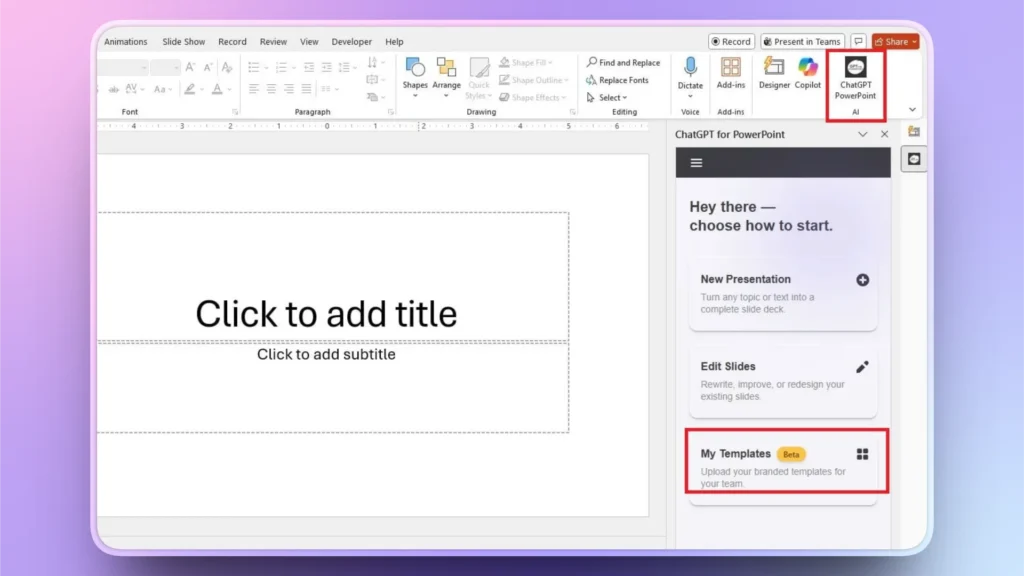
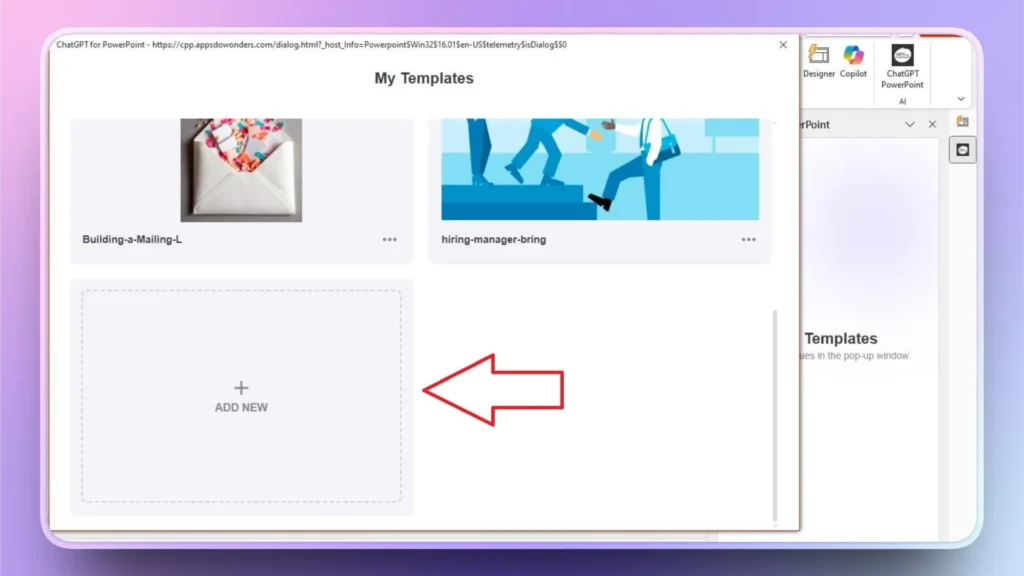
My Templates window will open, and there you can see the saved templates. To add a new template, click the ” Add New button.
Step 2: Upload your Custom Template or Presentation
Choose your official company presentation template (the one with correct colors, fonts, and logo placement). Upload it to the Custom Templates section.
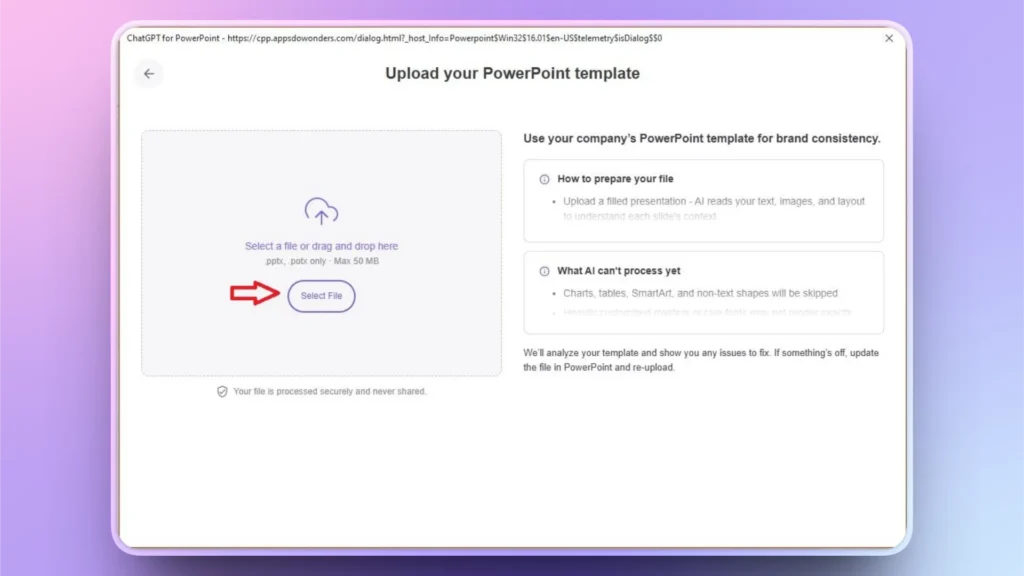
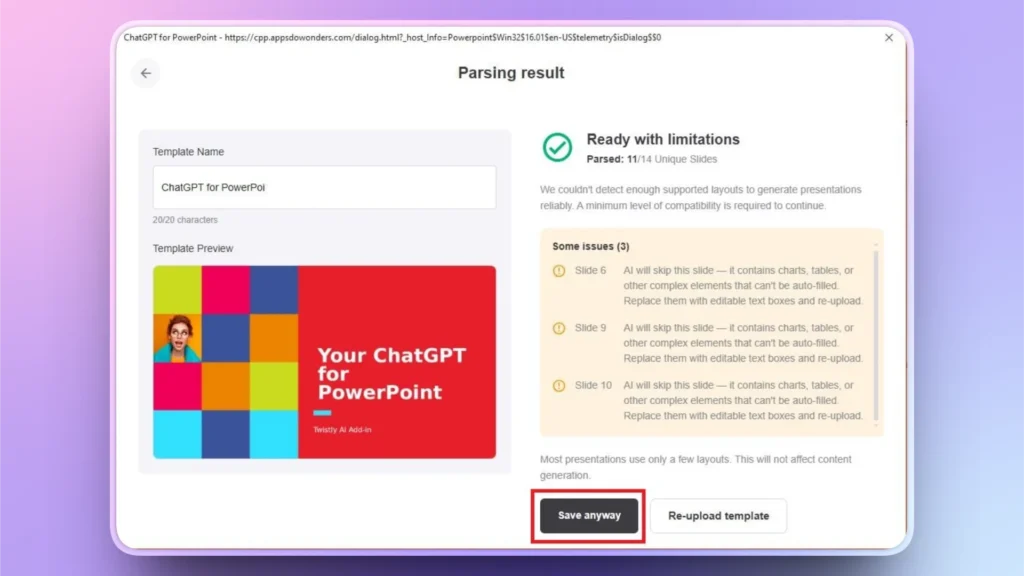
You will see some instructions on the right side of the upload screen. AI will analyze your uploaded file and let you know about slides that cannot be analyzed due to charts, images, or other elements.
Users can choose to make recommended changes to the parent presentation and reupload the file or save it with these limitations. Choose the “Save Anyway” button, and your custom template will be saved to the AI PowerPoint template library of Twistly.
Step 3: Create New Presentation
Open Twistly and create a new presentation from scratch from an AI prompt, a topic, or text, and then input your topic for the presentation.
Step 4: Select Custom Template and Review Outline
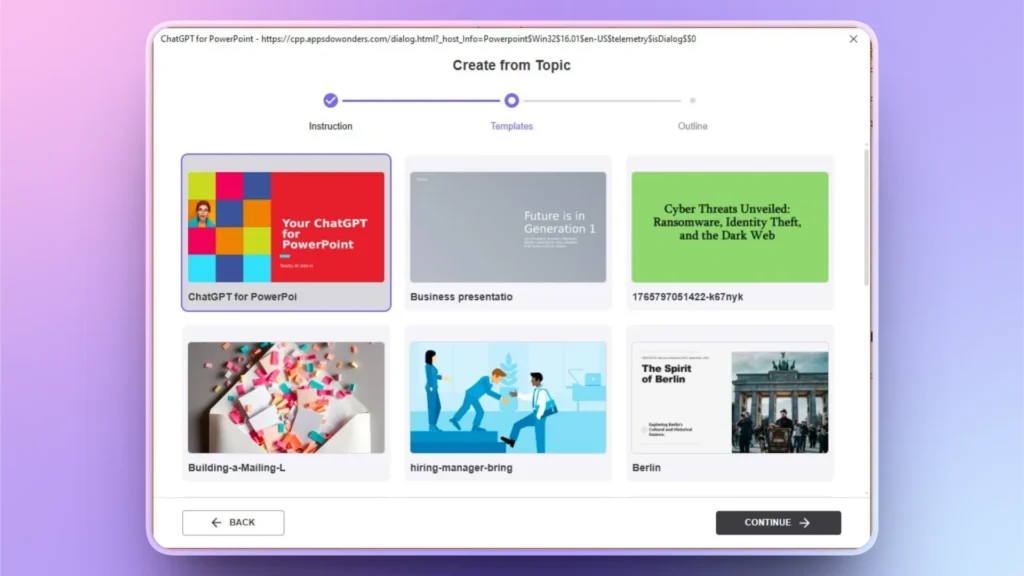
From the template library, select your newly uploaded custom template and proceed to the next step. Review the AI-generated outline for slides and click Continue if everything seems fine.
Step 5: Review your Final PPT with Custom Template
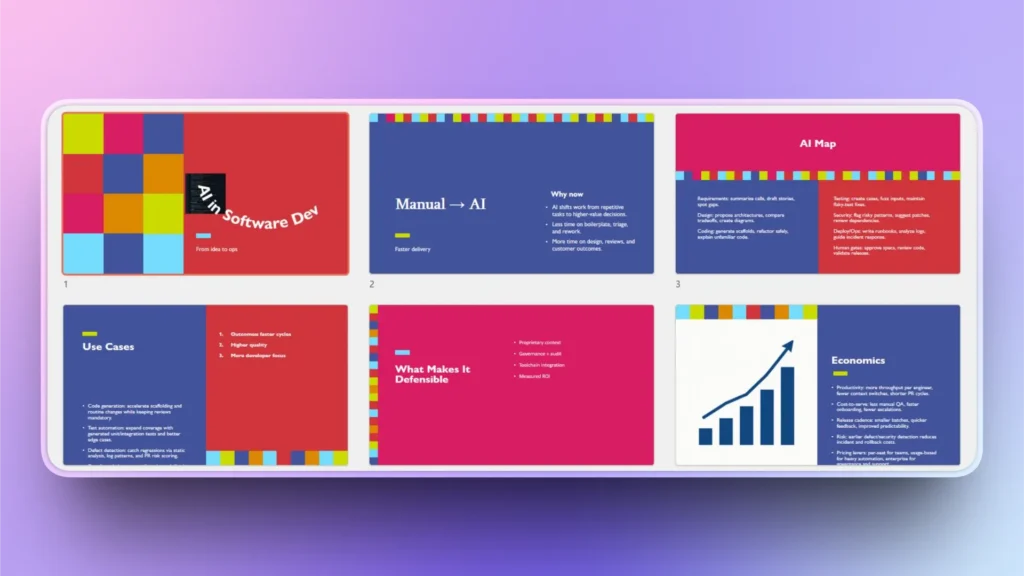
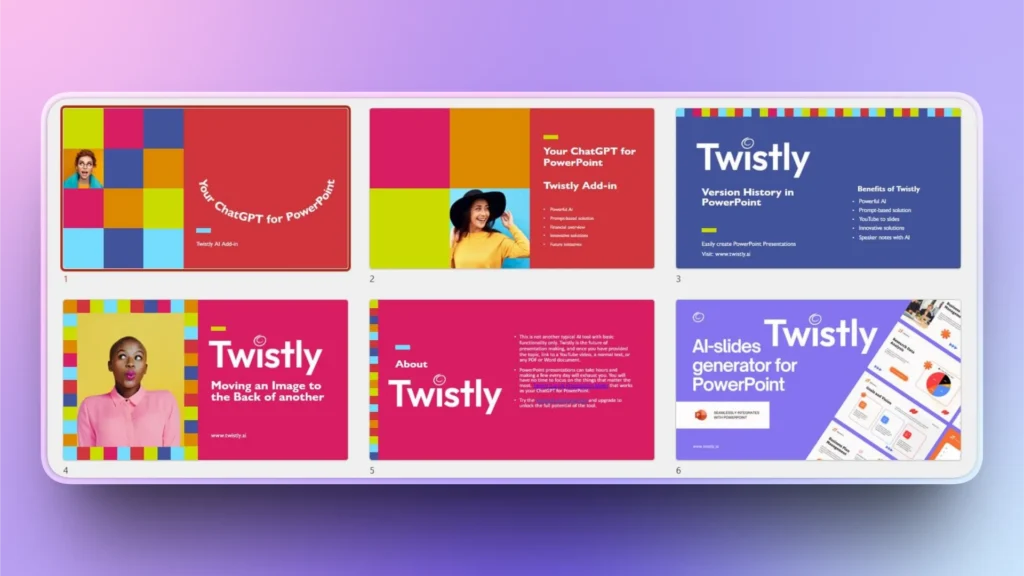
Twistly takes only a few seconds to generate all slides for your presentation. The final presentation has the same layout, style, formatting, and color scheme as the parent presentation. Here is how the generated presentation and the original presentation look.
Twistly-generated Presentation
Parent Presentation
Try the Free Trial Version of Twistly
The custom templates feature is currently available for Team plan subscribers only. If you want to try other AI features for making awesome presentations with Twistly, download the free trial version now and get a custom ChatGPT for PowerPoint.
Twistly doesn’t just help you design slides; it standardizes your brand across every presentation automatically. Click the button below to download the free trial version now.
Create PowerPoint
Slides with AI
Build AI-powered presentations from
any prompt, doc, or video


Conclusion
Keeping brand consistency across all your PowerPoint presentations doesn’t require manual editing, formatting, or editing with Twistly. With AI, your brand becomes embedded in the slide generation process itself.
If your company creates recurring reports, this feature will eliminate inconsistency permanently. The Custom Templates feature by Twistly is the smartest way to keep brand consistency across every PowerPoint presentation you create.











Start Making AI Presentations in Seconds
Instant Access
Begin exploring Twistly’s full suite of features immediately
No Commitments
No credit card required, and you can cancel anytime
Dedicated Support
Our team is here to assist you every step of the way during your trial.