



To organize slides in PowerPoint, use Slide Sorter View to rearrange slides, create sections to group related slides, and use clear titles to maintain logical flow.
PowerPoint has several tools and pre-defined actions that help with improved readability, better audience engagement, and message clarity via organized slides.
This article covers the best practices to organize slides in PowerPoint, how to structure your slides, and step-by-step methods to create an optimized flow for your presentations.
Why Organize Slides in PowerPoint?
Well-structured and organized slides help with the logical flow of content and improve the clarity of the message. Organized and planned PPTs easily outperform poorly structured slides in every setting. Slide organization helps with:
- Improve clarity and logical flow
- Maintain the audience’s attention
- Avoid repetition
- Deliver a persuasive message
- Save editing time
Think of your PowerPoint presentation as a story where every slide is a section that leads to the next one. If a section does not relate to the next one, the structure may break, disrupting the natural flow of the story.
How to Add a Section in Slides?
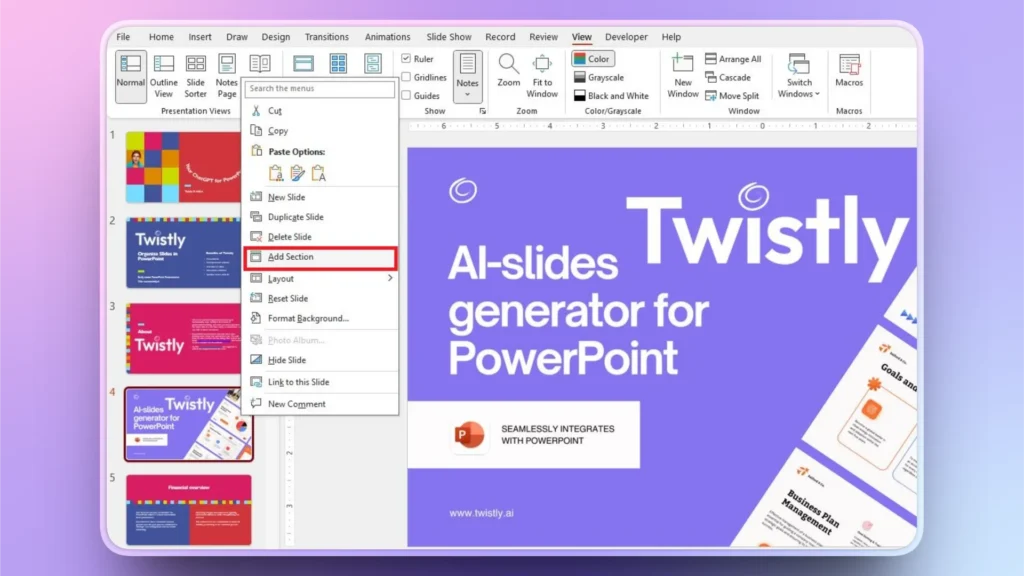
Right-click between slides that you want to arrange in different groups and click the “Add Section” button. Sections in slides define multiple slides in meaningful groups.
Rename sections so that users can easily identify the details about the section created. Collapse or expand the sections with one click.
How to Move a Section?
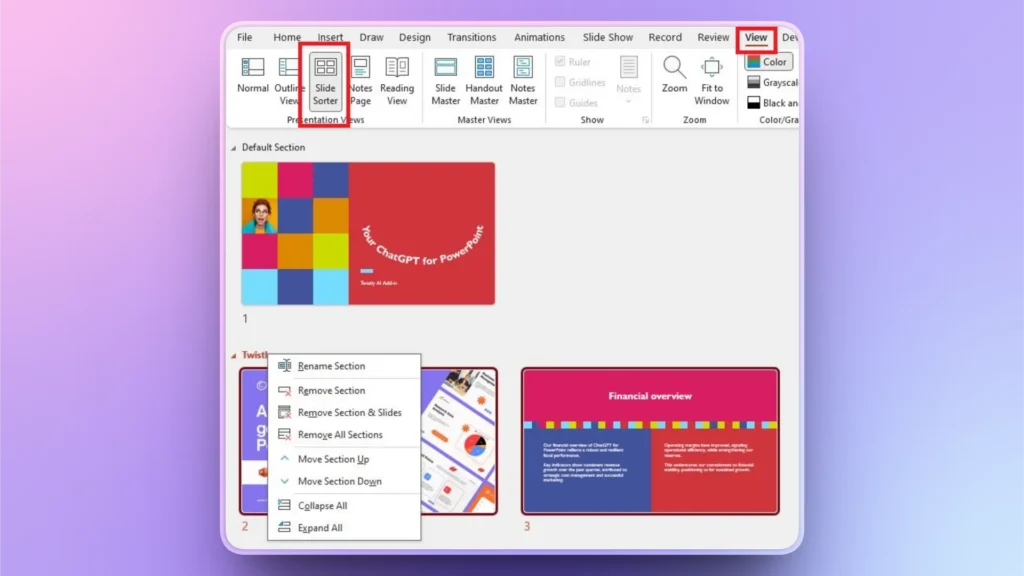
Go to Slide Sorter View and collapse sections for an organized view. Now, drag any section that you want to move up or down. Moving a section will rearrange all slides inside that section, too. Clicking the Section name in the Slide Sorter will display a menu, and you can also use the “Move Section Up” or “Move Section Down” options.
How to Remove Sections?
In the Slide Sorter View, right-click on the Section name and choose whether to remove just the sections or all the slides inside that section. The same menu has the option to “Remove all Sections” from the presentation file.
How to Select Multiple Slides in PowerPoint?
Use the Shift and CTRL buttons to select multiple adjacent or non-adjacent slides in a PowerPoint presentation. Working with a presentation with multiple slides requires the quick selection of several slides.
Select Multiple Adjacent Slides: select the first slide and then press and hold the Shift button and pick the last slide that you want. All slides between the first and last pick will be selected.
Select Non-adjacent Slides: Pick your first slide and then hold the CTRL button and select other slides. You can pick multiple slides without any order.
How to Hide and Unhide Slides?
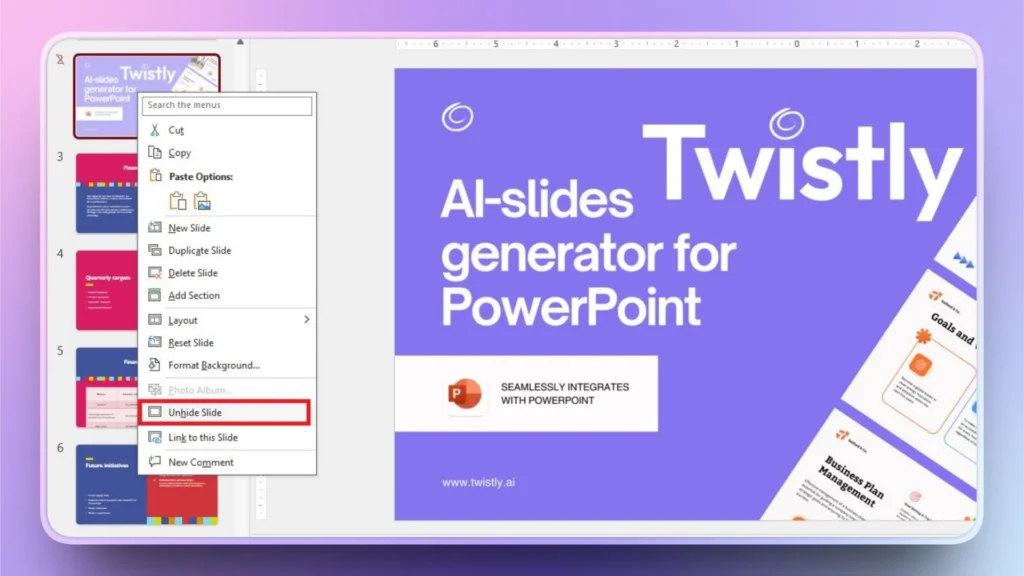
Right-click any slide that you want to hide and choose the Hide/Unhide option from the menu. PowerPoint has this privacy feature to offer more control over what others can see in an unfinished presentation.
Presenters can hide certain slides from the audience and show them when needed.
Note: When a slide is hidden, the thumbnail pane may still show the slide, but with a line over the slide number. Hidden slides will remain hidden in the slideshow.
How to Use Slide Sorter View?
Slide Sorter View offers the most convenient options for organizing slides in PowerPoint. Open PowerPoint >> go to the View tab and then click Slide Sorter View. It will show bigger thumbnails of all slides available in your presentation.
Zoom out to view all slides at once for bigger presentations. Slide Sorter View can be used to:
- Drag and drop slides
- Identify repetitive slides
- Spot structural gaps
- Group similar slides
Use Clear Presentation Slide Titles
Titles for slides act like headlines. A clear presentation slide title should clearly define what value viewers will receive from the slide contents.
A slide related to an AI add-in named “Twistly” is a bad example. Users cannot determine what this tool is about. A perfect title for the slide can be “Make Instant Presentations with Twistly AI Add-in for PowerPoint.”
A single line clearly defines the main idea of the slide, the benefits of the tool, and what type of platform this tool uses. Pay attention to the slide titles, as every little element of the slide organization in PowerPoint helps to improve audience engagement.
Advance Tips to Organize Slides in PowerPoint
Logically structured presentations and organized slides trigger interest in the audience. Failing to capture the attention of the audience in the very first few seconds can sabotage the entire session. Follow these practical tips to organize slides in PowerPoint for maximum engagement.
- Duplicate slides before any major changes; backup copies are useful
- Enable slide numbers (if not enabled automatically)
- Use sections or color-coded indicators for different sections
- Create summary slides for groups of slides or sections
How to Flawlessly Edit Slides in PowerPoint?
If reorganizing slides manually takes too much time, AI tools like Twistly can automatically restructure slides, rewrite text, and redesign layouts without affecting your presentation flow.
Once you have created an organized and well-structured presentation, editing existing slides seems like a challenge. You don’t want to redo the entire formatting from scratch.
Twistly is an AI add-in that works inside PowerPoint and can edit or create slides and complete presentations.
Step 1: Open Your Presentation and Twistly
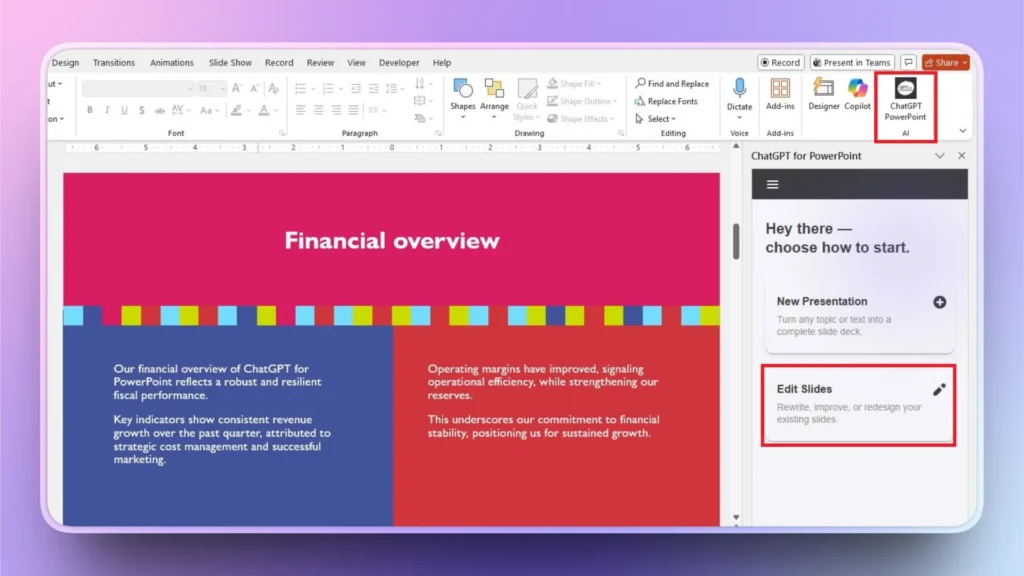
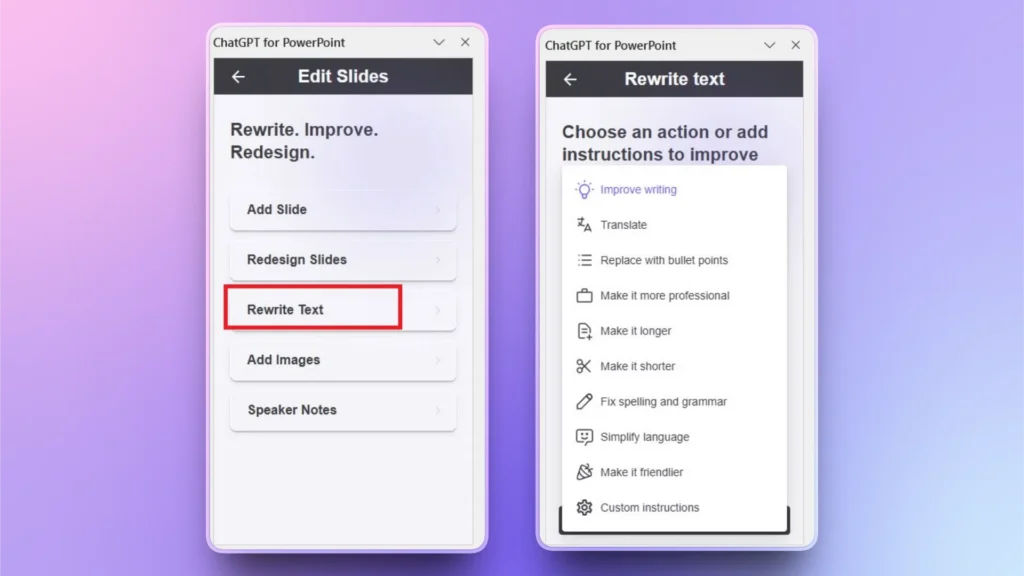
Go to the slide that you want to edit and launch Twistly. Choose the Edit Slides option, and you will see multiple options that you can perform related to editing your slides.
Step 2: Choose an AI Action
You can add new slides, redesign slides, edit text, or perform other actions. Let’s say we want to make this text more professional or rewrite it in a specific tone.
Choose the Rewrite Text option >> from the next window, choose an action,>> click Continue.
Step 3: Review the Edited Text
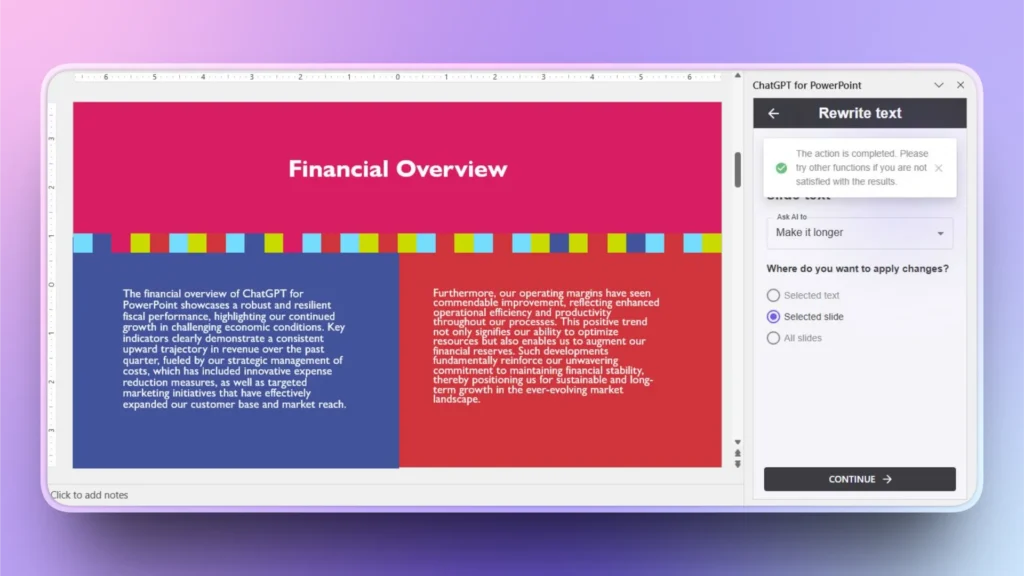
Twistly will instantly make text more professional and longer as instructed. Review final results and make changes if necessary.
Without any manual changes to the slides and structure, you can perform multiple other useful actions with Twistly to improve your PowerPoint presentations.
Conclusion
Create sections, use Slide Sorter View, hide/unhide slides, and logically number slides to organize slides in PowerPoint. When you need faster and more accurate results with less manual editing or effort, try Twistly for free, as a trial version is now available for new users.
When your slides follow a logical structure, your audience understands your message faster and remembers it longer. Experience a custom ChatGPT for PowerPoint and enjoy flexibility and speed in PowerPoint.
Create PowerPoint
Slides with AI
Build AI-powered presentations from
any prompt, doc, or video














Start Making AI Presentations in Seconds
Instant Access
Begin exploring Twistly’s full suite of features immediately
No Commitments
No credit card required, and you can cancel anytime
Dedicated Support
Our team is here to assist you every step of the way during your trial.