


Parallax effect in PowerPoint is a popular visual technique where the foreground and background of the slide move at different speeds. The placement of objects and animations adds a sense of motion and depth to the slides.
For advanced effects, you may need other image editing tools, but in this tutorial, we will learn how to create a parallax scrolling effect in PowerPoint using built-in features. Once you have the basic idea of how this works and how to create the desired effect, you can add further customizations.
We will use animations, images, and other simple effects in PowerPoint for our presentation. Make sure you have the images and visuals that you want to use to create parallax scrolling effects for your slides.
Steps to Create Parallax Scrolling Effect
For this scrolling effect to work, we will use one image as the background and then another image as the foreground image.
For this example, we are using an image of planets as a background image and an image of individual planets as a foreground image.
Step 1: Add a Background Image to your Slide
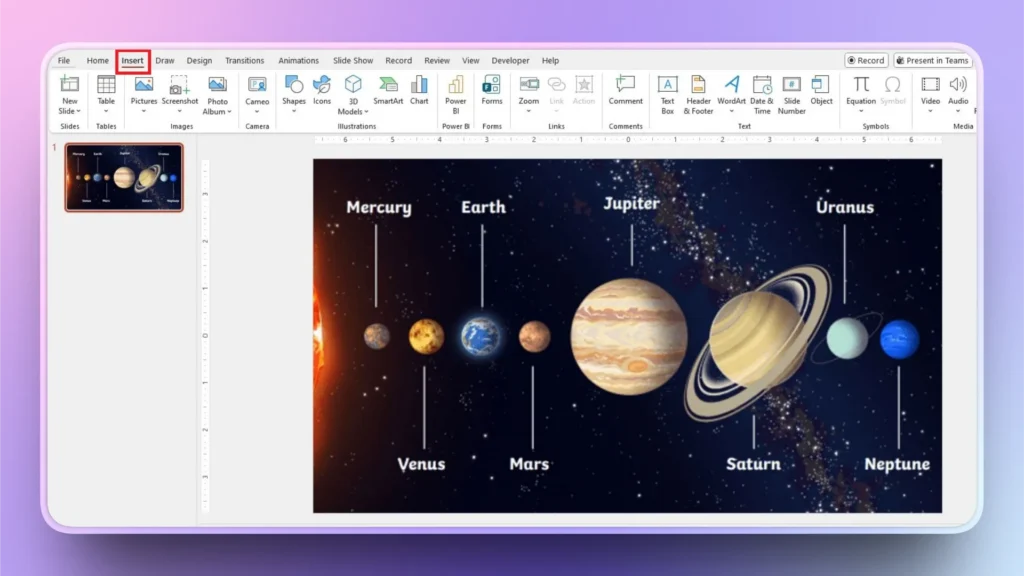
Start a new blank PowerPoint presentation and add your background image to the slide. You can drag and drop the image to the slide or use Insert tab to add an image to the slide.
Step 2: Add Foreground Image
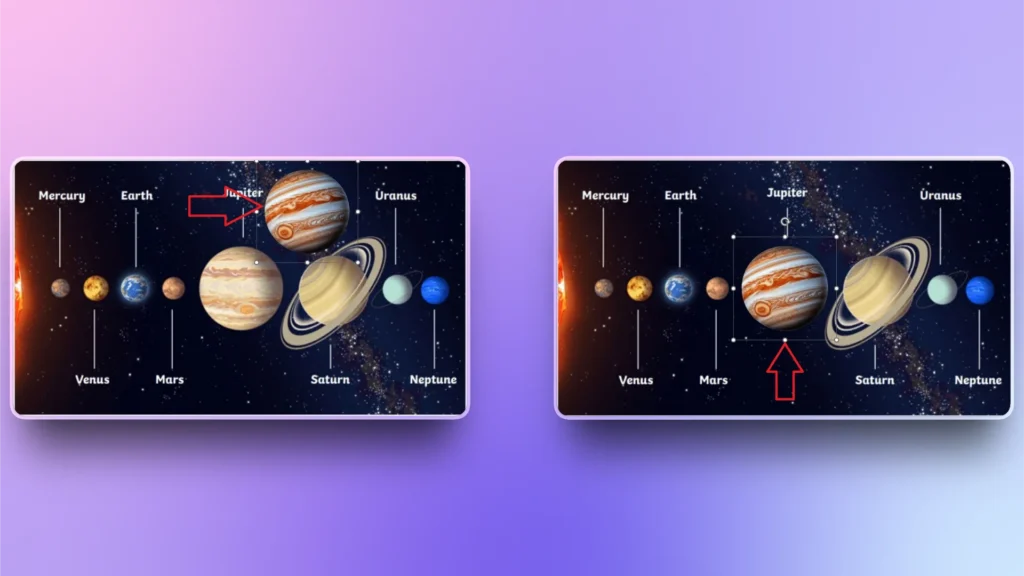
Now, our goal is to create a parallax scrolling effect for Jupiter so that when users click the slide, a text box appears with more details, and Jupiter moves from its original position to in front of the text box.
Add an individual image of Jupiter Plant. You can crop the image from the original image or download it from the internet. Place it in a way that fits perfectly on the original image.
Step 3: Animate the Foreground Image
We want the Jupiter image to move from the original place to the lower right corner, in front of the text box with the details about Jupiter.
Click Jupiter image and click Animations >> Add Animation >> scroll down to Motion Paths >> Turns.
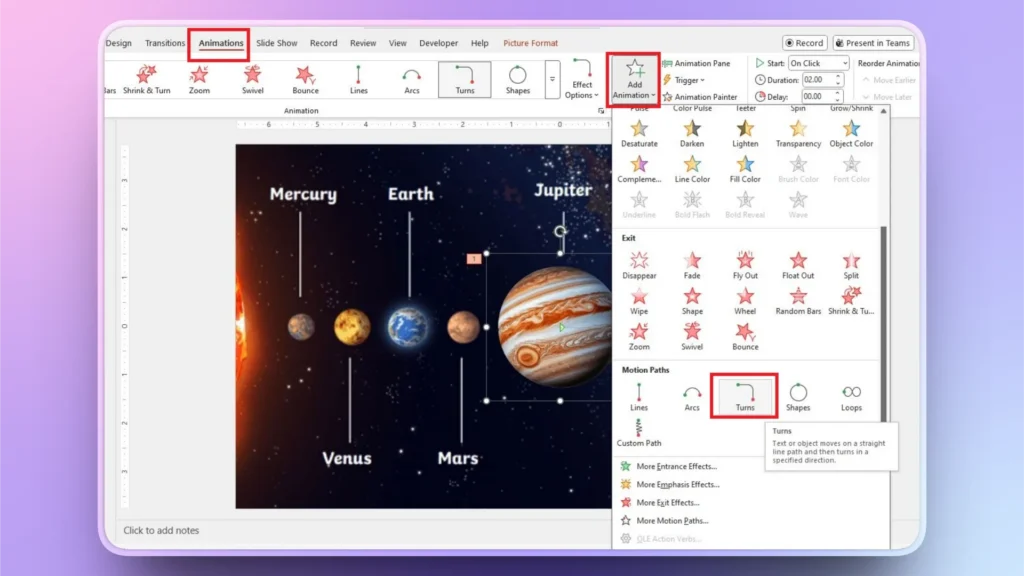
We are using the Turn motion path, but you can choose any other effect.
Adjust the path of the individual image by stretching the motion animation controls. Place the output image as the position where we want it to be.
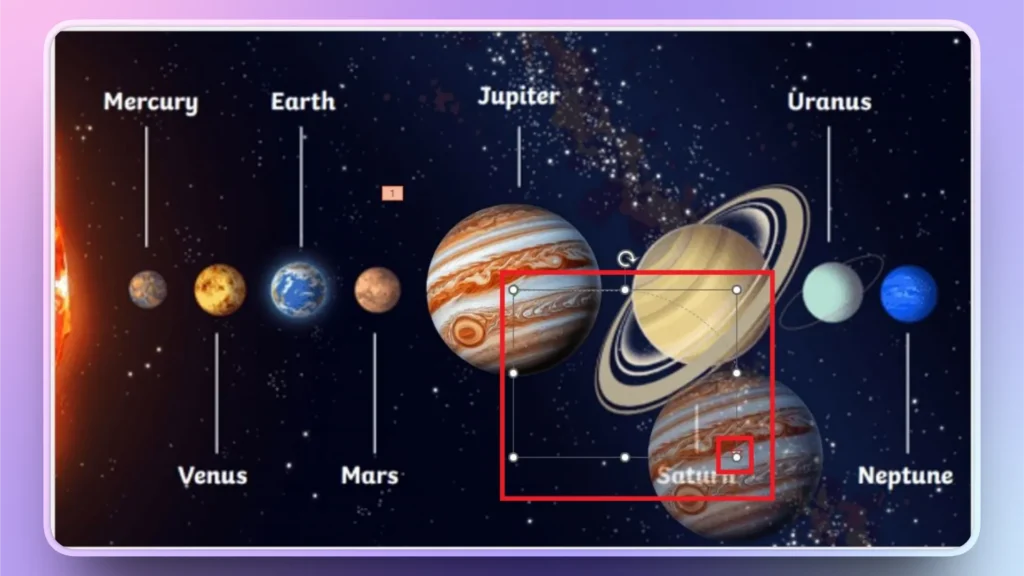
Step 4: Add Text Box for Details
Insert a text box and then add details about Jupiter in this text box. Place the text box so that it is on the left side of the moved Jupiter image. As shown in the image.
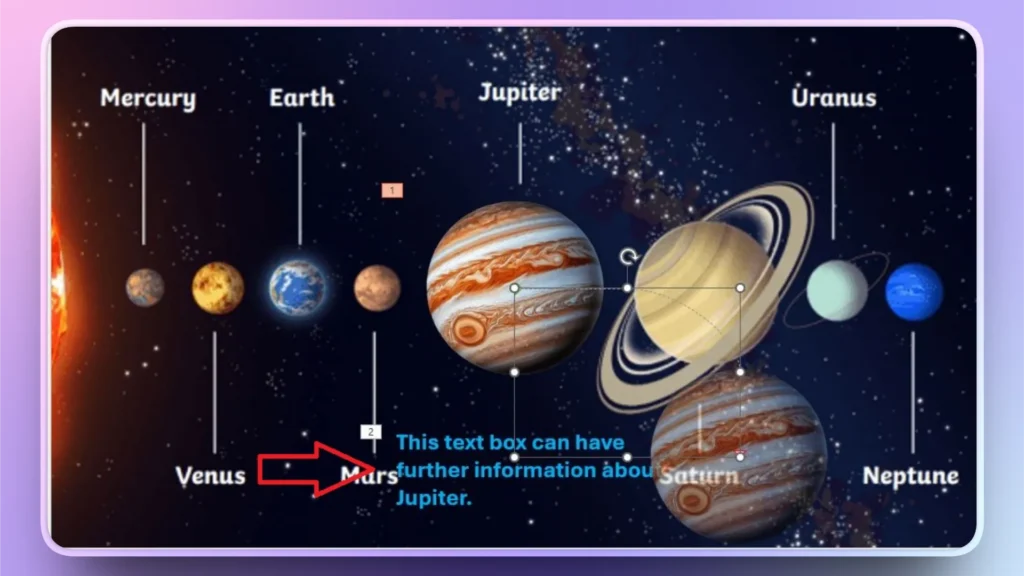
Apply the “Appear” animation to the text box so that it only appears when you click the slide.
Step 5: Apply Same Changes to Next Slide
We have created a smooth parallax scrolling effect for one planet in the image. We need to apply the same steps to other stars in the image.
Create duplicate slides and change the foreground image to another planet instead of Jupiter and change the content in the text box related to that star.
Start the Slideshow, and you will see the Parallax scrolling effect in action for all the slides that you have created. This is how our effect looks in the slideshow.
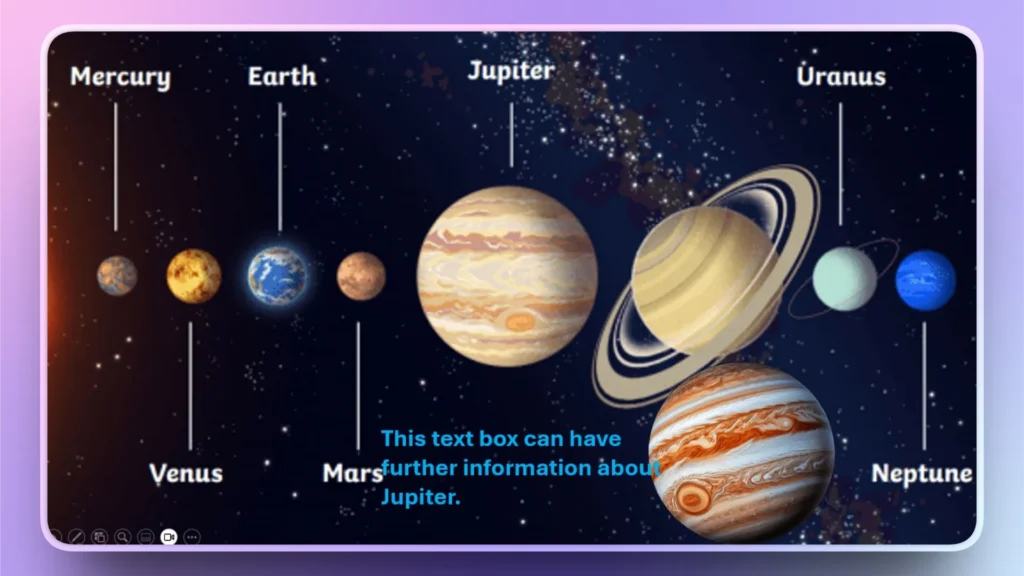
Where to use Parallax Scrolling Effect in Slides?
Animations and effects make your presentations more engaging and dynamic. Keep in mind that adding animations and such complicated effects takes time and attention to detail. These effects are commonly used for:
- Product showcases
- Storytelling presentations
- Landing-page-style slides
- Marketing and pitch decks
- Portfolio or creative presentations
For professional and financial or business presentations, clarity and data are more important than visuals and effects. The prime purpose of these animations is to engage the audience and offer a dynamic display of data.
Make Attractive Presentations with AI PowerPoint Templates
For a new PowerPoint user, these steps may seem complicated. We have simplified the process for the convenience of diverse audiences. Follow these exact steps and you will have the desired parallax effect for your slides.
Creating attractive presentations in PowerPoint requires hours, manual editing, and lots of formatting. Do you think the same? What if we could help you make attractive presentations on any topic within seconds?
Yes, Twistly is an AI tool for PowerPoint that allows you to generate individual slides or complete presentations within seconds.
How to Make Presentations with AI?
Twistly has AI-powered templates that are customized by AI according to the input by the user. You can use plain language to instruct Twistly, and the final presentation will be ready without any manual editing or formatting. You don’t even need to write content manually.
Step 1: Open PowerPoint and launch the Twisty add-in, and select the input method to create your PPT
Step 2: Write your topic, AI prompt, text, or upload a document
Step 3: Review the AI-generated outline for the slides
Step 4: Select any AI PowerPoint template that you like
Step 5: Review your final slides and make changes if needed with AI features
Download Twistly for Free
If you don’t want to spend hours creating generic presentations anymore, download Twistly and make presentations with AI. Free trial version of Twistly gives you limited-time access to all premium features before you upgrade to the paid subscription.
For a few dollars, you get to enjoy amazing AI features that work just like ChatGPT for PowerPoint and save hours of manual editing.
Create PowerPoint
Slides with AI
Build AI-powered presentations from
any prompt, doc, or video


Conclusion
You can create a parallax scrolling effect in PowerPoint by layering one image over another with added animations and effects. It will take you some time to make the needed adjustments, but these effects can add real value to your presentations.
Whether you’re crafting a marketing pitch, a product walkthrough, or a creative portfolio, try Twistly and get amazing presentations within seconds. It is just like a custom AI solution that is specifically designed for all kinds of PowerPoint users. Be smart and adopt AI for maximum productivity.












Start Making AI Presentations in Seconds
Instant Access
Begin exploring Twistly’s full suite of features immediately
No Commitments
No credit card required, and you can cancel anytime
Dedicated Support
Our team is here to assist you every step of the way during your trial.