



Without any additional AI tools like Copilot and Twistly, PowerPoint cannot generate images. You may need 3rd party AI image generators or install add-ins like Twistly to enable image generation for PowerPoint. Through Microsoft Copilot, PowerPoint can generate images, but with some limitations.
Tools like Twistly unlock the full potential of PowerPoint for fetching free images and generating custom visuals with AI. In this article, we will explore different points related to images and visuals in PowerPoint, including:
- How AI image generation works in PowerPoint
- The limitations of native PowerPoint AI tools
- Why image quality matters in presentations
- How Twistly enhances AI image creation and slide design
With our suggested method, you get a complete AI package that includes features for AI content, designs, formatting, and images. This one AI add-in can totally change how you use PowerPoint for presentations.
Does PowerPoint have a Built-in AI Image Generator?
Only the latest version of PowerPoint has built-in Copilot that enables AI capabilities for the software. If you are using an older version of the presentation maker or don’t have Copilot enabled, you cannot generate images for presentations. Copilot subscription is paid, and it can help you generate:
- illustrations
- Conceptual graphics
- Background images
- Simple visual metaphor
But the image generation capabilities are quite limited and don’t offer any special benefit for common users. Most of the time, you will have to search and download the images needed from 3rd party apps and then manually insert them into PowerPoint slides.
Limitations of Copilot in PowerPoint for AI Images
Copilot is a decent AI resource for some PowerPoint users, but it needs some serious upgrades for wider acceptance. For branded presentations, the customization options are quite limited. According to the slide design, you might end up spending hours changing the orientation of multiple images.
Common problems with native image generators in PowerPoint force users to look for better and more flexible options like Twistly. Some common problems with the built-in image generator for PowerPoint include:
- AI images generated directly in PowerPoint often lack advanced customization options
- Maintaining a consistent visual language across a full deck is challenging
- AI image generation is usually locked behind Microsoft 365 Copilot plans
- PowerPoint’s AI focuses on functionality rather than storytelling
All these and many other challenges make Copilot useful for a limited audience only. A regular user, student, or nontechnical person may want a better and user-friendly AI image generator for PowerPoint.
Why Are Images Important in Presentations?
Visuals are an important part of communication via PowerPoint presentations. Sometimes, free image sites don’t have the required images. Instead of using random and irrelevant images for the slides, you can opt for AI images. Images are not for decorative purposes in slides, but they impact:
- Audience engagement
- Information retention
- Professional credibility
- Emotional connection
With a single AI-generated image, you can convey a complex concept easily. For important presentations, unique and relevant images make your slides appear more professional and attractive. To achieve this consistently, you need an AI tool designed specifically for presentation workflows.
How to Generate Images for Slides with Twistly?
Twistly has an amazing and flexible AI image generator that offers unlimited images for your slides. For normal presentations, you can choose free stock images or AI images.
For an individual slide, you can replace or add any existing image in the slide.
In this example, we will replace an existing image in a PowerPoint slide with an AI-generated image via Twistly. This whole process of generating images with AI for PPT will happen inside PowerPoint. You don’t need to visit any other website or app for images.
Step 1: Open the PPT Slide and Launch Twistly
Open your PowerPoint presentation, and launch Twistly from the Home tab. Go to the slide where you want to add an AI image.
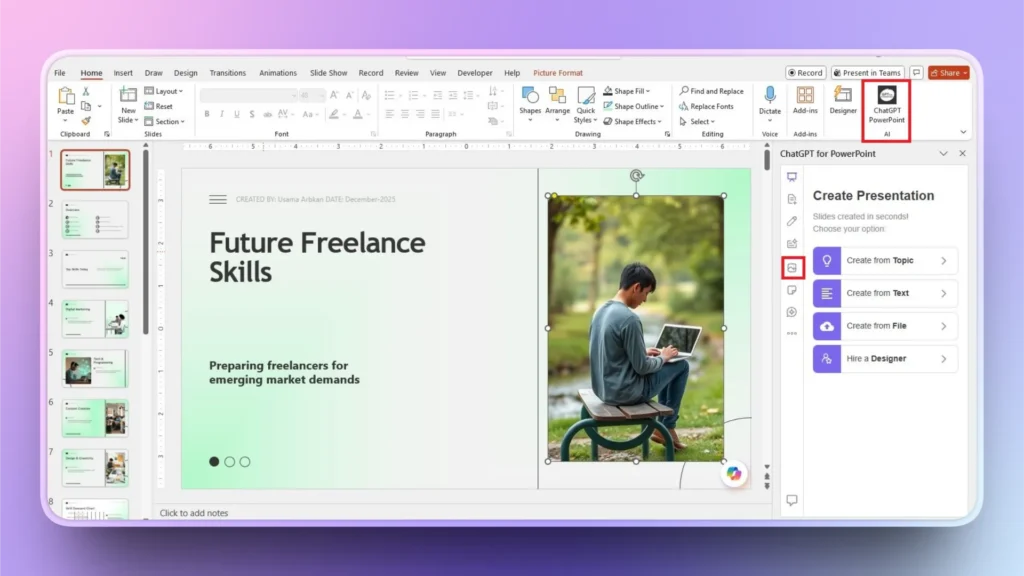
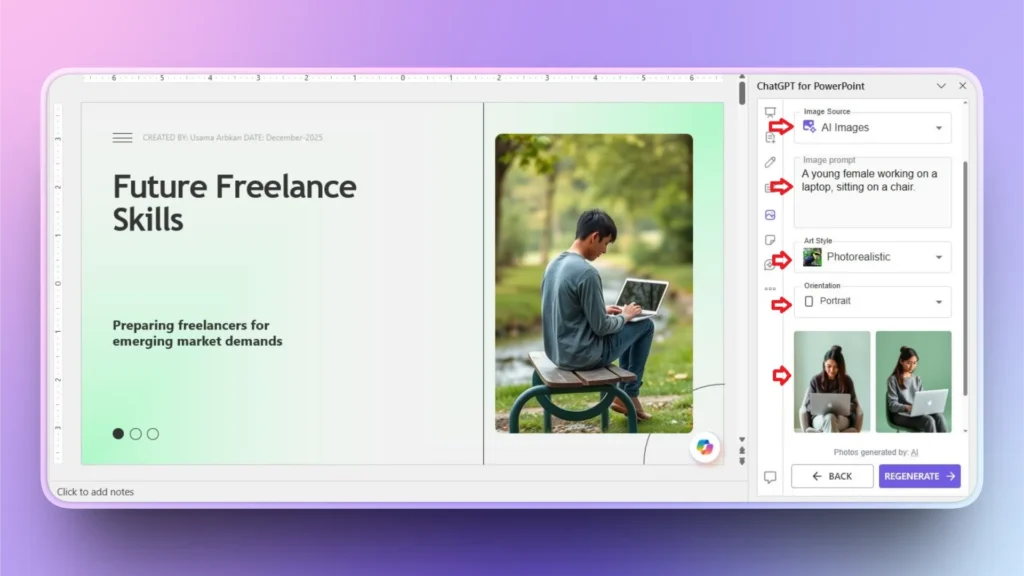
Step 2: Choose Add Image and Input AI Prompt
Click the ” Add Image option from the left menu in the Twistly dashboard.
- Choose AI Images as the source.
- Input an AI prompt, and a more detailed prompt will generate better results.
- Select Art Style
- Choose Orientation
Once you have made these selections, click Continue, and Twistly will generate two unique AI images for your slide.
Step 3: Insert an AI Image into the PPT Slide
Hover your mouse over any image that you like and click the Insert button, and the image on your slide will be replaced with the AI image, as shown in the image below.
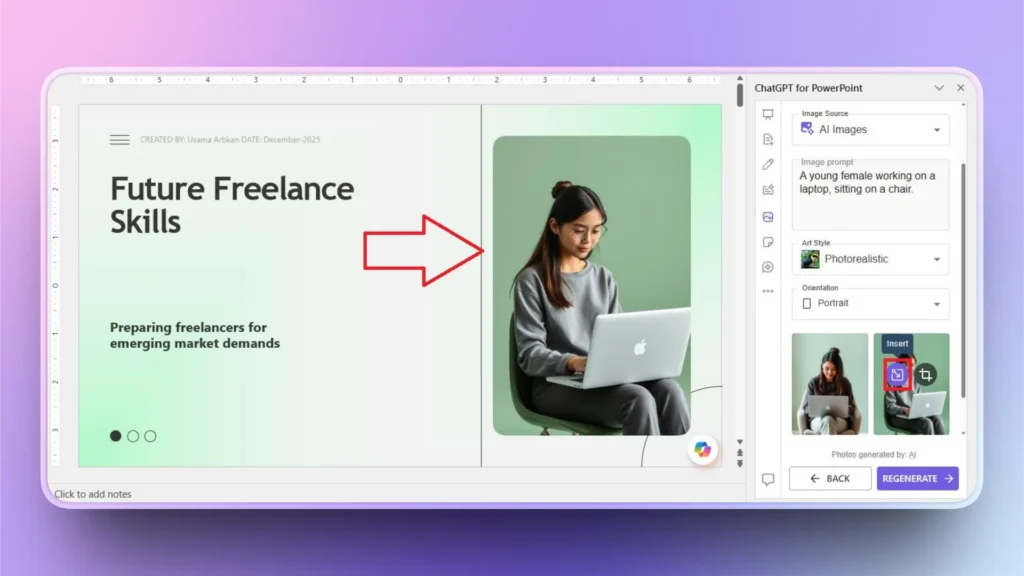
As you can see, no additional tab switching happened, and you did not even have to resize, reshape, or format the image. Everything happened instantly, automatically.
How to Generate More Images and Resize the Image?
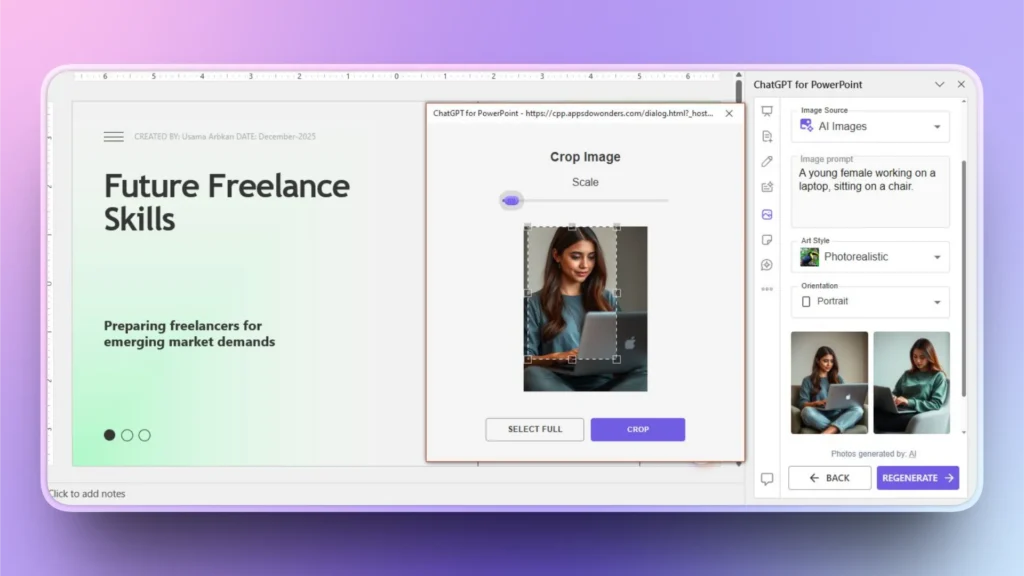
If you did not like the initially generated images, click the Regenerate button at the bottom of the Twistly window, and AI will give you two new concepts. Click the Preview button on the newly generated image, and a new editing window will appear.
Use the image editor to resize, scale, or crop the AI image for the slide. Once you have cropped the image, finalized the editing, and the edited images will be added to your slide.
Unlimited Free Images for Slides with Twistly
Are you tired of downloading images and then adding them to PowerPoint slides manually? Do you want unlimited free images for slides and want a smart AI image generator for your PPTs?
Download the free trial version of Twistly now by clicking the download button below. Start generating AI images for PowerPoint presentations without any additional software, app, or website. All happens within PowerPoint via the Twistly add-in.
Create PowerPoint
Slides with AI
Build AI-powered presentations from
any prompt, doc, or video


Final Verdict
Can PowerPoint generate AI images? The answer is yes, but you need Twistly to unlock the true potential of AI images for slides. Relying on Copilot will limit your creativity. Twistly transforms PowerPoint into a truly intelligent presentation tool.
Instead of struggling with limited AI features, Twistly empowers you to create visually stunning, AI-enhanced presentations. You can try a custom ChatGPT for PowerPoint that can write content, design slides, and generate AI images for your presentations.












Start Making AI Presentations in Seconds
Instant Access
Begin exploring Twistly’s full suite of features immediately
No Commitments
No credit card required, and you can cancel anytime
Dedicated Support
Our team is here to assist you every step of the way during your trial.