


How to Turn Your LinkedIn Profile into a Resume Slide with AI?
LinkedIn is the most popular networking platform for professionals. It is just like Facebook, but for professionals. Having a complete LinkedIn profile means that you already have a resume for your next job. But most users don’t know how to turn a LinkedIn profile into a resume slide.
After spending hours building a strong LinkedIn profile, there should be a smarter way to turn a LinkedIn profile into a resume slide with AI. Well, in this tutorial, we will answer your questions and find you the right tools to create resume presentations with AI.
Why Turn your LinkedIn Profile into a Resume Slide?
LinkedIn has millions of recruiters and applicants, but how to connect with companies and HR teams that are not on LinkedIn? For reaching out to recruiters outside of LinkedIn, you can turn your already polished LinkedIn profile into a resume slide.
Once you have the resume presentation ready, you will realize the ease of sharing, editing, and the power of visual storytelling. Here is why this approach works:
- Visual storytelling with presentation tools works better than static resumes
- Great tool for presentations related to yourself and your services
- Easily shareable resume presentations across multiple channels
- AI saves you time as you don’t have to create a resume from scratch
Keep reading till the end because we have explained an exclusive AI tool in this tutorial that is a lifesaver for every professional when it comes to making presentations.
Turn LinkedIn Profile into a Resume Slide with Twistly
Imagine you save your LinkedIn profile and then an AI tool generates a complete presentation based on your LinkedIn profile. It seems good. Well, Twistly is the perfect tool that we will use to turn your profile into a professional resume presentation.
What is Twistly?
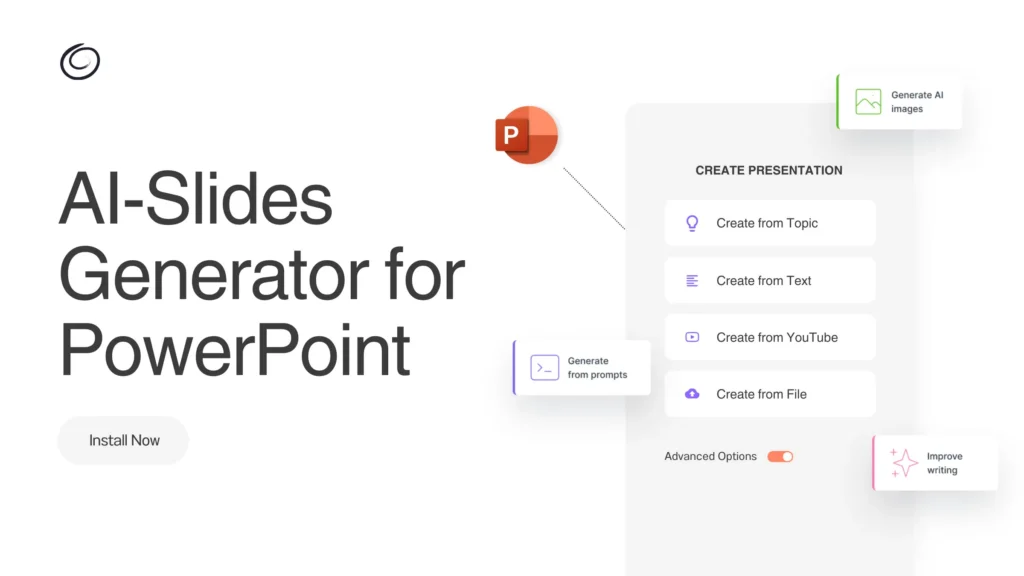
Twistly is an AI tool that can create individual slides or complete presentations based on the input. It writes content, designs slides, and formats presentations automatically with AI.
In this scenario, we will upload our LinkedIn profile PDF to Twistly in PowerPoint, and AI will automatically turn your LinkedIn profile into a resume slide. Let’s follow the simple steps.
Step 1: View your LinkedIn Profile
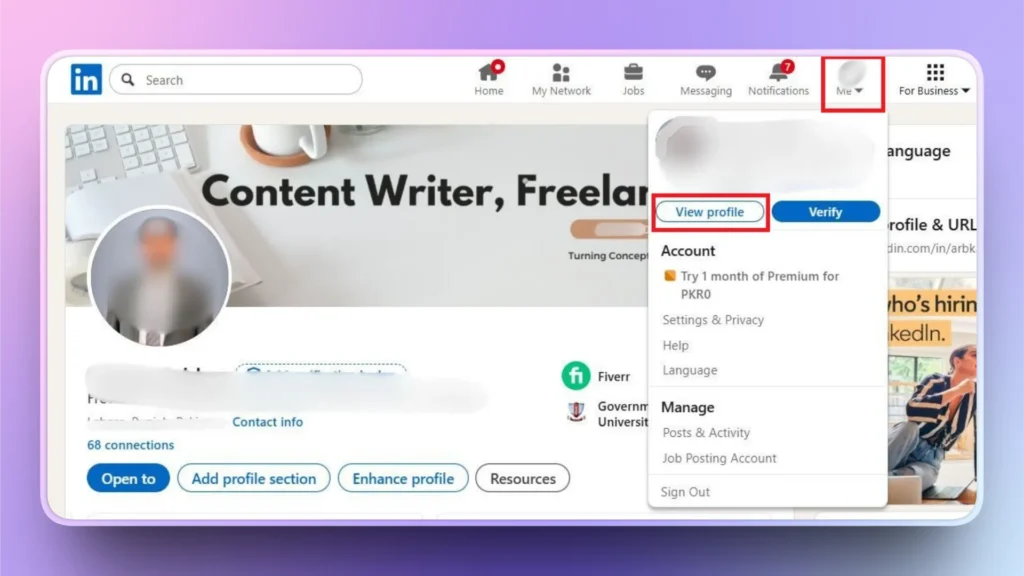
Go to LinkedIn >> click Me option with your profile picture at the top right of the corner >> View Profile.
You will have your complete LinkedIn profile, containing all personal and professional information about you.
Step 2: Save LinkedIn Profile as PDF
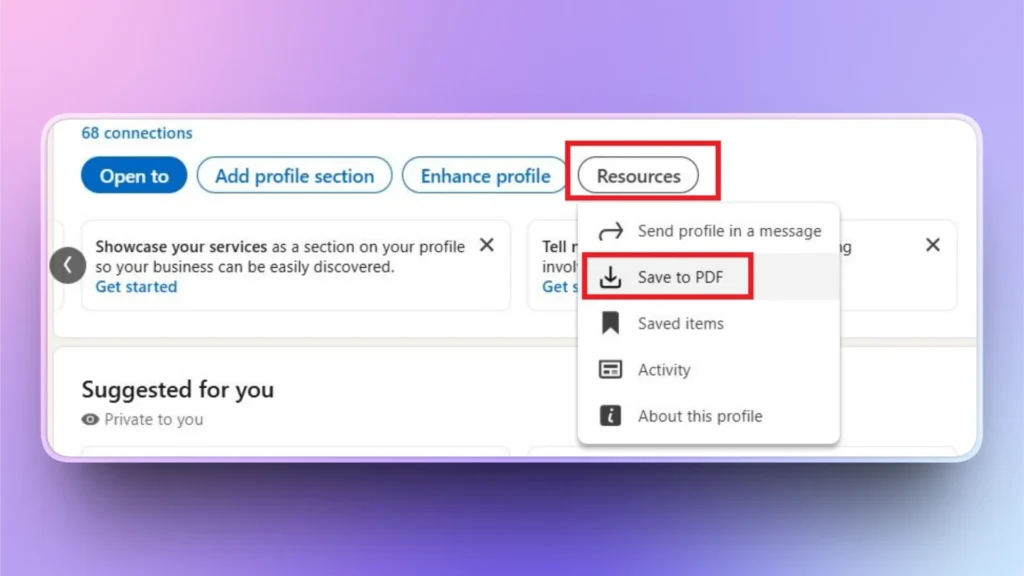
In your profile, click Resources and click the Save to PDF option, and your complete profile details will be saved as a PDF on your computer. PDF will be automatically downloaded to your device.
Step 3: Open PowerPoint and Launch Twistly
You have all the information from the LinkedIn profile; now you need to turn that information into a resume presentation.
Start a blank PowerPoint presentation and launch the Twistly add-in. Choose “Create from File” as the input method.
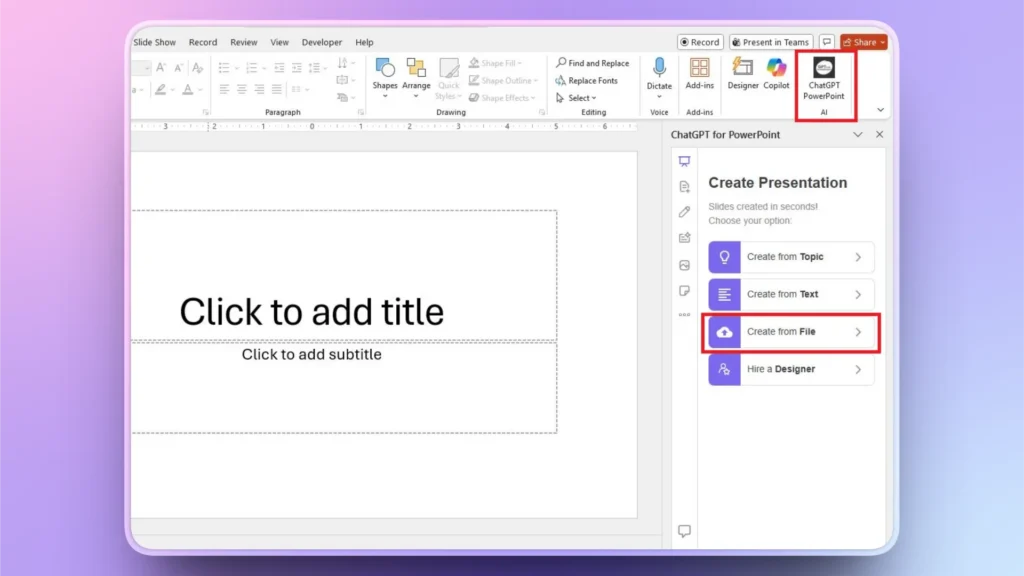
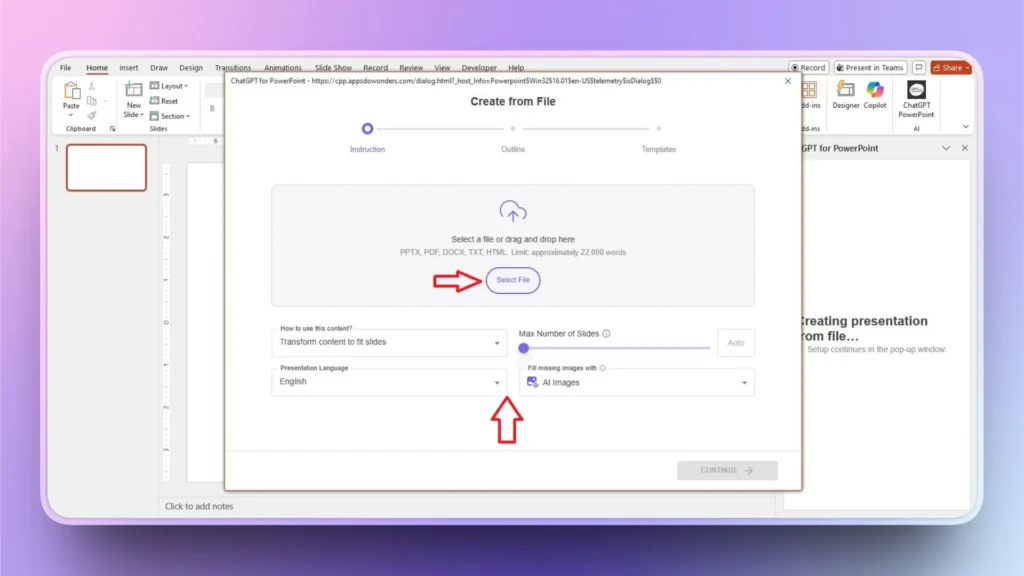
Step 4: Upload LinkedIn Profile PDF
A new screen will appear where you will be asked to upload the file as input and make other selections as shown in the image below.
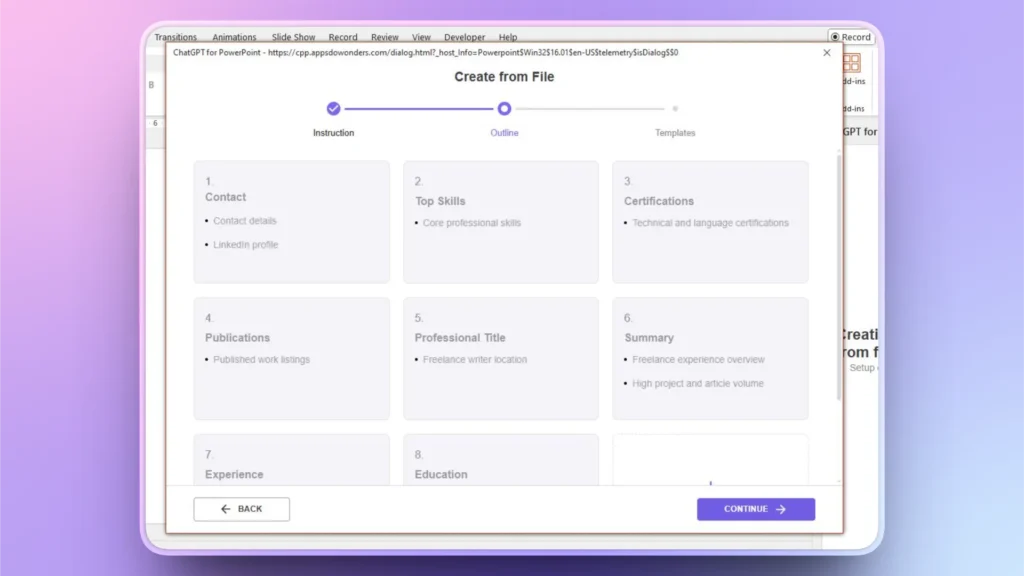
Step 5: Review Slide Outline
Twistly will generate an outline of possible slides for a resume presentation. Review this outline and make changes if needed. If everything seems fine, click Continue.
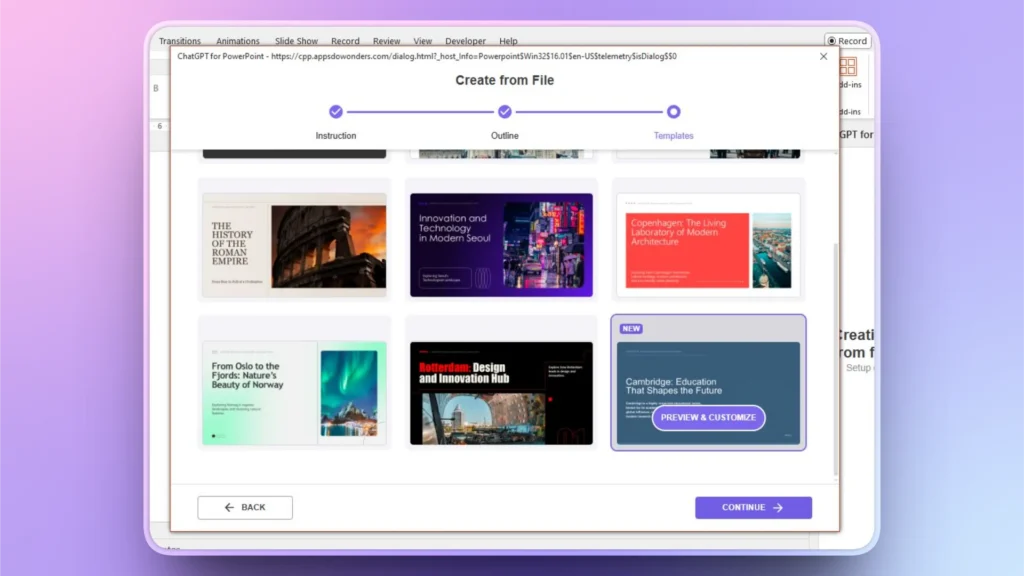
Step 6: Select an AI Template
There are some AI templates that are fully optimized for different types of presentations. Select any template that suits your needs and click Continue.
Step 7: Review your Resume Slides
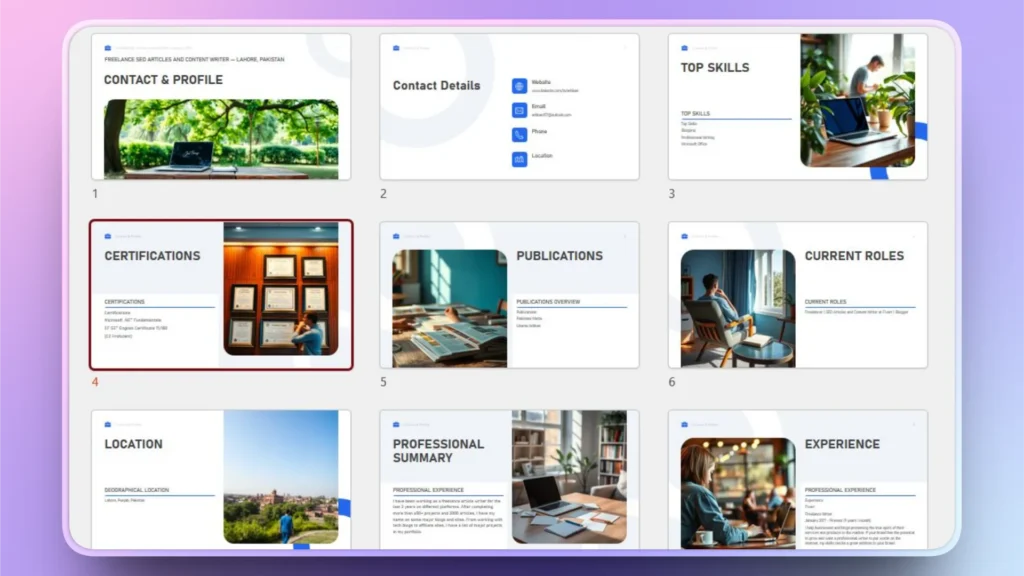
Within a few seconds, your final slides will be ready. As you can see in the image below, Twistly analyzed the contents of your LinkedIn profile PDF and generated separate slides for every important aspect of the resume.
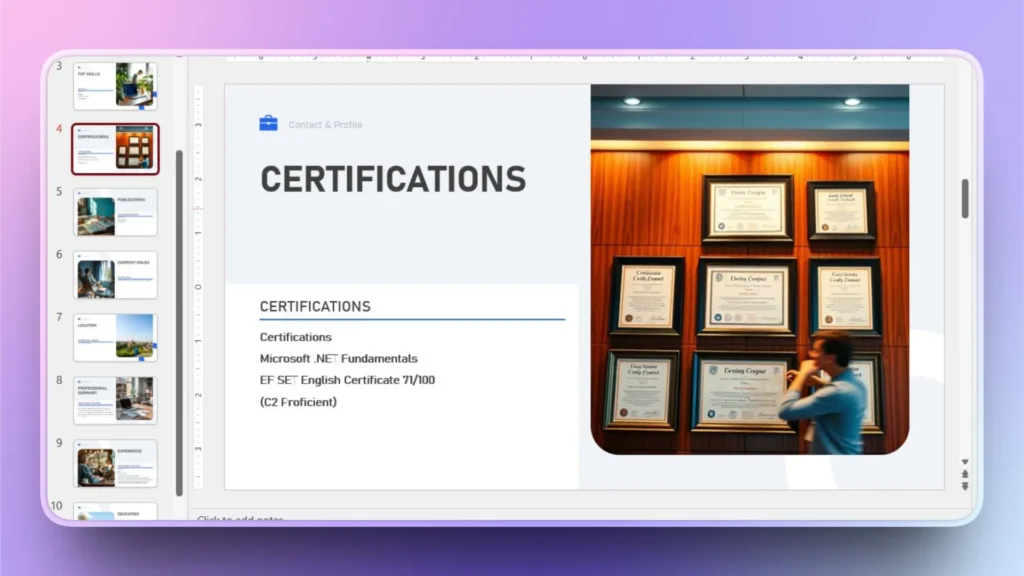
With a resume presentation, you can explain your skills, services, and achievements in a more interactive way. A resume presentation is a more effective way to get hired than a static resume.
Pro Tip: Customize Resume Presentation Slides
While turning your LinkedIn profile into a resume slide, Twistly has used the built-in AI image generator for visuals. For a personalized experience, take a moment and replace AI images with real photos.
You can upload real testimonials, certifications, and other real photos instead of generic AI images. The goal is to make your resume slides as convincing and detailed as possible.
How to Get Twistly for PowerPoint?
Twistly is an add-in that you can download from Microsoft AppSource, the official website of Twistly developers, and the add-in library inside PowerPoint. For a direct download link, use the button below to claim your free trial version.
Create PowerPoint
Slides with AI
Build AI-powered presentations from
any prompt, doc, or video


Alternate Methods to Turn LinkedIn Profile into a Resume
There are online CV and resume generators that can turn your LinkedIn profile into a resume or a detailed CV. You just need to paste the URL of your profile, and the AI tools will generate a resume based on the profile data.
But there is a challenge with these tools: they generate a static, one-page resume. You cannot generate a detailed and dynamic resume presentation with such tools.
Limitations with Online Resume Tools
Even after using these tools for generating a resume, you still need Twistly for generating a resume slide. In the end, Twistly is a must-have presentation tool for every PowerPoint user.
There are other potential benefits of Twistly for a professional, instructor, HR person, executive, or a common PowerPoint user.
Conclusion
You can use Twistly to turn your LinkedIn profile into a resume slide with AI, within seconds, and generate a complete branded presentation. Use this presentation to showcase your skills, personal achievements, and services that can add value to any company or business.
Grab the next potential opportunity by showing your true potential with a resume presentation, made with Twistly. Download the free trial version of Twistly now before someone else grabs that amazing opportunity.
Start Making AI Presentations in Seconds
Instant Access
Begin exploring Twistly’s full suite of features immediately
No Commitments
No credit card required, and you can cancel anytime
Dedicated Support
Our team is here to assist you every step of the way during your trial.