



Refining speaker notes and PPT content does not mean removing information, but presenting with clarity. Writing speaker notes can take hours as you have to go through every slide and summarize or expand the content. Similarly, if you need to edit content for PPT slides, it can also take hours.
Twistly developers take pride in offering all AI features in one add-in that any PowerPoint user might ever need. Can Twistly help with creating and refining speaker notes and PPT content?
How to make your content sound like you: confident, professional, and concise? In this article, we will learn how to refine speaker notes and PPT content with Twistly.
What are PowerPoint Speaker Notes?
Speaker notes are private text or scripts for presenters, stored within PowerPoint. Speaker notes appear on the presenter’s screen but remain hidden from the audience.
These private notes help presenters remember key points, statistics, or transitions for a smoother, more confident delivery without cluttering the slides.
Why Use Twistly for Speaker Notes and PPT Content
There are many cool AI features and tools inside PowerPoint that can help you polish and optimize existing or new presentations. Instead of wasting hours on manual writing, refine speaker notes and PPT content with Twistly within seconds.
Here are some reasons why millions of PowerPoint users trust Twistly for their daily presentation tasks relating to speaker notes and content:
- Twistly can create speaker notes for a single slide or an entire deck with one click
- Everything happens inside PowerPoint’s sidebar
- No copy-paste or app switching is required for Twistly
- You can generate alternate versions, translate notes, or ask AI to change the tone of PPT content
How to Refine and Generate Speaker Notes with Twistly?
First, we will talk about simple steps related to generating speaker notes for an existing presentation.
Generating Speaker Notes with Twistly
You can generate speaker notes for a selected slide or entire presentation. Let’s see how to write speaker notes for a presentation with AI.
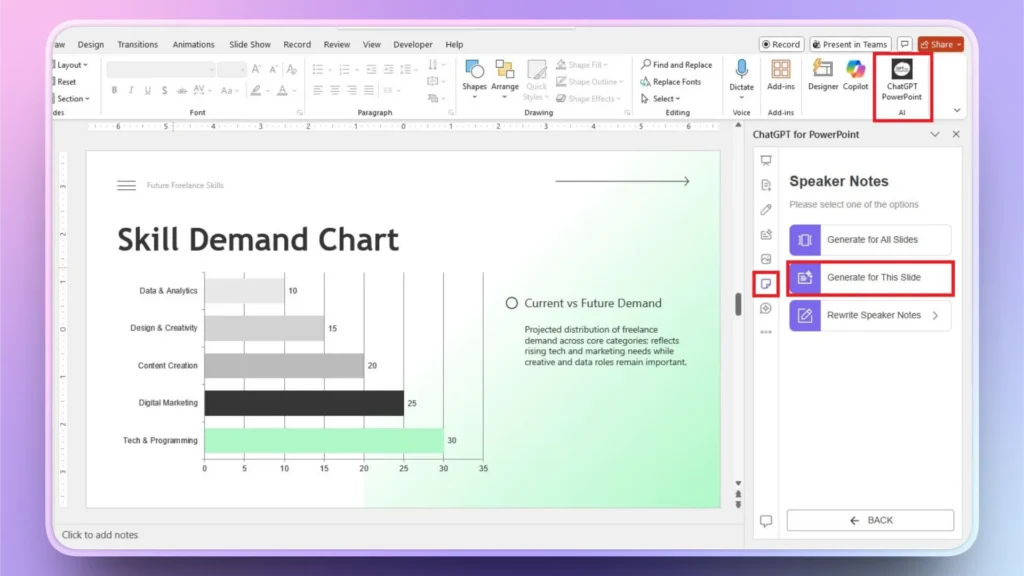
Step 1: Open PPT and Launch Twistly
Open your presentation, go to the slide for which you want to generate speaker notes, and then launch Twistly. Click the Speaker Notes icon as shown in the image below.
Step 2: Generate Speaker Notes
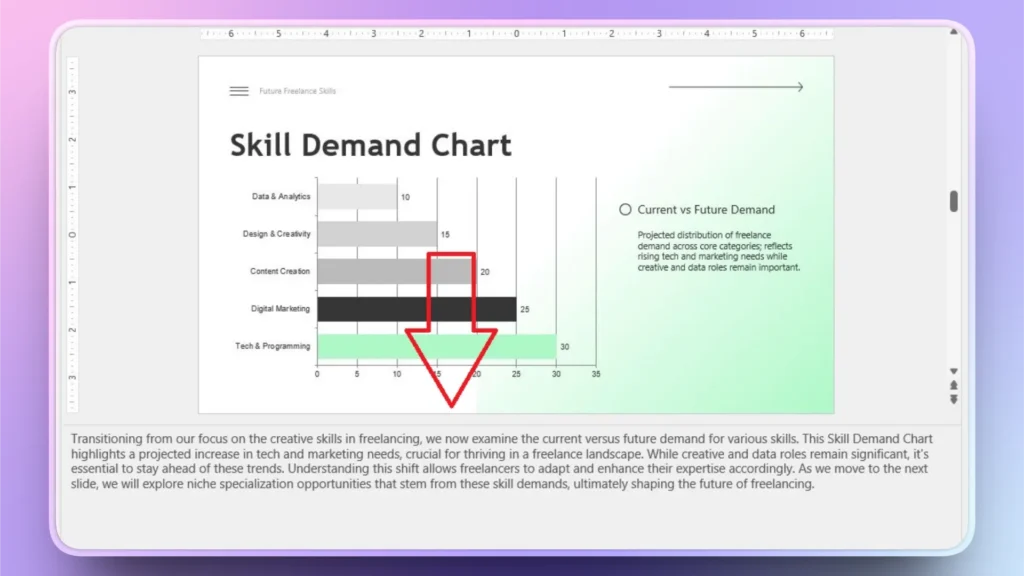
Choose whether to create speaker notes for selected slides or all slides. With a second, you will see AI-generated speaker notes under the slide preview.
Refining Speaker Notes with Twistly
Once you have generated speaker notes, you might want to change the speaker notes, make them longer or shorter, change the tone, or turn paragraphs into bullet points. You can do many other cool things with Twistly to refine your speaker notes.
Step 1: Select Rewrite Speaker Notes
Select your slide >> open Twistly >> Speaker Notes icon >> click Rewrite Speaker Notes button.

Step 2: Choose your Action to Refine Speaker Notes
From the dropdown menu, choose any action that you want for the speaker’s notes. There is a long list of pre-defined actions, and you can add your custom instructions too.

Step 3: Refined Speaker Notes are Ready
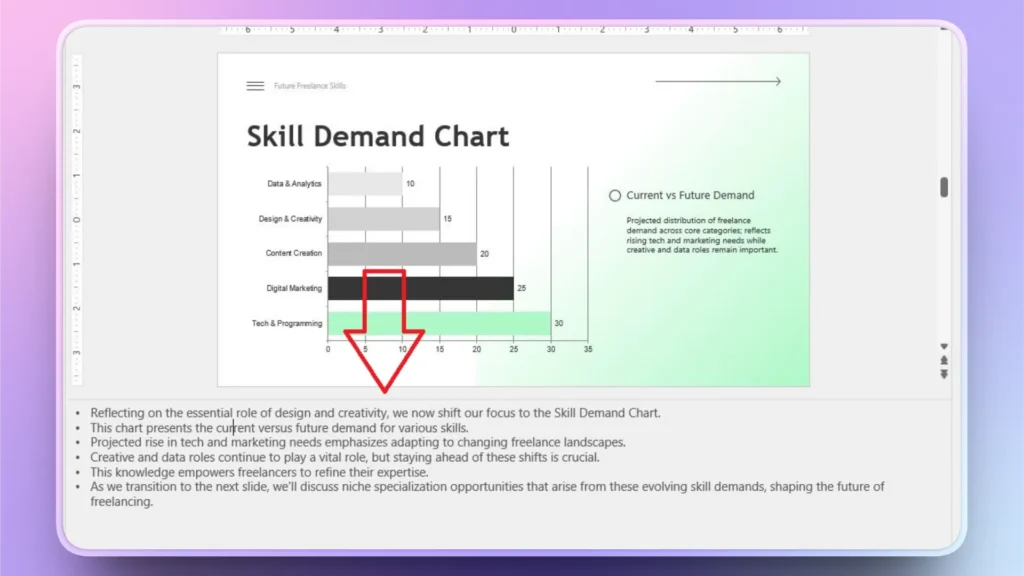
You can see that Twistly has turned a long paragraph into a bullet list. It is now more convenient for presenters to process additional information from speaker notes.
How to Refine PPT Content with Twistly?
Same content-related optimization options can be applied to the PPT content, too. Twistly has a long list of content-related options that you can perform with AI, within seconds. Follow these steps to refine your PPT content with Twistly.
Step 1: Select the Rewrite Text Option in Twistly
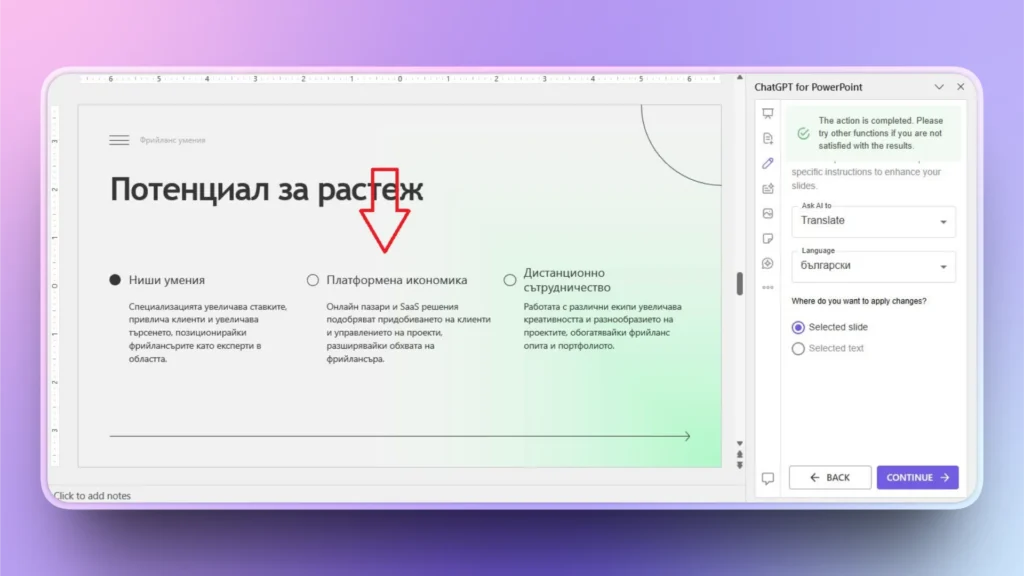
Open your PowerPoint presentation and go to the destination slide. From the Twistly dashboard, click the “Rewrite Text” option.
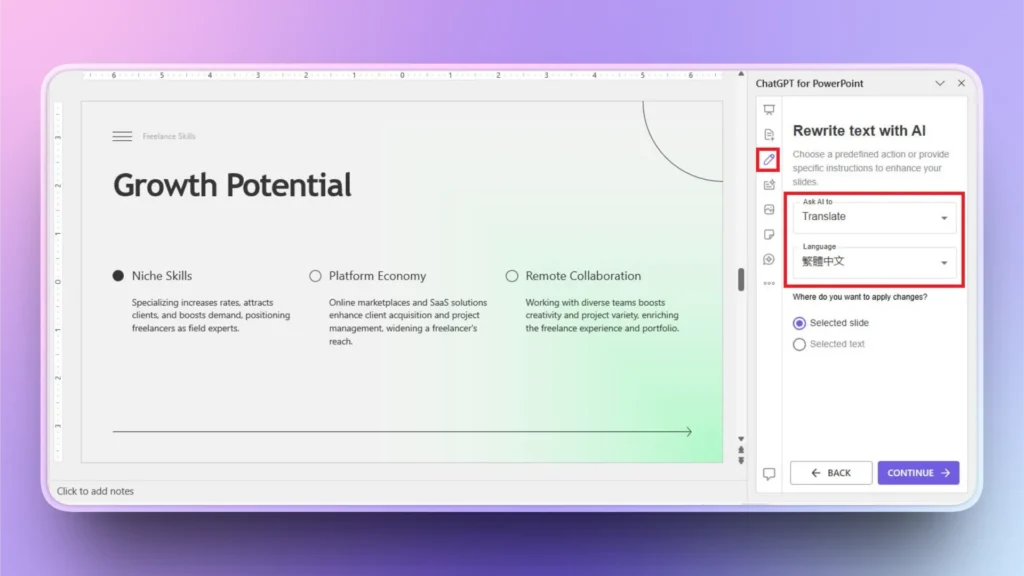
Now, choose an action from the dropdown list. Let’s say we want to translate the text into any other language, select the language for translation, and click Continue.
Step 2: Your Translated Text is Ready
Within a few seconds, you will have the translated text into your desired language. Without using any external tool or website, you can easily translate text into other languages with Twistly.
Troubleshoot: Twistly not Generating Speaker Notes
Sometimes, Twistly might show errors while creating speaker notes. This usually happens when the slide does not have enough text or content.
AI uses the content from the slide to expand speaker notes. If such an error happens, make sure that your slide has enough content. Also, make sure that your device has an active and stable internet connection.
Download Free Trial of Twistly
If you want to try Twistly for free before making the final purchase, you can avail a free trial version of Twistly by clicking the link below. The trial version does not require any credit card information or hidden fees.
The free version is available for a limited time only, and once the trial version has expired, you can upgrade to the premium subscription for a competitive price. Instead of purchasing different tools and apps, buy one add-in and enjoy complete ChatGPT for PowerPoint.
Create PowerPoint
Slides with AI
Build AI-powered presentations from
any prompt, doc, or video


Conclusion
Twistly makes creating speaker notes fast, but it also helps you to refine speaker notes and PPT content. It takes just a few moments. If notes are long, split the slide. Twistly can help split content into multiple slides. There are many other awesome AI features in Twistly that can elevate your PowerPoint experience.











Start Making AI Presentations in Seconds
Instant Access
Begin exploring Twistly’s full suite of features immediately
No Commitments
No credit card required, and you can cancel anytime
Dedicated Support
Our team is here to assist you every step of the way during your trial.